Prepare, save and share a class whiteboard
Written for: Staff who teach a class.
Start with a canvas or imported slides, annotate and save the board, then check sharing and device join status.
Opening a board does not share it to pupil devices. Start sharing deliberately, then check the actual connection and join status.
The examples use a fictional class. Save status matters: Saved on this device is a local copy, not a confirmed school cloud copy or evidence that pupils can join it.
Before you start
Section titled “Before you start”Check the school and class. You need access to Whiteboard and the specific class or lesson context. Register, points, manual assessment and live sharing actions keep their own permissions. A board link does not grant access to unrelated pupil information.
Prepare suitable slides or resources and follow your school’s arrangements for classroom screens and pupil devices. Check that your chosen material is appropriate to share. Keep confidential staff records out of slide content. Use a supported browser with local storage available if you need the device’s recovery copy.
Open the board for the class
Section titled “Open the board for the class”- Open Classes, choose the year/class, tutor group or teaching class, then Whiteboard.
- Check the class named on the launcher. A class-first launcher can show its current lesson context and an available board summary.
- Choose Resume board where offered, or the class’s open/start action for a new board.
- Wait for saved-board loading to finish.
- Check the class status card and whether the board is Not sharing or Sharing.
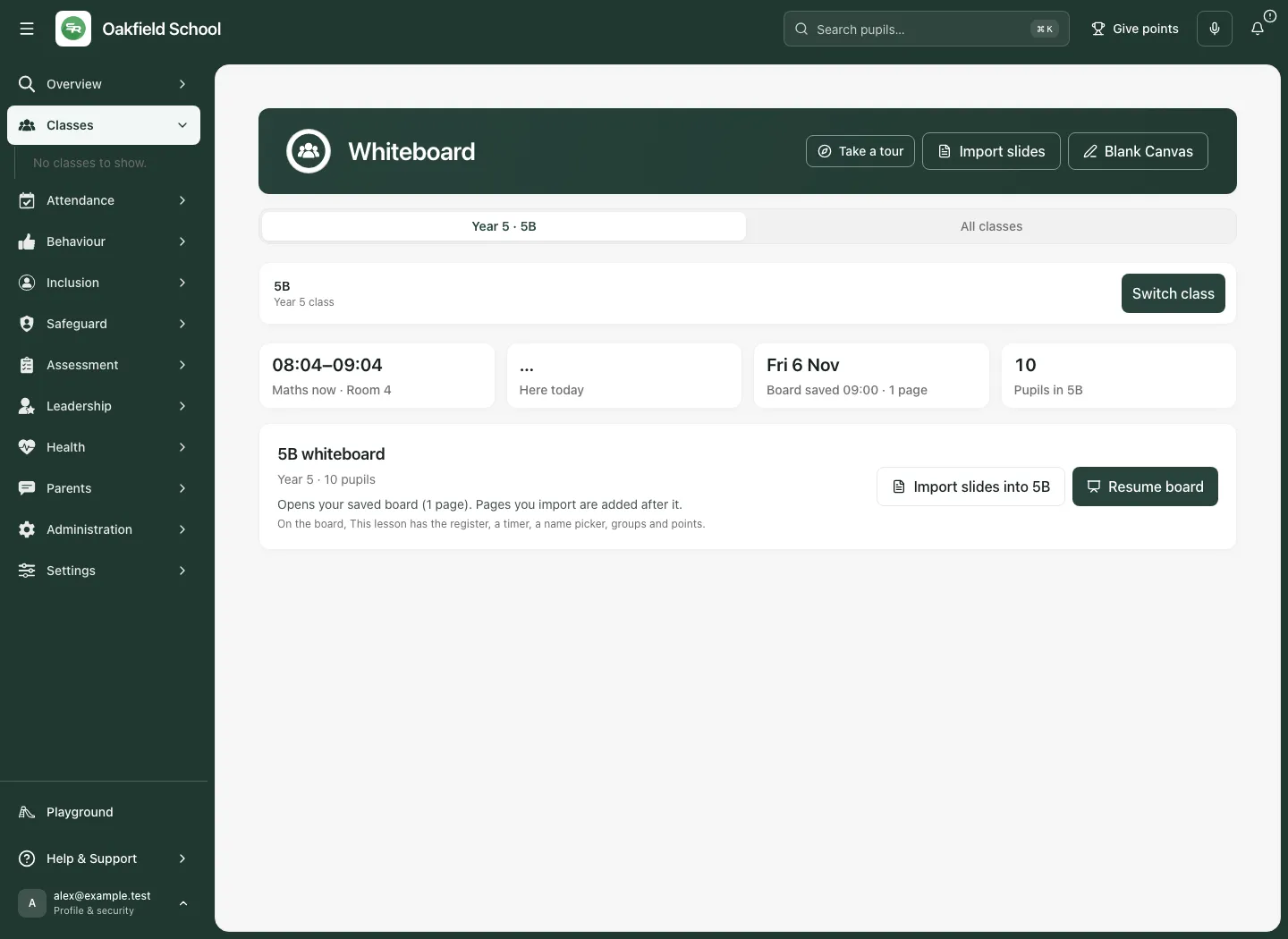
The general launcher can offer Search classes, Blank Canvas and Import slides. A standalone canvas has no class list; choose a class if the lesson needs the roster or authorised manual assessment. A summary saying a previous board exists does not itself prove the latest drawing has been restored; check the opened pages and save status.
Start with a blank page or your slides
Section titled “Start with a blank page or your slides”A new board asks how to begin. Choose Blank canvas for an empty editable page, or Upload to bring in a supported PowerPoint deck. Check the converted slides before teaching. Use Add slides and media for the available import options, including supported image/PDF material where offered.
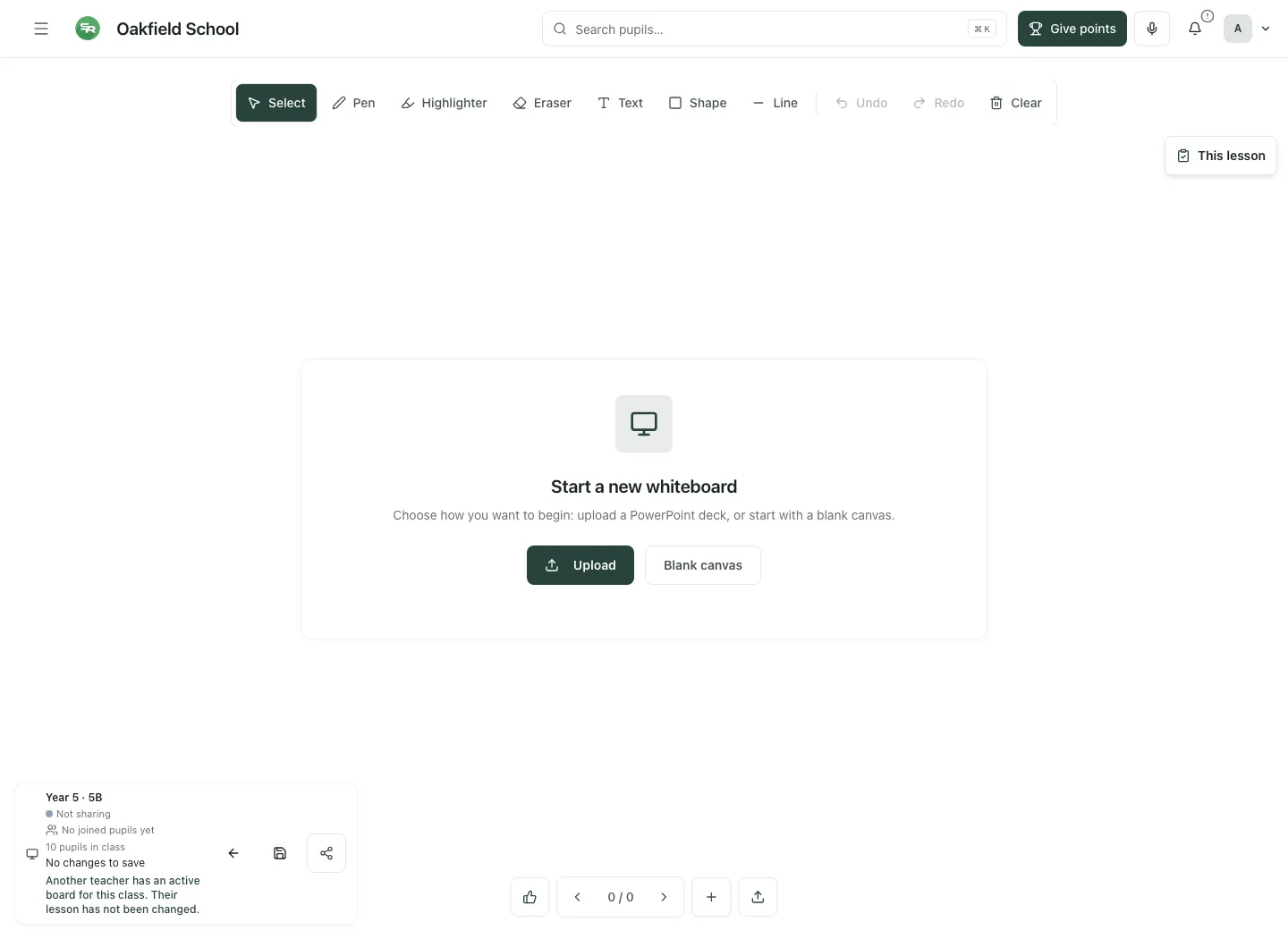
Upload, conversion and save are different stages. Read progress and failure messages. Do not assume an unsupported file, incomplete conversion or failed import has become a usable saved board. Keep the source material available until you have checked the opened result.
Draw and annotate
Section titled “Draw and annotate”- Choose Pen, Highlighter, Text, Shape or Line from the drawing tools.
- Set the available colour and thickness controls for that tool.
- Write or draw on the canvas. Use Select when you want to select and move an object rather than add ink.
- Use Undo or Redo for a recent change.
- Use Eraser for the supported erasing action. Read Clear carefully: Clear all drawings on this slide removes the current slide’s drawings, not an intended new assessment result.
- Check the page and save status before moving on.
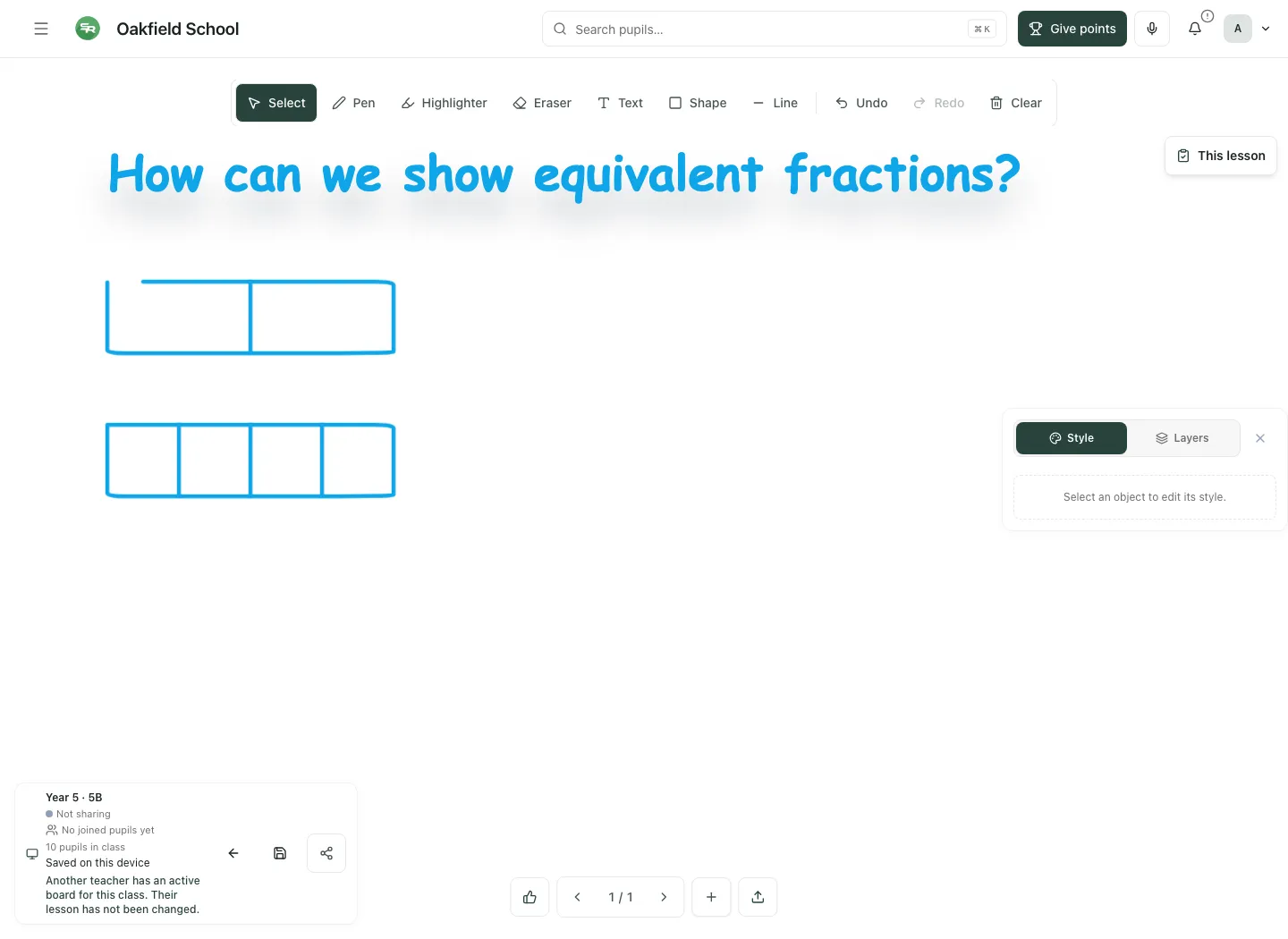
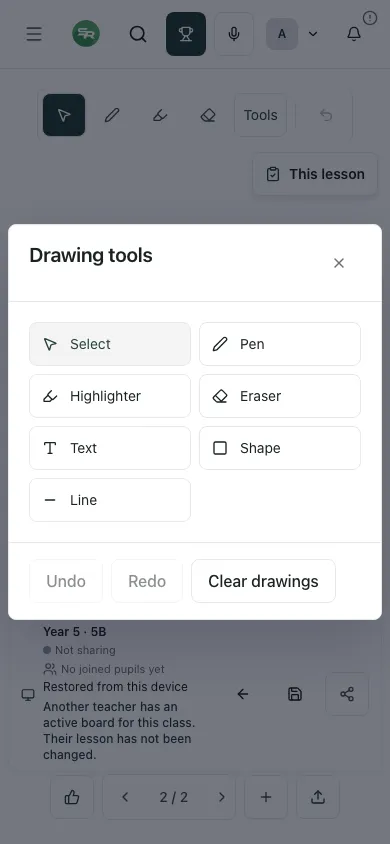
On a phone or compact screen, drawing tools may be folded into their own menu/dialog. Open the tool chooser, select the intended tool and check the active tool before drawing. The same board can look different at different screen sizes; verify the canvas and current page after a resize.
Add and navigate pages
Section titled “Add and navigate pages”Use Previous slide, Next slide and Open slides panel to move through the board. The page indicator shows where you are; it is not evidence that every page has been saved.
- Select Add page or assessment.
- Choose New page.
- Confirm the page count and new blank page.
- Return through the slide controls when you need an earlier annotation.
The add menu also offers Manual teacher assessment where the class roster and permissions support it. Use it for an authorised teacher judgement, checking the pupil and measure. Poll options are explicitly labelled unavailable in the current menu; do not plan a lesson that depends on them being live.
Save and reopen
Section titled “Save and reopen”Student Radar can save after changes, and Save whiteboard requests a save immediately. Wait for Saving to finish and read the result:
- Saved indicates the confirmed save state shown by the board.
- Saved on this device means the local recovery copy is available on this device. It is not confirmation that another device can open the same cloud record.
- Not saved, a save error or an unconfirmed state needs attention before you leave.
- Select Save whiteboard.
- Wait for the final status.
- If only the local copy is confirmed, keep using the same device/account and resolve the cloud issue before relying on a shared copy.
- When reopening, check the expected class, pages and annotations and read Restored from this device where shown.
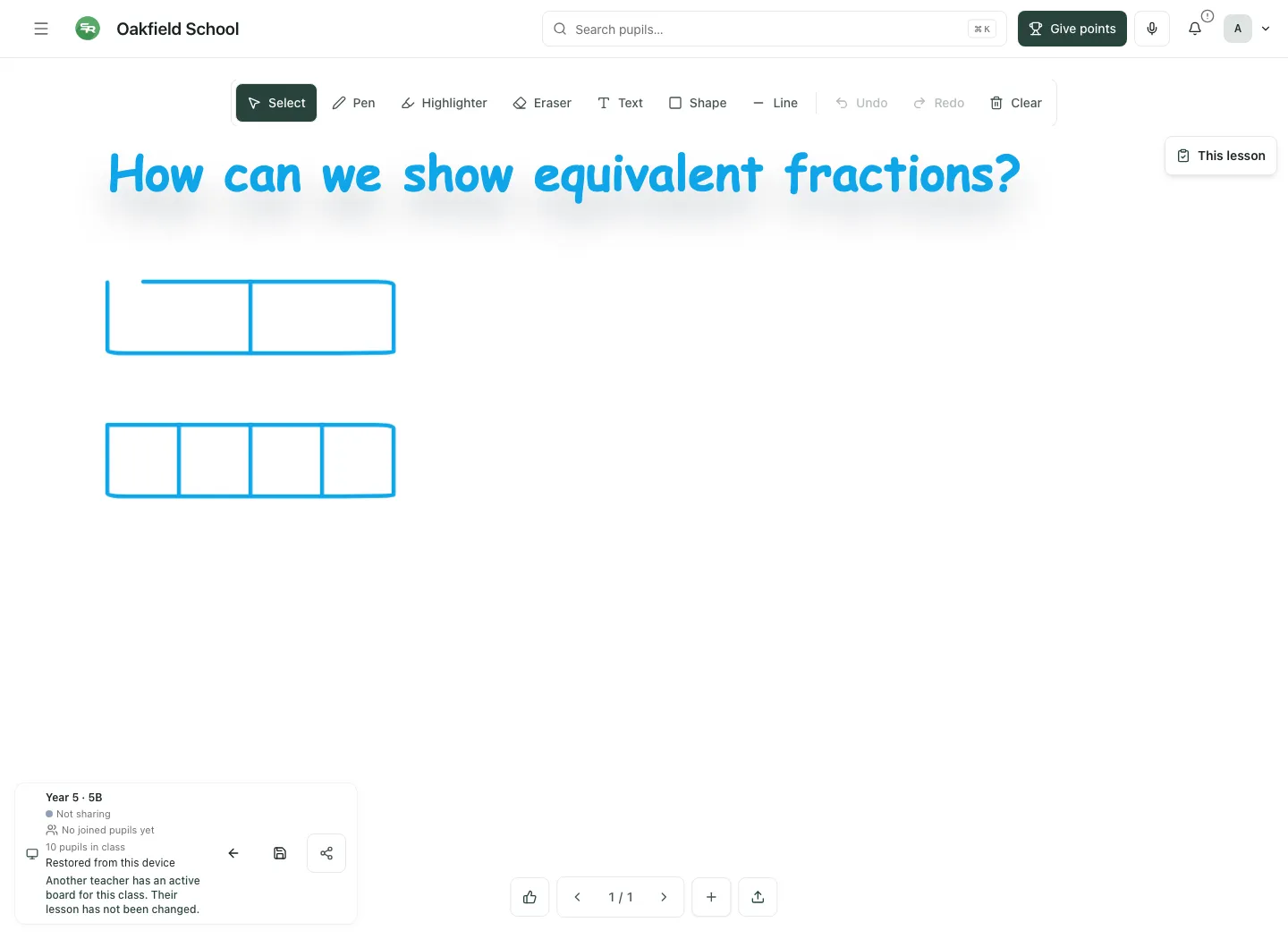
Avoid concurrent tabs editing the same board. If another tab or another owner’s board prevents the intended cloud action, follow the message instead of repeatedly opening copies. A device recovery copy can be lost if browser storage is cleared; it is not a substitute for a confirmed school save.
Use This lesson without losing the board
Section titled “Use This lesson without losing the board”The This lesson panel brings permitted class tools alongside the canvas. It can show the current lesson/room, register context, timer, name picker, groups and points actions.
- Read register availability and session context. An unavailable or unmarked pupil is not automatically present.
- Use the timer’s preset duration and chime controls for the lesson activity.
- Pick a name uses the available eligible class context; check any unavailable-register warning before assuming the pool excludes absent pupils.
- Adjust the number of groups and use Show on board to display the group result.
- Points actions open their own authorised recording flow; check pupil identity and the outcome.
- Use Hide to fold the panel away and reopen This lesson when needed.
The panel is an optional teaching aid; fold it away when you need the full canvas.
These tools support delivery; they do not establish that an attendance mark, points award or assessment was saved just because the panel was opened. Use the corresponding confirmation or authoritative page.
Share to pupil devices deliberately
Section titled “Share to pupil devices deliberately”- Select Share to class on the status card.
- Read Open on pupil devices and the current sharing state.
- Select Start sharing only when the board is ready for pupils.
- Wait for a usable join code or QR link and check the connected state.
- Invite pupils through the code, QR or Copy join link. A pupil can use the supported join route to enter the code.
- Watch the joined-pupil/viewer status; an invitation alone is not proof of a successful connection.
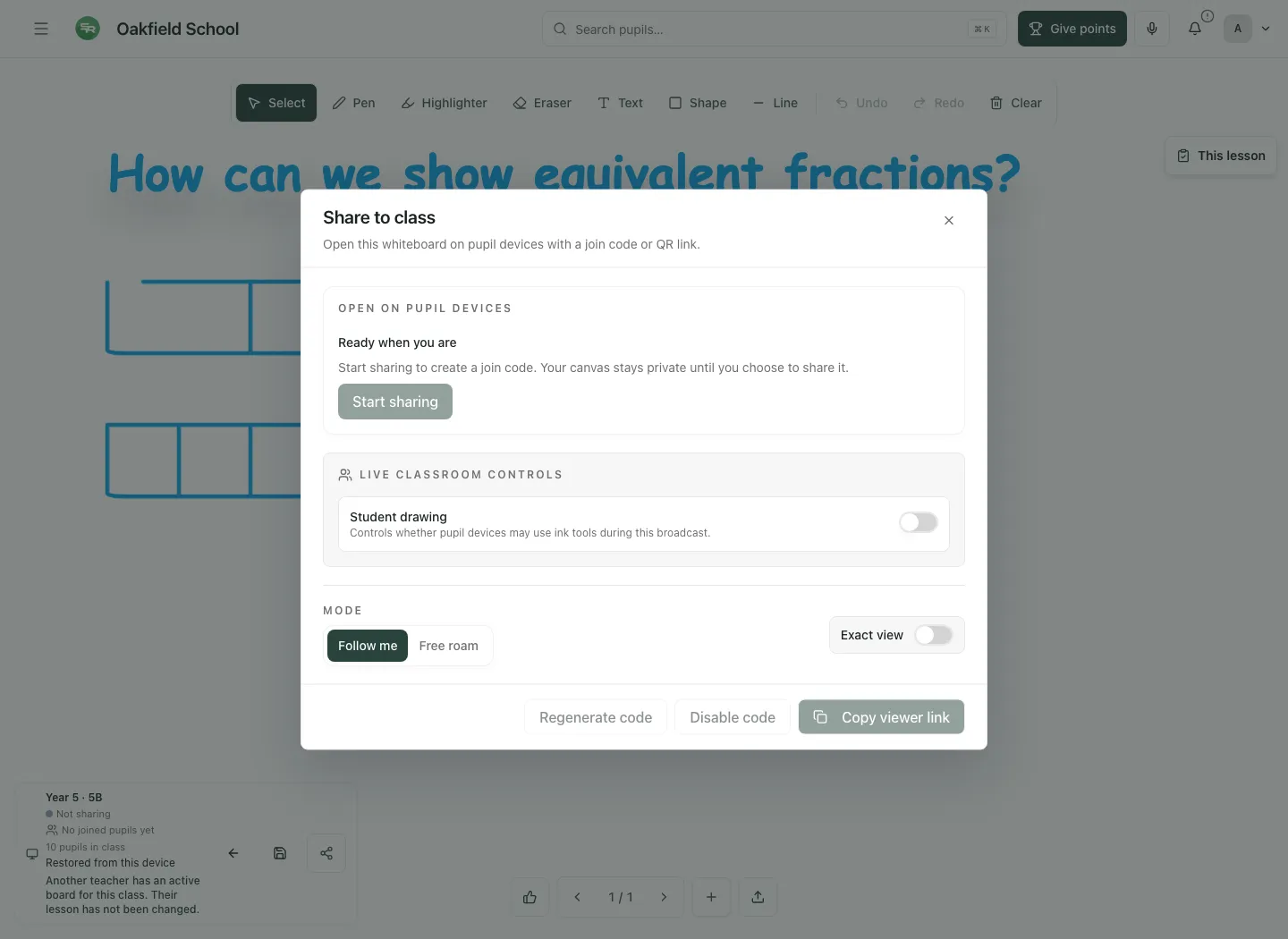
Use Student drawing and Follow me or Free roam only as intended for the activity. Follow me keeps pupils with the teacher’s page; Free roam permits their own navigation. Availability depends on the live session state. Check that a control’s change was accepted rather than treating a local switch as a connected pupil session.
Disable code, Regenerate code, Resume sharing or Stop sharing can appear according to the current state. Disabling a joining code and stopping the session are different actions. Read the resulting state, remove the old code from display when it changes and end sharing when the activity is finished. Do not include live join links in public materials unnecessarily.
Work on a phone and finish the lesson
Section titled “Work on a phone and finish the lesson”The phone layout keeps the board controls available and folds This lesson away when space is limited. Check the page indicator and tool after opening a panel. Use the canvas rather than a screenshot of it when you need to continue editing.
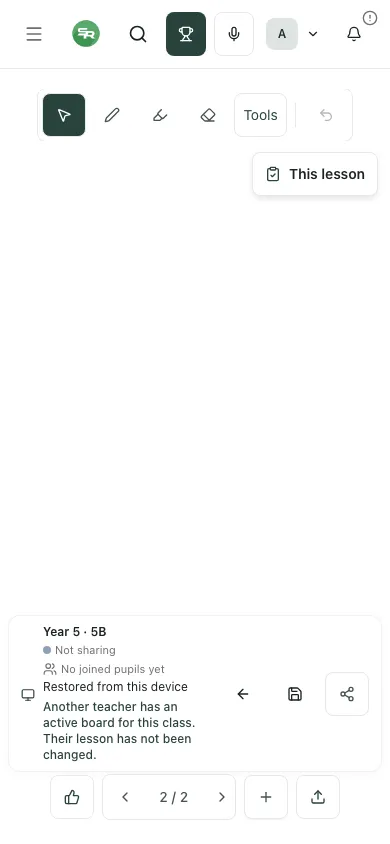
When finished, save, verify the result, stop any live sharing you no longer intend and use Exit whiteboard to return to the launcher. Exiting the page should not be used as a substitute for checking an uncertain save or live-sharing state.
Troubleshooting
Section titled “Troubleshooting”| What you see | What to do |
|---|---|
| Classes could not be loaded | Use Retry. Do not substitute a different class. |
| No classes with a recorded year/class | Ask for a roster check, or use Blank Canvas only if a class list is not needed. |
| Saved board loading or hydration still in progress | Wait; check failure messages before editing the wrong or incomplete board. |
| Saved on this device | Keep the same device/account and resolve cloud saving before relying on a shared copy. |
| Cloud conflict or another tab owns the board | Return to the intended tab or review the ownership message. Do not overwrite another person’s board. |
| Manual assessment unavailable | Choose a permitted class with pupils and check assessment access. |
| Polls unavailable | Use a supported alternative; do not assume the displayed poll labels are active. |
| Join code unavailable or no connected pupils | Check live session state and connection before inviting again. |
| Register context unavailable | Open the authoritative register and check the current session. Do not guess attendance. |
Frequently asked questions
Section titled “Frequently asked questions”Does opening the board share it? No. Start sharing deliberately and confirm the connected session.
Can a device-only save be opened elsewhere? Do not assume so. It is a local recovery copy, not a confirmed cloud save.
Does a standalone canvas have my class roster? No. Choose a class for roster-dependent tools.
Are polls currently available? The add menu explicitly marks polls unavailable. Manual teacher assessment has its own access requirements.
Do panel actions prove recording? No. Check the actual save or delivery outcome for the register, assessment, points or sharing action.