Record exam results
Written for: Senior leaders, headteachers and exams staff who enter and check exam results.
Once an exam is over, record each candidate’s result against the exam in Exams & Assessment Windows. You can type in a score and grade for each candidate, or enter raw marks for each paper and let Student Radar work out the grades from your grade boundaries. To set up the exam and its candidates first, see Schedule an exam and assign candidates.
Open the exam
Section titled “Open the exam”- In the sidebar, open Assessment, then Exams.
- Choose Assessment Windows.
- In the timetable, click the exam’s name. Type in Search exam, subject, room… if you need to find it.
The exam opens. Results In at the top shows how many candidates have a result so far, and the Result column in Candidates & arrangements shows each candidate’s score and grade, or Pending if there isn’t one yet.
Record a candidate’s result
Section titled “Record a candidate’s result”- Scroll to Record result.
- Choose the pupil in Candidate.
- Type their Score (%), their Grade, or both. The score is a percentage from 0 to 100. The grade can be a number or a letter, such as 7 or A.
- Click Save result.
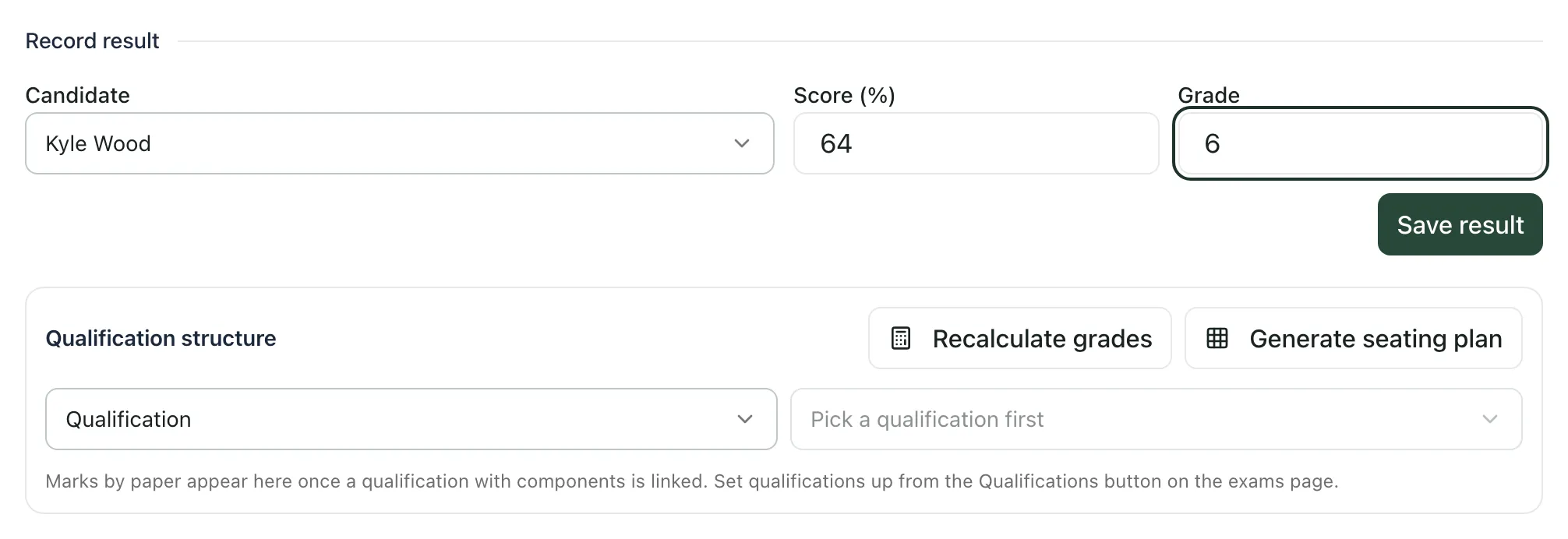
You’ll see “Result saved” and the candidate’s result appears in the list. The boxes clear, ready for the next candidate. Choose the next pupil in Candidate and repeat.
Enter marks by paper instead
Section titled “Enter marks by paper instead”If an exam has more than one paper, you can enter each candidate’s raw mark for each paper and have Student Radar calculate their grade.
Set up the qualification once
Section titled “Set up the qualification once”- On the exams page, click Qualifications.
- Under Qualifications, type the subject in New qualification and the exam board in Board, then click Add.
- Under Components (papers), add each paper with its Code, Name, Max raw mark and Weight, then click Add paper.
- Under Overall grade boundaries, add the Min mark for each Grade in the exam Series, such as June 2026, then click Add boundary.
A candidate’s total is their raw mark multiplied by the weight, added up across the papers. To change a qualification later, choose it in Edit qualification.
Enter the marks
Section titled “Enter the marks”- Open the exam and scroll to Qualification structure.
- Choose the qualification in Qualification, then choose which paper this exam is in the next box.
- Type each candidate’s raw mark in the column for the paper. Each mark is saved when you move out of the box.
- When the marks are in, click Recalculate grades.
You’ll see how many grades were worked out and which boundary series was used.
Check which results are missing
Section titled “Check which results are missing”On the exams page, click the Results recorded card. It opens the results for the exam window named under the cards. Open a different exam first if you want to check that one.
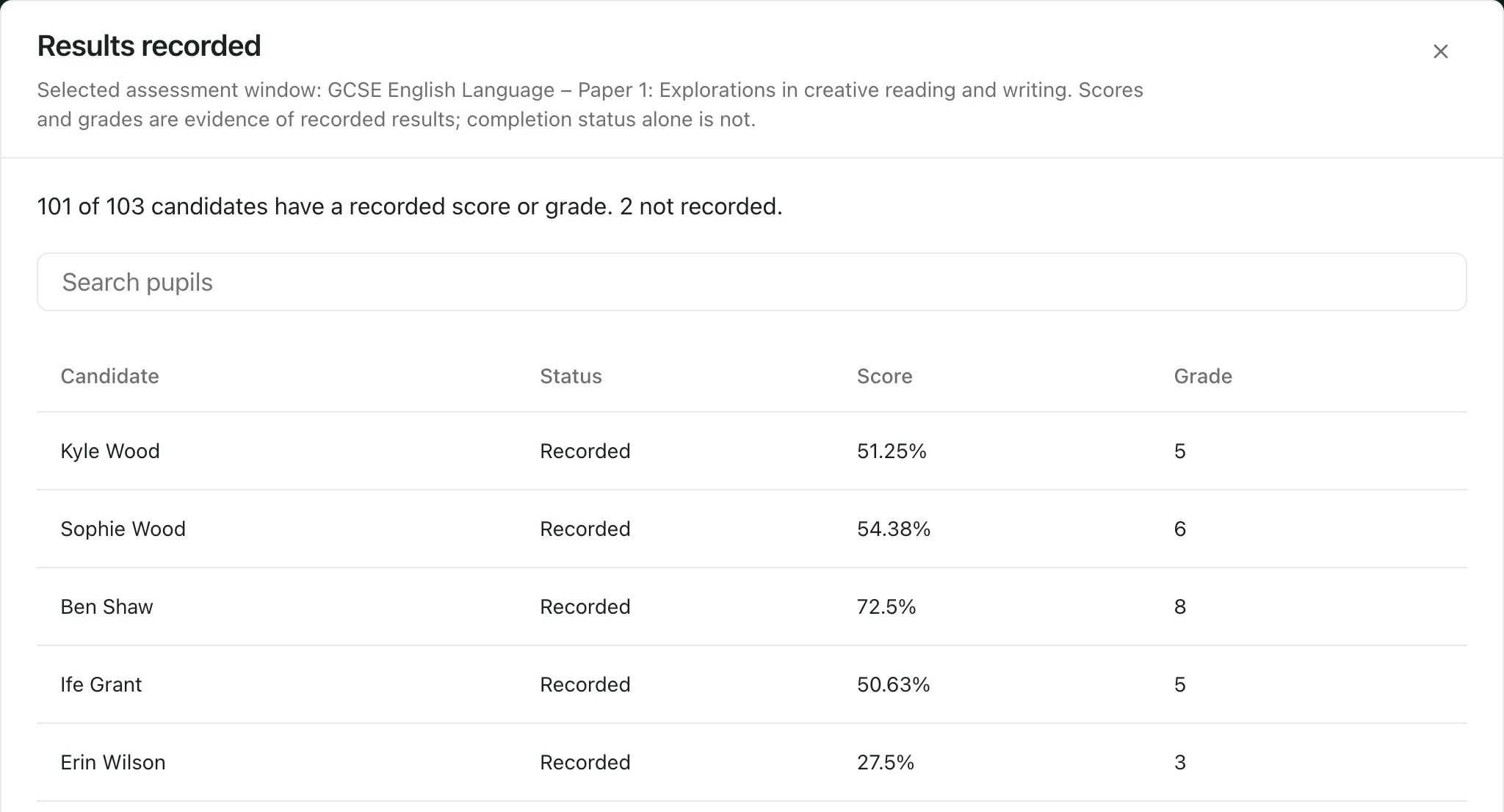
The summary tells you how many candidates have a recorded score or grade and how many don’t. Each candidate is shown as Recorded or Not recorded. Type in Search pupils to find a candidate. Only a score or a grade counts as a result: a candidate marked as having completed the exam still shows as Not recorded until their result is entered.
Who can record results
Section titled “Who can record results”You need permission to record exam results, and Student Radar checks it for each pupil when you save. By default, results can be recorded by teachers, DSLs, headteachers and administrators. Other roles, including senior leaders, SENCos and office staff, see results but can’t enter them. Schools can change who has access, so if Save result stays greyed out, ask your Student Radar administrator.
If something doesn’t work
Section titled “If something doesn’t work”| What you see | What to do |
|---|---|
| “Either score or grade must be provided” | Type a score, a grade or both, then click Save result again. |
| “Select a candidate first.” | Choose the pupil in Candidate. |
| “Could not save the result. Your entries have been kept.” | Check your connection and click Save result again. |
| “Exam details are unavailable. Try again to check readiness.” | Click Retry exam details. |
| “Marks could not be loaded. Reload them before entering a mark.” | Click Reload marks. |
| “The mark is outside the current paper limits. Reload the saved marks and check the paper.” | The mark is higher than the paper’s Max raw mark. Check the mark and the paper you chose. |
| “This mark changed. Reload the saved marks to review the latest values before trying again.” | Someone else changed the mark. Click Reload marks and check it before you change it. |
| “No grades were updated” | Check that the exam is linked to a paper, the marks are in and the qualification has grade boundaries. |
| “Read-only access. Contact an administrator to schedule or edit exams.” | Your account can’t change exams. Ask your Student Radar administrator. |