Get ready for inspection
Written for: Headteachers, senior leaders and governors preparing for inspection.
The Inspection Hub brings your self-evaluation, school priorities and evidence together in one place, so you can see what’s in good shape and what needs work before an inspection. It also lets you plan pupil sampling: reviews of individual pupils’ experience that test your evaluation against what pupils actually receive. The hub organises the school’s own records. It doesn’t predict or grade an inspection.
Open the Inspection Hub
Section titled “Open the Inspection Hub”- In the sidebar, open Leadership, then Strategy & assurance.
- Choose Inspection Readiness. The page is called Inspection Hub.
Buttons at the top take you to Open SEF, School priorities and, if you can open it, Headteacher’s report. The hub has four tabs: Overview, Evidence, Pupil sampling and Inspection day. For the last of these, see Log inspector requests on the day.
Check the school review
Section titled “Check the school review”The Overview tab opens on School review.
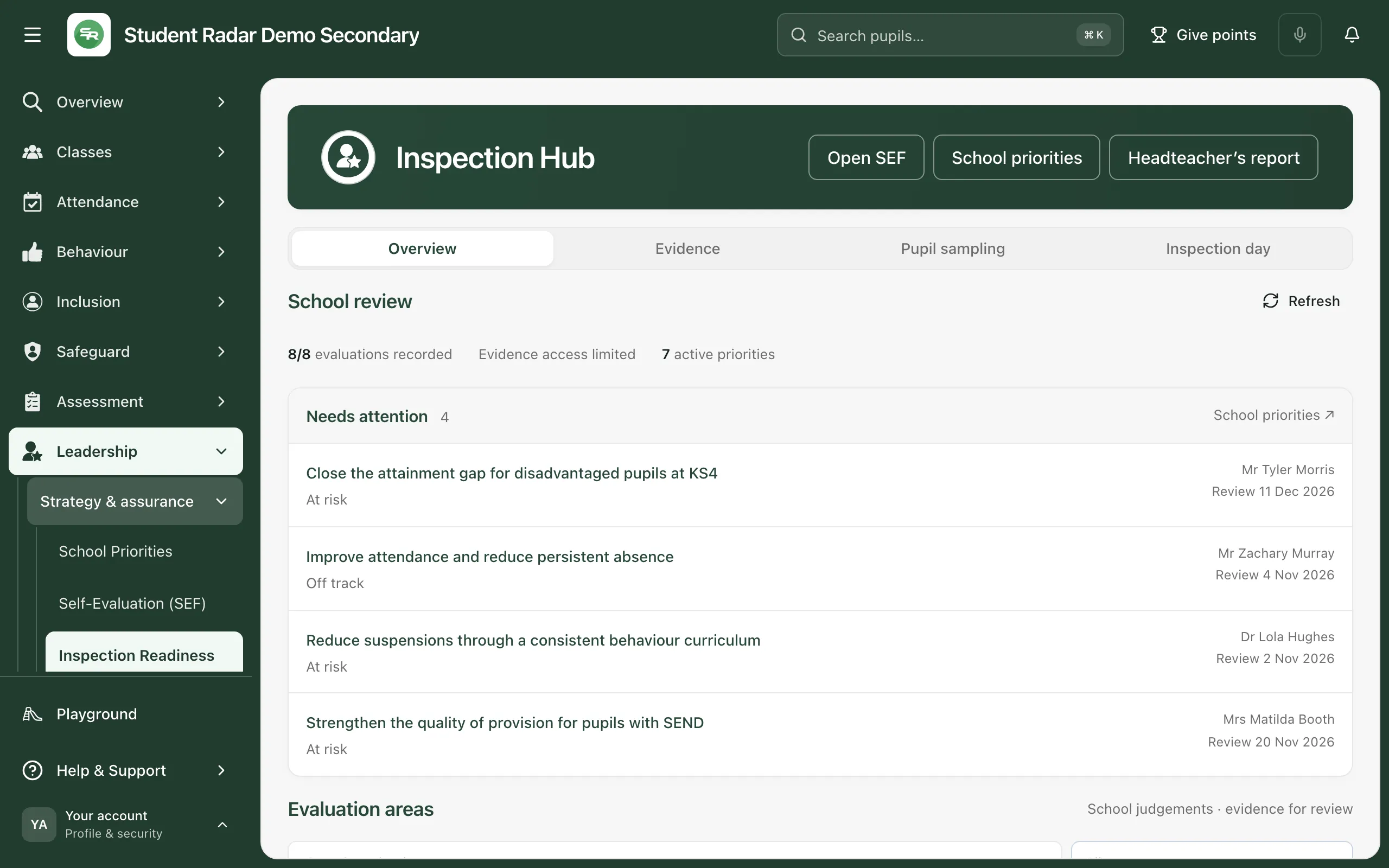
The summary line shows how many evaluation areas have a recorded judgement, how many evidence records are linked, how many areas have evidence to check and how many priorities are active. Click Refresh to load the latest figures.
Needs attention lists school priorities that need following up: those without an owner or a review date, with an overdue review, or that are at risk or off track. Click a priority to open it in School Priorities, and click Show all to see the full list.
Work through the evaluation areas
Section titled “Work through the evaluation areas”Further down, Evaluation areas lists each area of your school’s framework with the school’s evaluation, the state of its evidence and when it was last saved.
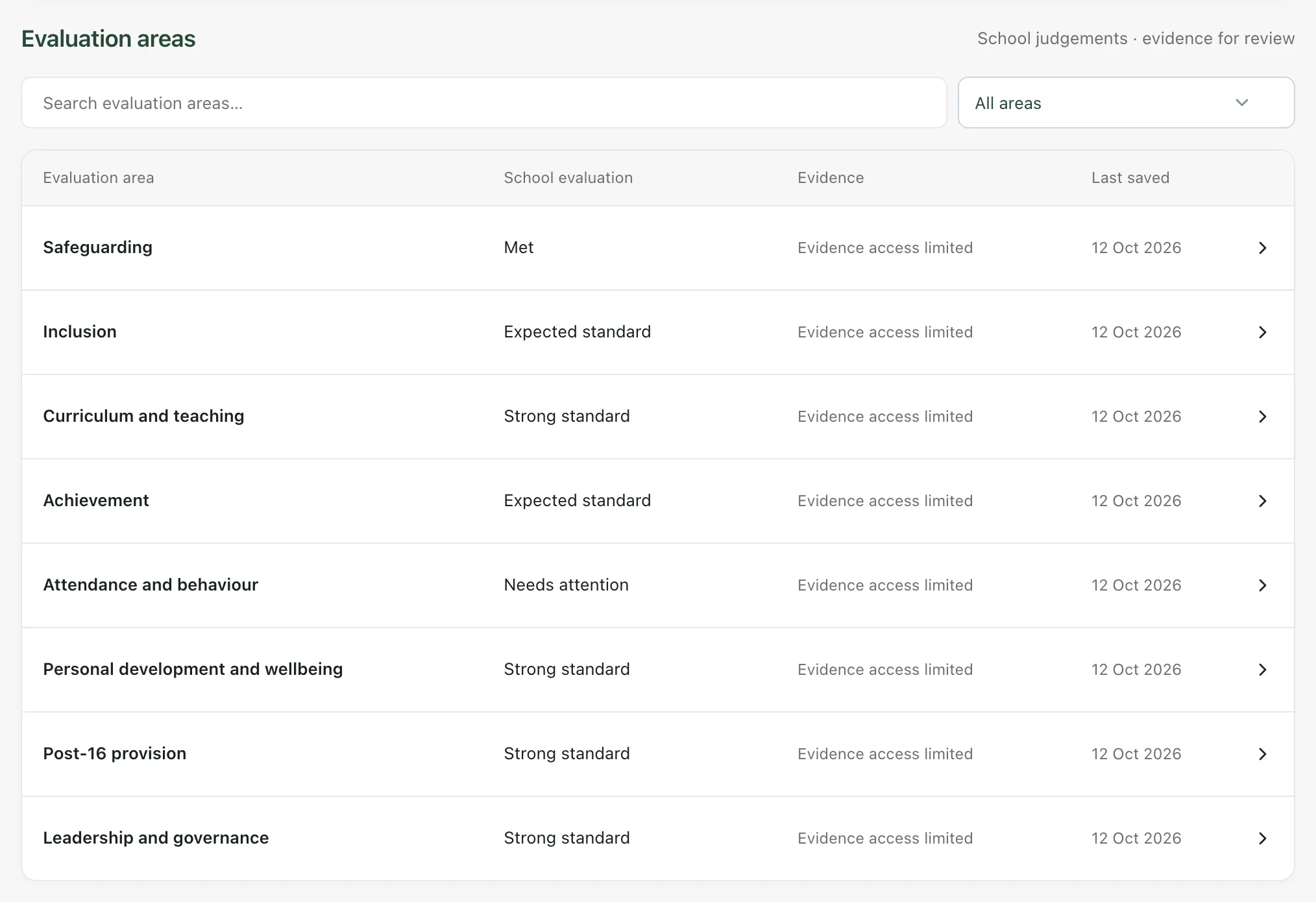
- Use the filter to show Evidence to check or With improvement priorities, or search for an area by name.
- Click an area to expand it. You’ll see its Evaluation summary, Evidence narrative and Improvement work: the priorities linked to it, with their owner and review date.
- Click Review this area in the SEF to update the evaluation, or View evidence to see the evidence linked to it.
An area with evidence to check might have no evidence linked, only a written narrative, or evidence that can’t be opened any more. Use the list to decide where your evaluation needs more support. A linked record supports your review. It doesn’t establish quality or an inspection judgement.
Review the evidence
Section titled “Review the evidence”The Evidence tab shows the Evidence index: every record linked to your self-evaluation.
- Search for evidence, or choose an evaluation area to narrow the list.
- Click View evidence to see a record’s details.
- Click Open source ↗ or Download file to open the record itself.
To link more evidence, open the area in the SEF. See Write your self-evaluation.
Plan pupil sampling
Section titled “Plan pupil sampling”Pupil sampling helps you test your evaluation against individual pupils’ everyday experience. Each sample is a short piece of work with an owner and a review date.
- Open the Pupil sampling tab.
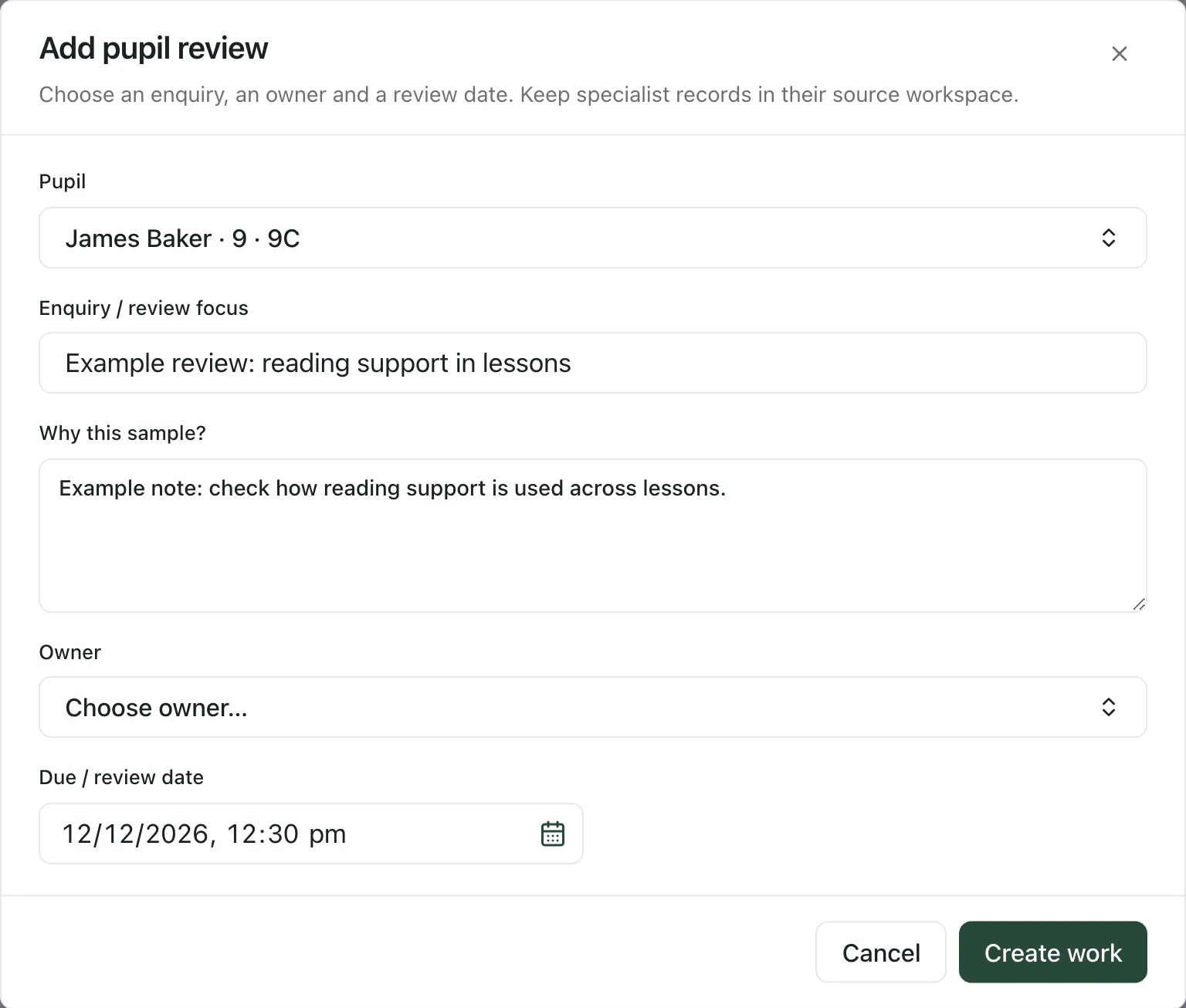
- Click Add pupil review.
- Click the Pupil box, type at least two letters of the pupil’s name, then choose them.
- Under Enquiry / review focus, say what this review will look at.
- Under Why this sample?, explain what the pupil’s journey will help you check. Don’t copy sensitive case details here.
- Click the Owner box and choose the member of staff who’ll carry out the review.
- Set the Due / review date.
- Click Create work.
The review appears in the list with its pupil, owner, due date and status. Open Questions to guide a review under the list for prompts to use. To update a review, click Open work, change the Status, write a Review update / outcome and click Save changes. You need to record an outcome before you can mark it Completed or Cancelled.
Keep specialist records, such as safeguarding or SEND records, in their own part of Student Radar. Open the pupil’s record from the review to look at them.
Who can do what
Section titled “Who can do what”Staff and governors who can open the Inspection Hub can see the school review. Adding and updating pupil reviews needs permission to manage the school’s self-evaluation. By default, headteachers, senior leaders, DSLs, SENCos and administrators have it. Other users see “You can review this work. Managing it requires the school’s SEF management permission.” when they open a piece of work. Schools can change who has access.
If Evidence access limited appears in the summary or an area, your account can see the school’s judgements but not the evidence behind them. That doesn’t mean the evidence is missing.
If something doesn’t work
Section titled “If something doesn’t work”| What you see | What to do |
|---|---|
| “Inspection context is unavailable. No records have been treated as empty.” | Click Retry context. |
| “School priorities could not be loaded. The SEF remains available.” | Click Retry priorities. |
| “Evidence details are not available with your current access. This does not mean evidence is missing.” | Your account can’t see the evidence index. Ask your headteacher if you need it. |
| “No evidence linked in this view. Open an evaluation in the SEF to link an existing record.” | Open the area in the SEF and add evidence. |
| “Add a title, owner and due date, and choose a pupil for a sample review.” | Fill in every field, then click Create work again. |
| “Record the outcome or reason before closing this work.” | Write a Review update / outcome, then save. |
| “That owner is no longer available. Choose a current member of staff.” | Choose a different owner. |
| “Someone has updated this record. Close the editor and refresh before making further changes.” | Close the window, click the refresh button and open the work again. |