Record Early Learning Goal judgements
Written for: Nursery and Reception teachers.
Use the EYFS Checklist to record where each Nursery and Reception child is against the 17 Early Learning Goals. Each row is a child and each column is a goal, grouped by area of learning. You click a cell to record a judgement, and it’s saved straight away.
Open the checklist for your class
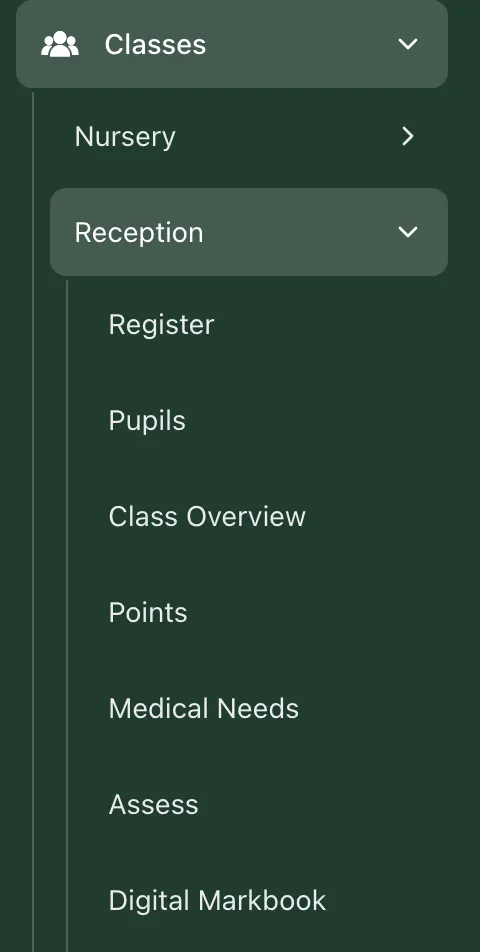
Section titled “Open the checklist for your class”- In the sidebar, click Classes.
- Click Nursery or Reception, then your class if your school lists classes under it.
- Click Assess.
The checklist opens with only the children in that class, and the name of the class is shown above the grid. For Nursery and Reception classes, Assess always opens this checklist rather than the assessment grid used for older year groups.
You can also open it from the sidebar: click Assessment, then EYFS, then EYFS Assessment. This shows every Nursery and Reception child you can access. Use the year group box (All EYFS, Nursery 1, Nursery 2 or Reception) and the class box (All classes) to narrow it down.
Read the grid
Section titled “Read the grid”Each column is headed by its area of learning and the goal’s code:
| Area | Goals |
|---|---|
| Communication & Language | CL1, CL2 |
| Physical Development | PD1, PD2 |
| PSED | PSE1, PSE2, PSE3 |
| Literacy | LIT1, LIT2, LIT3 |
| Maths | M1, M2 |
| Understanding the World | UW1, UW2, UW3 |
| Expressive Arts & Design | EAD1, EAD2 |
In a narrow window the area names are shortened, for example C&L and UW.
Each cell shows the child’s latest judgement for that goal. The Status key above the grid explains the letters:
| Cell | Judgement |
|---|---|
| . | Not yet observed |
| E | Emerging |
| D | Developing |
| S | Secure |
Hover over any cell to see the goal in full: its name, what the goal describes, the four judgements and any note recorded for that child. A secure judgement is the expected level for the goal.
Above the key, four cards sum up the children shown:
- Secure judgements: the share of the cells shown that are secure.
- Emerging judgements: how many cells shown are emerging.
- Not yet observed: how many cells shown have no judgement yet.
- Children shown: how many children are in the grid.
Record a judgement
Section titled “Record a judgement”- Find the child’s row and the goal’s column. Hover over the cell to check the goal’s wording.
- Click the cell. Each click moves the judgement on one step: Not yet observed, then Emerging, Developing, Secure, and back to Not yet observed.
- Stop when the cell shows the judgement you want.
Every click is saved as soon as you make it. There’s no save button. If you click past the judgement you want, keep clicking until you come round to it again; each step along the way is saved too.
Student Radar keeps one observation per child, per goal, per day. If you change the same goal again on the same day, that day’s observation is updated. A change on another day is recorded as a new, dated observation, so you can see how a child’s judgements have changed over the year.
The checklist records your professional judgement. It doesn’t make the judgement for you, so use what you’ve seen the child do, alongside your setting’s moderation.
Add a note to a judgement
Section titled “Add a note to a judgement”- Right-click the cell. You can also hover over it and click Add note, or Edit note if the child already has one.
- In Observation notes, type what you saw.
- Click Save.
The note is saved with the cell’s current judgement, which doesn’t change. A small mark in the top-right corner of a cell shows that a note has been recorded. Hover over the cell to read it.
You can also attach a photo or a document as evidence. See Add evidence to an EYFS observation.
Focus on the children who need it
Section titled “Focus on the children who need it”Use the boxes above the grid:
- Search child or class…: type part of a child’s name or a class name.
- All areas: show the goals for one area of learning only.
- All statuses: show only children with at least one goal at a chosen judgement. Choose Gaps and emerging to find children with goals that are not yet observed or emerging.
The grid shows 40 children at first. Click Show more or Show all below it to see the rest.
See a child’s judgements over time
Section titled “See a child’s judgements over time”In the sidebar, click Assessment, then EYFS, then Profiles & Reports. On the Child portfolio tab, choose the child. You’ll see their judgements by area, their recent observations by date and any evidence attached.
- Who can record judgements: teachers, SENCos, safeguarding leads, senior leaders and headteachers can open the checklist by default. Teaching assistants can’t. You can only record judgements for children your account has assessment access to. Schools can change who has access.
- Tour: click Take a tour at the top of the checklist for a step-by-step guide.
If something doesn’t work
Section titled “If something doesn’t work”| What you see | What to do |
|---|---|
| “Failed to save observation” | The judgement or note wasn’t saved. Check your connection and try again. If it keeps happening, ask your school’s Student Radar administrator to check your assessment access. |
| “No EYFS pupils found” | No Nursery or Reception children match. Choose another class from the sidebar, or set the year group box to All EYFS. If there are still none, ask your administrator to check year groups. |
| “No children match these filters” | Clear the search box and set the boxes back to All areas and All statuses. |
| “Choose a smaller class selection” | Choose a single Nursery or Reception class or year group from the sidebar. |
| “Unable to resolve the selected class” | Click Reload classes, or choose another class from the sidebar. |
| “Unable to load checklist” | Reload the page. If it keeps happening, ask your school’s Student Radar administrator. |