Run first aid equipment checks
Written for: All school staff who check first aid kits and equipment.
Record each inspection of a first aid kit, defibrillator or other first aid equipment in Student Radar. A check records where the equipment is, who checked it, what was checked, any problems found and when it’s next due. Problems stay on an outstanding list until someone records what was done about them.
Open equipment checks
Section titled “Open equipment checks”- In the sidebar, open Health, then First Aid & Incidents, and choose First Aid.
- Click the Equipment checks card, or Review equipment on it.

The number on the card is how many recent checks were flagged for action. If the card shows “School-wide access required”, your account can’t open the school’s equipment records. Ask your school’s Student Radar administrator.
Read the checks
Section titled “Read the checks”The Equipment Checks window opens.
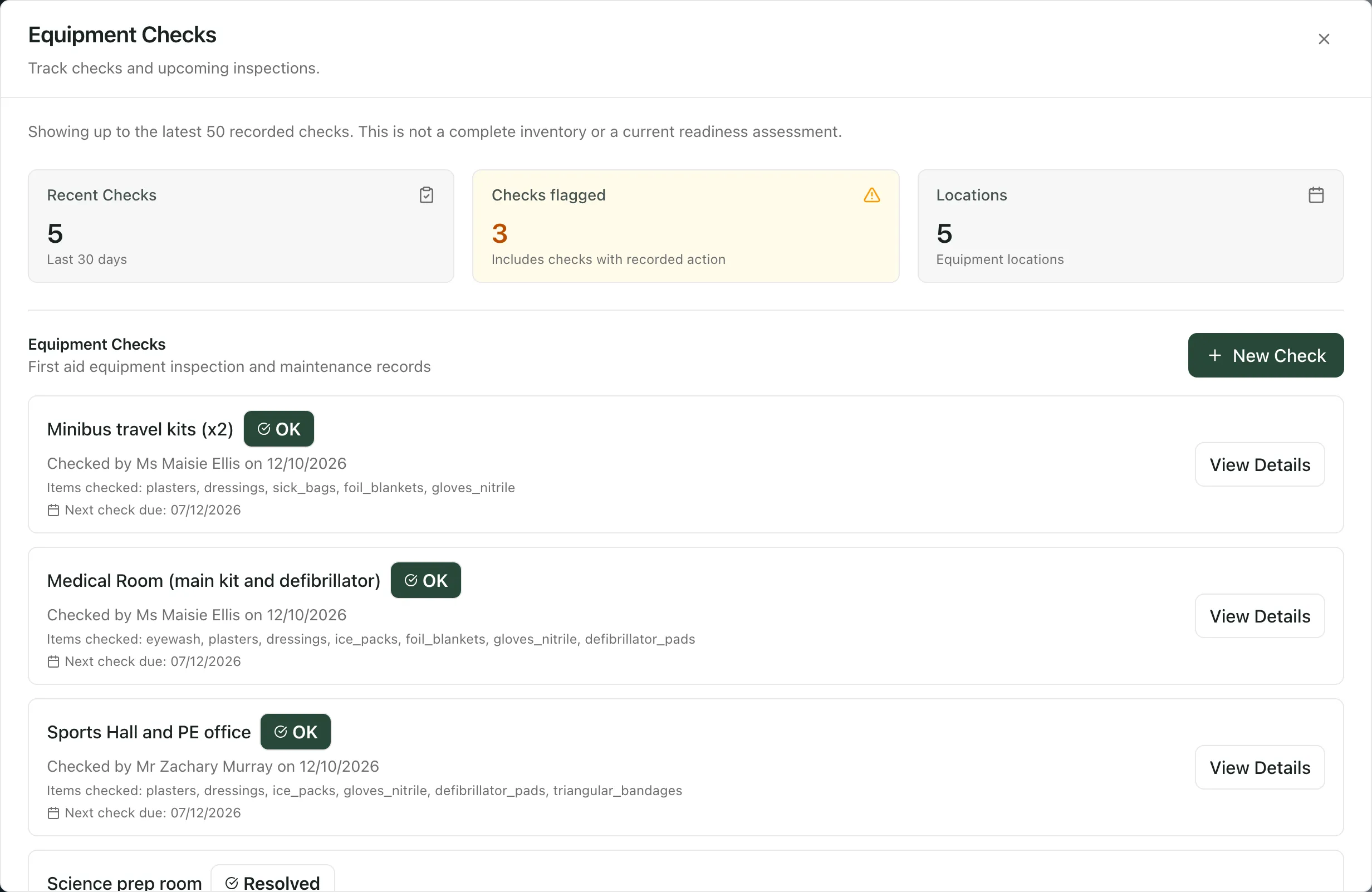
- Recent Checks counts the checks recorded in the last 30 days.
- Checks flagged counts checks marked as needing action, including ones that have since been dealt with.
- Locations counts the places where checks have been recorded.
Below these, each check shows the location, who checked it and when, the items checked, any issues and action taken, and the Next check due date. Its label shows whether it’s OK, needs action (Action Required) or has been Resolved. Equipment Locations shows how many checks each location has had, and Outstanding Actions lists the issues still waiting for action.
The window shows only the latest recorded checks. It isn’t a complete inventory of your equipment or a statement that everything is ready to use.
Record a check
Section titled “Record a check”- Click New Check. If no checks have been recorded yet, click Record Check.
- Check the Date.
- Enter the Location, such as where the kit is kept.
- Enter your name in Checked By.
- Under Items Checked, tick each item you checked, such as First Aid Kit, Defibrillator or Gloves.
- In Issues Found, describe anything missing, out of date or damaged.
- If something needs doing, tick Action Required. If you’ve already put it right, say what you did in Action Taken.
- Choose the Next Check Due date.
- Click Save.
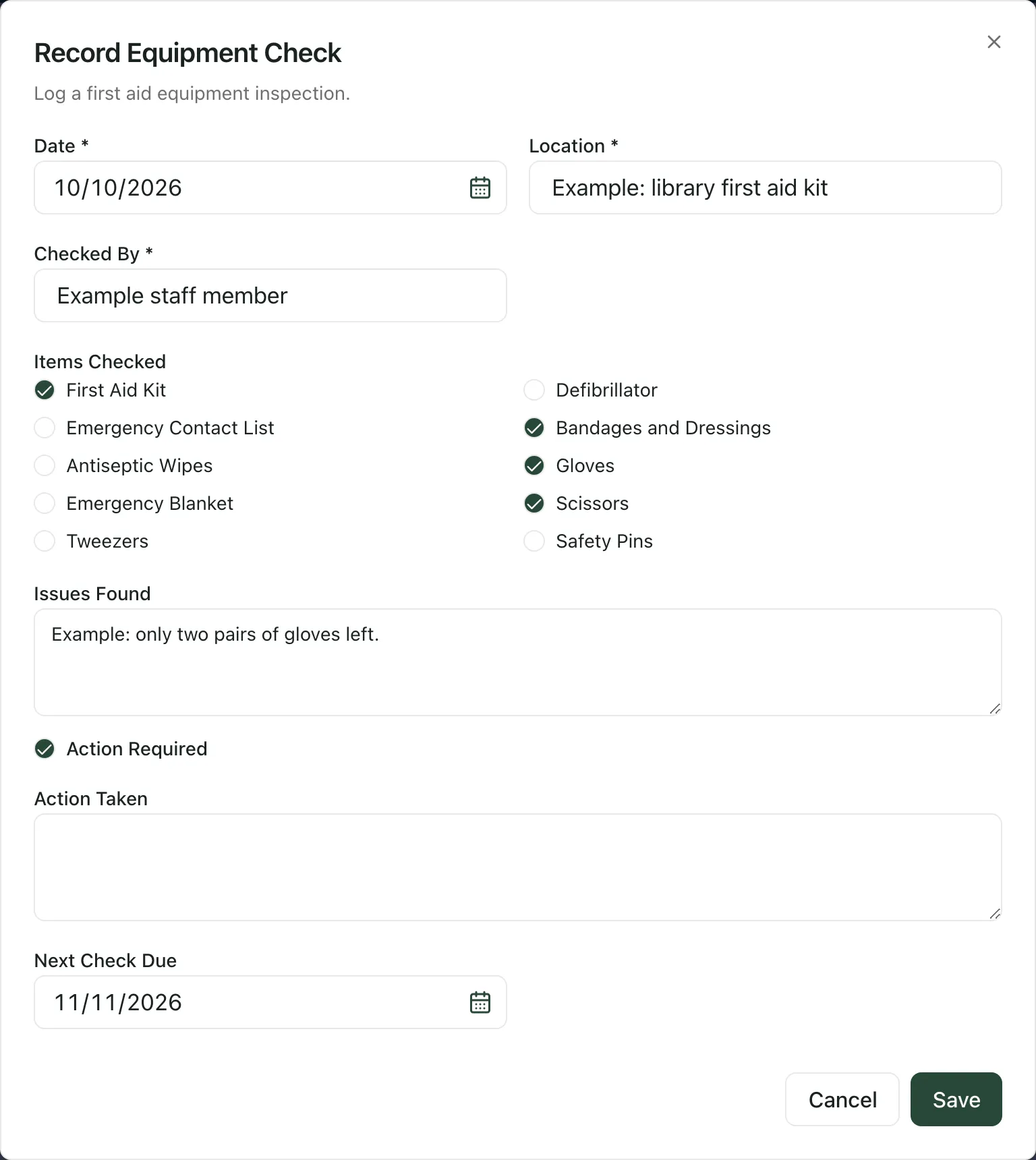
The check appears in the list. If you ticked Action Required and left Action Taken empty, it’s marked Action Required and appears under Outstanding Actions.
Resolve an issue
Section titled “Resolve an issue”- Under Outstanding Actions, click Resolve Issue. You can also click Resolve on the check itself.
- The Update Equipment Check form opens with the check’s details. In Action Taken, record what was done, such as restocking the kit.
- Click Update.
The check no longer needs action and drops off Outstanding Actions.
- Check the date: the Date is filled in for you, but just after midnight in summer it can show the previous day. Always check it before you save.
- Items list: the Items Checked list is fixed. If you checked something that isn’t on it, mention it in Issues Found.
- First aiders and rota: the other two cards on the First Aid page open your first aiders’ qualification records and this week’s duty rota. To set up who responds to first aid requests, see Set up the first aid on-call rota.
- Tour: click Take a tour on the First Aid page for a guide to the whole page.
If something doesn’t work
Section titled “If something doesn’t work”| What you see | What to do |
|---|---|
| “School-wide access required” | Your account can’t open the school’s equipment records. Ask your school’s Student Radar administrator. |
| “No equipment checks” | Nothing has been recorded yet. Click Record Check to add the first one. |
| “Failed to save equipment check” | Your check wasn’t saved. Make sure Date, Location and Checked By are filled in, then try again. |
| “Cannot save check without a valid school.” | Refresh the page, or sign out and back in, then try again. |
| View Details doesn’t open anything | Everything recorded for the check is already shown on its row. |