Award points to a pupil, group or class
Written for: Staff who teach or support a class.
The Points page for a class shows every pupil as a tile with their positive points total. From there you can recognise one pupil, a few pupils, a group or the whole class in a couple of clicks, and record a needs-work observation privately. The categories and point values come from your school’s own behaviour settings.
Open Points for your class
Section titled “Open Points for your class”- In the sidebar, click Classes.
- Choose the class:
- In a secondary school, click Tutor groups, then the year group and the tutor group. For a subject class, click Teaching classes, then the subject and the class.
- In a primary school, click the year group, then the class.
- Click Points.
The Award Points page opens with the class and its number of pupils at the top. The number on each tile is the pupil’s positive points total. The line under the class name shows the date the totals count from, and that they include awards made in Student Radar and CSV imports.
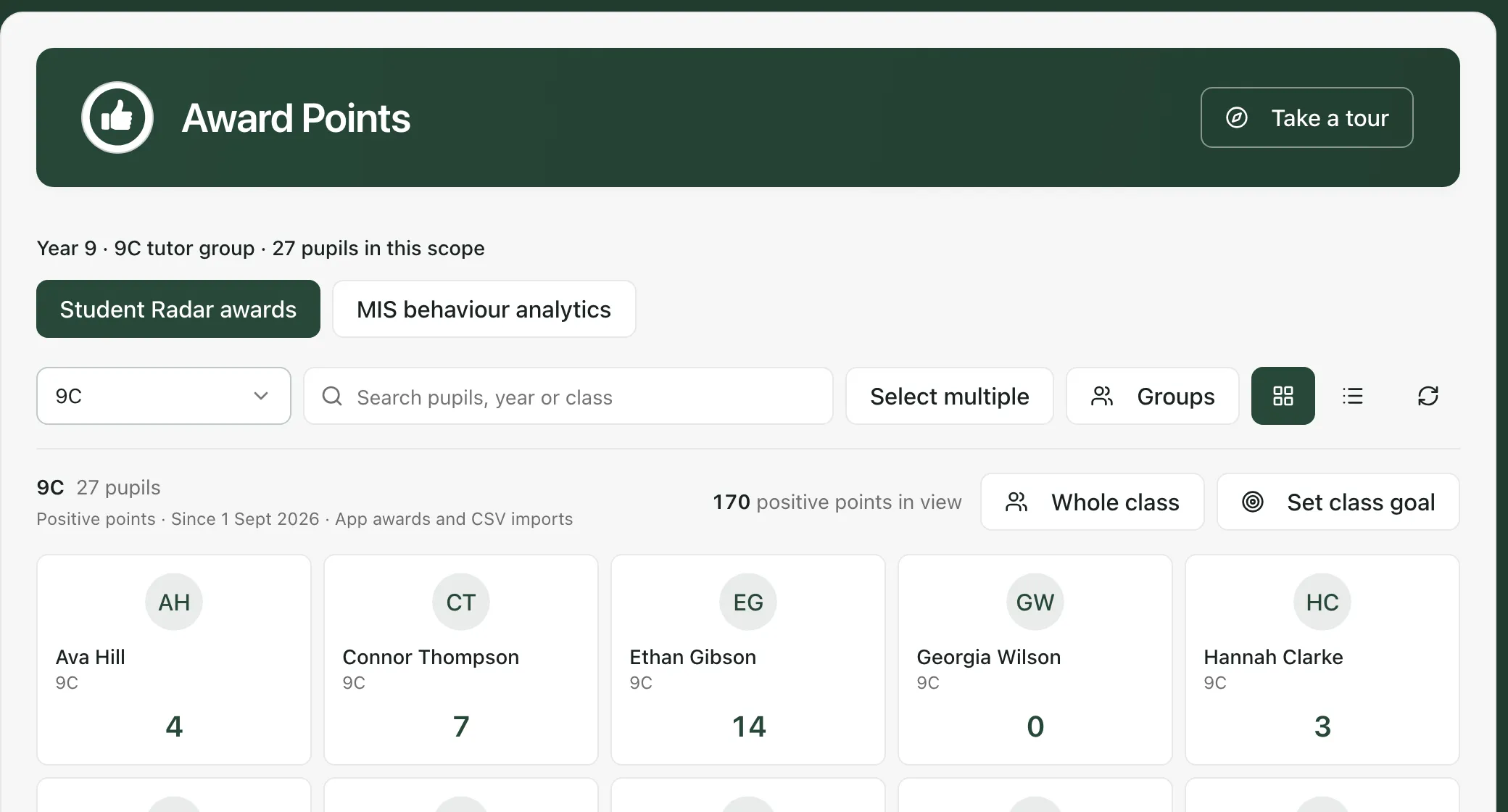
Award points to one pupil
Section titled “Award points to one pupil”- Click the pupil’s tile. Award points opens with their name at the top.
- Make sure Positive is selected.
- Click the category that fits. The number on the right is how many points it gives.
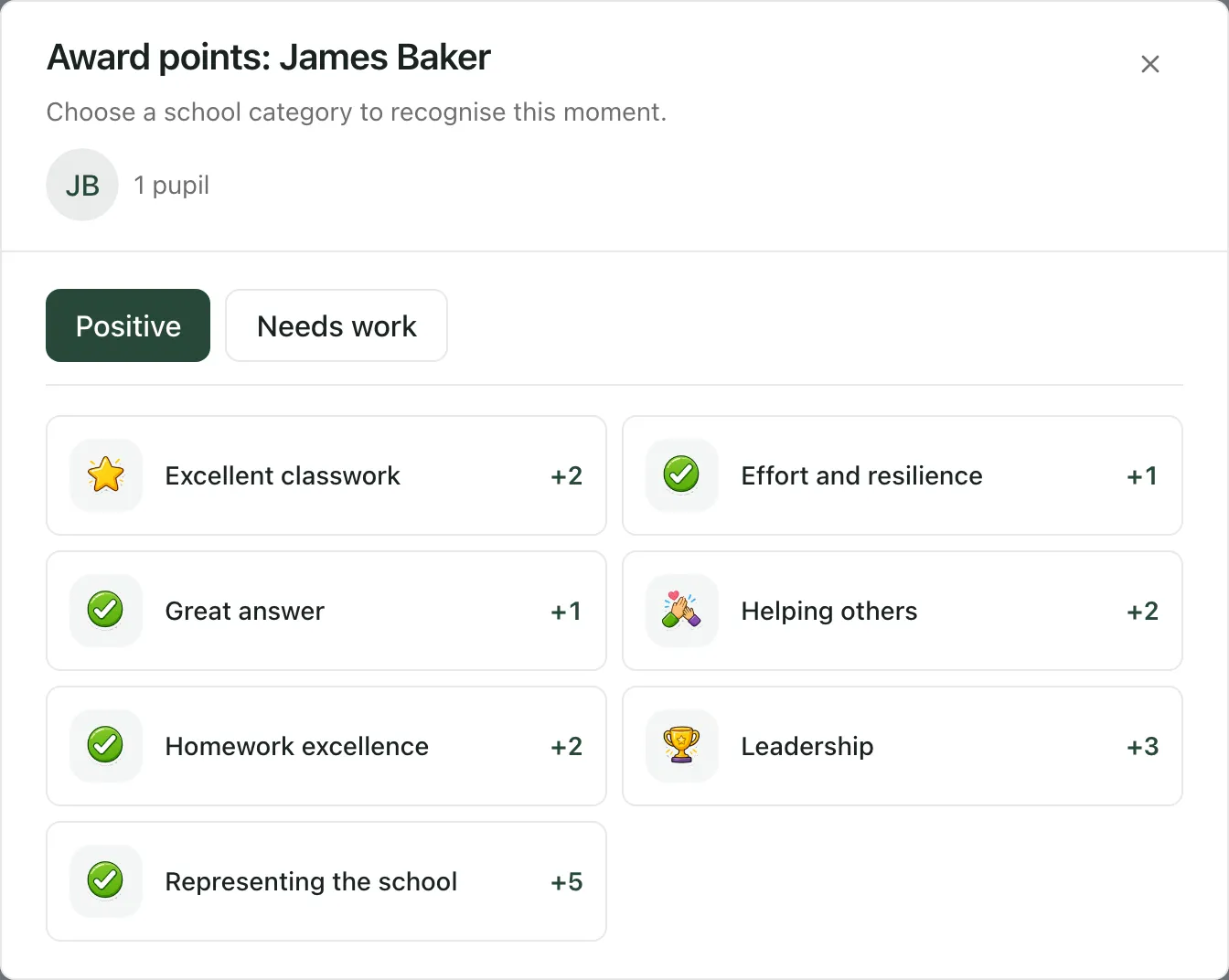
Clicking a positive category awards the points straight away. There’s no separate confirm step, so check you’ve chosen the right pupil first.
You’ll see a short celebration, and a message above the tiles says how many points were awarded and to how many pupils. The tile totals update. If you chose the wrong pupil or category, click Undo last award in that message. See Undo a points award.
To find a pupil quickly, type their name in Search pupils, year or class. The grid and list buttons next to Groups switch between tiles and a list.
Award points to several pupils
Section titled “Award points to several pupils”- Click Select multiple.
- Click each pupil’s tile. A tick appears on each one, and the bar above the tiles shows how many you’ve chosen, up to 60.
- Click Award selected, then choose the category as above.
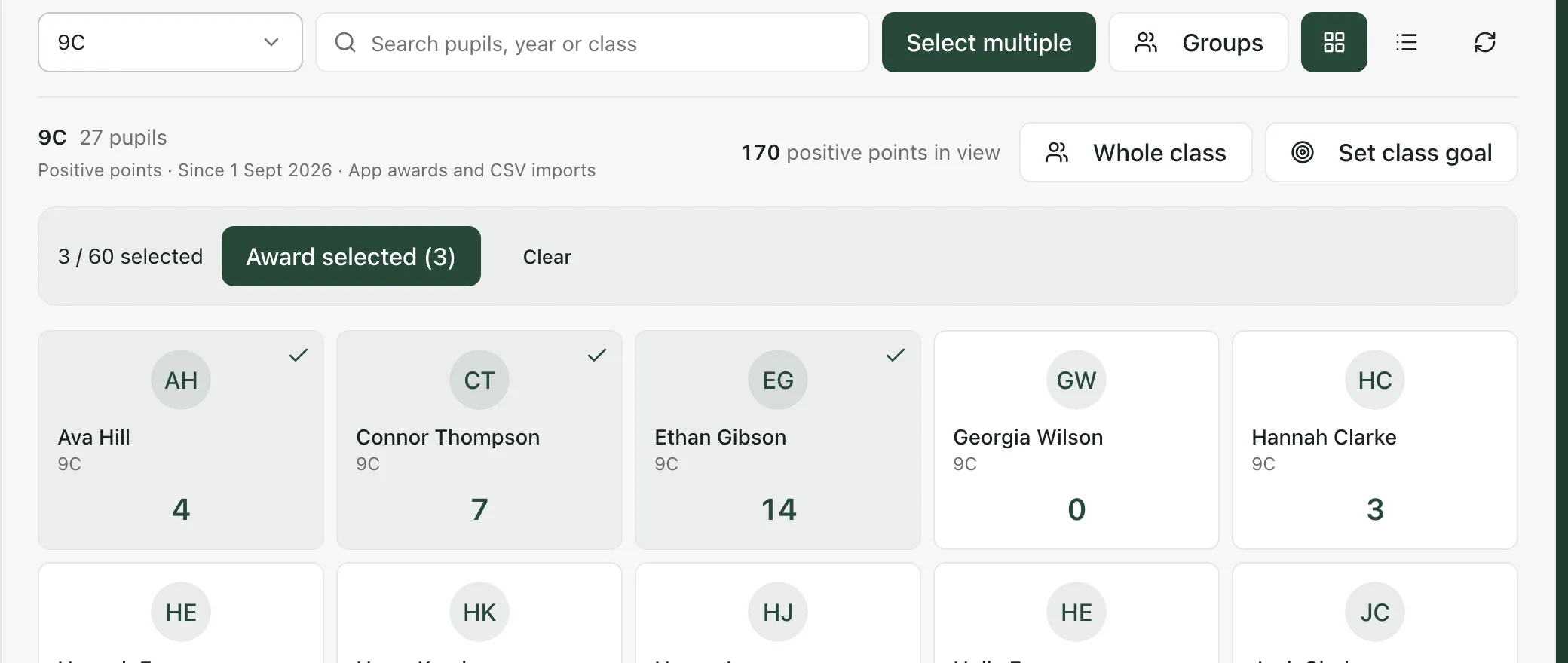
Click Clear to untick everyone, or click Select multiple again to turn it off.
Award points to the whole class
Section titled “Award points to the whole class”- In the class list at the top left, choose the class by name. When you open Points from the sidebar, the list starts on All classes in scope, and Whole class stays greyed out until you choose a class.
- Click Whole class, then choose the category.
You can award up to 60 pupils at once. For a larger group, use Select multiple instead.
Teaching classes: the class list shows the forms your pupils belong to. If a teaching class is drawn from several forms, choosing one form awards only that form’s pupils. To reward the whole teaching class, use Select multiple.
Award points to a group
Section titled “Award points to a group”- Click Groups. The Pupil groups window opens.
- Choose where the group comes from:
- MIS groups: groups from your school’s MIS, such as houses or registration groups.
- Class groups: groups saved for this class. To make one, type a Group name, click the pupils to add, then click Create group. Use the pencil and bin buttons to change or delete a saved group. Deleting a group keeps the pupils’ points.
- Random groups: set Pupils per group, then click Generate groups to split the class into random teams. Choose a named class first.
- Click a group to select it. Its pupils are listed under its name.
- Click Award selected group, then choose the category.
Record a needs-work observation
Section titled “Record a needs-work observation”Needs-work points are recorded privately. They don’t change the pupil’s positive points total.
- Click the pupil’s tile, or select several pupils, a group or the whole class as above.
- Click Needs work, then click the category that fits.
- In Observation and follow-up context, describe what happened and any support or follow-up you’ve agreed. You need to write at least five characters.
- Click Confirm. The button shows the points that will be recorded.
To pick a different category before saving, click Back to categories. For anything that needs further follow-up, use the pupil’s behaviour record.
Set a class goal
Section titled “Set a class goal”A class goal gives the class a shared reward to work towards.
- Choose the class by name in the class list.
- Click Set class goal.
- Type the Shared reward, for example extra reading time, and the Positive point target.
- Click Start goal.
Only positive points awarded in Student Radar after the goal starts count towards it. Starting a goal doesn’t reset any pupil’s points. The goal’s progress then shows above the tiles. Click Class goal to start a new goal, which replaces the current one and starts its progress from zero.
- Categories and limits: your school sets the categories and point values in School Settings, under Behaviour. Your school can also limit how many points can be given. If a limit applies, the message after an award says so.
- Access: you only see pupils you have access to. A pupil’s tile is greyed out if you can’t give them points.
- Imported behaviour: MIS behaviour analytics shows behaviour imported from your school’s MIS, separately from awards made in Student Radar. In some schools this button is called School behaviour points.
- Other ways to give points: the Give points button at the top of every page lets you award points without opening the class. See Give points from anywhere.
- Tour: click Take a tour at the top of the page for a step-by-step guide.
If something doesn’t work
Section titled “If something doesn’t work”| What you see | What to do |
|---|---|
| Whole class is greyed out | Choose the class by name in the class list. If there are more than 60 pupils, use Select multiple. |
| “The pupil list is unavailable. Check your school access and try again.” | Click Retry. If it keeps happening, ask your school’s Student Radar administrator to check your access. |
| “Point totals could not be loaded. Awards are paused until the saved totals are available.” | Click Retry. You can award points again once the totals have loaded. |
| “Student Radar award rules have not been configured or activated for this school.” | Your school hasn’t set up its points categories yet. Ask your administrator to set them up in School Settings, under Behaviour. |
| “This school has no active award categories.” | Ask your administrator to switch on at least one category in School Settings, under Behaviour. |
| “Your account cannot read the school award rules.” | Ask your school’s Student Radar administrator to check your access. |
| “School points rules could not be loaded. Please try again.” | Click Retry. |
| “You do not have permission for this action for every selected pupil.” | At least one of the pupils you chose can’t be given points by your account. Choose fewer pupils, or ask your administrator. |
| “The award could not be confirmed. Try again to check the same request; it will not create a duplicate.” | Click the same category again. Student Radar checks whether the first award went through, so the pupils won’t get the points twice. |
| “No points added: the school limit has been reached.” | Your school’s limit stopped this award. Nothing was added. |
| “Groups could not be loaded.” | Click Retry in the Pupil groups window. |
| “No groups are available in this class.” | There are no saved or MIS groups with pupils in this class. Make a class group, or use Random groups. |
| “No pupils match these filters.” | Clear the search box, or choose All classes in scope in the class list. |