Sign in to see placement updates
Written for: Local authority officers and school staff given named access to a pupil’s alternative provision placement.
When an alternative provision gives you named access to a pupil’s placement, you can see the updates it shares on the Placement updates page. This is for local authority officers, and for staff at schools that don’t use Student Radar. You sign in with your own named account, then accept the provider’s invitation before anything about the pupil is shown.
If your school uses Student Radar, you don’t need this page. Placement updates appear in your school’s own Student Radar instead.
Before you start
Section titled “Before you start”The provider sets up access for one named person, using the email address of a confirmed account. Access is agreed separately for each placement. It covers only the categories the provider agreed to share, and it ends on a set date. You need the email address and password for that account.
Sign in
Section titled “Sign in”- Open the Placement updates page. Its address ends in
/ap-commissioner. The provider can send you the link. - In Email, type the email address the provider gave access to.
- In Password, type your password.
- Click Sign in.
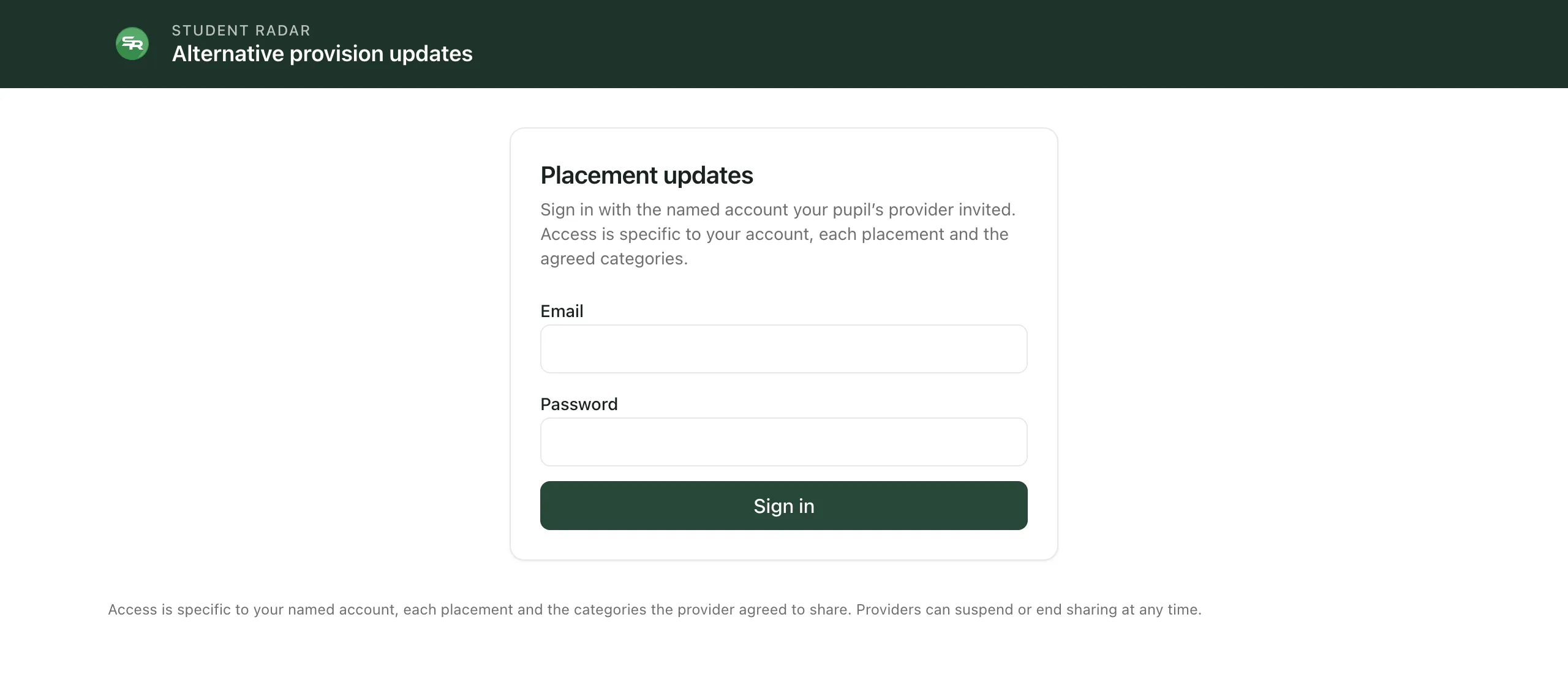
Once you’re signed in, the top of the page shows the account you’re using, with a Sign out button.
Accept the invitation
Section titled “Accept the invitation”Nothing about the pupil is shown until you accept. What you see depends on who you are.
Local authority: under Placement updates, each invitation shows the provider’s name, the purpose of sharing, the categories shared and the date it’s shared until. It’s labelled Invitation.
- Read the purpose and the categories.
- Click Accept this purpose and named access.
The label changes to Active, and a View placement button appears.
School that doesn’t use Student Radar: the page shows your school’s name and URN. Under Waiting for you to accept, each invitation says which provider has invited you, the purpose, what it shares, the agreement reference and when access ends.
- Read the details.
- Click Accept this purpose and named access.
The pupil then appears in your school’s attendance overview.
If an invitation says “Accept this invitation from your school’s AP placement page.”, your school uses Student Radar. Accept it in your school’s own Student Radar instead.
What can be shared
Section titled “What can be shared”The provider chooses what to share for each placement. You might see:
- Placement details: the provider, the type of placement, its dates and the next review.
- Attendance: the pupil’s sessions at the provision over the last four weeks.
- Review summaries: summaries the provider has chosen to publish to you.
- Timetable: the pupil’s weekly session times at the provision.
- Shared records: notes and files the provider has shared with a local authority one at a time.
To read them, see Read placement attendance and timetables.
Sign out
Section titled “Sign out”Click Sign out at the top of the page. Sign out when you’ve finished, especially on a shared computer.
- Forgotten your password: there’s no password reset on this page. Contact the provider that gave you access.
- Access can change: the provider can suspend or end sharing at any time. The page checks your access again each time it loads information, and refreshes itself regularly while it’s open. To check straight away, click Refresh current access.
- One account per person: access belongs to your named account. Don’t share your sign-in with colleagues. Ask the provider to give them their own access.
If something doesn’t work
Section titled “If something doesn’t work”| What you see | What to do |
|---|---|
| “Sign-in failed. Check your confirmed account and password.” | Check you’re using the email address the provider gave access to, and your password. If you still can’t sign in, contact the provider. |
| “No current placements are shared with this account.” | Nothing is shared with this account at the moment. Check you signed in with the right email address. If you expected access, ask the provider. |
| “Placement access is unavailable. No cached placement information is shown.” | Student Radar couldn’t check your access just now. Click Refresh current access, or try again later. |
| “Acceptance could not be confirmed. Refresh to check whether the invitation is still current.” | Click Refresh current access. If the invitation has gone, it may have been withdrawn or have ended. Ask the provider. |
| “This placement is no longer available. Access may have changed or expired.” | The provider may have changed or ended your access. Contact the provider. |