Record support delivered and review an attendance support plan
Written for: Teachers, pastoral and attendance leads.
Once an attendance support plan is underway, record what was actually delivered on each planned date, then review the plan on its review date and decide what happens next. This guide also covers planning a reduced timetable from a support plan. To write a plan and start it, see Create an attendance support plan.
Open the plan
Section titled “Open the plan”- In the sidebar, click Attendance, then Attendance Support.
- Find the plan:
- Support plans lists draft and current plans, with the owner and review date. A plan past its review date shows “Review overdue. An authorised decision is needed.”
- Reviews lists current plans with their review dates. Use Review timing to show only Overdue or Upcoming reviews.
- Returning to school lists current plans with return-to-school arrangements.
- Click Open support for the pupil.
You can also start from My Actions. Under Attendance support work, you’ll see the delivery and review tasks for plans you own. Open the support plan to record delivery or the review. Completing the task alone doesn’t record what was delivered.
The plan opens on its Overview. Next step says what’s due, for example how many planned activities need a delivery update, and gives you a button to go straight there.
Record support delivered
Section titled “Record support delivered”- Click Record delivery, or Add delivery update under Next step.
- Choose the Planned support activity. The list shows planned dates up to today that don’t have an update yet.
- Choose the Delivery outcome: Delivered as agreed, Partly delivered, Support unavailable, Pupil absent, Offered but not taken up, Cancelled or Not recorded.
- In Delivery evidence and follow-up, say what happened and any follow-up needed.
- Click Save delivery.
Above the form, Support delivery counts how much of the support that was due has been delivered, how many dates have no update yet and how many were unavailable. Future dates aren’t counted. Planned support isn’t treated as delivered until someone records it.
Review the plan
Section titled “Review the plan”The Review tab appears once support has started.
- Click Review, or Open review under Next step.
- Choose the Review decision: continue, change, stop or escalate.
- Choose the Attendance observation: whether attendance has improved, stayed stable or worsened, or Not enough evidence to say.
- Fill in each box:
- Was support delivered and what remains uncertain?
- Pupil response or reason unavailable
- Family response or reason unavailable
- Next action, owner and rationale
- Unless you’re stopping the plan, set the Next review date. It must be after today.
- Click Save review decision.
What happens next depends on your decision:
- continue: the plan carries on with the new review date.
- change or escalate: the plan owner gets a follow-up task in My Actions for the next review date. Use Edit support plan to change the actions.
- stop: the plan is closed.
Consider delivery, the pupil’s and family’s views and the attendance figures separately. A change in attendance during the plan doesn’t show that the support caused it. Escalating records your decision and next step. Any referral or formal attendance action follows its own process.
Plan a reduced timetable
Section titled “Plan a reduced timetable”Important: a reduced timetable is a significant decision for a child. Before you propose one, check your school’s attendance policy and the statutory guidance that applies to your school. Student Radar records the plan and the agreements, but it doesn’t decide whether a reduced timetable is appropriate.
-
Open the support plan and click Edit support plan.
-
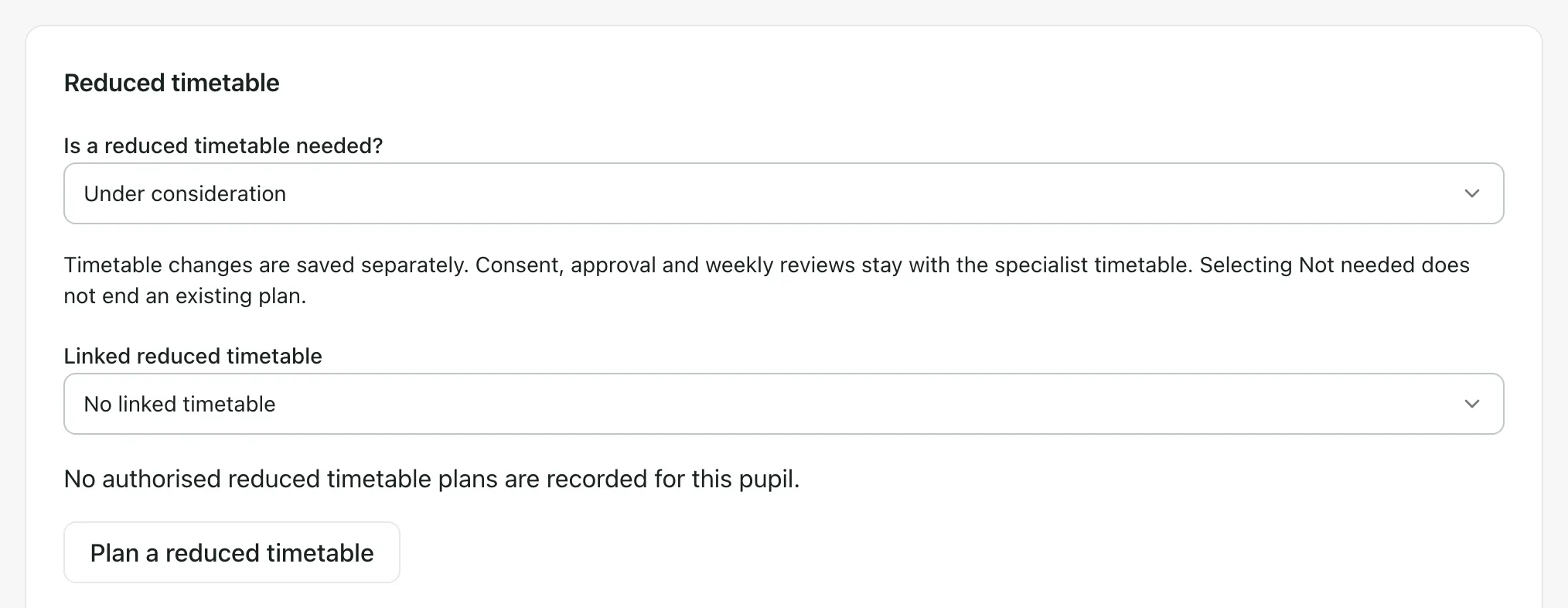
Under Reduced timetable, choose an answer for Is a reduced timetable needed?: Not needed, Under consideration or Needed.
-
Click View or plan a reduced timetable. Any timetable plans already recorded for the pupil are listed, and you can link one under Linked reduced timetable.
-
To plan a new one, click Plan a reduced timetable. Fill in the dates, the weekly pattern, the reason, the support and the route back to full time, as described in Set up a part-time timetable. If the pupil already has a current timetable plan, this button isn’t shown. Link that plan instead.
-
Click Save draft on the timetable. You’ll see “Timetable saved and linked to this unsaved support plan. Save the support draft separately.”
-
Click Save support plan to keep the link.
The timetable is saved as a draft. The parent’s agreement, approval, weekly check-ins and ending the timetable all happen in the part-time timetable register, under Attendance, then Statutory cohorts. On the support plan, Attendance and specialist timetable arrangements takes you there. Return-to-school arrangements in a support plan don’t approve a reduced timetable or change attendance codes.
Plan the steps back to full time
Section titled “Plan the steps back to full time”For a linked timetable, Proposed reintegration stages lets you plan how the weekly pattern will build back up.
- Click Proposed reintegration stages, then Add proposed stage.
- Set the stage’s start and review dates and its weekly slots. Click Add weekly slot for each extra slot. Add any support and review notes.
- Click Save proposed stages.
Saving a proposal doesn’t change what’s expected of the pupil. When a stage’s start date arrives, a member of staff reviews it with the pupil’s and family’s views. They click the stage’s review button, then Confirm reviewed stage and update timetable, or Keep current timetable. A stage can only be confirmed once the timetable has been approved and the parent’s agreement recorded. Any reduction still needs consent and approval.
Change the plan’s status
Section titled “Change the plan’s status”- On the plan, click Change plan status.
- Choose the Next support state. Depending on the plan’s current state, you can choose Support underway, Monitoring progress, Closed or Cancelled.
- Type the Decision reason and continuing arrangements.
- Click Confirm support state.
Closed and cancelled plans can’t be edited. Any open tasks for the plan are cancelled.
- Per-school switch: support plans are switched on separately for each school. If your school’s are off, Attendance Support shows only the strategies.
- History: the History tab lists every review and change to the plan, including whether it was drafted with AI and checked by staff.
- England only: schools outside England don’t see the Attendance and specialist timetable arrangements link.
If something doesn’t work
Section titled “If something doesn’t work”| What you see | What to do |
|---|---|
| “Delivery recording becomes available when support starts. Planned dates are shown with each action.” | The plan is still a draft. Start it first: see Create an attendance support plan. |
| “No delivery dates have been planned yet.” | Click Edit support plan, open Delivery arrangements on an action and click Add delivery date. |
| Save delivery is greyed out | Choose a Planned support activity first. Only dates up to today are listed. |
| “The change could not be saved. Check your access and refresh this support record if someone else has updated it.” | Check the next review date is after today, then try again. If a colleague has changed the plan, refresh the page. |
| “Timetable access is unavailable. You can continue editing the support plan; leave the timetable decision Not yet recorded to save without new timetable information.” | Click Retry timetable access. You can still save the rest of the support plan. |
| “The timetable stage could not be saved. Check dates, access and the latest timetable, then retry.” | Check the stage dates, refresh the page and try again. |