Use Student Radar on a phone or tablet
Written for: All school staff.
Student Radar works in the web browser on your phone or tablet. Sign in at the same address you use on a computer. On a smaller screen, the sidebar moves into a Menu at the bottom of the screen, and the search box becomes an icon to save space.
You’ll see this layout on a phone, and on most tablets when you hold them upright. Turn a large tablet sideways and you may get the full computer layout with the sidebar instead.
What’s on the screen
Section titled “What’s on the screen”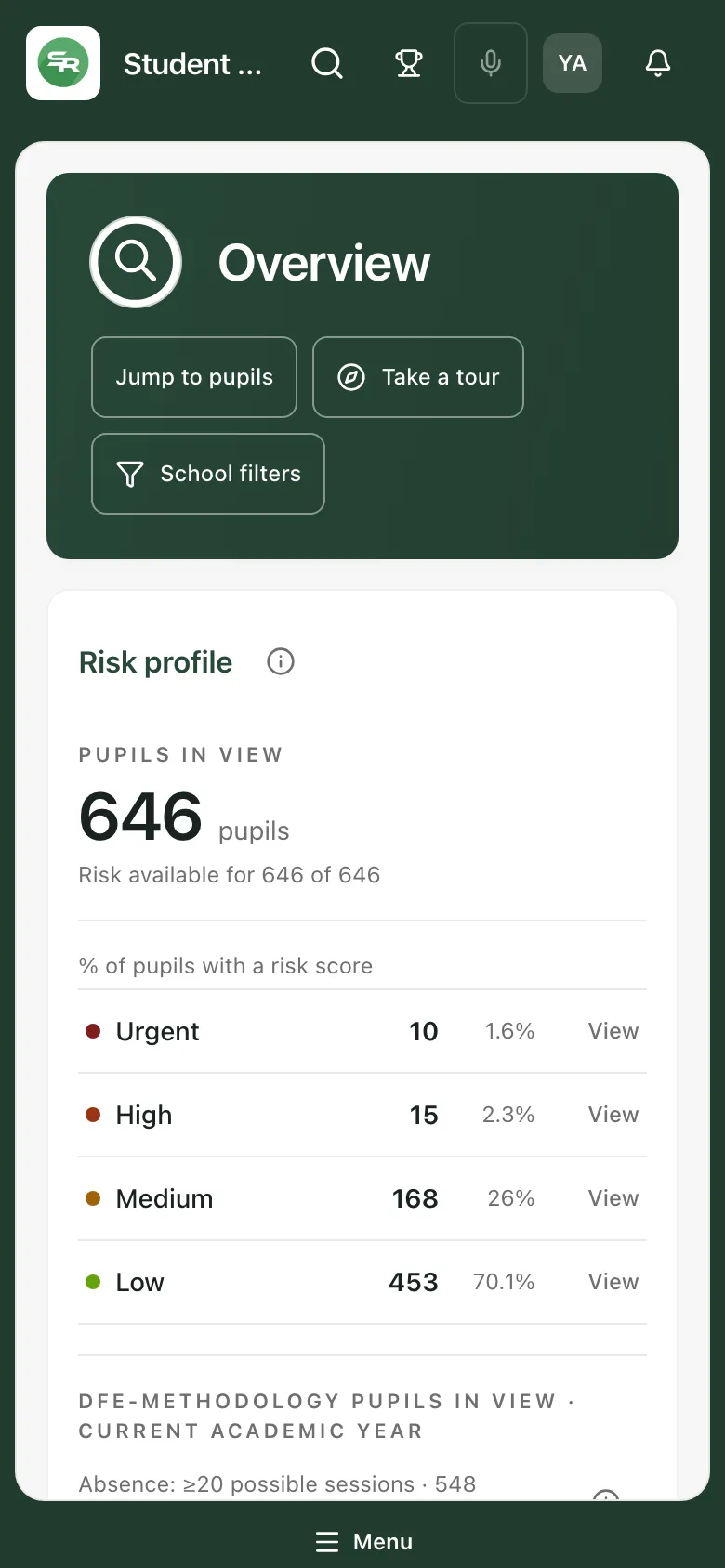
Across the top, from left to right:
| Icon | What it does |
|---|---|
| Your school’s logo | Shows which school you’re in. If you work in more than one place, tap it to switch. |
| Magnifying glass | Opens the pupil search box. |
| Trophy | Opens Give points. |
| Microphone | Starts voice commands. |
| Your initials | Opens your account menu, with Profile & security, Accessibility, Notifications, Cookie preferences and Sign out. |
| Bell | Opens your notifications. |
Menu runs along the bottom of every page.
Find a page
Section titled “Find a page”-
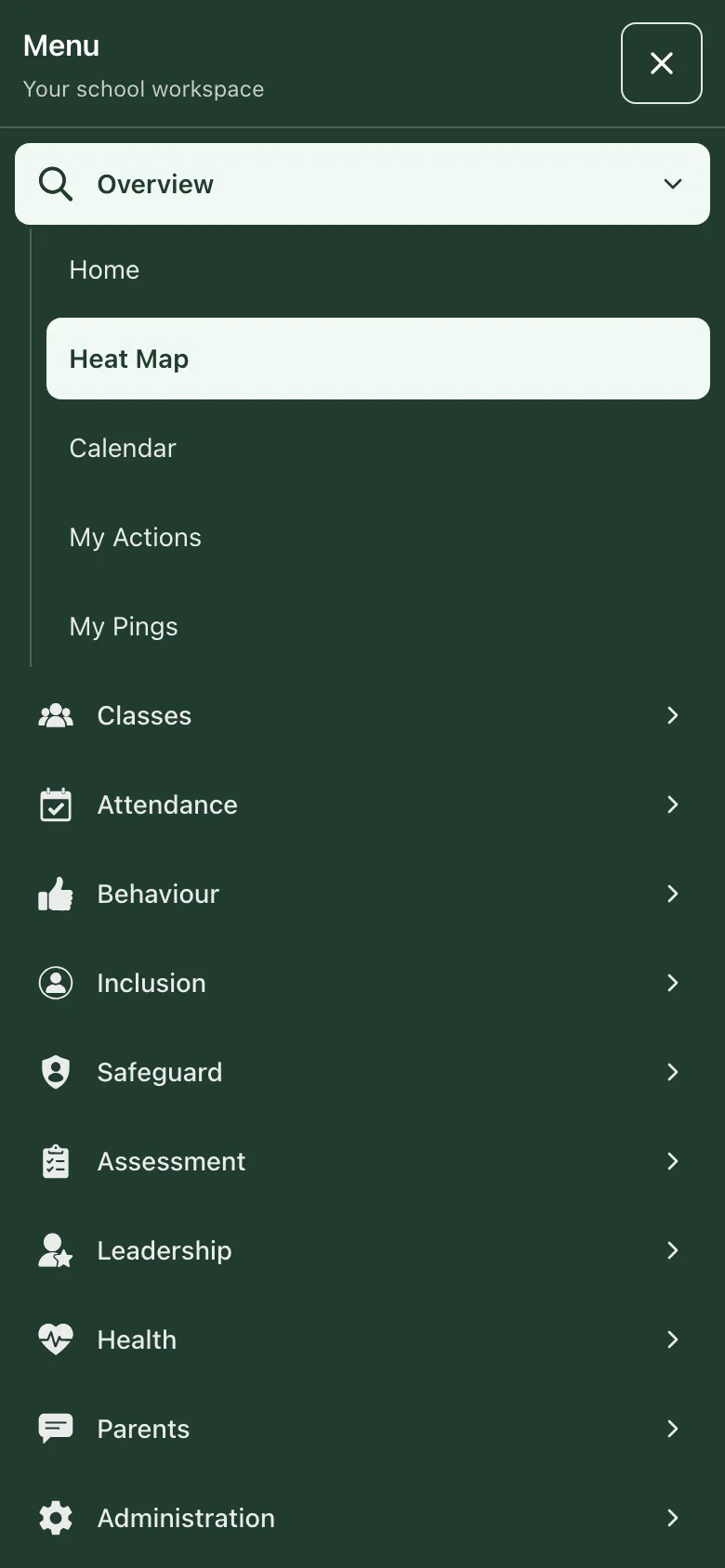
Tap Menu at the bottom of the screen. The menu opens over the page.
-
Tap a section, such as Overview or Classes, to show its pages.
-
Tap the page you want. The menu closes and the page opens.
To close the menu without choosing a page, tap × at the top right.
Help & Support and your account are at the bottom of the menu. Scroll down to reach them.
Find a pupil
Section titled “Find a pupil”- Tap the magnifying glass at the top of the screen. The search box opens across the top.
- Type at least two letters of the pupil’s name.
- Tap the pupil’s name to open their profile.
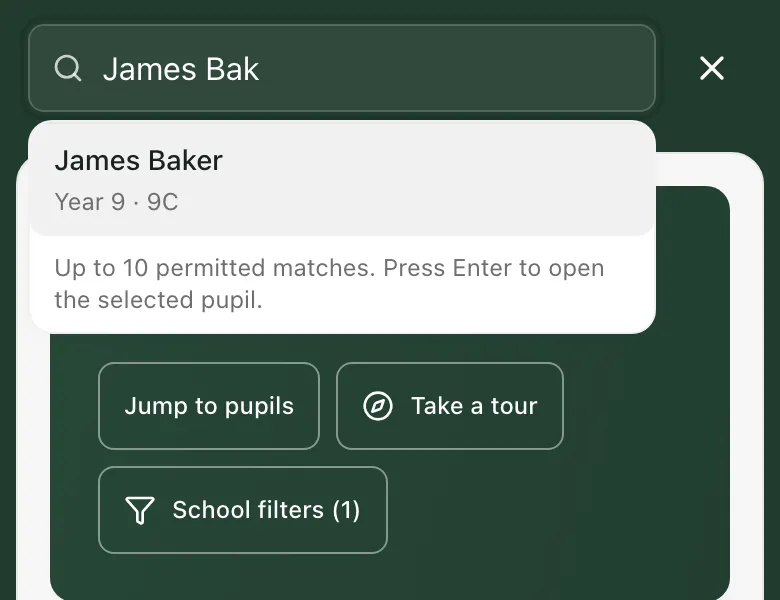
To close the search box, tap × next to it. This also clears what you typed.
- The keyboard shortcuts, including the command palette, need a keyboard. On a phone, use Menu and the magnifying glass instead.
- If text is hard to read, open your account menu and choose Accessibility to change the text size or switch on High contrast.