Log a staff absence and arrange cover
Written for: Senior leaders, headteachers and office staff who organise cover for absent staff.
When a member of staff is off, log the absence in Student Radar and decide who covers each of their lessons. The cover page shows every lesson that still needs cover, so gaps are spotted before the day starts.
Open the cover page
Section titled “Open the cover page”- In the sidebar, open Leadership, then Staff.
- Choose Staff Absence & Cover.
The Cover Scheduling page opens on today.
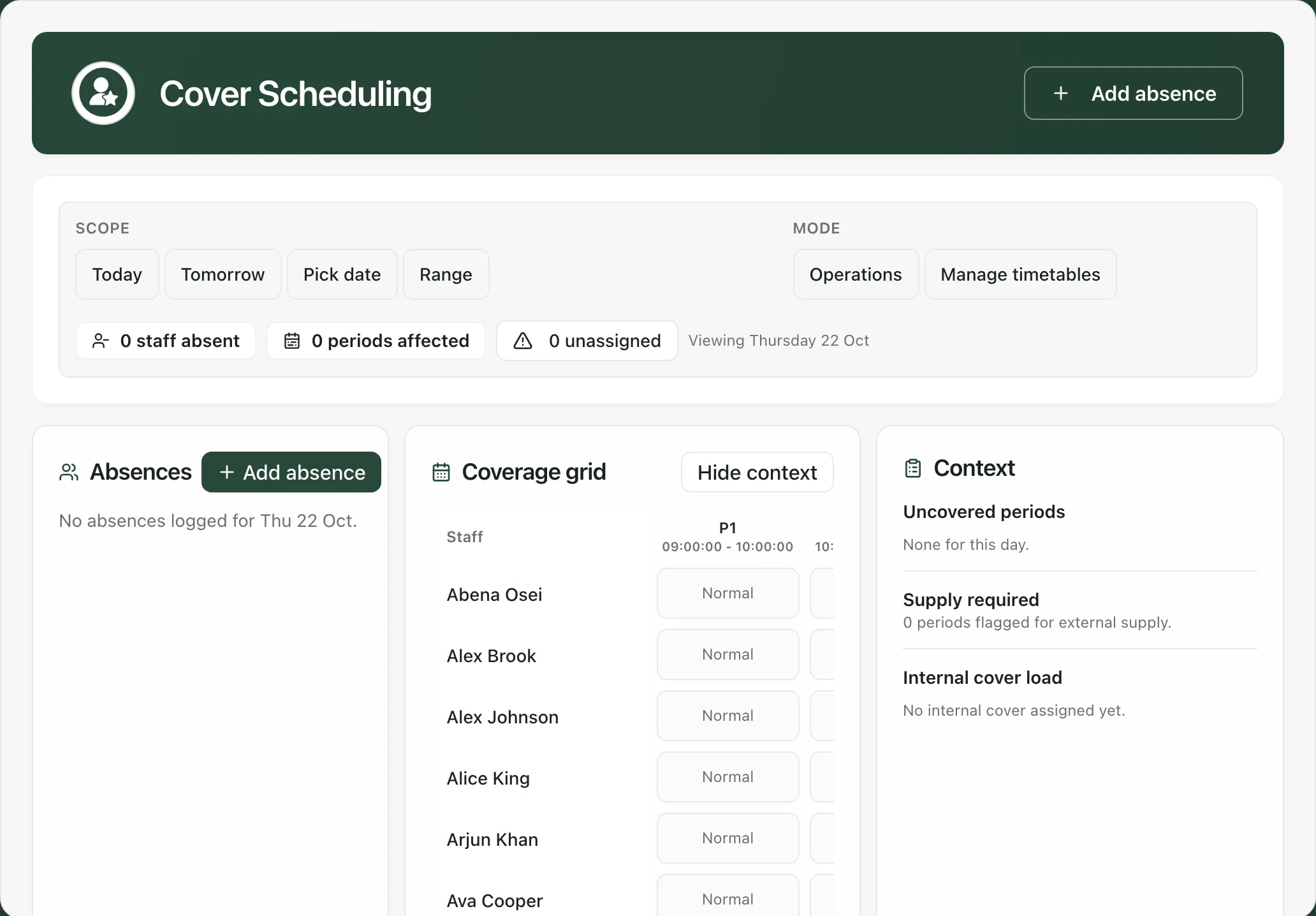
- Under Scope, choose Today, Tomorrow, Pick date or Range to change the days you’re looking at.
- The counts show how many staff are absent, how many lessons are affected and how many still have no cover. Click the unassigned count to show only the staff whose lessons need cover.
- Absences lists the absences for the day.
- Coverage grid shows each member of staff against each period. A lesson shows Gap when its teacher is absent and nobody is covering it, Covered when cover is arranged and Supply when it’s waiting for a supply teacher.
- Context lists the uncovered periods, the periods flagged for supply and how much cover each colleague has picked up. Click Hide context to make the grid wider.
Log the absence
Section titled “Log the absence”- Click Add absence.
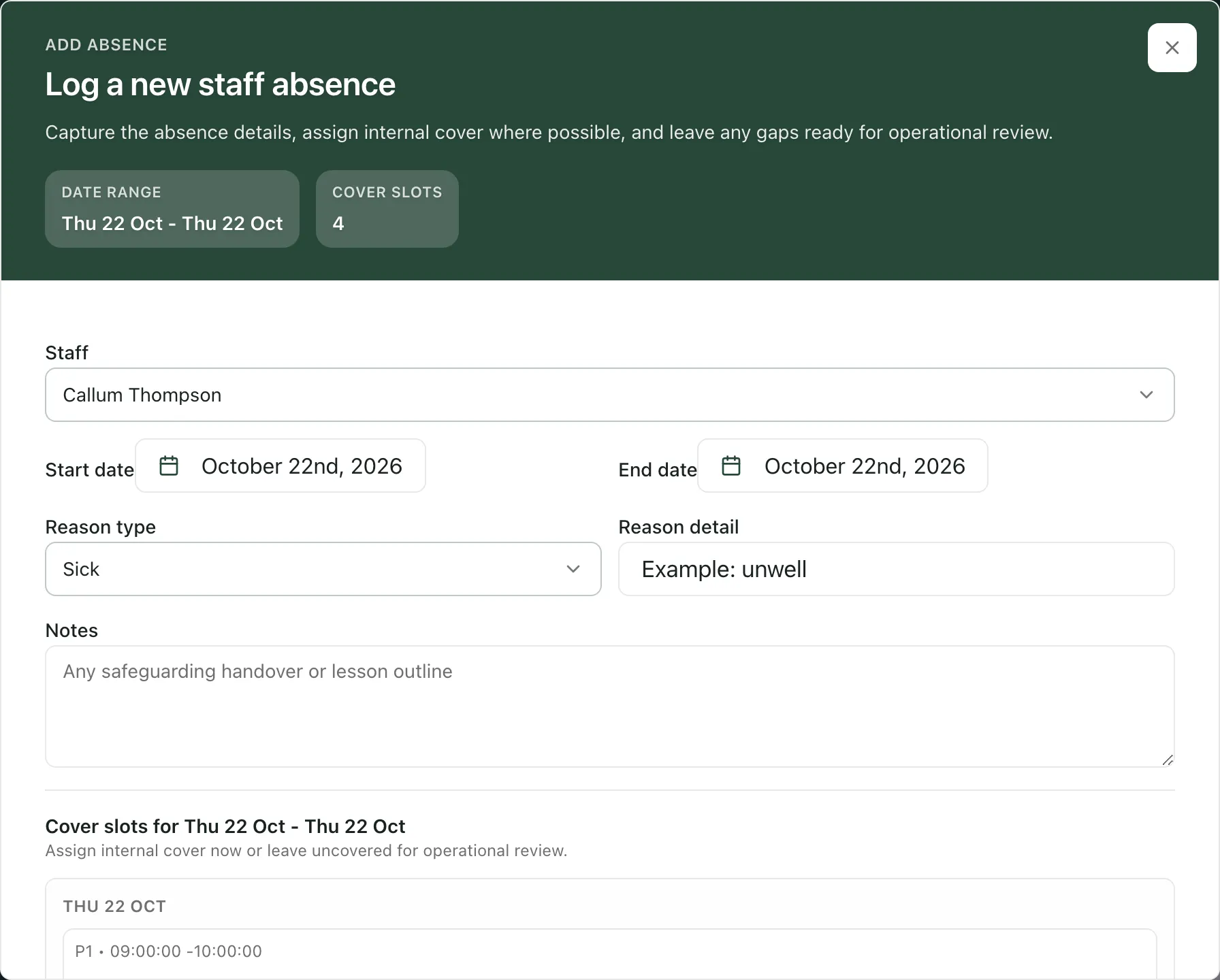
- Choose the member of staff in Staff.
- Set the Start date and End date. Both must be school days, Monday to Friday.
- Choose the Reason type, such as Sick, Training or Annual leave, and add a Reason detail if it helps.
- Use Notes for anything the cover teacher needs, such as the lesson outline.
- Under Cover slots, each lesson in the member of staff’s timetable for those dates is listed. For each one, choose a colleague, or leave it as Select cover to sort out later. The list only shows staff who are free at that time and aren’t absent themselves.
- Click Save absence.
You’ll see “Absence created successfully.” The absence is added to Absences as pending, and any lessons without cover show as Gap in the grid.
Notes are seen by the colleagues arranging cover. If you’re worried about a pupil, don’t record it here: follow your school’s safeguarding procedure.
Arrange cover from the grid
Section titled “Arrange cover from the grid”- In the Coverage grid, click a lesson marked Gap. The Assignment panel opens under the grid, showing the class, subject and room.
- Choose what to do:
- To give the lesson to a colleague, choose them in Available staff this period, then click Assign internal cover.
- If you need a supply teacher, click Mark supply required. The lesson is added to the Supply board and the Supply required count.
- If the class will join another class, click Merge class.
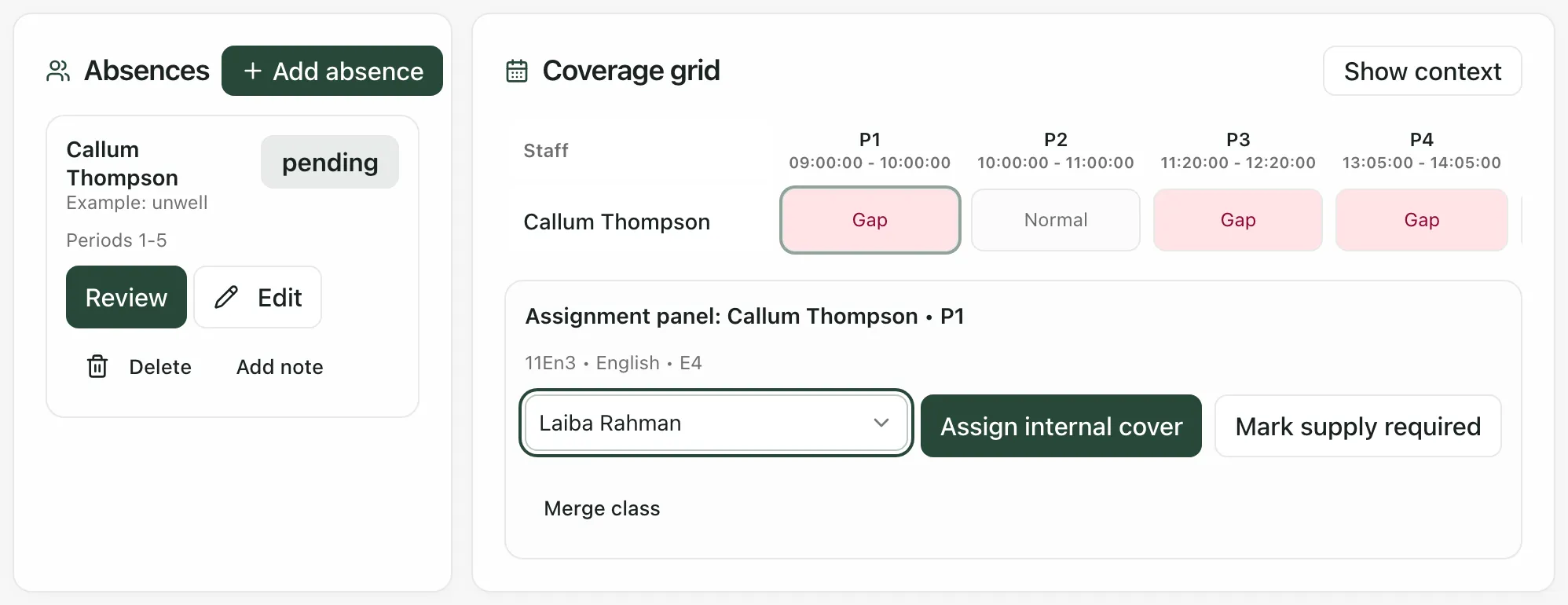
You’ll see “Cover assignment updated.” and the lesson changes to Covered, or “Marked as supply required.” Repeat for each Gap.
If you click a lesson for someone who doesn’t have an absence logged, you’ll see “Log an absence for this staff member before arranging cover.” Click Add absence for this staff member.
Approve the absence
Section titled “Approve the absence”If you can approve absences, a Review button appears on each pending absence.
- Click Review.
- Check the dates, type, reason and the cover arranged.
- Click Approve or Reject.
You’ll see “Absence approved.” or “Absence rejected.”
To change an absence, click Edit. To remove one that was logged by mistake, click Delete.
Timetables
Section titled “Timetables”The grid needs each member of staff’s timetable. If timetables aren’t set up for the day, you’ll see Cover coverage unavailable and a reason. If you can manage timetables, click Review timetable setup, or switch to Manage timetables under Mode, to add or import entries. Otherwise, ask the person who looks after timetables in your school.
Who can use the cover page
Section titled “Who can use the cover page”By default, headteachers, senior leaders, DSLs and office staff can open Staff Absence & Cover. Logging absences and arranging cover needs cover management permission, which headteachers, senior leaders, year leads, attendance officers, office managers, office and reception staff and administrators have by default. Schools can change who has access, so if you can’t save an absence, ask your Student Radar administrator.
If something doesn’t work
Section titled “If something doesn’t work”| What you see | What to do |
|---|---|
| “Select a staff member to create an absence.” | Choose who’s absent in Staff. |
| “Start date must be a school day (Mon-Fri).” | Choose a weekday. |
| “End date must be on or after the start date.” | Check the dates. |
| “No timetable entries found for this date range.” | The member of staff has no lessons in their timetable on those days. You can still save the absence. |
| “You do not have permission to change this schedule.” | Your account can’t log absences or arrange cover. Ask your Student Radar administrator. |
| “This schedule changed while you were working. Refresh and try again.” | Someone else changed the absence. Refresh the page and try again. |
| “This staff member is no longer available for that time. Refresh and choose another member of staff.” | The colleague has been given another lesson at that time. Choose someone else. |
| “Cover scheduling data could not be loaded. No absence or cover totals are available.” | Click Retry cover data. |
| “No staff-to-period assignments are configured for this day. Imported lessons need an operational timetable before cover can be assessed here.” | Timetables aren’t set up for that day. See Timetables. |