Record allergy training, drills and incidents
Written for: Staff who keep the school’s allergy safety records.
The Allergy & Anaphylaxis Register keeps three kinds of allergy safety evidence alongside the register itself: who has been trained, when the school last practised an emergency, and what happened in each allergy incident or near miss, with the lessons learnt. Training counts the whole workforce, including kitchen, lunchtime and agency staff, not just teachers.
To open the register, click Health in the sidebar, then Medication & Clinical Safety, then Allergy Register.
Record training
Section titled “Record training”-
Click the Training & incidents tab.
-
In Whole-workforce allergy training, click Record training.
-
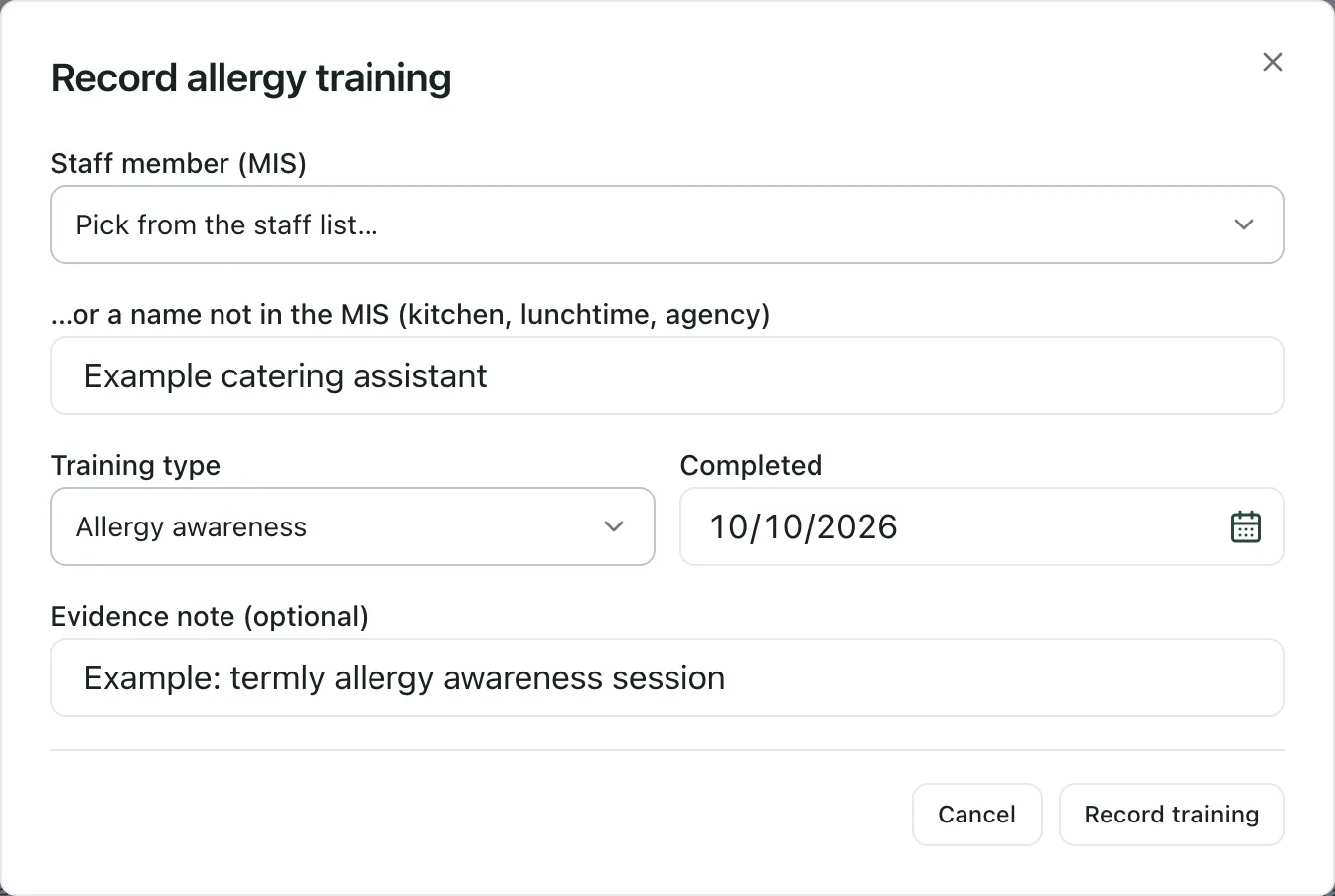
Choose the person under Staff member (MIS). If they aren’t on your MIS staff list, such as a catering assistant or agency worker, type their name under …or a name not in the MIS (kitchen, lunchtime, agency) instead.
-
Choose the Training type: Allergy awareness or AAI administration.
-
Enter the date the training was Completed, and an Evidence note (optional), such as a certificate reference.
-
Click Record training.
Training expires 12 months after the completed date. The card shows the percentage of active MIS staff who are trained and in date, and lists each record with its Completed and Expires dates. Expired training is highlighted. People who aren’t on the MIS are labelled non-MIS.
Ask staff to confirm their own training
Section titled “Ask staff to confirm their own training”If staff have done training elsewhere, you can email them a link to confirm it themselves.
- In Whole-workforce allergy training, click Email attestation links.
- Choose the Training type.
- Tick the people under MIS staff. Type in the filter box to find someone.
- To include someone who isn’t on the MIS, add their name and email under Not on the MIS? Add them by email. Click Add person for each extra row.
- Click the preview button. It shows how many people are selected.
- Check the preview. It lists everyone who will get a link, with a partly hidden email address, and anyone who will be skipped and why, such as having no email address.
- Click Send links.
Each person gets a single-use secure link and doesn’t need an account. The link opens a page headed Confirm your allergy training, where they give the date they completed it, or say they haven’t done it. Confirmed training is added to the list marked self-attested.
Recording training and sending links are for staff who manage the allergy register: by default the SENCo, headteacher, DSL and deputy DSLs, and medical leads.
Record an emergency drill
Section titled “Record an emergency drill”Drills are recorded on the Spare AAIs tab.
-
Click the Spare AAIs tab, then click Record drill in Emergency drills.
-
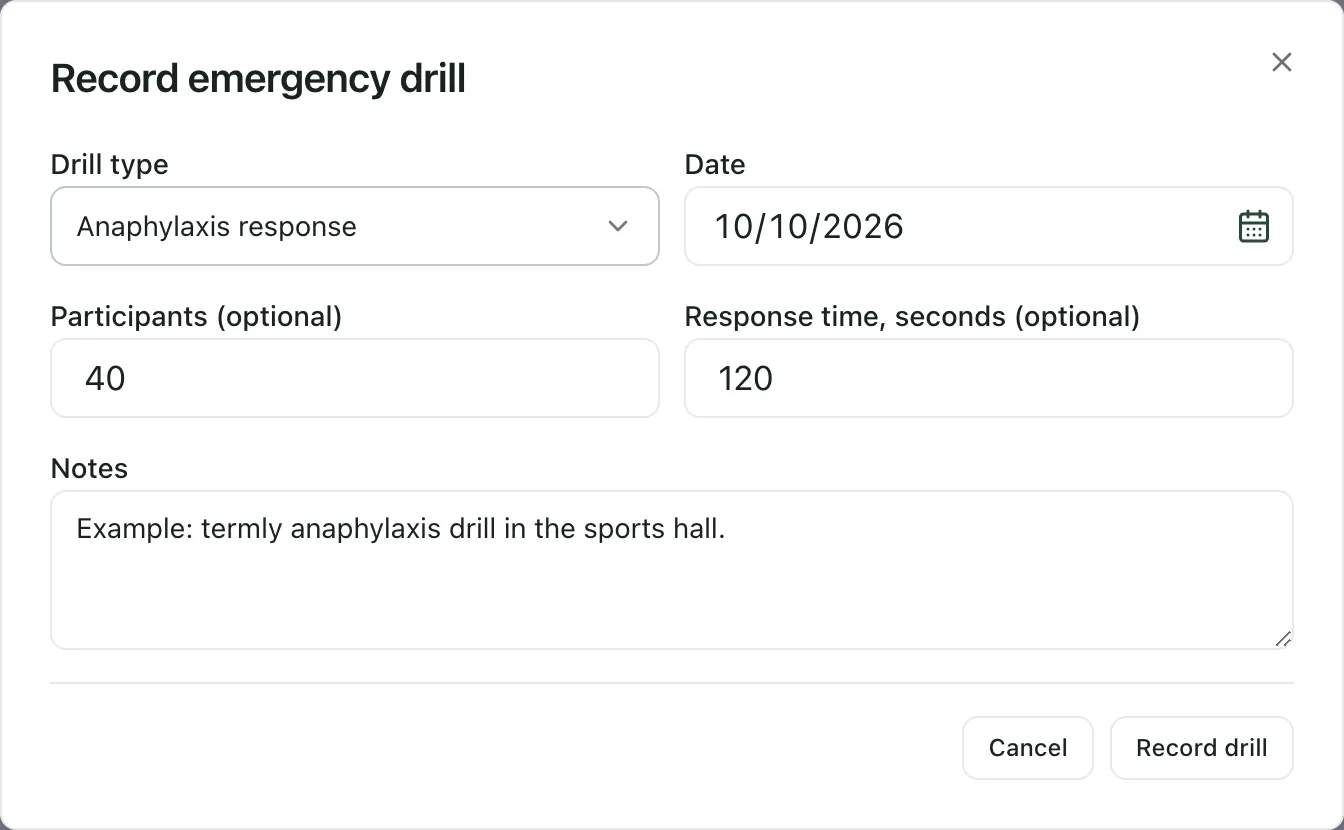
Choose the Drill type: Anaphylaxis response, Allergy response or Medical emergency.
-
Enter the Date. You can also add Participants (optional) and Response time, seconds (optional): how long the response took.
-
Add Notes, such as where the drill took place and what you learnt.
-
Click Record drill.
Emergency drills then shows the latest drill. Drills count towards the school’s time-to-adrenaline readiness rating on the Governor RAG tab.
Record an incident or near miss
Section titled “Record an incident or near miss”Log every allergic reaction at school, and every near miss where a reaction almost happened. Near misses are recorded with the same care as reactions, because they show where the school’s arrangements need tightening.
-
Click the Training & incidents tab.
-
In Allergy incidents & near misses, click Record incident / near miss.
-
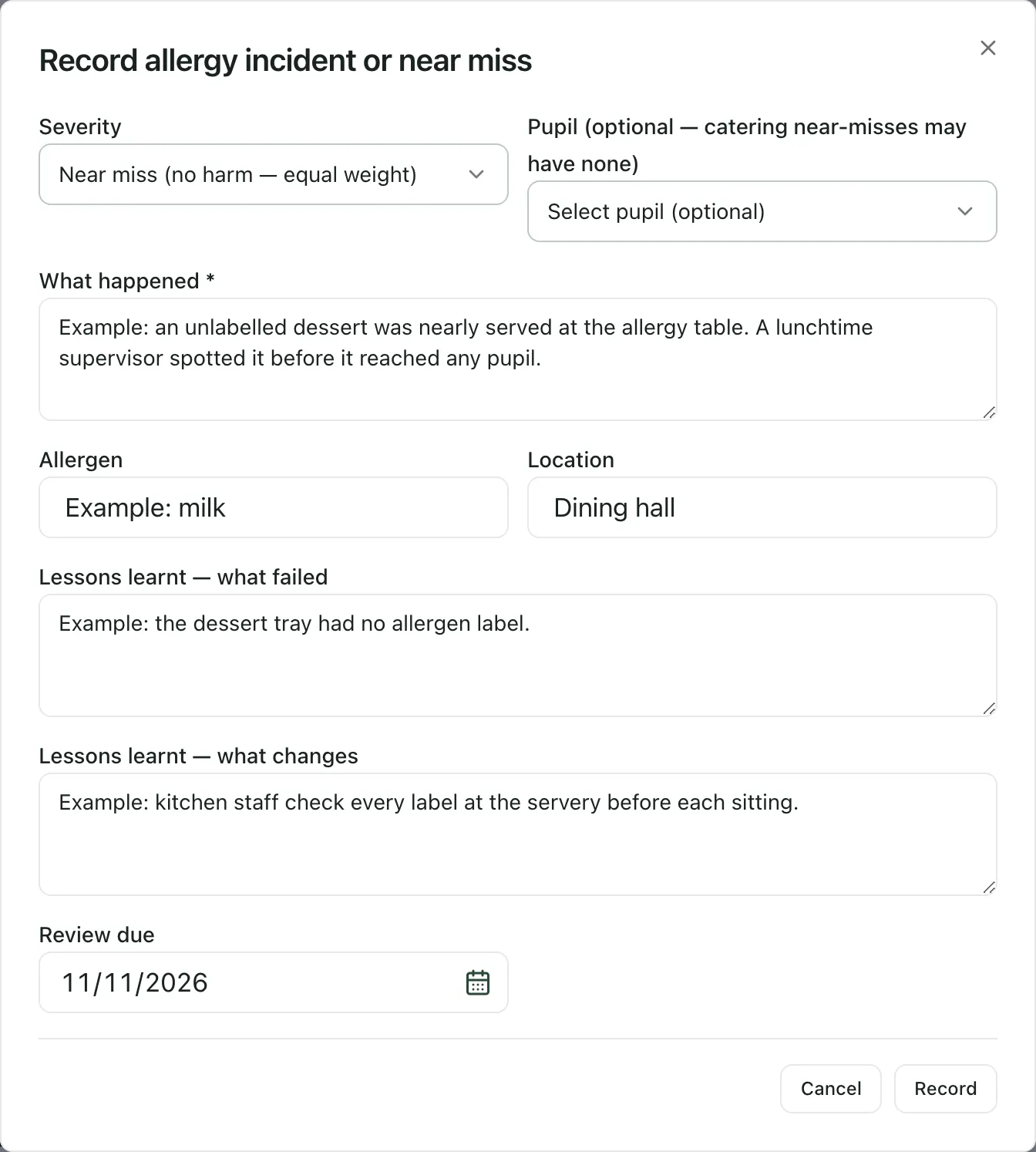
Choose the Severity: Near miss (no harm — equal weight), Mild, Moderate, Severe or Anaphylaxis.
-
Choose the pupil, if there was one. A near miss in the kitchen may not involve a pupil.
-
Describe What happened. This is required.
-
Add the Allergen and Location.
-
Under Lessons learnt — what failed and Lessons learnt — what changes, record what went wrong and what the school will do differently.
-
Set a Review due date for checking that the changes have worked.
-
Click Record.
The incident appears in the list with its severity, what happened and the lessons learnt. When the review has been done, a member of staff who manages the register clicks Mark reviewed and the row shows Reviewed. A review that’s past its due date is highlighted.
Important: This log is for learning lessons. It doesn’t replace the pupil’s emergency action plan or your first aid records. In an emergency, follow the pupil’s action plan and call for help first, then record first aid in the usual way.
- The Training & incidents tab also holds the school’s allergy safety policy details, such as where it’s published and the responsible governor.
- Governors can’t see the Training & incidents or Spare AAIs tabs.
- For the register and spare AAI checks, see Keep the allergy register and spare AAI checks.
If something doesn’t work
Section titled “If something doesn’t work”| What you see | What to do |
|---|---|
| “Pick a staff member or type a name (non-MIS workforce counts).” | Choose someone under Staff member (MIS) or type a name, then click Record training. |
| “Describe what happened.” | Fill in What happened, then click Record again. |
| “Could not preview recipients” | Nothing was sent. Check your selection and try again. |
| “Could not send attestation links” | Wait a minute, then preview the recipients and send again. |
| “No matching staff.” | Clear the filter, or add the person under Not on the MIS? Add them by email. |
| You can’t see Record training or Mark reviewed | Your role can’t change these records. Ask your SENCo or medical lead. |