Create a seating plan for your class
Written for: Staff who teach a class.
The Seating Layout page lets you plan where each pupil sits. You place the class on a room plan, move seats around until the layout works, and save it so it’s there next lesson. While you plan, you can show private staff context on each seat, such as SEND flags or allergy alerts.
Open the seating layout
Section titled “Open the seating layout”- In the sidebar, click Classes.
- Choose the class:
- In a secondary school, click Tutor groups, then the year group and the tutor group. For a subject class, click Teaching classes, then the subject and the class.
- In a primary school, click the year group, then the class.
- Click Seating Layout.
The Seating layout page opens with your class chosen in the group list at the top. If the class already has a saved layout, it loads with it.
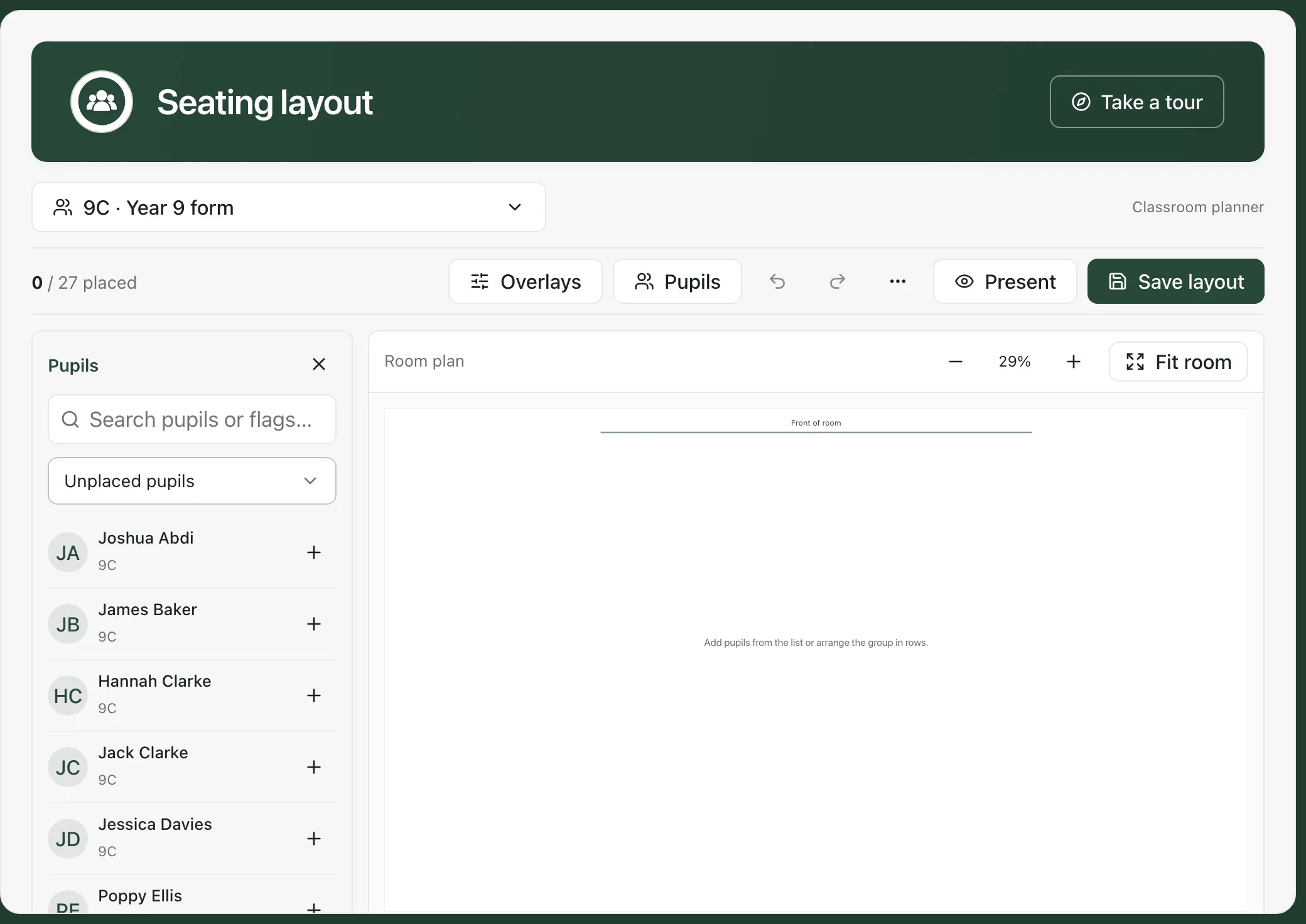
To plan another group, click the group list and type a form, teaching class or year. Each group keeps its own saved layout.
Place your pupils
Section titled “Place your pupils”Choose one of these:
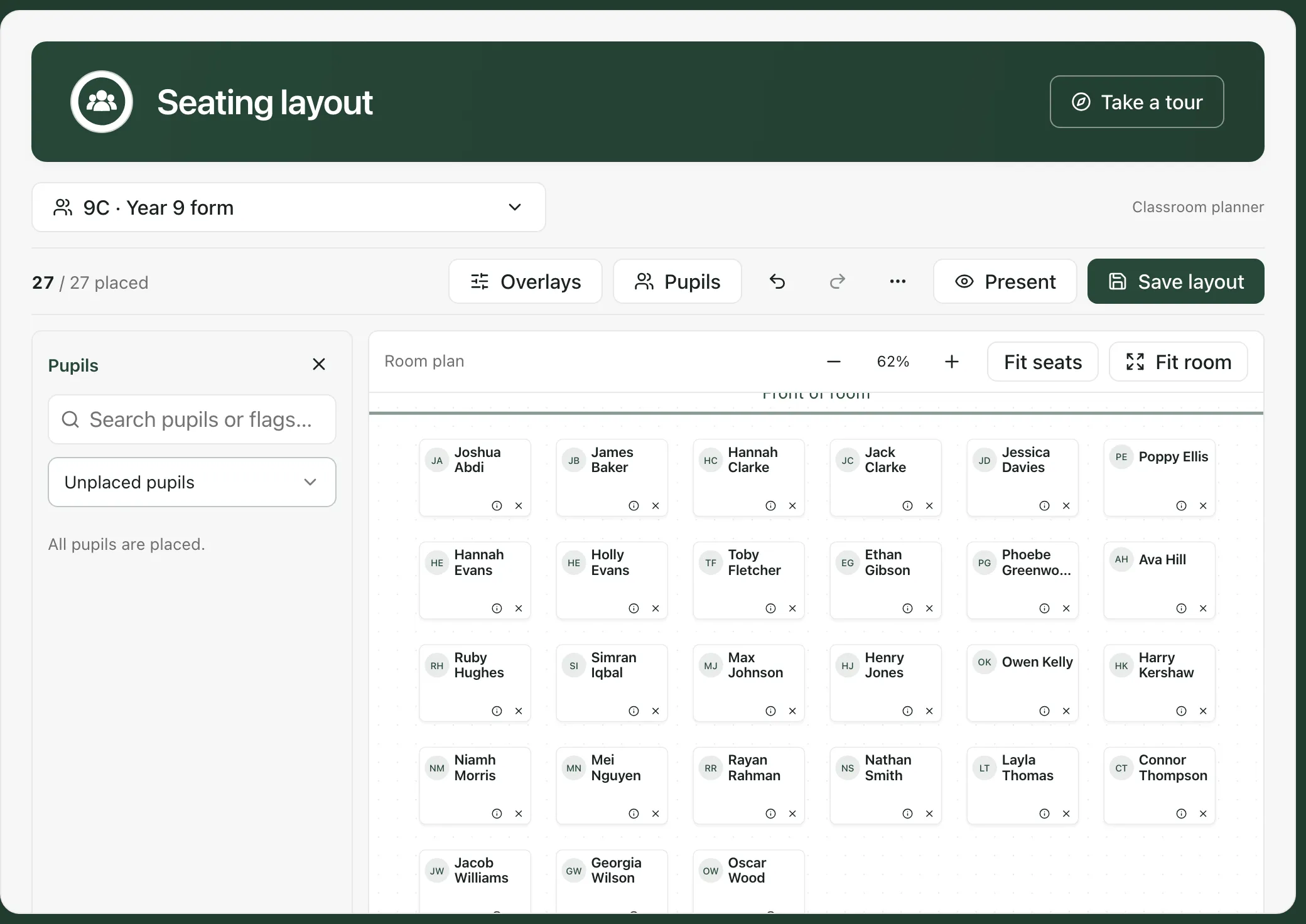
- Seat everyone at once: click ⋯ in the toolbar, then Arrange in rows or Arrange in pairs.
- Seat pupils one by one: in the Pupils list, click the plus button next to a pupil to put them in the next free seat, or drag their name onto the room.
The count at the top left shows how many pupils are placed, for example 27 / 27 placed. The Pupils list starts on Unplaced pupils, so you can see who still needs a seat. Once everyone is seated, it says “All pupils are placed.”
Move seats
Section titled “Move seats”- Move a seat: drag it. To use the keyboard, press Tab until the seat is selected, then use the arrow keys. Hold Shift to move it further.
- Remove a pupil from the room: click the × on their seat, or press Delete when the seat is selected. They go back to the Pupils list.
- See a pupil’s details: click their seat without dragging it, or click their name in the list. You’ll see their attendance and any overlays you’ve turned on.
- Undo and redo: use the arrows in the toolbar to step back or forward through your changes.
- Zoom: use the zoom buttons above the room, Fit seats to zoom in on the seats you’ve placed, or Fit room to see the whole room. Zoom in to see flags and other context on the seats.
To start again, click ⋯, then Clear room. Your saved layout only changes when you save.
Show pupil context while you plan
Section titled “Show pupil context while you plan”Click Overlays to show private staff context on each seat.
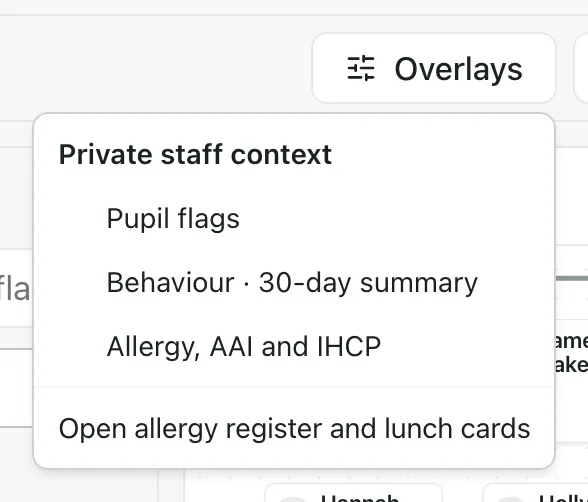
- Pupil flags: shows SEND, EHCP, PP, EAL, FSM and LAC on the seats.
- Behaviour · 30-day summary: shows each pupil’s positive and negative points over the last 30 days.
- Allergy, AAI and IHCP: shows a recorded allergy or anaphylaxis risk, whether the pupil needs an adrenaline auto-injector (AAI), and whether they have an individual healthcare plan (IHCP).
A line above the room shows how many pupils’ records each overlay could load. A missing alert doesn’t mean the pupil has no allergy. Check the medical record for current care instructions: Open allergy register and lunch cards in the Overlays menu takes you there.
Overlays are for staff planning only. Recorded points are a prompt to try a different arrangement, not a judgement on any pupil. You can also filter the Pupils list to SEND, Recorded allergy, Negative points recorded or Attendance below 90%.
Save the layout
Section titled “Save the layout”Click Save layout. The room and every pupil’s seat are saved together, and you’ll see “Seating layout saved”. The line under the room changes from Unsaved changes to the date and time it was saved.
If you try to switch to another group with unsaved changes, Student Radar asks Leave this layout? Click Stay here to go back and save, or Discard and switch to lose your changes.
Show the plan to the class
Section titled “Show the plan to the class”Click Present to show the room on the classroom screen. The display shows pupils’ initials only, with no flags or other staff context. Click Exit presentation to go back.
- Who can edit: you can edit and save a layout if you’re allowed to manage seating for that group. Otherwise you can view it, and the page says so.
- Supply staff: the Allergy, AAI and IHCP overlay and the Recorded allergy filter aren’t available.
- Someone else’s changes: if a colleague saves the same group’s layout while you’re working, your draft is kept. Click ⋯, then Reload saved plan, to see their version.
- Tour: click Take a tour at the top of the page for a step-by-step guide.
If something doesn’t work
Section titled “If something doesn’t work”| What you see | What to do |
|---|---|
| “You can view this plan. Editing requires permission to manage seating for this group.” | Your account can’t change this group’s layout. Ask your school’s Student Radar administrator if you need to. |
| “Another edit has been saved. Your changes are still here. Reload the saved plan before making a new edit.” | Click Review saved version, then Reload saved plan. Make your changes again and save. |
| “Save not confirmed. Retry the same save or review the saved version.” | Click Retry save. Student Radar sends the same save again, so it won’t be saved twice. |
| “Group membership has changed. Unavailable seats are hidden and this draft cannot overwrite them.” | Click Remove unavailable seats from draft, then save. |
| “This room is full” | There isn’t room for every pupil. Choose a smaller form or teaching class. |
| “Pupils could not be loaded.” | Click Retry loading. |
| “Some teaching groups could not be loaded.” | Click Retry groups. |
| “This filter may be incomplete: some pupil context is unavailable.” | Some pupils’ flags or other context couldn’t be loaded. Choose All pupils in the list instead, and check the pupil’s record. |