Record a new enquiry
Written for: Alternative provision staff who take referral enquiries.
When a school, local authority or family gets in touch about a possible placement, record it as an enquiry in Referrals. You can save it with whatever you know so far, even if it’s only a phone number or a school name, and add the rest later. The enquiry then becomes a referral that you move through the five steps to a placement.
Before you start
Section titled “Before you start”You need permission to manage referrals. Without it, the Record enquiry button isn’t shown. AP leaders and office staff usually have it.
Referrals sent through your online referral form arrive on their own, so you don’t need to record those. See Turn on your referral portal and share the link.
Record the enquiry
Section titled “Record the enquiry”-
In the sidebar, open Referrals and choose Referrals.
-
Click Record enquiry.
-
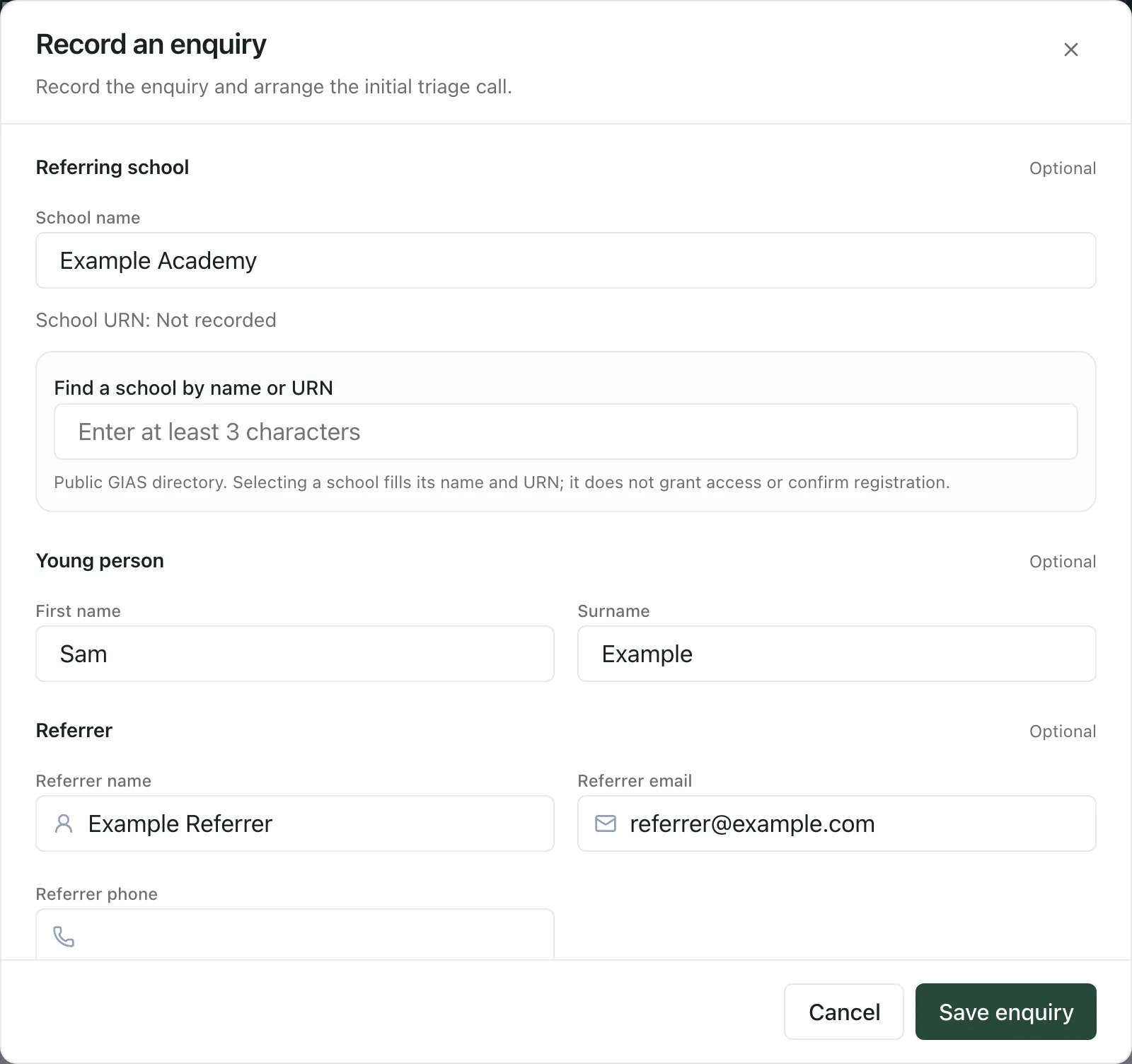
Under Referring school, either type the school’s name in School name, or type at least three letters of its name or URN in Find a school by name or URN and choose it from the list. Choosing a school from the list fills in its name and URN. It doesn’t give the school any access or confirm a registration.
-
Under Young person, add their First name and Surname if you know them.
-
Under Referrer, add the Referrer name, Referrer email and Referrer phone.
-
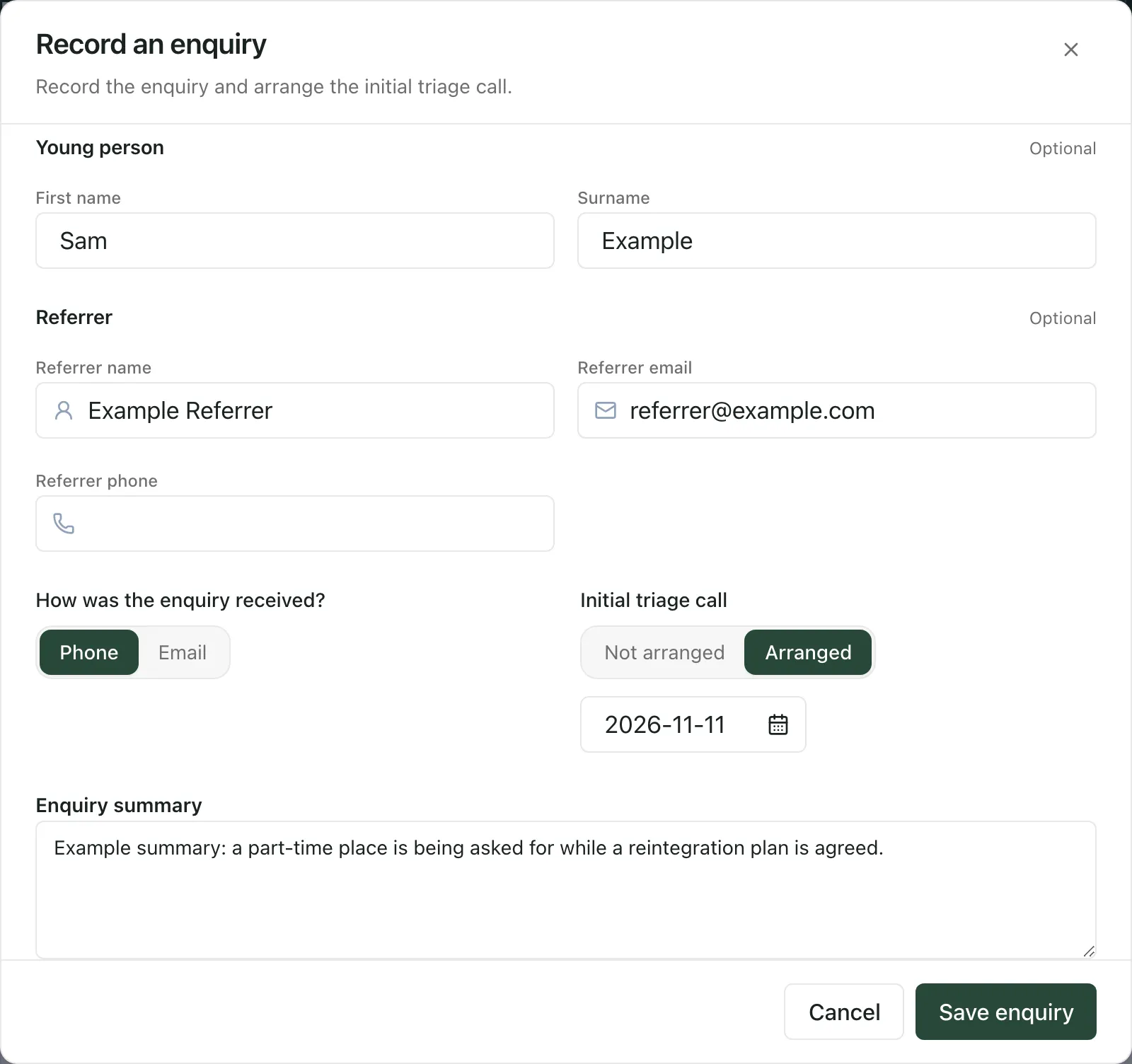
Under How was the enquiry received?, choose Phone or Email.
-
Under Initial triage call, choose Not arranged or Arranged. If the call is arranged, enter the planned call date.
-
In Enquiry summary, say what’s being asked for and why.
-
Click Save enquiry.
Every section is optional, but the enquiry needs at least a contact, a name, a school or a summary. Until it has one, Save enquiry is greyed out. To clear a choice such as Phone, click it again.
If you choose Email and don’t set up a triage call, the dialog reminds you: “Arrange an initial triage call to discuss the enquiry.”
What happens next
Section titled “What happens next”When the enquiry is saved, its referral opens. Across the top you’ll see the young person’s name (or Unnamed enquiry if you didn’t add one), the referring school and the referral’s owner. The five steps along the top show as not started.
On the Overview tab:
- Referral summary shows the commissioning school, the referrer and their contact details, and the reason.
- Enquiry details shows how the enquiry came in and whether the triage call is arranged.
The referral also appears in the list on the Referrals page, under Open. Use Search name or referrer to find it again.
To start working the referral, open its Stages tab and start the workflow. See Move a referral through to placement.
- Office staff: if your role only lets you handle administration, the Enquiry summary box isn’t shown. Add a contact, a name or a school instead. A referral leader adds the reasons for the referral later.
- Wording: your provision’s setting profile decides some words, such as what you call the schools that place pupils with you. “Commissioning school” is the default.
- Changing the details: once the workflow has started, you can correct the enquiry in the Enquiry & triage step or with Edit referral details at the top of the referral.
If something doesn’t work
Section titled “If something doesn’t work”| What you see | What to do |
|---|---|
| Record enquiry isn’t shown | Your account can’t manage referrals. Ask your Student Radar administrator. |
| “Referral access could not be confirmed.” | Student Radar couldn’t confirm that you can open referrals, so nothing was loaded. Refresh the page. If it keeps happening, ask your administrator to check your access. |
| “Add a contact, pupil name, school or summary to save the enquiry.” | Fill in at least one of these, then click Save enquiry. |
| “Phone and call details are temporarily unavailable. You can still record the enquiry.” | Save the enquiry without the phone and call details, and add them later. |
| “No matching school found. You can enter details below.” | Check the spelling, or type the school’s name in School name instead. |
| “School lookup is unavailable. You can enter the school details below.” | Type the school’s name in School name, or click Retry lookup. |
| “The enquiry could not be confirmed. Submitted details are retained; retry checks the same request. Check the referral list before recording another enquiry.” | Click Save enquiry again. It retries the same request, so it won’t create a second referral. If it still fails, close the dialog and check the referral list before recording the enquiry again. |
| “An earlier submission is unconfirmed. Restore the submitted details and retry before recording a different enquiry.” | You changed the details after a save that didn’t finish. The dialog puts back what you first submitted. Click Save enquiry to retry it before recording anything different. |
| “Referral records are unavailable. Retry to check the current queue.” | The list couldn’t load. Click the retry button above the message. Until it loads, don’t assume a referral is missing. |