Add evidence to an EYFS observation
Written for: Nursery and Reception teachers.
Back up an Early Learning Goal judgement with what you saw: a note, a photo or a document. You add evidence from the EYFS checklist, and it appears in the child’s portfolio alongside their judgements.
Open the observation
Section titled “Open the observation”-
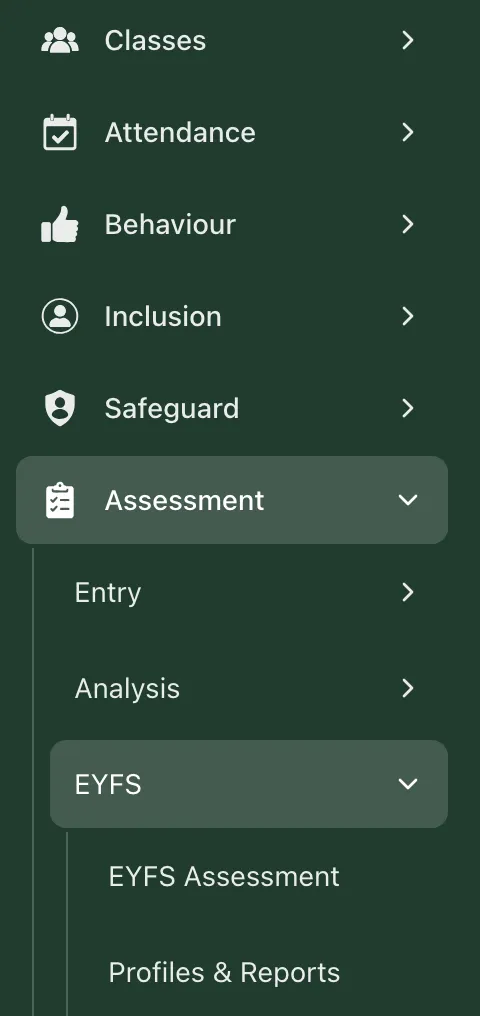
In the sidebar, click Assessment, then EYFS, then EYFS Assessment. You can also click Classes, then Nursery or Reception and your class, then Assess.
-
Find the child’s row and the column for the goal.
-
Right-click the cell. You can also hover over the cell and click Add note, or Edit note if there’s already a note.
Don’t left-click the cell: that changes the child’s judgement for the goal and saves it straight away.
The Observation notes box opens, showing the child’s name and the goal’s code.
Add your evidence
Section titled “Add your evidence”- Type a note about what you saw in the box.
- To attach evidence, choose one of these:
- Photo: takes a photo with your device’s camera. Press the round camera button, then click Use Photo, or Retake to try again.
- Document: opens Upload Documents. Drag a file into the box, or click it to choose a file. You can attach a PDF, a Word document (DOC or DOCX), an image (PNG, JPG or GIF) or a text file, up to 10 MB.
- Start Recording: speak your note, then click Stop Recording. Your words are typed into the note for you to check. No recording is kept.
- The attached file’s name appears below the buttons. To take it off, click × beside it.
- Click Save.
When the note and file are saved, the box closes. The child’s judgement for the goal doesn’t change. A small mark in the top-right corner of the cell shows that a note has been recorded.
When you choose a document, Student Radar says the file was uploaded. At that point it’s only attached: it’s uploaded when you click Save. If you close the box without saving, nothing is kept.
You can attach one photo or document each time you save. If you choose another, it replaces the first. Student Radar keeps one observation per child, per goal, per day, so a new attachment for the same goal on the same day replaces the one you saved earlier that day.
Add evidence from a child’s portfolio
Section titled “Add evidence from a child’s portfolio”- In the sidebar, click Assessment, then EYFS, then Profiles & Reports.
- On the Child portfolio tab, click the child box and type the child’s name, then choose them.
- Scroll down to Evidence timeline.
- If the child has no evidence yet, click Add evidence. The EYFS checklist opens on that child. Under Choose a learning goal to add evidence, choose the goal, and the Observation notes box opens. Then follow the steps above.
- Otherwise, click Open EYFS checklist, or open it from the sidebar, and right-click the goal’s cell.
When the checklist is showing one child, click Clear child selection to see the whole class again.
See the evidence
Section titled “See the evidence”In the child’s portfolio (Profiles & Reports, then Child portfolio):
- Evidence timeline lists each piece of evidence, newest first, with the date, the goal and the judgement. Click a photo or document to open it.
- Recent observations shows each dated observation and whether evidence is attached.
- EYFS profile by area shows how many pieces of evidence each goal has. Click No evidence to see the goals that have none yet.
- Who can add evidence: teachers, SENCos, safeguarding leads, senior leaders and headteachers can open the checklist by default. Teaching assistants can’t. You can only add evidence for children your account has assessment access to. Schools can change who has access.
- Photos of children: follow your school’s policy on taking and storing photos of children.
- Camera: your browser asks for permission to use the camera the first time. If you’d rather not use the camera, take the photo on your device and attach it with Document.
If something doesn’t work
Section titled “If something doesn’t work”| What you see | What to do |
|---|---|
| “Failed to save observation” | Nothing was saved. Your note and file are still in the box, so click Save again. If it keeps happening, ask your school’s Student Radar administrator to check your access. |
| The file doesn’t appear after you choose it | Check that it’s a PDF, Word, image or text file, and no bigger than 10 MB. |
| “Could not access camera” | Allow camera access in your browser’s settings and try again, or attach a photo from your device with Document. |
| “The selected child is unavailable in this checklist.” | The child isn’t in the checklist you can access. Click Clear child selection and find them in the grid, or ask your administrator to check your access. |
| “Could not load this child’s EYFS observations and status.” | Click Try again. If it keeps happening, check your connection and try again later. |
| “No Nursery or Reception children found” | Check the spelling of the child’s name. The portfolio lists only Nursery and Reception children. |