Record a first aid incident
Written for: All school staff.
Use Record First Aid to add an incident to your school’s first aid record. It covers injuries, illness and near misses, for pupils, staff, volunteers and visitors. The form asks what happened, what care was given and, for injuries, whether the incident might need an HSE reporting review. For an everyday bump or graze, Quick log is faster: see Log a minor injury.
Important: if someone needs urgent medical help, follow your school’s emergency procedure first and record the incident afterwards. To get a first aider to you, see Call for first aid.
Start the record
Section titled “Start the record”-
In the sidebar, open Health, then First Aid & Incidents, and choose First Aid.
-
At the top of the page, click Record First Aid.
-
Under What kind of record is this?, choose Injury, Illness or Near miss.
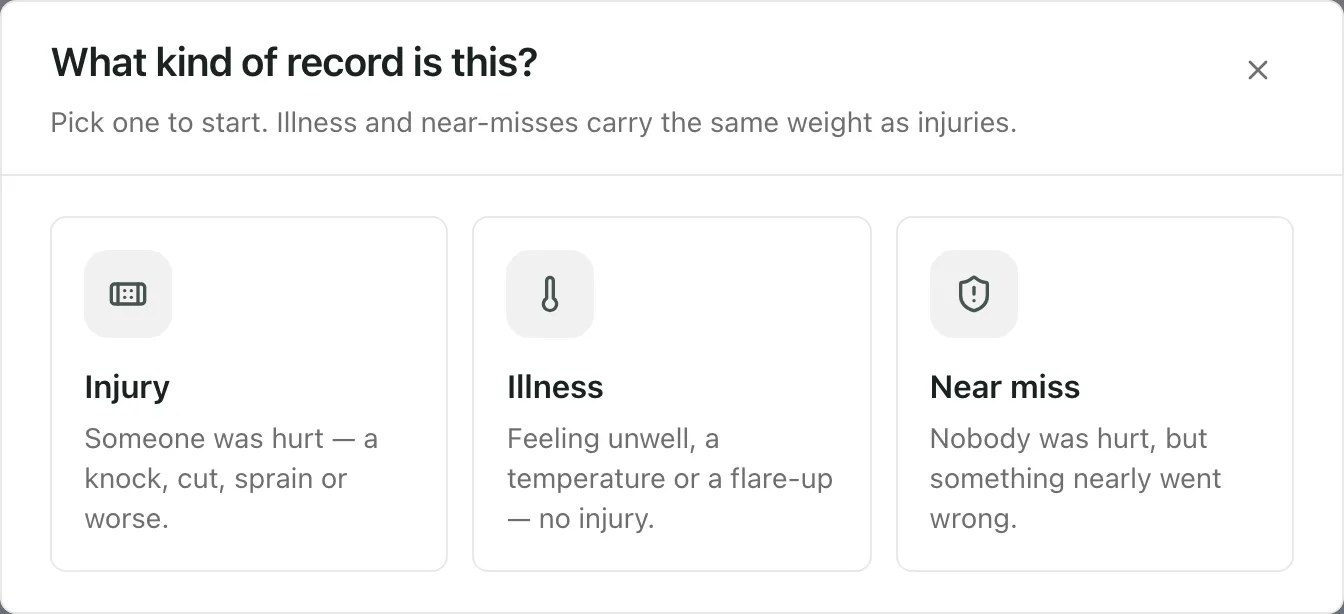
-
Under Who is this for?, choose A student, Staff or volunteer or Visitor or contractor. To change the record type, click Back.
The form opens. Its title matches your choice, for example Record an illness.
Fill in the form
Section titled “Fill in the form”Who was involved?
Section titled “Who was involved?”- For a pupil, search for the Pupil by first name or surname and choose them from the list. To pick someone else, click Change. For anyone else, type their full name.
- For a member of staff, enter Days off work so far (if known) if you know it. You can add it later.
- Enter the Staff member attending.
For injuries and near misses, you add witness accounts after the incident is saved. See Add witness accounts.
What happened?
Section titled “What happened?”- Check the Date and Time, and change them if the incident happened earlier.
- Enter the Location, or click a common place such as Classroom or Sports field.
- Then fill in the part for your record type:
- Injury: choose the Injury type, mark Where was the injury? on the body diagram (or tick Injury location is unclear), answer Is this a head injury? and choose the Injury severity.
- Illness: under Illness details, pick every symptom that applies. You must pick at least one. If you suspect a particular condition, choose it under Suspected condition (optional). Tick Sent home / collected if the pupil went home.
- Near miss: nobody was hurt, so there’s no injury section. Describe what nearly happened and what stopped it.
- In What happened?, describe the incident in plain language. You don’t need medical terms.
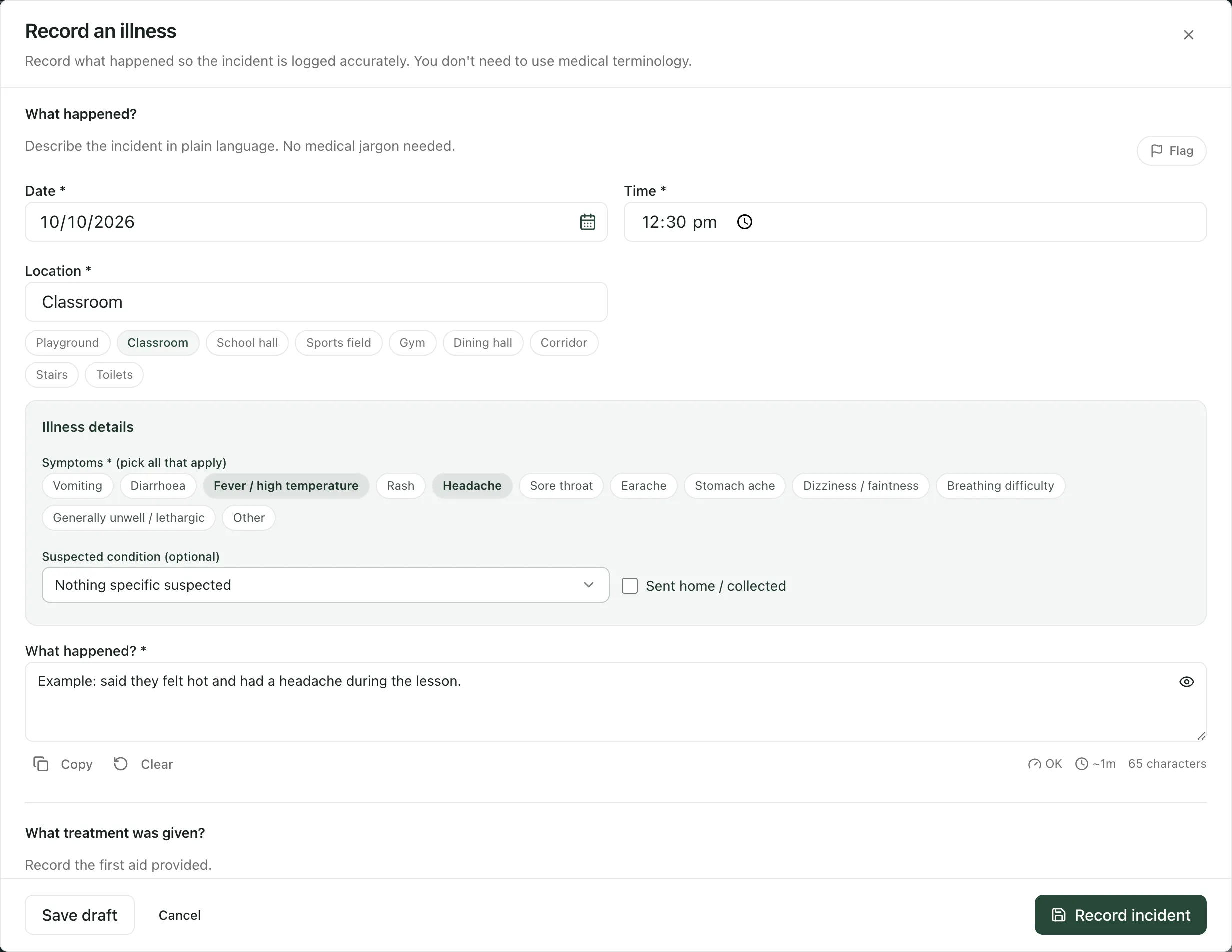
For some symptoms and suspected conditions, the form shows Return-to-school guidance (UKHSA), with the earliest date the pupil could return. This is guidance, not a diagnosis.
RIDDOR check (injuries only)
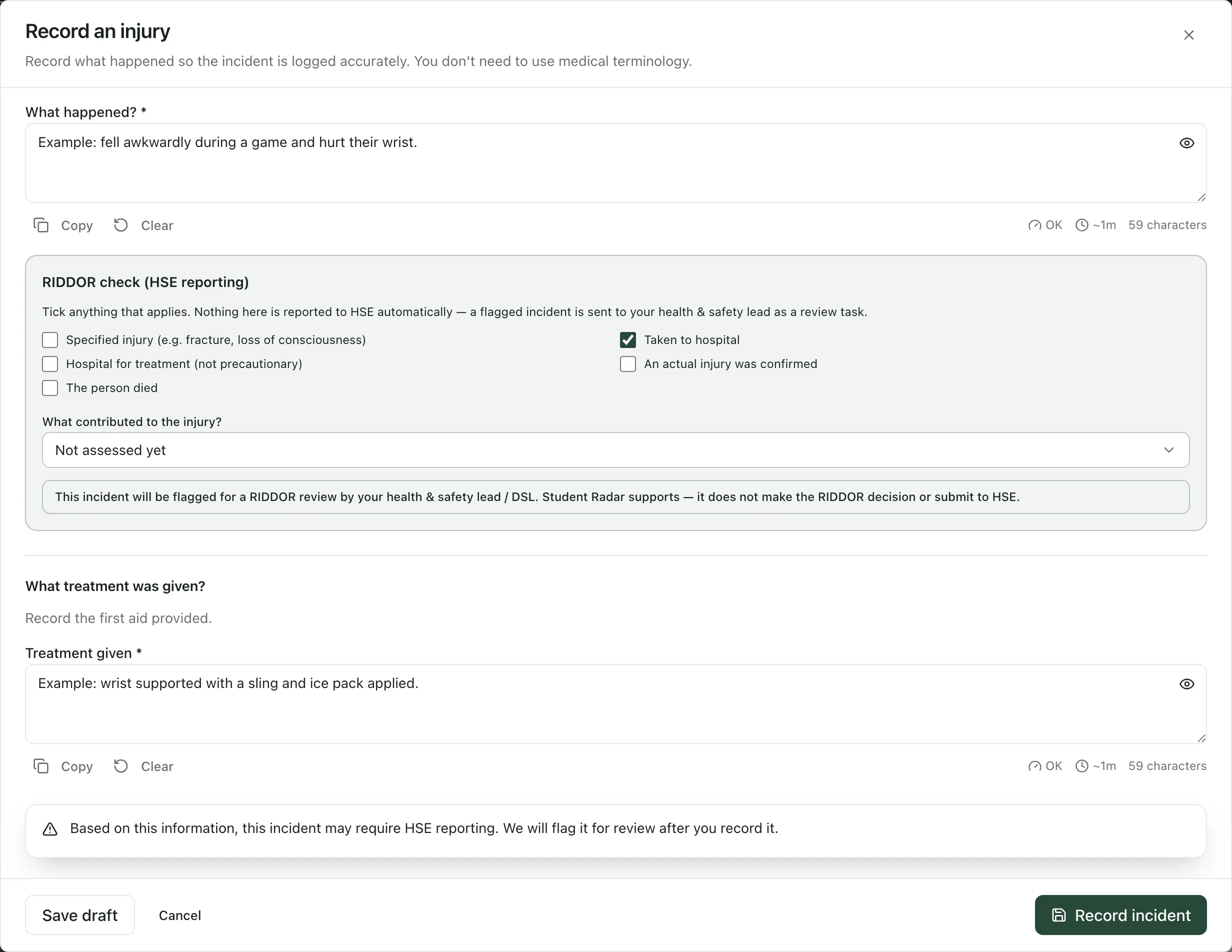
Section titled “RIDDOR check (injuries only)”For an injury, the RIDDOR check (HSE reporting) section asks about anything that could make the incident reportable to the Health and Safety Executive:
- Tick anything that applies, such as Taken to hospital or Specified injury (e.g. fracture, loss of consciousness).
- Choose what contributed under What contributed to the injury?, or leave it as Not assessed yet.
If your answers, or a severity of Serious injury - Medical attention or Serious injury - Emergency services, suggest the incident may need reporting, the form tells you it will be flagged for review. Your health and safety lead or DSL then reviews it. Student Radar doesn’t decide whether to report or submit anything to HSE.
What treatment was given?
Section titled “What treatment was given?”In Treatment given, record the first aid you gave. For a near miss, record what was done to make things safe.
Record it
Section titled “Record it”Click Record incident. For a pupil, the button stays greyed out until you’ve chosen them from the search list.
After you record the incident
Section titled “After you record the incident”An Incident recorded window opens, and the incident appears in the First Aid records list.
- Injury to a pupil: under Review parent communication, you can prepare a message to the pupil’s parent or carer for a second person to approve. See Log a minor injury.
- Illness or near miss for a pupil: under Inform parents, choose Email, SMS or Both, then click Send & finish. Nothing is sent until you click it. If no contact details are on file, tell the parent another way and record how from the incident’s Inform parents button.
- Follow-up: if something still needs doing, tick This needs a follow-up and say what under What needs doing? For a pupil, this adds a task to your My Actions list.
Click Finish (or Send & finish) when you’re done.
If you flagged that the explanation doesn’t fit the injury, or Student Radar asks you to review wording that might be a safeguarding matter, no message goes to the family from here. The designated safeguarding lead decides how and when home is contacted. Follow your school’s safeguarding procedure, and see Raise a safeguarding concern about a pupil if you’re worried about the pupil’s safety.
Add witness accounts
Section titled “Add witness accounts”- In First Aid records, click the person’s name to open the incident.
- Click Witnesses.
- Click Record witness account, choose the Witness type, enter the Witness name and the Witness account, and click Record account.
You can also click Request by email to send a witness a secure link to give their own account, if your school has switched this on. Each account is reviewed before it’s used as evidence, and corrections are kept in its history. If an account contains a disclosure, follow your school’s safeguarding procedure. No concern is created automatically.
If you don’t see Record witness account, your account can’t manage this incident’s witnesses. Ask the person investigating the incident to add the account.
Take the built-in tour
Section titled “Take the built-in tour”Click Take a tour on the First Aid page for a step-by-step guide to the page and the form.
- Check the date: the Date is filled in for you, but just after midnight in summer it can show the previous day. Always check it before you record.
- Drafts: Save draft keeps your form for 30 minutes in the same browser tab. Refreshing the page, signing out or changing school clears it.
- Head injuries: if you answer Yes — head injury, follow your school’s head-injury procedure for telling parents.
- Allergic reactions: if a pupil’s injury type or description mentions an allergic reaction or anaphylaxis, the incident is also added to the allergy incident log.
- Investigations: serious injuries, near misses and incidents flagged for an HSE reporting review are suggested for an accident investigation. See Investigate an accident and sign it off.
- Outside Great Britain: the RIDDOR check and HSE reporting prompts don’t appear for schools where RIDDOR doesn’t apply, such as schools in Thailand.
If something doesn’t work
Section titled “If something doesn’t work”| What you see | What to do |
|---|---|
| Record incident is greyed out | Choose the pupil from the search list. Typing their name isn’t enough. |
| “No pupils found. Try their first name or surname.” | Check the spelling, or type just the first name or surname. |
| “Pick at least one symptom” | For an illness, pick at least one symptom under Illness details. |
| “A name is required for a staff, visitor or contractor injury.” | Type the person’s full name at the top of the form. |
| “Mark at least one known injury location or explicitly select location unclear; an unspecified marker does not identify a location.” | Mark where the injury is on the body diagram, or tick Injury location is unclear. |
| “Classify whether this is a head injury: yes or no.” | Answer Is this a head injury? |
| “School access is unavailable. Close this form and try again.” | Close the form, refresh the page and start again. |
| “Automatic safeguarding wording check unavailable. The incident was saved.” | The incident is recorded. If anything in it worries you, follow your school’s safeguarding procedure. |