Record session attendance and read participation
Written for: Alternative provision staff.
Attendance Tracking brings together two views of a pupil’s attendance at your provision. Booked attendance shows who came to the sessions they were booked into, from your own session registers. Statutory participation shows how many of the pupil’s expected sessions have an attendance mark, and how many they attended. Use both to spot gaps early and follow them up.
Open Attendance Tracking
Section titled “Open Attendance Tracking”In the sidebar, open Attendance and choose Attendance Tracking.
To take a register, click Record session attendance at the top. It opens the Daily Register. See Take today’s register.
Read booked attendance
Section titled “Read booked attendance”The figures at the top cover the last 28 days. To change the period, choose Last 7 days or Last 28 days.
- Expected attendance: every pupil booking in the period. A session with three pupils counts as three.
- Present: bookings marked present.
- Confirmed absent: bookings marked absent.
- Unrecorded: bookings nobody has marked yet. These are kept apart from absence.
Cancelled bookings and lunch duties aren’t counted.
Booked placement attendance shows what share of bookings have a mark, and the actual time pupils attended. It has two tabs:
- Sessions & recording lists each session, newest first, with how many bookings are recorded. Search by title, or filter to Unrecorded or Cancelled sessions. Click Open attendance to open that session’s register and mark or correct it.
- Pupil totals shows each pupil’s expected, present, confirmed absent and unrecorded bookings, and their actual attended time.
Read statutory participation
Section titled “Read statutory participation”Open Statutory attendance and agreed expectations to see the table of statutory attendance for each pupil. It uses statutory attendance marks, not your session registers. Provision attendance never assigns statutory codes.
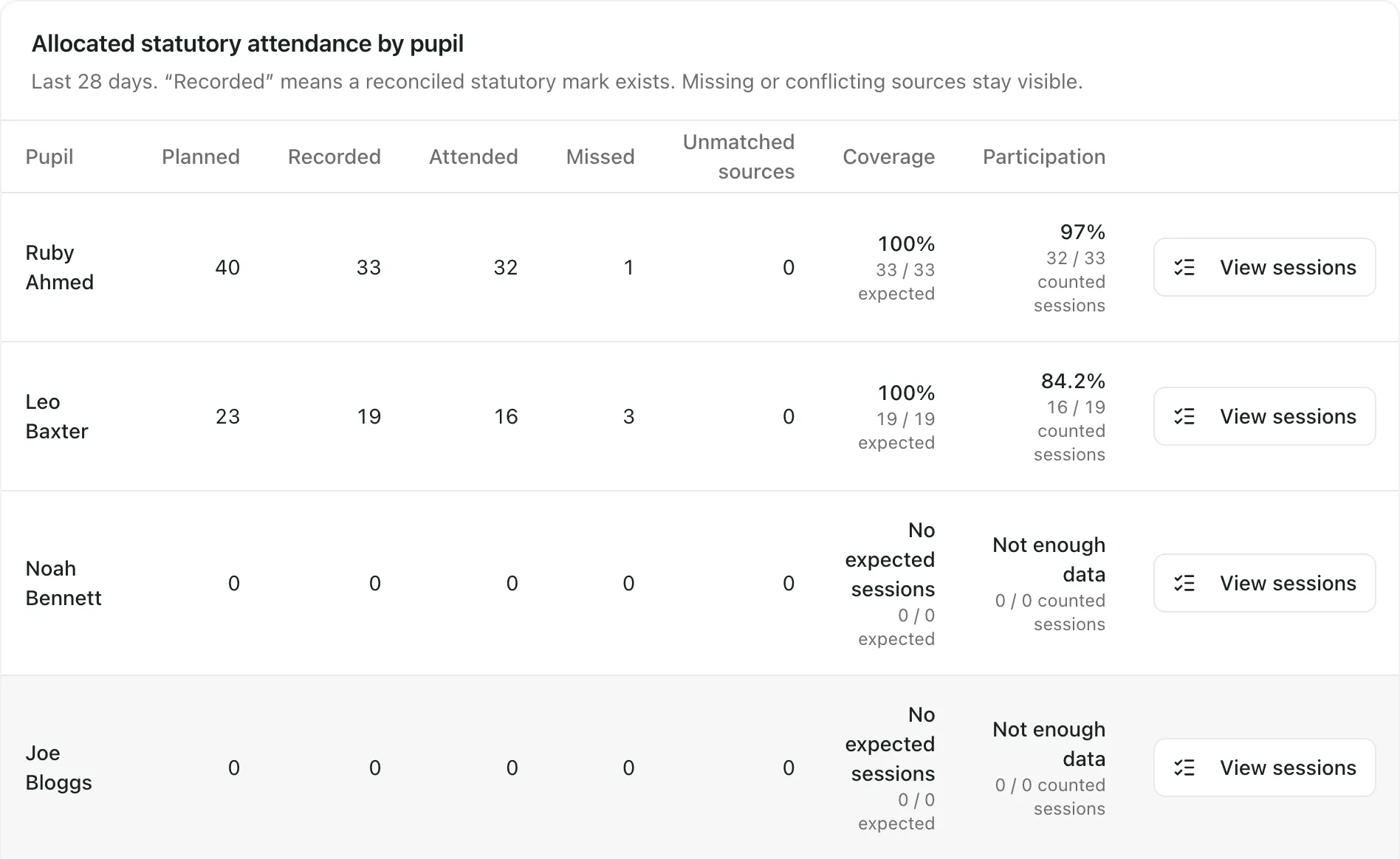
| Column | What it shows |
|---|---|
| Planned | Sessions planned for the pupil in the period. |
| Recorded | Sessions with a reconciled statutory mark. |
| Attended | Sessions the pupil attended. |
| Missed | Authorised and unauthorised absences. |
| Unmatched sources | Expected sessions that still have no attendance mark. |
| Coverage | The share of expected sessions that have a mark. |
| Participation | Attended sessions divided by counted sessions. Sessions with no mark are left out, not counted as missed. |
If a pupil has no expected sessions, you’ll see No expected sessions and Not enough data instead of percentages.
Coverage tells you how complete the records are. Read it before you rely on participation: a high participation figure with low coverage is based on only a few sessions.
Who is responsible for statutory attendance follows the confirmed placement agreement with the commissioning school. To record statutory marks, click Record today — statutory register.
Look at one pupil’s sessions
Section titled “Look at one pupil’s sessions”- Click View sessions on the pupil’s row, or click their name.
- The pupil’s session record opens, showing each session in the period with its time and attendance mark.
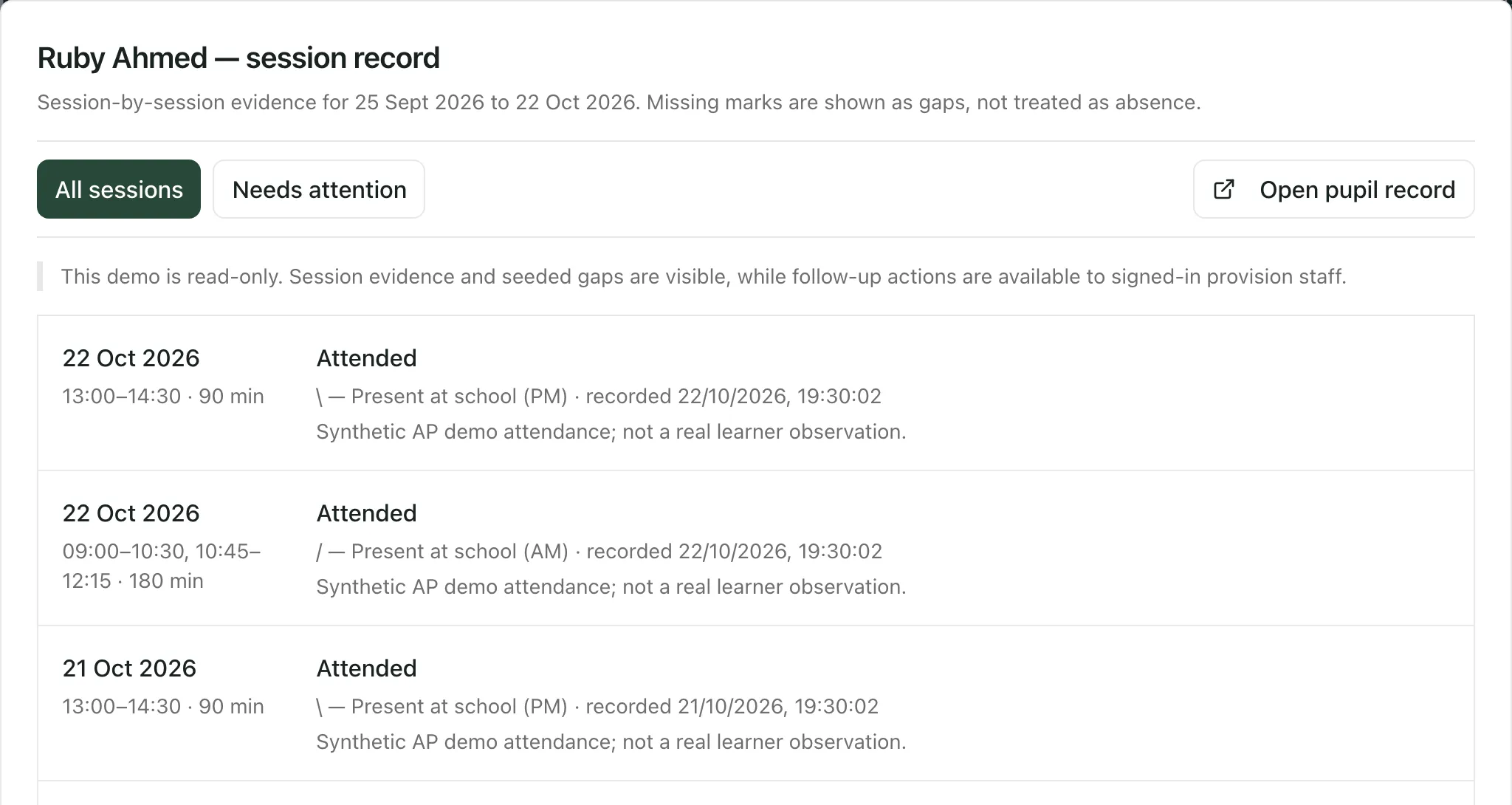
Each session shows one of these:
| What you see | What it means |
|---|---|
| Attended | The pupil attended. |
| Authorised absence | The pupil was absent with permission. |
| Unauthorised absence | The pupil was absent without permission. |
| Not expected to attend | The pupil wasn’t expected that session. |
| Record needed | There’s no attendance mark yet. |
| Check mark | The mark needs checking, for example it isn’t valid. |
| Cancelled | The session was cancelled. |
Click Needs attention to show only sessions with a missing mark or a mark to check. Click Open pupil record to open the pupil’s full record.
Follow up a missing mark
Section titled “Follow up a missing mark”A missing mark isn’t treated as an absence. To make sure someone finds out what happened:
- Click Start follow-up on the session. This adds an owned task to your My Actions. Any message to the family stays a draft until someone sends it.
- When you’ve found out more, click Record review, enter a Review note and the date of the Next review, then click Save review.
The missing mark stays open until the attendance mark itself is recorded. A review records what you know; it doesn’t decide why the mark is missing.
- Plan attendance: staff who can manage attendance plans also see Plan attendance. Use it to record the AM and PM sessions agreed with the pupil and the commissioning school.
- In the demo: the read-only demo shows session records, but follow-up actions are switched off.
- Other routes: under More participation actions, click Weekly rota or Commissioner review pack.
- Your provision’s words: labels use your provision’s Setting profile. The defaults are pupil, group and commissioning school, so your labels may differ.
- The AP menu: the sidebar described here appears when your setting profile is alternative provision and AP operations are active. It only shows the pages you can open.
If something doesn’t work
Section titled “If something doesn’t work”| What you see | What to do |
|---|---|
| “Booked attendance could not be loaded. Figures remain unavailable.” | Click Retry booked attendance. |
| “Placement participation could not be loaded. No zero or fallback figures have been substituted.” | Click Retry. |
| “Session evidence could not be loaded. No fallback records have been substituted.” | Click Retry in the session record. |
| “No sessions need attention in this period.” | Every session in the period has a mark. Click All sessions to see them all. |
| “Your signed-in account is not linked to a current staff record.” | Start follow-up needs your account to be linked to your staff record. Ask your Provision Lead to link it. |
| “Sign in to record attendance.” | You’re using the read-only demo. Sign in to your provision to record attendance. |