Refer a pupil to an external specialist
Written for: SENCos and staff who coordinate outside specialist support.
When a pupil is referred to an outside professional, such as an educational psychologist, speech and language therapist or specialist teacher, record it in Experts at Hand. You link the pupil to the specialist, note why, keep their advice with the pupil’s record and follow up reports or visits that haven’t arrived. Make the referral itself through the service’s own referral process: linking a pupil in Student Radar doesn’t contact the specialist or send them anything.
Open Experts at Hand
Section titled “Open Experts at Hand”- In the sidebar, open Inclusion, then SEND.
- Under External Specialists, choose Experts at Hand.
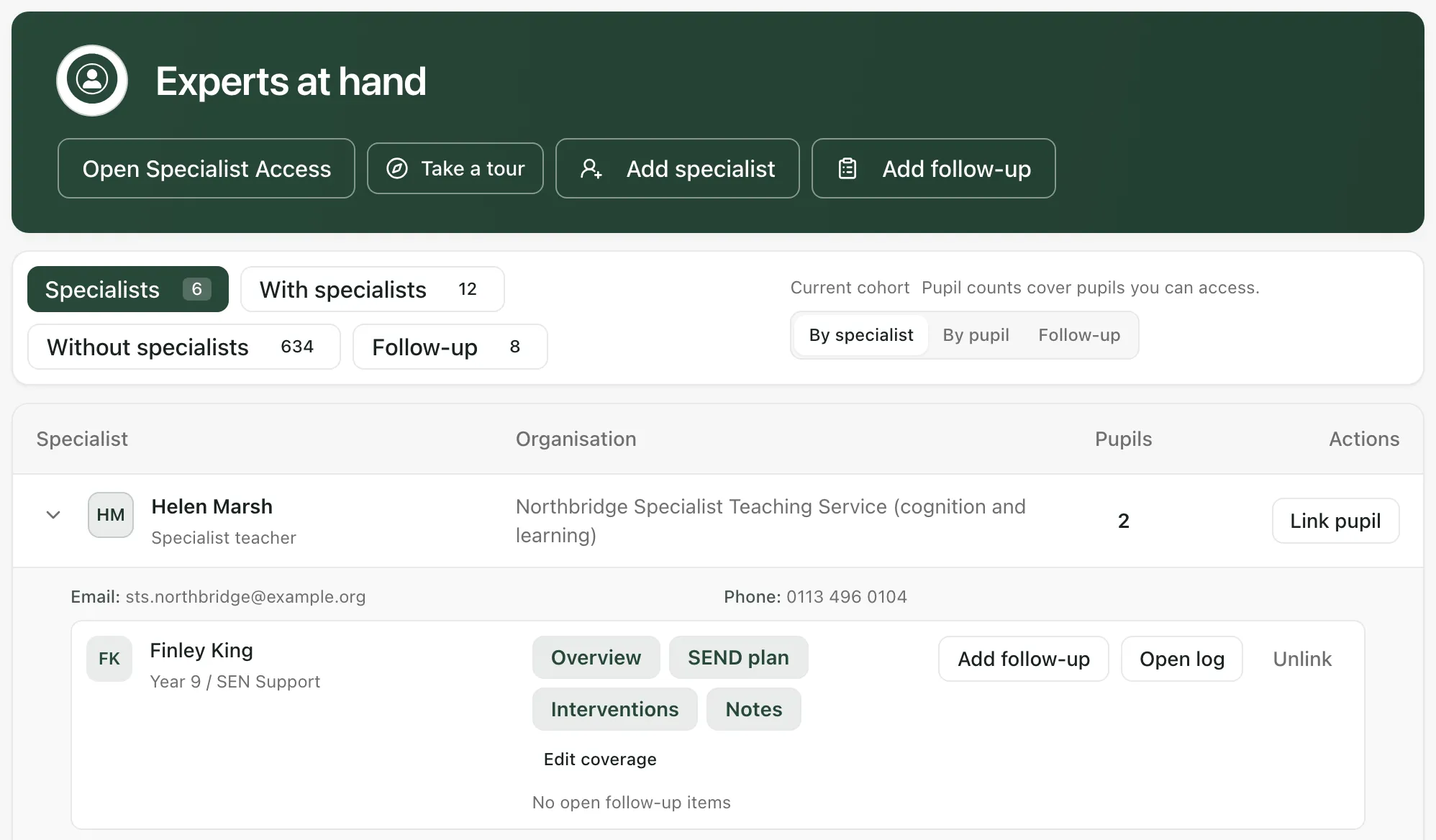
The buttons along the top switch between views:
- Specialists: each specialist, their organisation and how many pupils they’re linked to. Click the arrow next to a name to see their contact details and the pupils they support.
- With specialists and Without specialists: pupils who are, or aren’t, linked to a specialist.
- Follow-up: outstanding follow-up items, such as reports you’re waiting for.
Pupil counts only include pupils you can access.
Add the specialist
Section titled “Add the specialist”If the specialist isn’t in the list yet, add them first.
- Click Add specialist.
- Enter their Name and choose their Type, for example Educational psychologist or Speech and language therapist.
- Add their Organisation, Email and Phone, and any Notes, such as commissioning or service details.
- Click Add specialist.
Add specialist stays greyed out until you’ve entered a name.
Link the pupil to the specialist
Section titled “Link the pupil to the specialist”- Find the specialist in the list and click Link pupil.
- Check the Specialist and choose the Pupil.
- Under Areas supported, choose the parts of the pupil’s support the specialist works on. SEND plan is chosen to start with. Click an area to add or remove it.
- In Reason, say why the specialist is involved, for example the question you’ve asked them to look at.
- Click Link pupil.
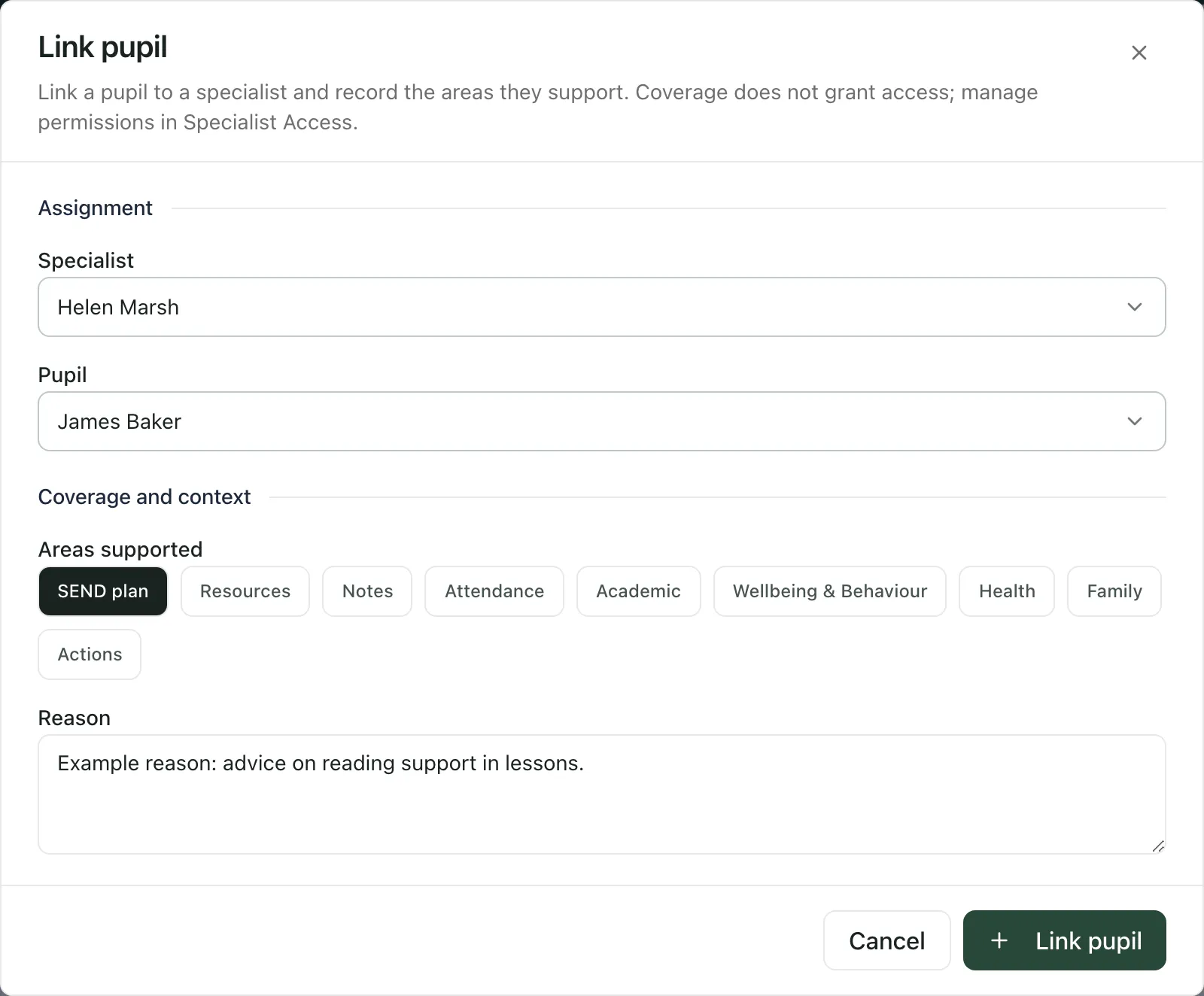
You can also start from the pupil: click Without specialists, find the pupil and click Link pupil on their row.
Note: The areas supported describe the specialist’s role for the pupil. They don’t let the specialist see anything in Student Radar. To give an external specialist access to pupil information, click Open Specialist Access and follow your school’s process for sharing information.
Record the specialist’s advice
Section titled “Record the specialist’s advice”- On the pupil’s row under the specialist, click Open log. The pupil’s profile opens on Specialist input.
- Click Add update under the specialist, then type the advice, recommendation or note.
- To attach a report, click Attach file and choose the file.
- Click Add update.
Attached files are also saved to the pupil’s Resources section.
Follow up reports and visits
Section titled “Follow up reports and visits”When you’re waiting on the specialist, for example for a written report, add a follow-up so it isn’t forgotten.
- On the pupil’s row, click Add follow-up. You can also click Add follow-up at the top of the page and choose the Specialist-pupil link.
- Give it a Title and a Due date.
- In Details, say what you’re waiting for and who you’ve contacted.
- Click Add follow-up.
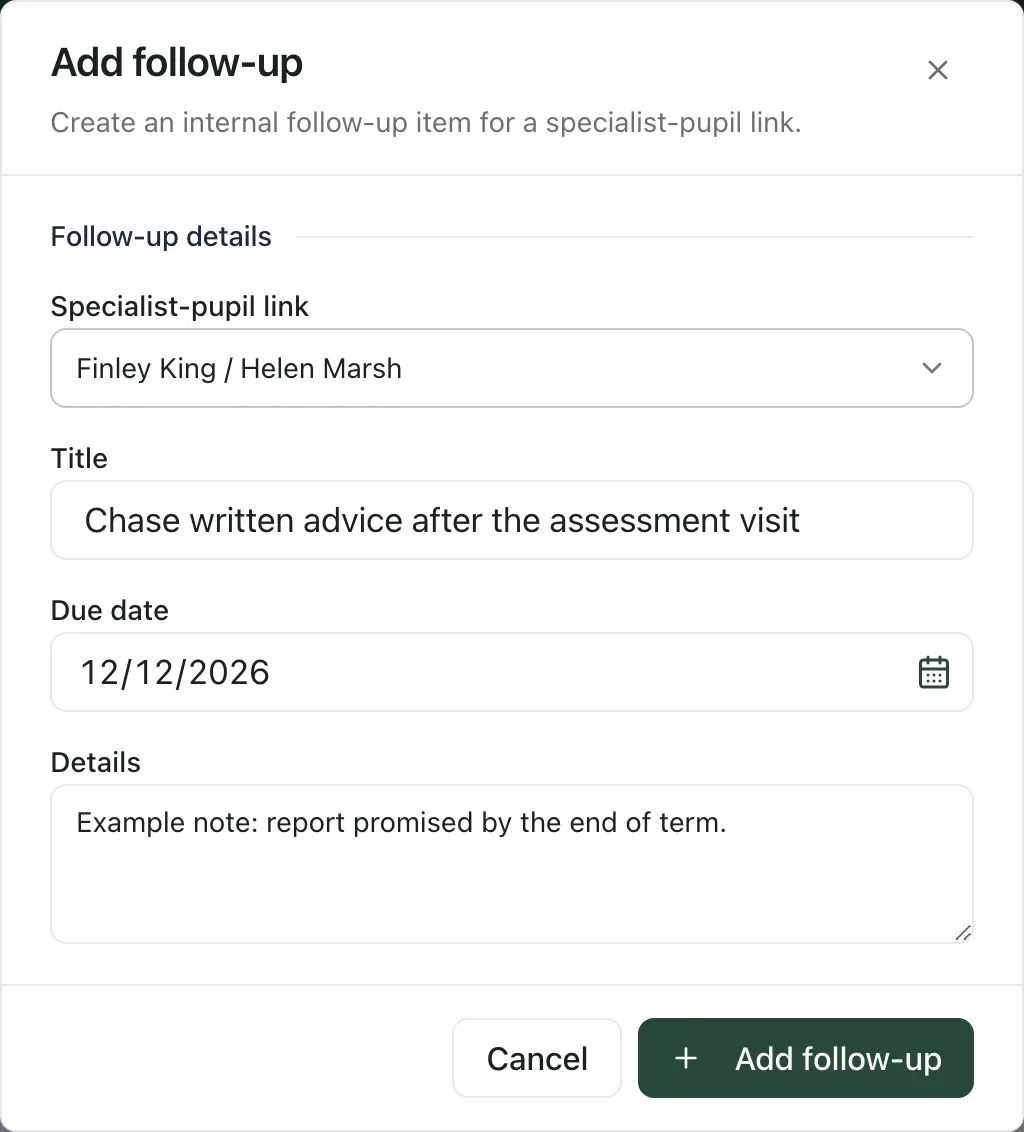
Follow-ups are internal to the school. To check on them, click Follow-up. Use Open, Overdue, Due this week, Waiting and Closed to filter the list. On each item:
- Click Waiting when you’ve chased it and are waiting for a reply.
- Click Complete when it’s done.
- Click Cancel if it’s no longer needed.
When the specialist’s involvement ends
Section titled “When the specialist’s involvement ends”Click Unlink on the pupil’s row. The pupil is no longer linked to the specialist, but their advice is kept and any outstanding follow-ups stay open. If you unlink by mistake, click Create new link in the message that appears straight away. This starts a new link; the earlier advice stays with the ended one.
To change the areas supported, click Edit coverage, choose the areas and click Save coverage.
Take the built-in tour
Section titled “Take the built-in tour”Click Take a tour at the top of the page for a short guide to adding specialists, linking pupils and following up.
- Who can make changes: some staff can view Experts at Hand but not change it. For them, Add specialist, Link pupil and Add follow-up are greyed out.
- Who can open the page: by default, teachers, SENCos, the DSL team, headteachers and administrators. Your school can change who has access.
If something doesn’t work
Section titled “If something doesn’t work”| What you see | What to do |
|---|---|
| Add specialist, Link pupil or Add follow-up is greyed out | Your account can view Experts at Hand but not change it. Ask your SENCo. |
| “Unable to load Experts at hand” | Click Try again. |
| “Pupil not assigned” | The pupil may already be linked to this specialist. Check the specialist’s list of pupils. |
| “Specialist not created” or “Follow-up not created” | Check your connection and try again. Your details are still in the form. |
| “Pupil unavailable” | The pupil isn’t in the pupils you’re currently looking at. Clear any filters, or search for the pupil at the top of the screen. |
| “Showing part of the available records. Pupil totals are incomplete until all pages are loaded.” | Click Load more records before you rely on the counts, or look for pupils without a specialist. |