Call for first aid
Written for: All school staff.
When someone needs a first aider, you can send a request from Student Radar. It alerts the first aider on duty on your school’s first-aid rota, and you can follow their response on screen.
Important: if someone needs urgent medical help, don’t wait for a reply in Student Radar. Follow your school’s emergency procedure and call for help directly, including the emergency services if needed.
Send a request
Section titled “Send a request”-
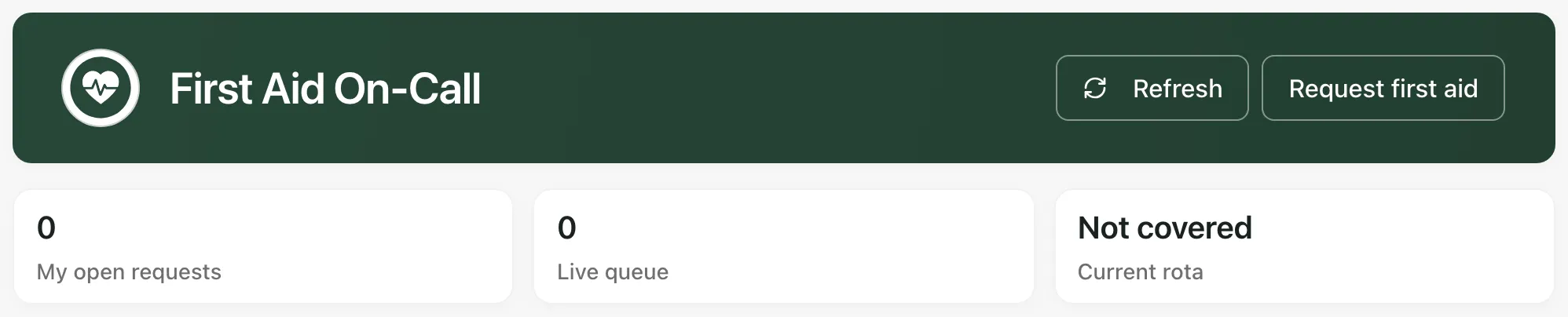
In the sidebar, open Health, then First Aid & Incidents, and choose First Aid On-Call.
-
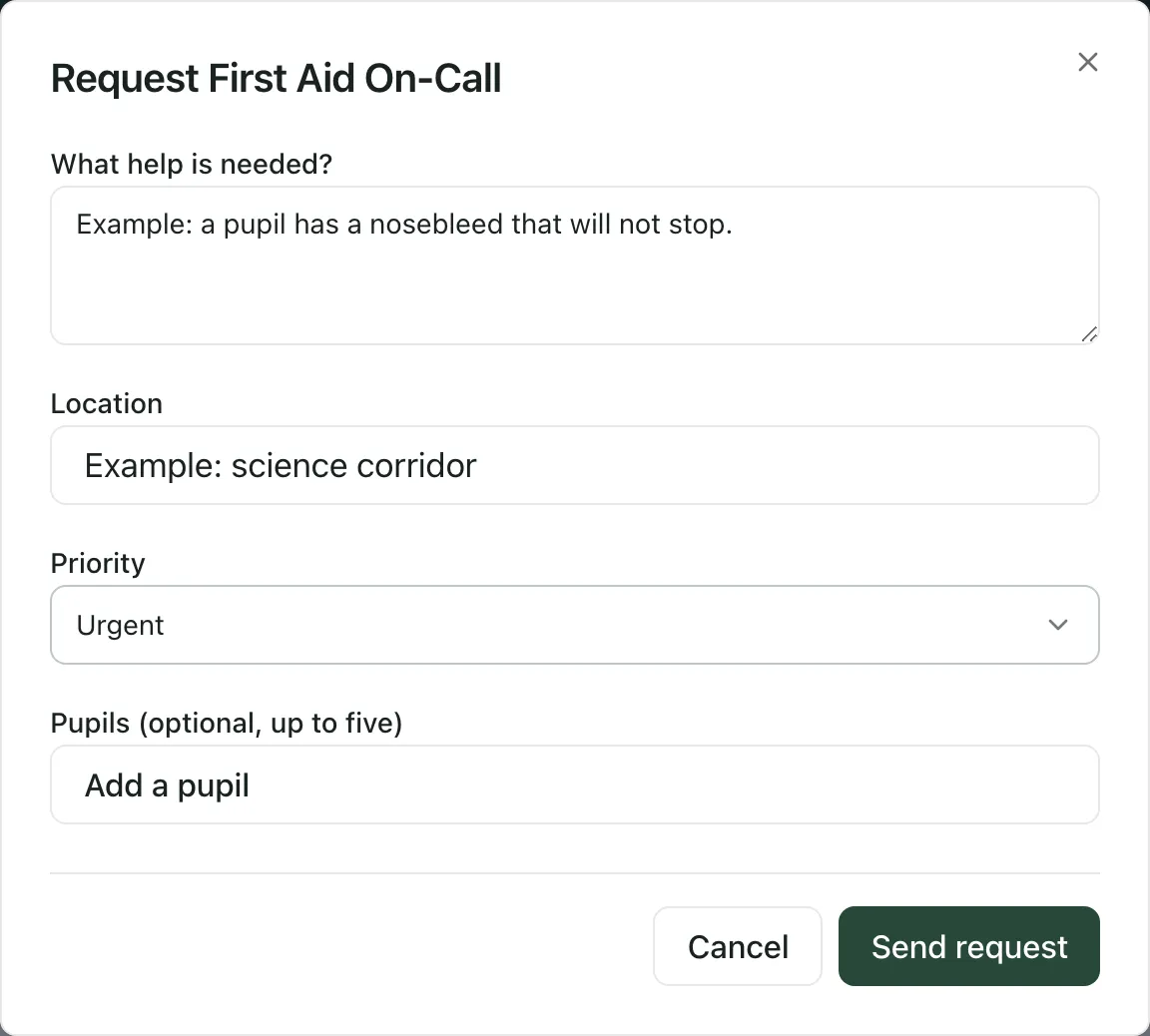
Click Request first aid. This opens the request form. Nothing is sent yet.
-
Under What help is needed?, say briefly what’s happened.
-
Enter the Location, so the first aider knows where to go.
-
Choose the Priority: Standard, Urgent or Immediate. It starts at Urgent.
-
If you know which pupils need help, click Add a pupil and search for them. You can add up to five. This is optional, so don’t let it slow you down.
-
Click Send request.
A message confirms that the current first-aid responder has been alerted.
Follow the response
Section titled “Follow the response”Your request appears under My requests, with its priority, status, location, time and any pupils you added. The status changes as the first aider responds, for example when they acknowledge the request or are on their way. Once they’re on their way, it also shows how many minutes they expect to take.
The cards at the top of the page show:
- My open requests: requests you’ve sent that are still in progress.
- Live queue: for the first aider on duty, the requests waiting for them. They respond from the Live queue tab. If you aren’t on duty, this shows 0.
- Current rota: your own first-aid duty right now. If you aren’t on duty, it shows Not covered. That doesn’t mean no first aider is on duty.
Click Refresh to load the latest updates.
Cancel a request
Section titled “Cancel a request”If help is no longer needed, click Withdraw on your request. You can do this until the request is resolved.
When the request is resolved
Section titled “When the request is resolved”The first aider records the outcome, such as treating the pupil where they are or moving them to the first-aid room. Unless it was a false alarm, they then complete a first aid record for the incident, linked to your request.
Another way to call for first aid
Section titled “Another way to call for first aid”You can also open Help & Support at the bottom of the sidebar, choose In-School Support and pick Medical help. Fill in the details and send it. The request goes to First Aid On-Call as an urgent request.
If something doesn’t work
Section titled “If something doesn’t work”| What you see | What to do |
|---|---|
| Send request is greyed out | Fill in What help is needed? |
| “First aid request was not confirmed” | Your request may not have reached anyone. Call for help directly, then check My requests before trying again. |
| “Your draft is still open. Check the details before trying again, or call for help directly.” | The form keeps your details. If help is still needed, call for help directly first. |
| “First Aid On-Call is unavailable.” | Click Refresh. If it still doesn’t load, call for help directly and tell your school’s Student Radar administrator. |
| “You have not raised any first-aid requests” | You haven’t sent a request from this account yet. This isn’t an error. |