Write your inclusion strategy
Written for: SENCos and school leaders who prepare the school’s inclusion strategy.
Schools are expected to publish an inclusion strategy on their website by 31 December 2026 and review it every year. The Inclusion Strategy page follows the Department for Education template: a statement of intent, the barriers your pupils face, the activities you’ll fund this year and the outcomes you’re aiming for. Student Radar can suggest content from your school’s data, but you decide what goes in. You publish the finished document on your website yourself, then record the publication here.
Open the strategy
Section titled “Open the strategy”- In the sidebar, open Inclusion, then SEND.
- Under Reports, choose Inclusion Strategy.
The strategy for the current academic year opens. The first time you open it, Student Radar starts a draft for you: it fills in the school name, the academic year, the headteacher as the person authorising it and a review date at the end of the year, and writes an opening statement of intent from your school’s records.
At the top of the page, a note says how recent the SEND figures are. If they’re available, four key figures follow: On SEND register, EHC plans, SEN support and SEND attendance. Open About these figures and sources to see where they come from and what they don’t cover. A dash (—) means a figure isn’t available.
Work through the sections
Section titled “Work through the sections”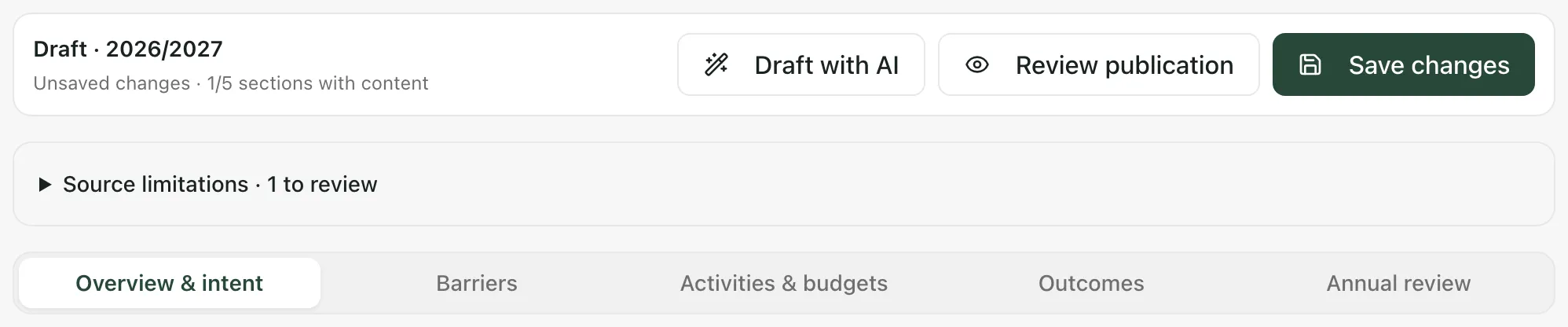
The toolbar stays at the top of the page as you scroll. It shows whether the strategy is a draft, whether your changes are saved and how many of the five sections have content.
The strategy has five sections. Click each one in turn:
| Section | What to fill in |
|---|---|
| Overview & intent | Academic year/years this strategy covers, Date this statement was published, Date on which it will be reviewed, Statement authorised by and the Statement of intent. |
| Barriers | Barriers to learning and participation: what makes it harder for your pupils to learn, attend, take part or belong. One clear sentence each. |
| Activities & budgets | Activity in this academic year: for each activity, a description with its evidence and the barriers it addresses, the Activity type and the Agreed strategy budget. |
| Outcomes | Intended outcomes: each with an Intended outcome and its Success criteria. |
| Annual review | Review of the previous academic year (optional in the first year) and Further information for families. |
Click Guidance under a section’s title for the DfE guidance on what it should cover. To add an entry yourself, click Add barrier, Add activity or Add outcome.
Barriers are about what pupils experience, not gaps in your data or processes. Each barrier is numbered, so each activity’s description can say which barriers it addresses.
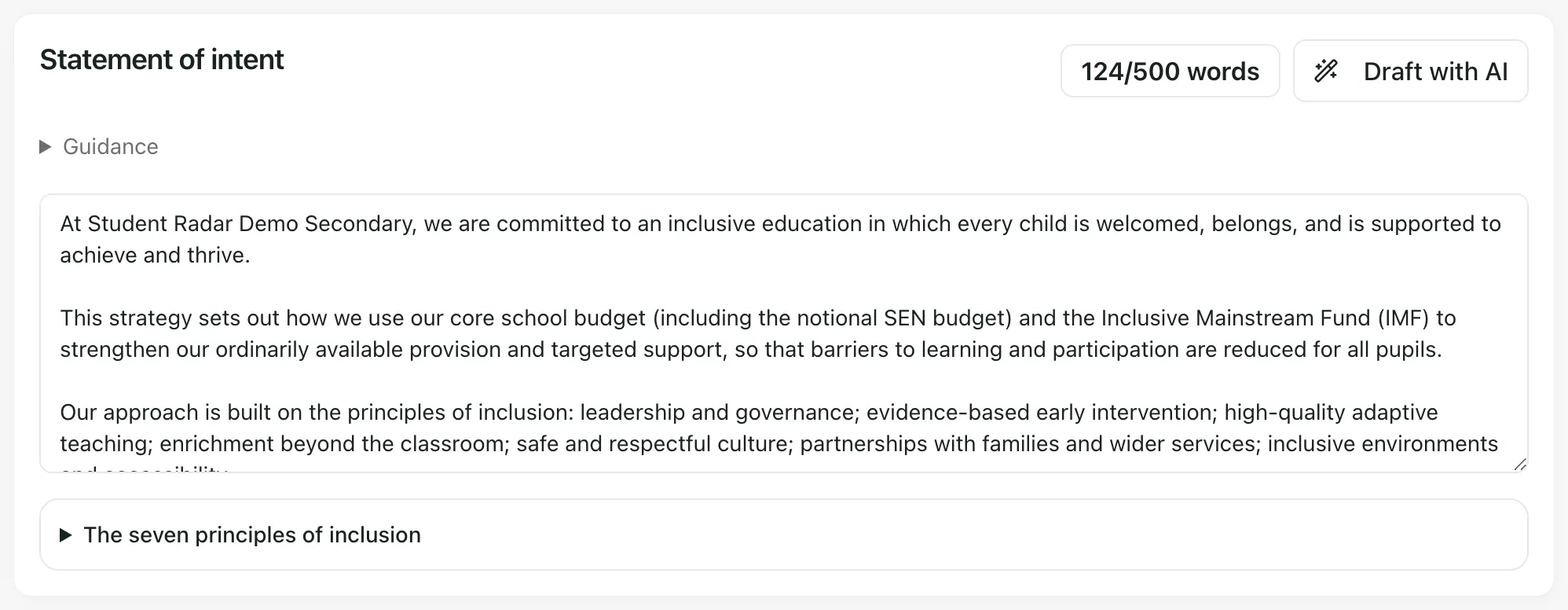
Aim for 500 words or fewer in the Statement of intent. The count turns red if you go over. Open The seven principles of inclusion to check your statement covers them.
Saving
Section titled “Saving”Your changes save automatically a couple of seconds after you stop typing. Click Save changes to save straight away. When everything is saved, the toolbar says Saved to your school.
If you try to leave the page with unsaved changes, Student Radar asks you to confirm first.
Use suggestions from your data
Section titled “Use suggestions from your data”Each section can suggest content for you to choose from. Nothing is added until you pick it.
- Click Suggest from data in Barriers or Outcomes, or Suggest from provision map in Activities & budgets.
- Read each suggestion. Open Compare with my current draft to see what you’ve already written.
- Tick the suggestions you want to use.
- Click Apply selected suggestions. The suggestions are added after your existing entries. Click Keep my draft to close without adding anything.
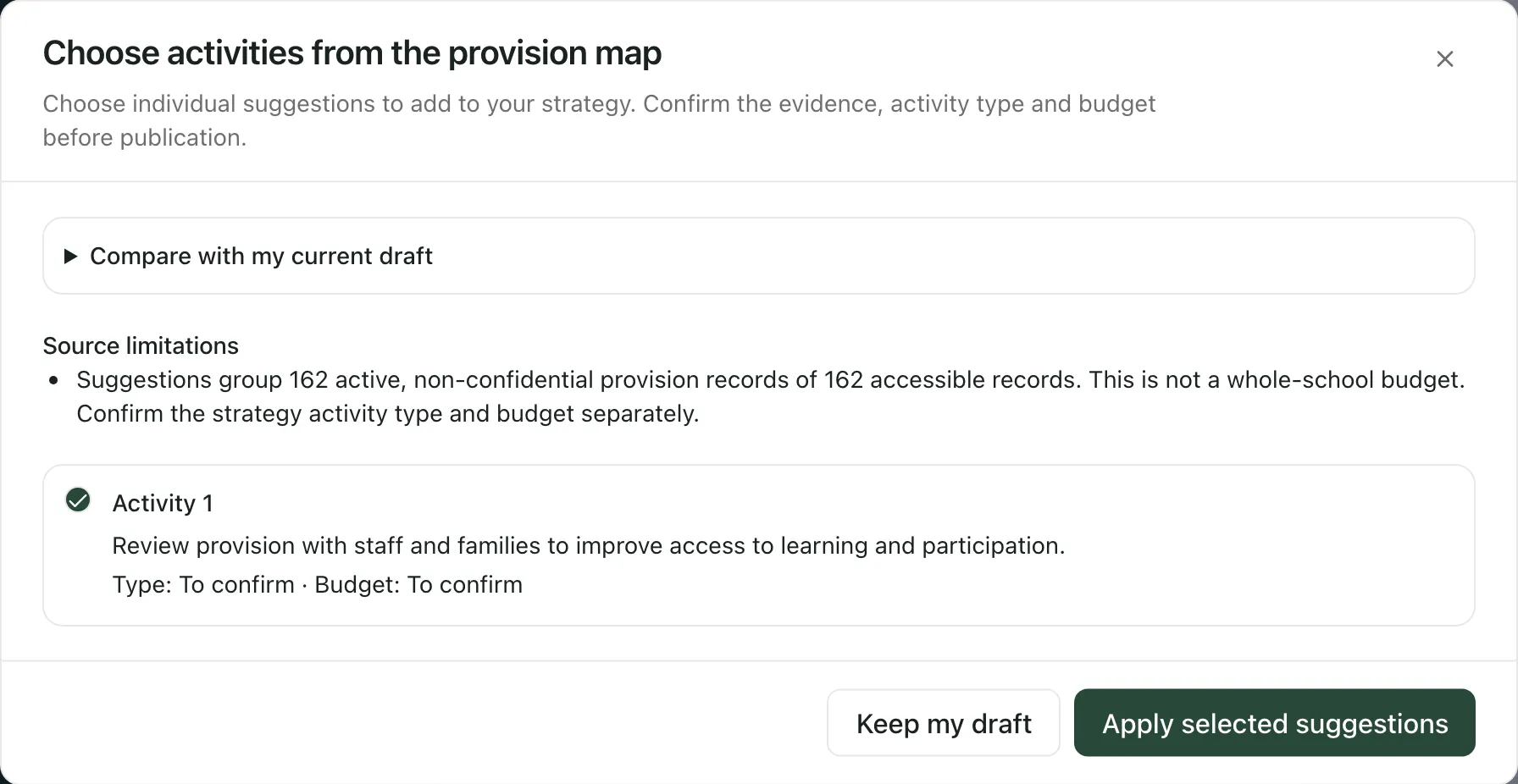
Suggestions are drafted from your school’s recorded figures and provision records. They’re a starting point for your own judgement, not a finished strategy:
- Check each one against what you know about your pupils, and reword it for families.
- Activities suggested from the provision map are based on recorded provision, not your budget. Set the Activity type and Agreed strategy budget yourself.
- If the window shows Source limitations, read them: they say what the suggestions are based on and what they leave out.
Draft with AI
Section titled “Draft with AI”Click Draft with AI in the toolbar to ask AI for a draft of the statement of intent, barriers, activities and outcomes, built from your school’s data. The Draft with AI button on the Statement of intent drafts just the statement.
The AI draft opens in the same review window. Here, a suggestion you apply replaces that section’s current wording. Sections you don’t pick keep your wording. AI drafts can be wrong or miss what matters to your school, so read every suggestion carefully before you use it, and check any figures it quotes against your records.
Check the source limitations
Section titled “Check the source limitations”If some of your school’s data couldn’t be read when the strategy was prepared, Source limitations lists the gaps. Read them, then tick I have reviewed these gaps and will address them through this strategy’s evidence and monitoring plan. You can’t record the strategy as published until you’ve done this.
Download and publish the strategy
Section titled “Download and publish the strategy”When every section is complete:
- Click Download Word at the bottom of the page.
- Read the preview. Remove pupil names, individual support details and any counts or details that could identify a child.
- Tick I have reviewed every section for public sharing and removed pupil-identifying or private support information.
- Click Download reviewed Word.
- Publish the document on your school website, following your school’s usual process.
Record the publication
Section titled “Record the publication”- Click Review publication.
- Work through anything listed under Complete before recording publication, such as an activity with no type or budget. Close the window, fix it and open it again.
- Read the preview, then tick the box to confirm you’ve checked the evidence, wording and budgets and published this version on your website.
- Click Record as published.
The toolbar now shows Publication recorded. Student Radar also saves an outcomes baseline: the key figures and your intended outcomes at the time. Next year, it appears on the Annual review section to help you write the review of the previous year.
Recording the publication doesn’t put anything on your website. If you edit a published strategy, it reopens as a draft revision for you to review and record again.
Start next year’s strategy
Section titled “Start next year’s strategy”In a new academic year, the page starts a new draft. If your last strategy covers more than one year, open Overview & intent and use the panel at the top to continue it: click Use earlier strategy for this year, then update the budgets, review dates and outcomes. On Annual review, click Draft review from this baseline under last year’s baseline to start the Review of the previous academic year. A change in a school figure on its own doesn’t show that an activity worked, so add the evidence behind any progress you describe.
If something doesn’t work
Section titled “If something doesn’t work”| What you see | What to do |
|---|---|
| “Complete every required strategy section before publishing.” | Click Review publication to see what’s missing, then complete it. |
| “Review and acknowledge the evidence gaps before publishing.” | Open Source limitations, read the gaps and tick the box. |
| “The source availability changed. Review the source limitations before recording publication.” | A data source changed while you were recording the publication. Check Source limitations again, tick the box and try again. |
| “Make a change to open a draft revision before publishing an update.” | This version is already recorded as published. Edit the strategy first. |
| “A section can contain up to 50 entries. Select fewer suggestions or remove entries first.” | Tick fewer suggestions, or remove entries you don’t need. |
| “No suggestions are available from these sources.” | There isn’t enough recorded data to suggest anything. Add entries yourself. |
| “Activity suggestions could not be loaded. Retry or add an activity manually.” | Click Suggest from provision map again, or click Add activity. |
| “Strategy could not be loaded” | Click Retry loading strategy. Your saved strategy hasn’t been replaced. |
| “Changes could not be completed” | Your draft is still on the page. Check your connection and click Save changes again. |
| “Could not prepare the Word document. Please try again.” | Click Download reviewed Word again. |