Set up SMS, the parent portal and translation
Written for: Headteachers, school administrators and office managers.
These settings control how your school appears in text messages to families, what families can see in the parent portal, and which languages families can read Student Radar in. They’re on two tabs of School Settings: Communications for text messages, and Access & Values for the parent portal, school values and translation.
Choose how texts from your school appear
Section titled “Choose how texts from your school appear”-
In the sidebar, click Settings, then School Settings.
-
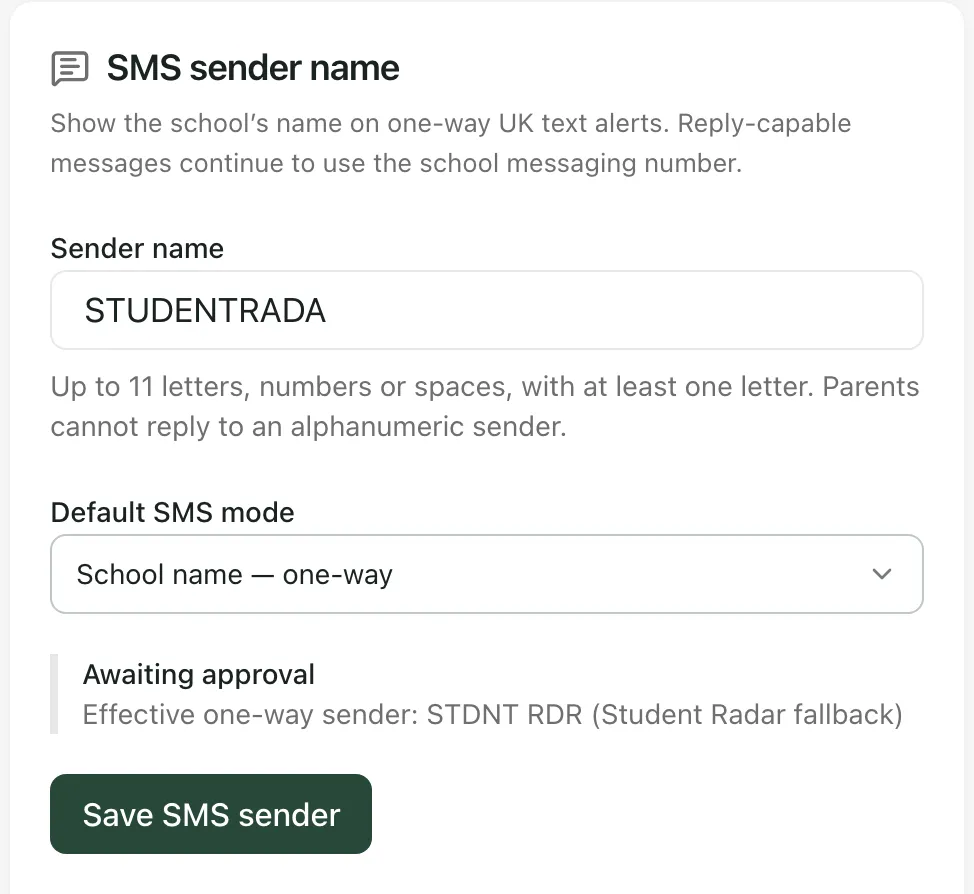
Click the Communications tab. The SMS sender name card is on the right.
-
In Sender name, type the name parents will see as the sender of one-way texts. Use up to 11 letters, numbers or spaces, with at least one letter, such as your school’s short name.
-
Choose the Default SMS mode:
- School name — one-way shows your sender name. Parents can’t reply to it.
- Messaging number — replies enabled sends from the school messaging number, so parents can reply.
-
Click Save SMS sender.
You’ll see “SMS sender settings saved”.
Approval of a new sender name
Section titled “Approval of a new sender name”Student Radar checks every new sender name before it’s used. Under the mode, the card shows where your name is up to:
| Status | What it means |
|---|---|
| Awaiting approval | Student Radar hasn’t approved the name yet. One-way texts show STDNT RDR until it has. |
| Approved | Your sender name is approved and shown on one-way texts. |
| Needs revision | The name wasn’t approved. Choose a different name and save it again. |
Effective one-way sender shows the name parents see right now. If it says (Student Radar fallback), texts show STDNT RDR.
If you change an approved name, the new name needs approval too, and texts show STDNT RDR until it’s approved. Changing only the Default SMS mode keeps your approval.
Send a test text
Section titled “Send a test text”Below the save button, Send a test text sends one text to a mobile so you can see how your school’s texts look. It uses your saved settings and contains no pupil information.
- In Test mobile number, enter a UK mobile number you can check, starting with 07 or +44. Use your own number or one you have permission to test.
- Click Preview test text.
- Check the number and the message in Send this test text?, then click Send test text.
Your school can send up to 5 test texts a day.
Set what families see in the parent portal
Section titled “Set what families see in the parent portal”-
Click the Access & Values tab. On the Communications tab, you can also click Open parent portal settings.
-
Under Parent portal, choose what families can see:
- Behaviour recognition shows positive recognition points on each child’s dashboard card. Which behaviour categories, comments and sanctions families can see is set separately: if you have access, click Manage behaviour sharing.
- Secure ISP review links lets authorised staff create time-limited links that let a family review one ISP. A link doesn’t create a parent account or give access to anything else.
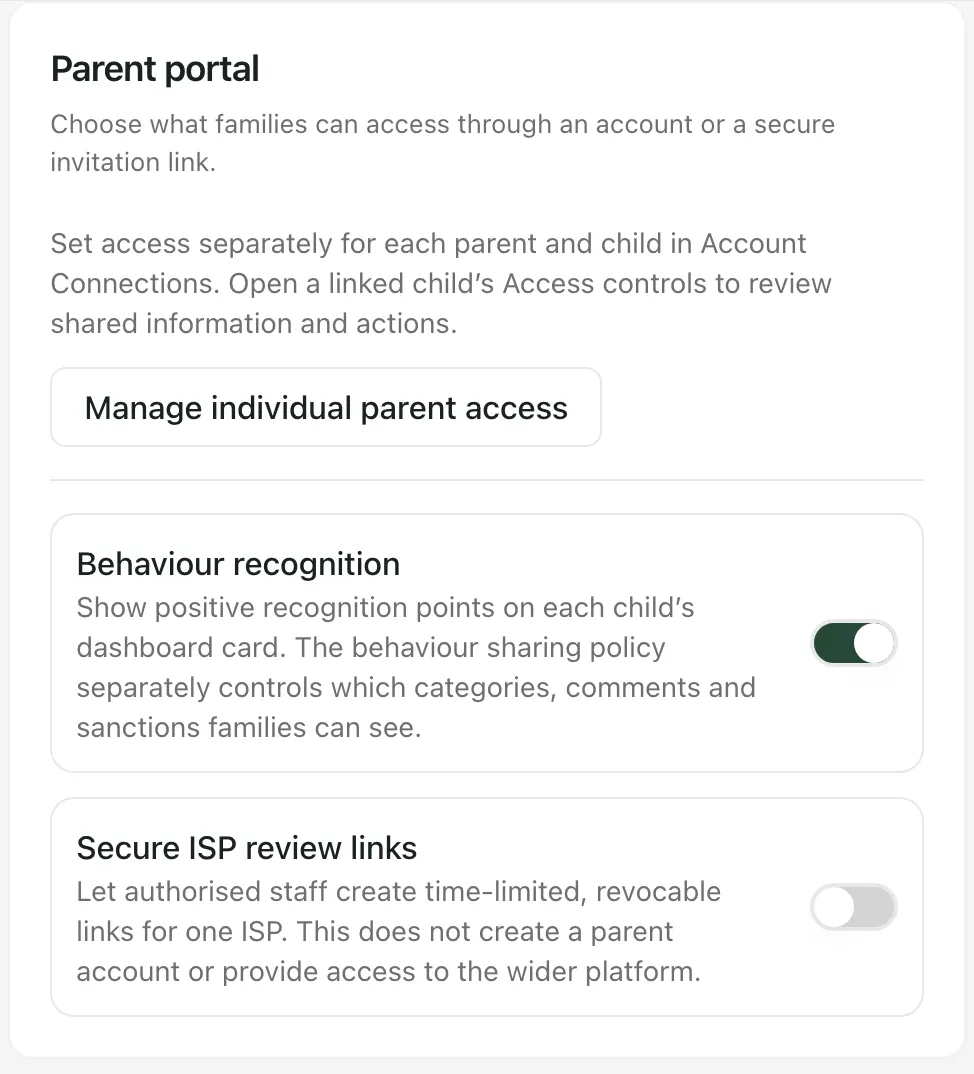
The switches save as soon as you change them.
To set what each parent can see and do for each of their children, click Manage individual parent access. It opens Account Connections.
Add your school values
Section titled “Add your school values”Under School values, add up to 5 values, such as Kindness. Each can have an optional explanation, which parents see when they point at the value. Click Add value to add another, Remove to take one away, then Save values.
You’ll see “School values saved”. Parents see the values at the top of their dashboard when they sign in.
Choose which languages families can use
Section titled “Choose which languages families can use”- On the Access & Values tab, find the Translation card. On the Communications tab, you can also click Open translation settings.
- Use the switches at the top:
- Parent translation lets families read Student Radar in their own language. The badge next to the title shows Enabled or Disabled.
- Persistent cache keeps translations so they can be used again.
- Low-risk prewarming lets Student Radar prepare translations of low-risk content in advance.
- Under Allowed target languages, tick the languages your families use. Search by the language’s English or native name. If you leave every language unticked, families can use any supported language.
- Click Save translation settings. You’ll see “Translation settings saved”.
Tip: Under School language profile, Student Radar ranks the languages your families use most, from parent preferences and pupil language data. Click Use suggestions to tick them. Small groups are hidden to protect privacy.
Some content needs a person to check its translation before families see it. Under Review translations, staff with permission review the wording and approve it. The English version always remains the official text.
- Texts to Thai mobile numbers: texts to Thai mobiles need a registered Thai sender, which isn’t set up yet. Student Radar doesn’t send them, and you can’t test them here. Texts to Thai landlines aren’t possible.
- Parent Portal operations: you might also see a Parent Portal operations card on Access & Values. It checks whether your school is ready for a newer parent portal that isn’t switched on for schools yet. You don’t need to change it.
- Who can change these settings: each card has its own permission. By default, headteachers, administrators and office managers can change the parent portal and translation settings, and headteachers and administrators can change the school values. If you can see a card but can’t change it, ask your Student Radar administrator.
- Take the tour: click Take a tour at the top of School Settings for a short guide to each tab.
If something doesn’t work
Section titled “If something doesn’t work”| What you see | What to do |
|---|---|
| “You do not have permission to manage the school SMS sender, or the settings could not be loaded.” | Reload the page. If you still see it, ask your Student Radar administrator for access. |
| Save SMS sender is greyed out | Check the Sender name: up to 11 letters, numbers or spaces, with at least one letter. |
| “SMS sender settings not saved” | Your changes weren’t saved. Check the name and try again. |
| “The school has reached its limit of 5 test texts today.” | Try again tomorrow. |
| “The text was not accepted. Check the number and try again.” | Check the Test mobile number is a UK mobile, then try again. |
| “Texts to Thai mobiles need a registered Thai sender, which is not set up yet. No text was sent.” | Contact families another way. Texts to Thai mobiles can’t be sent yet. |
| “Your account can view these settings. A school administrator can grant permission to change them.” | Ask your Student Radar administrator to make the change. |
| “Unable to load translation settings. Retry before making changes.” | Click Retry translation settings. |
| “Unable to save translation settings” | Your changes weren’t saved. Try again, and if it keeps happening, ask your Student Radar administrator. |