Assign a pupil action to a colleague
Written for: All school staff.
A pupil action is a follow-up for one pupil, with an owner, a priority and a due date. When an item in your My Actions list is about a pupil and someone else should deal with it, you can turn it into a pupil action and assign it to a colleague. It then appears in their My Actions list and on the pupil’s profile, with them as the owner.
Assign an item from My Actions
Section titled “Assign an item from My Actions”-
In the sidebar, open Overview and choose My Actions.
-
Find the item. It needs to be about one pupil, for example a review that’s due for a named pupil. Items like this have a link symbol and a Triage button.
-
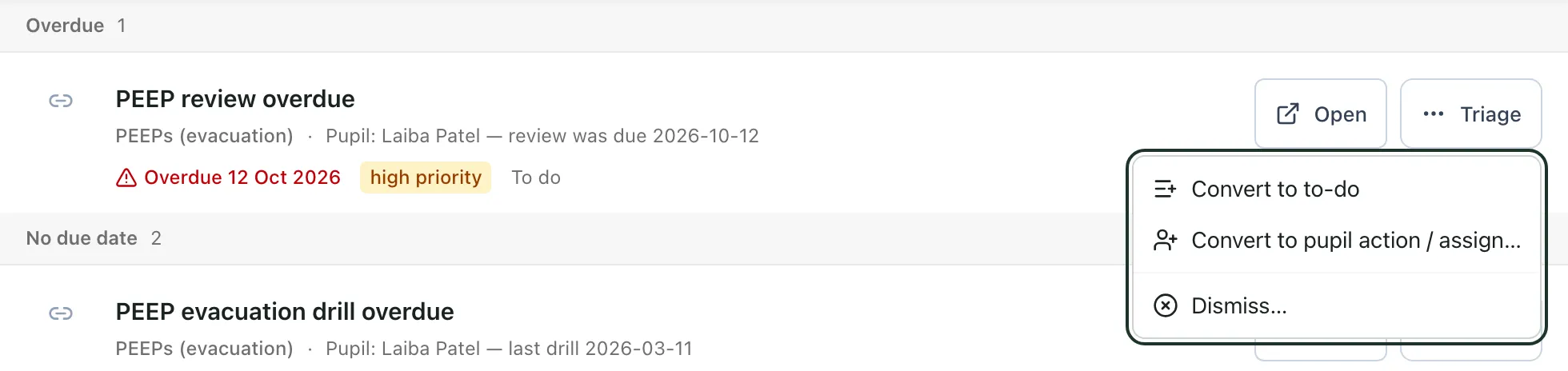
Click Triage, then choose Convert to pupil action / assign….
-
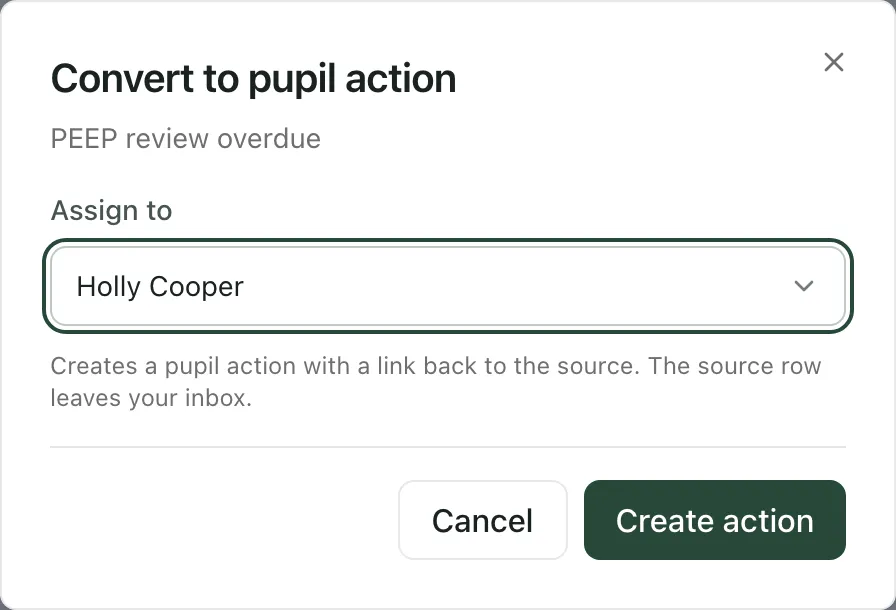
Under Assign to, choose your colleague. Leave it as Me to keep the action yourself.
-
Click Create action.
Student Radar creates a pupil action for that pupil, with the same title and due date, and a link back to where the item came from. The item leaves your list, and the new action appears in your colleague’s My Actions list as a Pupil action.
Convert to pupil action / assign… is only offered for items about a single pupil. For other items, choose Convert to to-do to keep the work on your own list, or use Open to deal with it where it came from.
Check who owns a pupil’s actions
Section titled “Check who owns a pupil’s actions”- Open the pupil’s profile. For example, search for them at the top of the screen.
- Under Pupil sections, click Actions.
Each action shows its priority, category and status, and underneath, the Owner, the due date and when it was added.
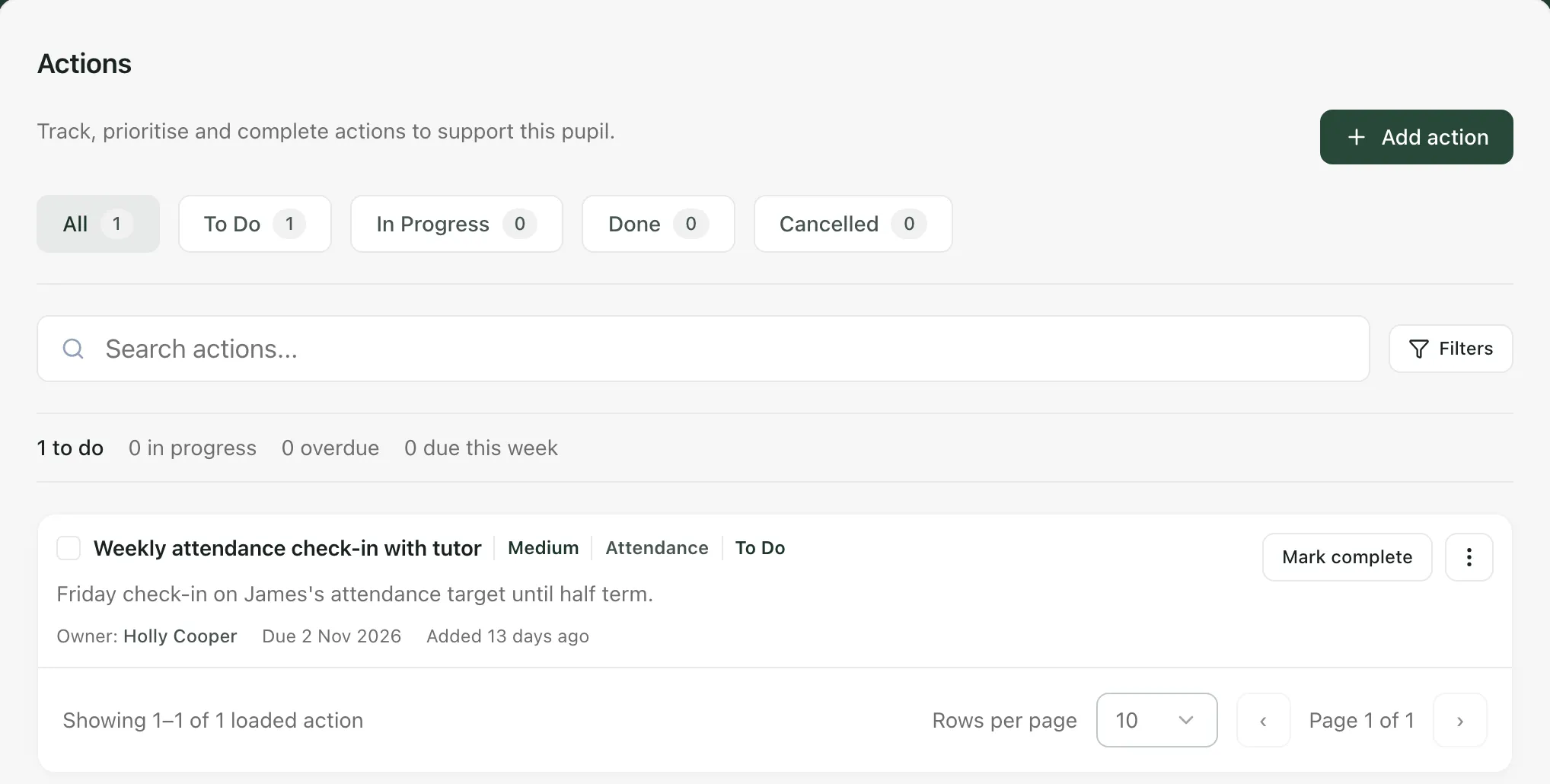
Use the buttons along the top (All, To Do, In Progress, Done and Cancelled) or Filters to narrow the list. Click Mark complete when an action is finished, or click the three dots beside it to change its status or due date.
Other ways to add a pupil action
Section titled “Other ways to add a pupil action”- From My Actions, for yourself: click Add, choose Pupil action, pick the pupil and fill in the details, then click Create action. These actions are always assigned to you.
- From the pupil’s profile: in the Actions section, click Add action, fill in the Title, Description, Severity and Category, then click Save action. You can also click ⋯ at the top of the profile and choose Create action. Actions added on the profile don’t have an owner, so they show as Unassigned and don’t appear in anyone’s My Actions list.
You can’t change who an existing pupil action is assigned to. If you need a colleague to pick up something about a pupil, ping them from the pupil’s profile instead. See Ping a colleague about a pupil and reply to pings.
- The Assign to list shows the staff in your school. Your colleague sees the action in My Actions only if their Student Radar account is linked to their staff record.
- To manage your own list, see Manage your tasks in My Actions.
If something doesn’t work
Section titled “If something doesn’t work”| What you see | What to do |
|---|---|
| “Could not create the action” | Nothing was created and the item is still on your list. Try again. If it keeps happening, ask your school’s Student Radar administrator. |
| “This source row is not linked to a pupil” | The item isn’t about a single pupil, so it can’t become a pupil action. Use Convert to to-do or Open instead. |
| “Open the monitoring task to record its outcome.” | Monitoring follow-ups can’t be converted. Click Open and record the outcome in the monitoring task. |
| “Pupil actions could not be loaded.” | On the pupil’s profile, click Retry pupil actions. |
| “Some linked actions could not be loaded. Available actions are shown.” | Click Retry linked actions. |
| “Please add a title and description” | When you use Create action on the pupil’s profile, fill in both the Title and Description. |