Open an access arrangements case
Written for: SENCos and inclusion leads.
An access arrangements case is the evidence file for a pupil who may need support in tests or exams, such as extra time or a reader. Open a case when you start gathering evidence for an arrangement. Opening a case doesn’t approve anything: the decision comes later, once the evidence is in place.
Open the Access Arrangements page
Section titled “Open the Access Arrangements page”In the sidebar, open Inclusion, then SEND, then Reviews & Documents, and choose Access Arrangements.
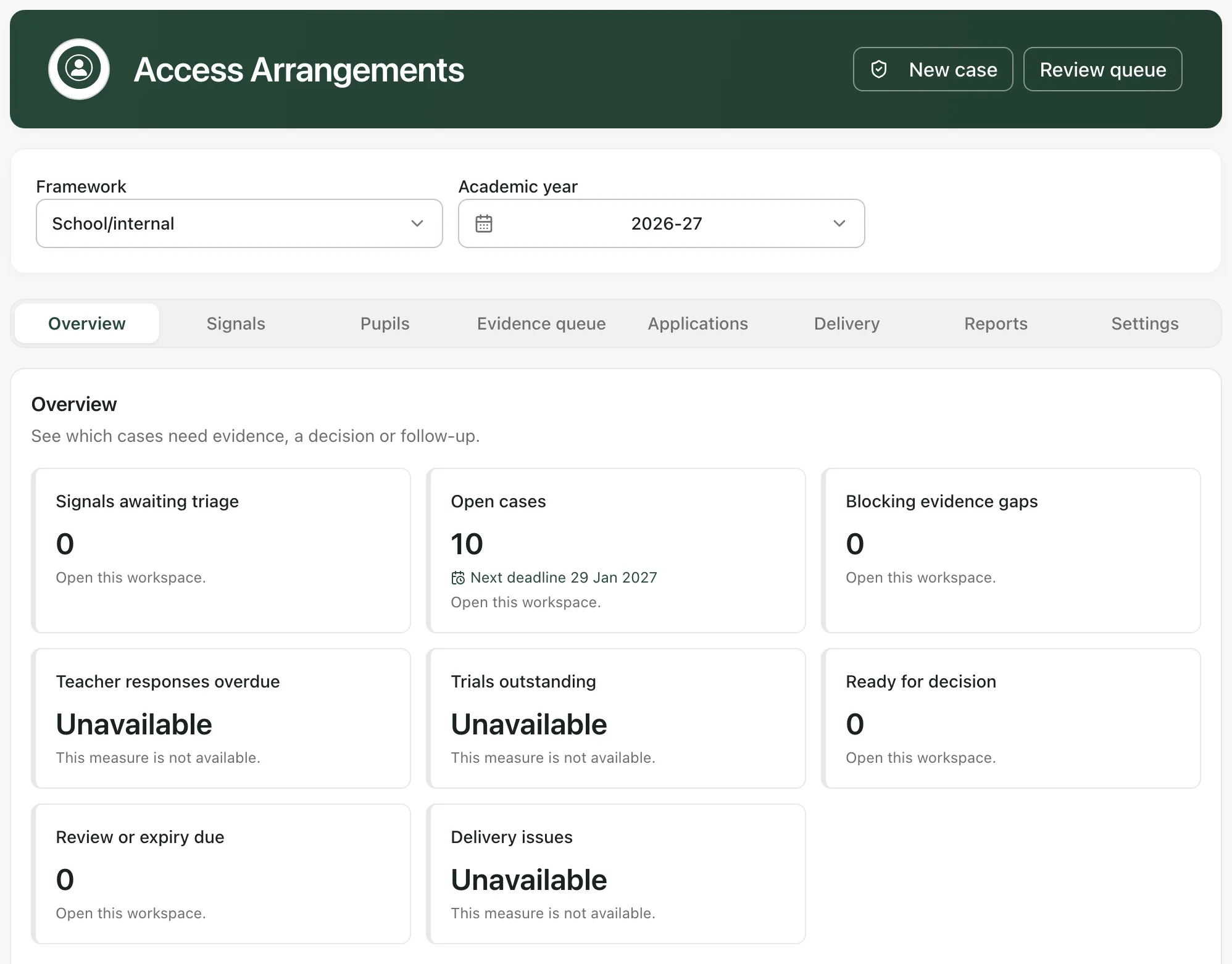
At the top, check the Framework and Academic year. School/internal covers your school’s own arrangements, for example in internal tests. The other frameworks cover statutory tests and exams. Every case belongs to one framework and one academic year.
The Overview tab shows which cases need evidence, a decision or follow-up, and the next deadline for each. Click a card to open that list. A card that says “This measure is not available.” has no figure for your school. Below the cards, Open deadlines · all academic years lists upcoming case deadlines, and Renewals lists approvals that are running out.
Open a new case
Section titled “Open a new case”- Click New case.
- Under Find pupil, type at least two letters of the pupil’s name, then click the pupil. Only pupils on the current school roll are listed.
- Choose the Proposed arrangement, for example Extra time or Reader.
- Choose the Decision route. If the arrangement has only one route, it’s chosen for you.
- Choose the Case owner. It’s set to Me; choose a colleague if they’ll lead the case.
- Under What difficulty is the arrangement intended to address?, describe the difficulty in a sentence.
- Click Create case.
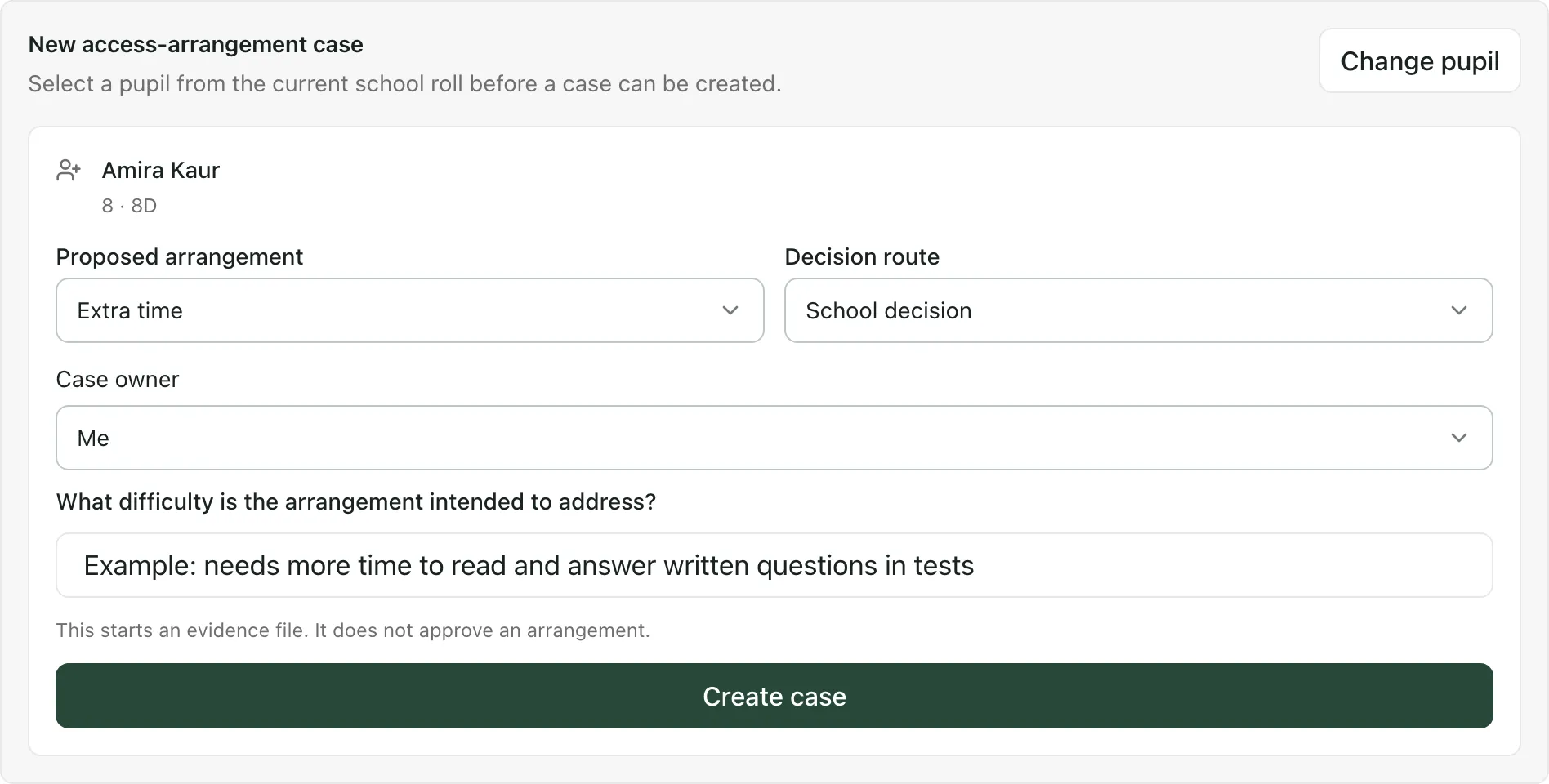
The case opens in its own window. It has tabs for each part of the work: Overview, Evidence, Normal way of working, Trials, Requests, Decision, Assessor and Application. Work through them to gather and check the evidence for the arrangement. Follow your school’s procedures and the current rules for the framework when you decide whether the evidence supports it.
To choose a different pupil before you create the case, click Change pupil.
Find and open a case
Section titled “Find and open a case”Open the Pupils tab. The Register lists every case for the framework and academic year you’ve chosen.
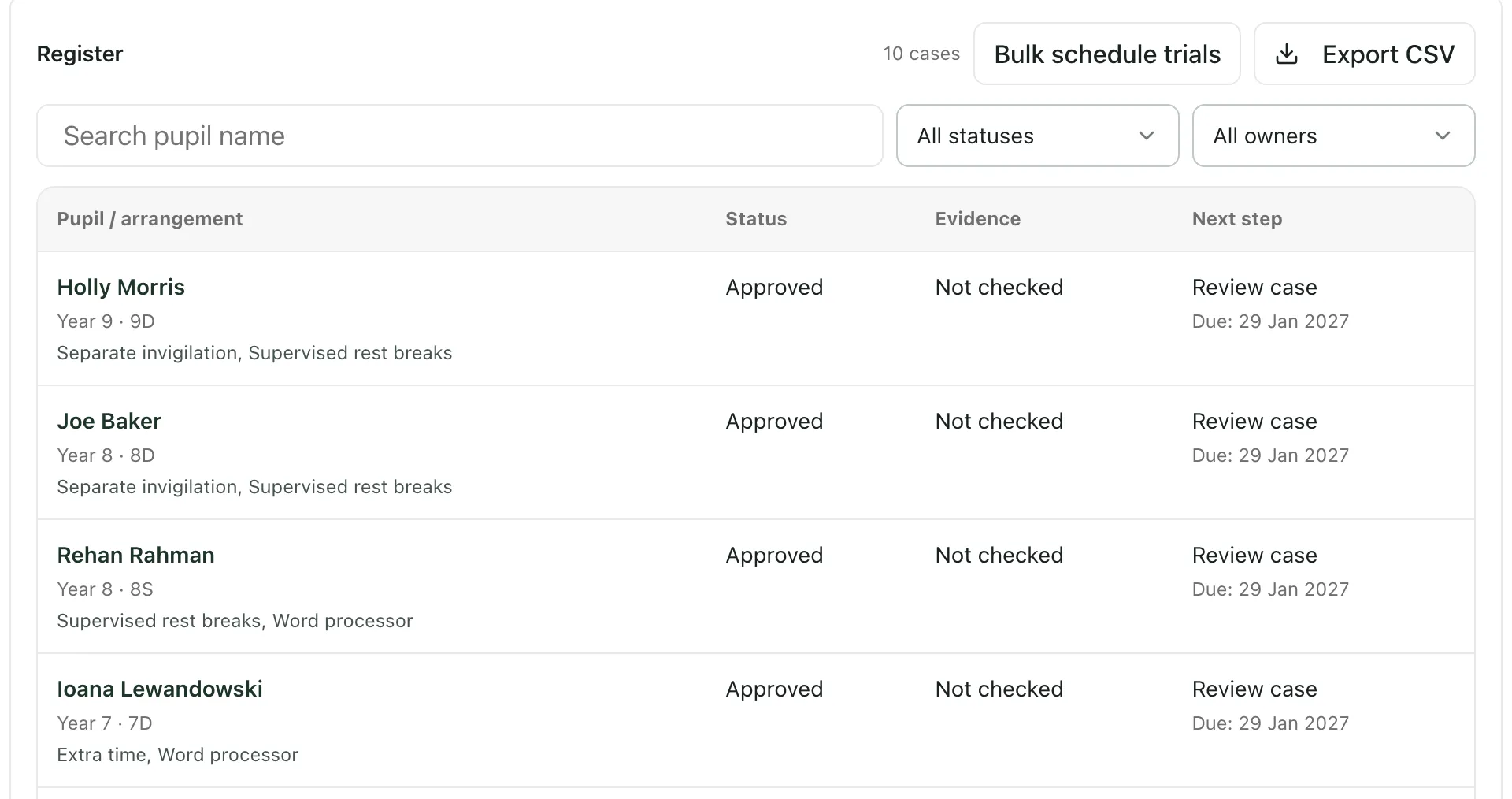
Each row shows the pupil, their year group and class, the arrangements in the case, its Status, whether the Evidence has been checked and the Next step with its due date. To find a case, type in Search pupil name, or use the status and owner filters. Choose Assigned to me to see your own cases, or Unassigned to find cases with no owner. Click a pupil’s name to open their case.
Other things you can do
Section titled “Other things you can do”- Review queue: click Review queue at the top of the page to see evidence, signal changes and readiness checks that need reviewing.
- Signals: the Signals tab suggests pupils who may need an arrangement, based on their needs and existing support. Suggestions are prompts for professional judgement, not decisions: check each one before you open a case.
- Export CSV: downloads the register as a spreadsheet, following the filters you’ve set.
- NCA Portal pack (CSV): for the STA frameworks, the Applications tab has a button that downloads a checklist, one row per case, to help you enter the arrangements in the STA’s portal yourself. It doesn’t submit anything.
- Settings: shows the rule packs and the arrangement catalogue. They can’t be changed here.
- Frameworks outside England: the statutory frameworks follow English rules. Schools outside England may only be offered School/internal.
- Framework not ready: if you see “Framework unavailable for operational use”, no reviewed rules cover that framework for the academic year you’ve chosen. Existing cases stay available, but New case is greyed out until the rules are in place.
- Permissions: many staff can open the Access Arrangements page, but what you can do in a case depends on the permissions your school has given you.
If something doesn’t work
Section titled “If something doesn’t work”| What you see | What to do |
|---|---|
| “Enter at least 2 characters to search the current school roll.” | Keep typing the pupil’s name. |
| “No active pupils in this school matched that search.” | Check the spelling, or try just the surname. Only pupils on the current roll can have a case. |
| “The selected pupil is unavailable. Choose an active pupil you can access.” | Click Change pupil and choose again. If it’s shown, click Retry pupil lookup. |
| Create case is greyed out | Choose the Proposed arrangement and Decision route, and describe the difficulty the arrangement addresses. |
| “No access-arrangement cases match this view.” | Clear the search and filters, or check the Framework and Academic year. |
| “Export was not authorised or failed — nothing downloaded.” | Your account can’t export the register, or the export failed. Try again, or ask your SENCo. |