Create an Individual Healthcare Plan
Written for: Staff who write and look after pupils’ healthcare plans.
An Individual Healthcare Plan (IHCP) sets out how the school supports a pupil with a medical condition: their triggers and symptoms, their medicines and care, who does what, and what to do in an emergency. In Student Radar you can write a plan yourself or have AI draft one from the pupil’s condition. Either way, you check the plan with the family and the healthcare professionals who know the pupil before you approve it.
Find pupils who need a plan
Section titled “Find pupils who need a plan”In the sidebar, click Health, then Care & Support Plans, then IHCPs.
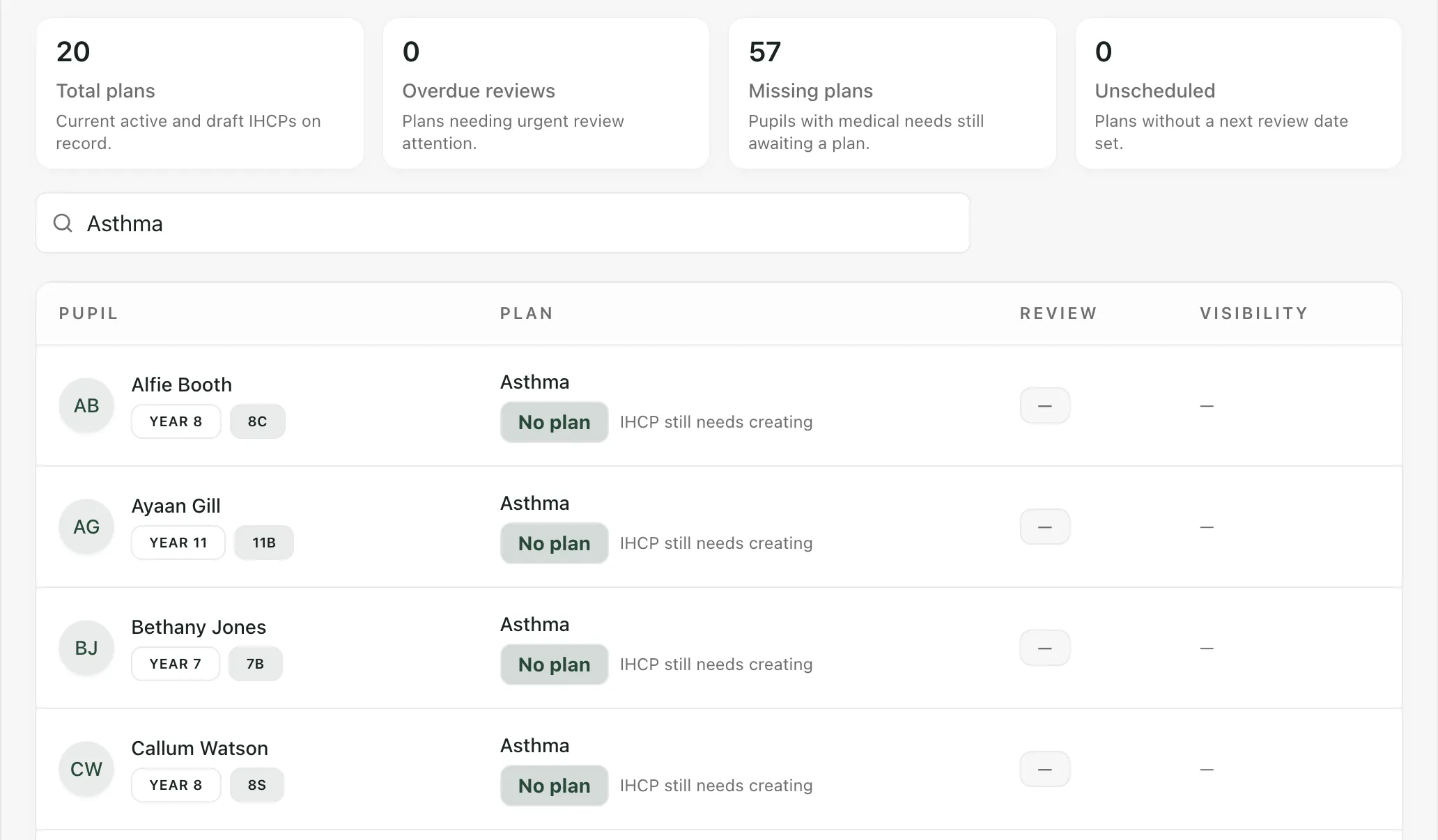
The cards along the top count:
- Total plans: active and draft plans.
- Overdue reviews: plans past their review date.
- Missing plans: pupils with a recorded medical need who don’t have a plan yet.
- Unscheduled: plans with no review date.
The list shows each pupil’s plan, its status (Draft, Awaiting approval or Active) and when it’s next due for review. Pupils who need a plan show No plan and “IHCP still needs creating”. Use Search pupil or condition… to narrow the list.
Start a plan
Section titled “Start a plan”- Click a pupil who shows No plan. Or click Create IHCP at the top, choose the pupil under Pupil, then click Create IHCP.
- A window opens with the pupil’s recorded condition and an important reminder: every plan, including one drafted with AI, must be reviewed, discussed with and signed off by a qualified medical professional who knows the child.
- Choose how to start:
- Write manually: start with a blank plan and fill in each section yourself.
- AI-Assisted: confirm the key information, then have AI draft the plan for you to check and edit.
- IHCP not required: record that this pupil doesn’t need a plan. They move to the IHCP not required list at the bottom of the page. To bring them back, switch off Excluded next to their name.
Create IHCP is available to staff your school allows to write healthcare plans. If it’s greyed out, you can read plans but not create them.
Draft a plan with AI
Section titled “Draft a plan with AI”If you chose AI-Assisted, check and fill in the details the draft will be built from:
- Condition name: this is filled in from the pupil’s record. Correct it if needed.
- Known triggers, Early warning signs and Relevant history: add what you know.
- Source of the reported context: say where the information came from, such as a parent report.
- Plan title, Plan owner and Review date: you can also set these later in the editor.
- Optionally, open Child and parent preferences (optional) to record what the pupil and their family would like, and Link existing permitted records (optional) to link the pupil’s Medication records, Medical needs or Evidence documents.
- Choose a Parent/carer emergency contact if you want one on the plan.
- Click Generate and open editable draft.
Student Radar saves the draft and opens it in the editor. The draft is a starting point, not a clinical plan. Linked medication records don’t confirm how a medicine should be given, so type the verified instructions in the editor.
Complete the plan
Section titled “Complete the plan”The editor, Edit Individual Health Care Plan, has a tab for each part of the plan:
| Tab | What goes in it |
|---|---|
| Core | The plan title, owner, the medical needs it covers and the review date. |
| Medications | Each medicine, how and when it’s given, and where it’s stored. |
| Procedures | Any clinical procedures and the training staff need. |
| Daily Support | Support during the school day and any adjustments. |
| Emergency | How to recognise an emergency and what to do. |
| Activities & Trips | Arrangements for trips, physical activity and exams. |
| Consent | Emergency contacts, parent involvement and consent notes. |
| Roles & Confidentiality | Which staff roles may see the plan, and confidentiality notes. |
Click Save changes as you go. If a panel headed Add these care details before activating appears, it lists what’s still missing. Click an item to jump to it.
Check the plan with the family and professionals
Section titled “Check the plan with the family and professionals”Before you approve a plan, go through it with the pupil’s parents or carers and with the healthcare professionals involved, such as the school nurse or the pupil’s specialist team. Make sure every medicine, procedure and emergency step matches the pupil’s prescriptions and clinical advice.
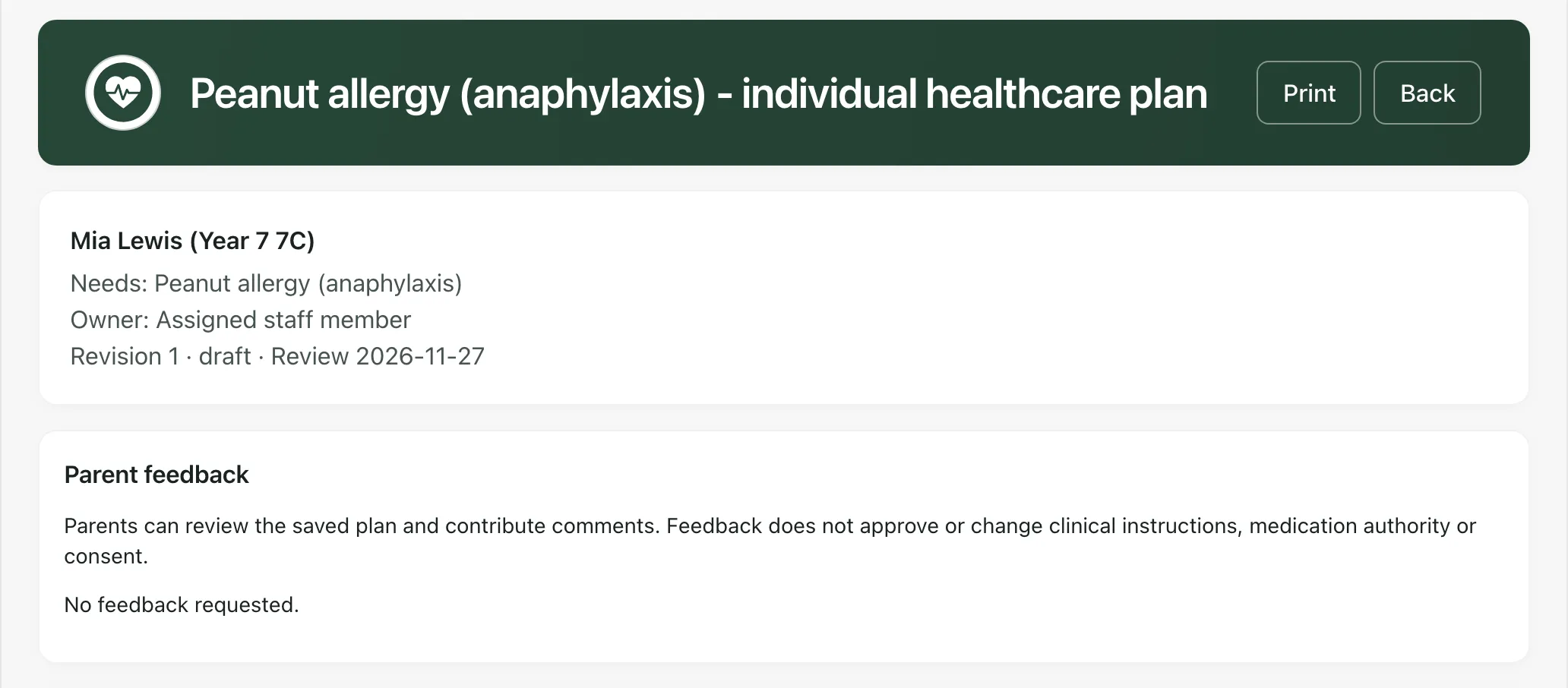
To collect the family’s comments in Student Radar:
-
Open the plan from the list.
-
Under Parent feedback, click Send to parents for feedback.
-
Check the saved version you’re sending. If your school hasn’t set them up yet, fill in School privacy notice reference, School lawful basis reference and School retention reference.
-
Click Confirm feedback request.
Verified parents and carers linked to the pupil are emailed a secure link to that saved version of the plan. Their comments appear under Parent feedback with their name and the date. Feedback doesn’t approve or change the plan. If you edit the plan afterwards, send a new request so they see the latest version. To withdraw a request, click Revoke feedback request.
Approve the plan
Section titled “Approve the plan”When the plan has been checked, open it from the list and click Edit. Scroll to the bottom of the editor and click Approve and activate. Approving confirms you’ve checked the care instructions and any other active plans for the pupil. The plan’s status changes to Active.
Once a plan is active:
- Click Request acknowledgement to ask the parent to confirm they’ve seen it. They can choose Acknowledge plan or Raise a question. You’ll see who the request will go to before it’s sent.
- Click Revise to change it. This starts a new draft revision, and the active plan stays in place until the new one is approved.
- Click Print for a paper copy. Keep printed copies secure.
Take the built-in tour
Section titled “Take the built-in tour”Click Take a tour at the top of the IHCPs page for a short walk-through of the list and the ways to start a plan.
- Supply staff and governors see plans with the medical details hidden, and can’t use the AI draft.
- AI-Assisted is only available to roles with access to AI tools.
- To give medicines in line with the plan, see Add a medication and its schedule and Ask parents to authorise a medication.
If something doesn’t work
Section titled “If something doesn’t work”| What you see | What to do |
|---|---|
| “Healthcare plans could not be loaded. Plan counts and missing-plan checks are unavailable.” | Click Retry healthcare plans. |
| “Healthcare plan permissions could not be checked.” | Click Retry permission check. |
| “AI features are not available for your role.” | Choose Write manually instead. |
| “No permitted pupils are available in the medical roster.” | The pupil needs a recorded medical need first, and you need access to them. |
| “Plan owners unavailable. Choose an owner in the editor before approval.” | Carry on, then choose the Plan owner in the editor. |
| “Parent feedback unavailable.” | Refresh the page. If it keeps happening, contact Student Radar support. |
| You can’t see Send to parents for feedback | Your role can’t send feedback requests for this plan. Ask the plan’s owner. |