Create a PEEP
Written for: SENCos, leaders and staff who plan evacuation support.
A Personal Emergency Evacuation Plan (PEEP) sets out how a pupil will get out of the building safely in an emergency: the routes, equipment and staff they need, and how to communicate with them. Start a plan from blank or from an AI draft, check every section, then save it as a draft for sign-off.
Open PEEPs
Section titled “Open PEEPs”In the sidebar, open Inclusion, then SEND, then Plans, and choose PEEPs. You can also find it under Health, in Care & Support Plans.
The page shows counts for Plans, Active, Reviews overdue, Missing review date, Missing sign-off and Acknowledgement pending, and a list of current plans with their status, readiness and review date. Click Open to read a plan.
Choose the pupil
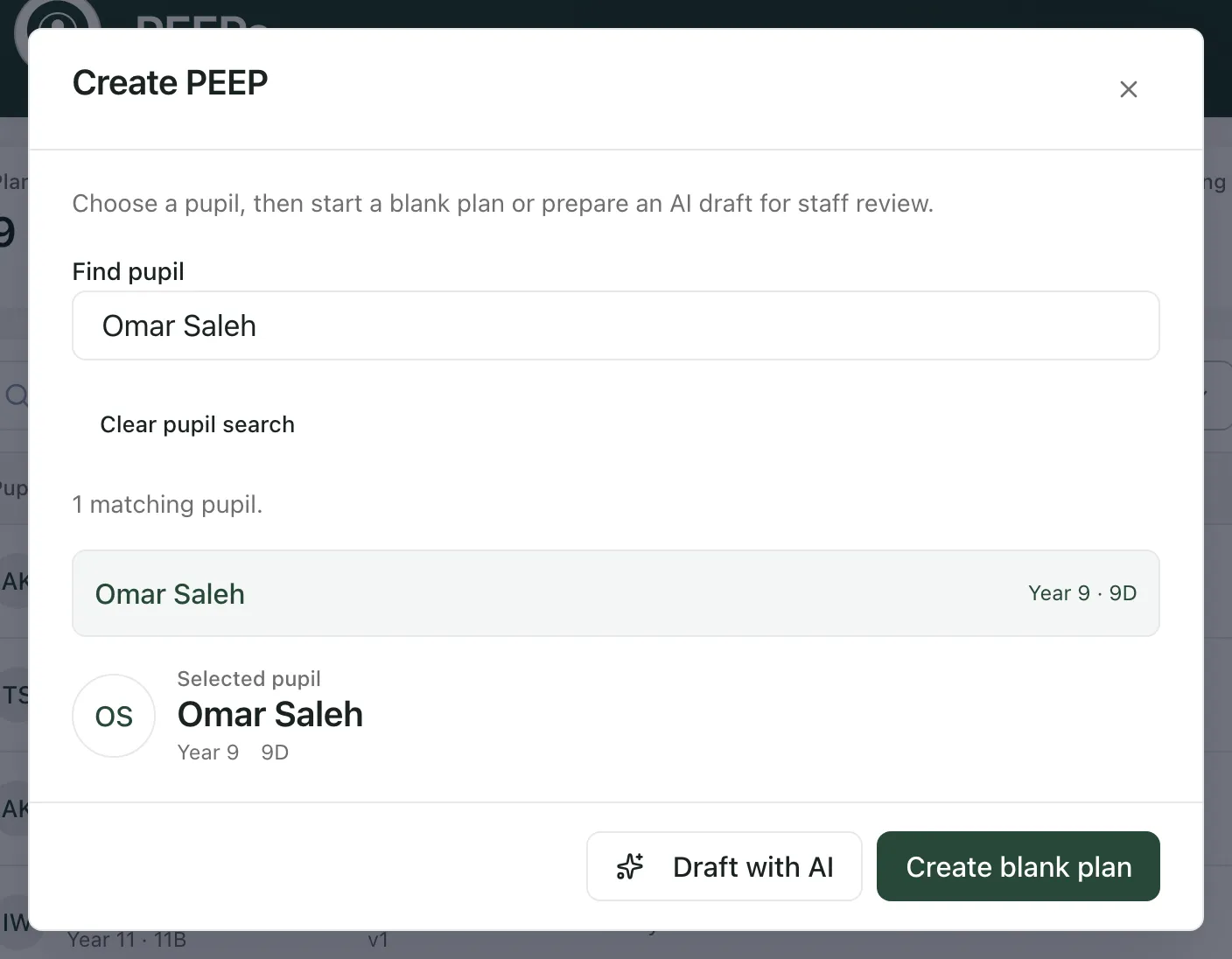
Section titled “Choose the pupil”- Click Create PEEP at the top of the page.
- Under Find pupil, type the pupil’s name, year or form.
- Click the pupil in the list. They appear under Selected pupil.
- Choose how to start:
- Create blank plan opens an empty plan.
- Draft with AI prepares a first draft from your notes (see below).
Start from an AI draft
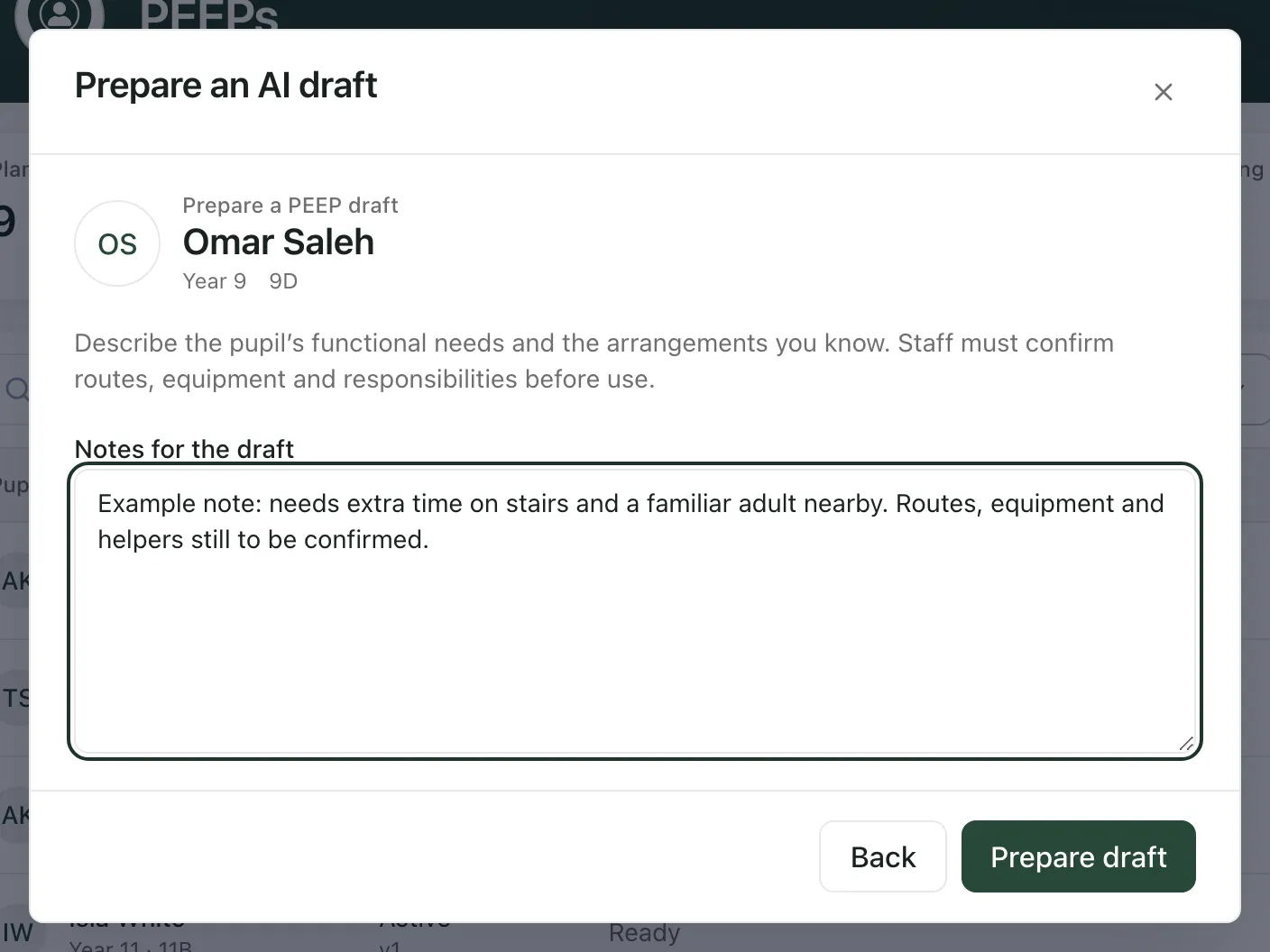
Section titled “Start from an AI draft”- Click Draft with AI.
- Under Notes for the draft, describe the pupil’s needs in an evacuation and any arrangements you already know about, such as routes, equipment and the adults who help them.
- Click Prepare draft. It can take a couple of minutes. Wait for the plan to open.
The draft opens with an AI draft review panel at the top. It shows how confident the draft is, any Risk flags with a suggested action, and Missing information grouped by who can answer it: school staff, the parent or carer, or a health professional.
The AI draft is a starting point, not a plan you can rely on. Check every section against what you know about the pupil and your site. Any field marked REVIEW REQUIRED doesn’t count as complete until a member of staff replaces it with the confirmed arrangement. Routes, equipment and responsibilities must always be confirmed by staff before the plan is used.
Fill in the plan
Section titled “Fill in the plan”Whether you started blank or from an AI draft, work through the sections on the left:
| Section | What to record |
|---|---|
| Pupil & needs | Why the pupil needs a PEEP and how their needs affect an evacuation. |
| Routes & equipment | Primary and alternative routes, refuge and assembly points, lifts and equipment. |
| Staff & communication | Who helps, who covers, how the pupil recognises the alarm and how to communicate. |
| Training & drills | Training staff need, how often drills happen and what the last drill showed. |
| Trips & other settings | Arrangements between lessons, at break, on trips and on transport, and key contacts. |
| Review & consultation | The Review due date, consultation notes and what would trigger an earlier review. |
| Privacy & sharing | Why the school holds the plan, who may view it and how it’s shared and kept. |
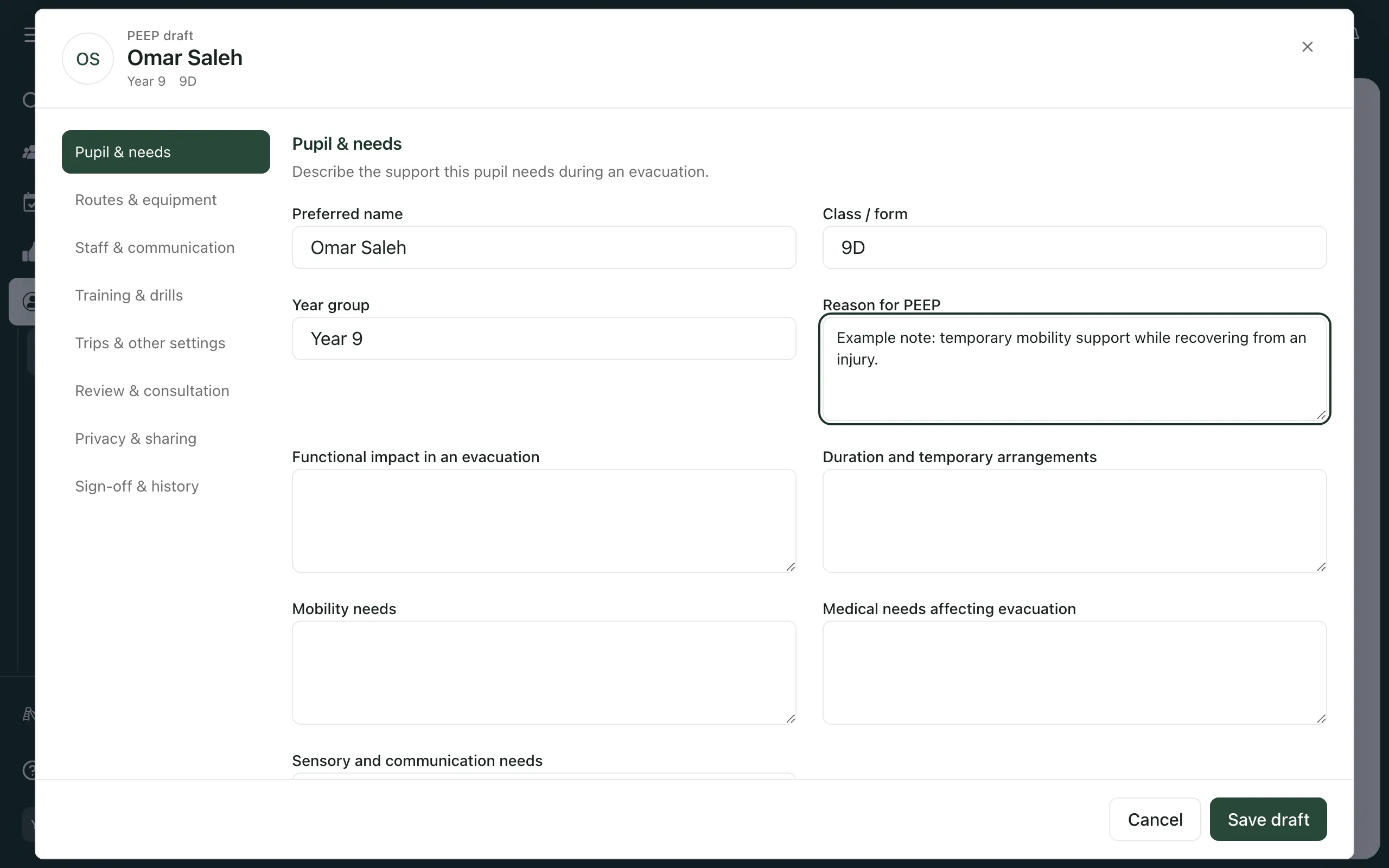
When you’re ready, click Save draft. You’ll see “PEEP draft saved” and the plan opens so you can check it. If you click Cancel with unsaved changes, Student Radar asks before discarding them.
Saving a draft doesn’t put the plan into use. It stays as a draft until it’s signed off and activated.
After you save
Section titled “After you save”When the saved plan opens, a readiness summary at the top shows either Readiness checks complete or how many items need attention. Click an item to go to the section that needs it.
Open Sign-off & history to assign evacuation staff, record signatures and record the parent or carer’s acknowledgement. These are recorded against the saved draft, so save before you start them. If you edit a saved draft, the changes create a new revision, and acknowledgement and sign-off must match that revision.
When every readiness check is complete, someone who can manage the plan clicks Activate PEEP to put it into use. Follow your school’s procedure for who signs off and activates PEEPs.
To change a plan that’s already active, open it and click Create amendment. The current plan stays in use while you prepare the amendment, which needs its own acknowledgement and sign-off.
- Who can create and edit: many staff can open the PEEPs page, but your school decides who can create, edit and activate plans. Edit and Activate PEEP only appear for staff who can change that plan. If you can’t save a new plan, ask your SENCo.
- Download: open a plan and click Download PDF for a copy to print or share through your school’s usual channels.
If something doesn’t work
Section titled “If something doesn’t work”| What you see | What to do |
|---|---|
| “No pupils match your search. Try another name, year or form.” | Check the spelling, or search by year or form instead. |
| “Could not prepare draft” | The AI draft wasn’t created. Your notes are still there: try again, or click Back and start a blank plan. |
| “Could not save PEEP” | The draft wasn’t saved and your changes are still open. Read the reason in the message, then try again. |
| “Complete the readiness checks before activation.” | Open the readiness summary at the top of the plan and complete each item before activating. |
| “PEEPs could not be loaded. The summary is unavailable.” | Click Try again. If it keeps happening, wait a minute and reload the page. |
| “No PEEPs have been created yet.” | Your school hasn’t saved any PEEPs. Click Create PEEP to start one. |