Search the safeguarding chronology
Written for: Designated Safeguarding Leads, deputies and senior leaders.
The safeguarding chronology lists every safeguarding event across the school in date order: concerns, disclosures, actions, meetings, communications, reviews and DSL decisions. Use it to trace the history of a pupil or a case, find actions that still need a response, or export the record for a review or a referral.
Open the chronology
Section titled “Open the chronology”In the sidebar, open Safeguard, then Case Records, and choose Chronology. The newest entries are at the top.
The whole-school chronology is for the DSL and safeguarding leadership. Other staff see “Whole-school chronology is available to DSL and safeguarding leadership roles only.” instead.
Search and filter
Section titled “Search and filter”- In Search chronology, type a word from the title or details, a pupil’s name, a case reference or the name of the member of staff who recorded the entry.
- Narrow the list with the filters:
- Event type: one kind of event, such as observations, actions or meetings.
- Pupil / case: one pupil’s case, instead of All pupils and cases.
- Action state: for example, Action required or Overdue.
- From and To: entries between two dates.
- Rows per page: 25, 50 or 100 entries on each page.

The line under the filters says how many entries match. Use Previous and Next at the bottom of the list to move between pages.
Find actions that still need a response
Section titled “Find actions that still need a response”Open Action state and choose what you’re looking for. To see what’s still outstanding, choose Overdue, then Not completed.
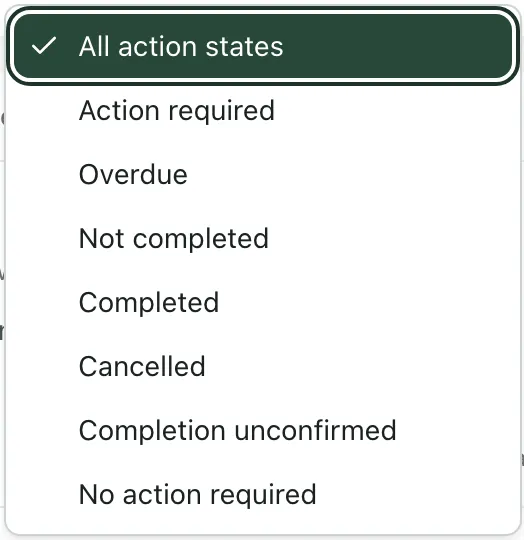
| Action state | Entries it shows |
|---|---|
| Action required | Every entry that needed an action, whatever its state now. |
| Overdue | Actions not yet done that are past their due date. |
| Not completed | Actions not yet done that aren’t overdue, including those with no due date. |
| Completed | Actions recorded as done. |
| Cancelled | Actions that were cancelled. |
| Completion unconfirmed | Actions whose current state Student Radar can’t confirm. The original entry is kept. |
| No action required | Entries logged with no action needed. |
Read an entry
Section titled “Read an entry”Each entry shows when it happened, its title and type, its action state, the pupil, case reference and year group, and what was recorded. Under that are its Status, Source, Recorded by and Treatment:
- Locked record: the original entry can’t be edited. Add an update to the case instead.
- Current source projection: the entry shows the case’s current details, not the original report. Make any changes in the case itself.
Click Details to see more, such as the Action taken, Action due, Attachments and Event ID. Click Open source case to open the case the entry belongs to. Click Return to chronology to come back.
Check record quality
Section titled “Check record quality”If entries have gaps, a banner says how many record quality issues were found, for example actions with no due date or entries that contain placeholder text. Click Show issues only to list just those entries, and Show all matching to go back. To fill a gap, open the source case and add an update.
Load older entries
Section titled “Load older entries”The chronology loads the most recent entries first. If you see “Older chronology entries are available. Filters, quality checks and exports cover the entries loaded so far.”, click Load older entries before you search further back or export.
Export the chronology
Section titled “Export the chronology”Click Export matching at the top of the page. Your browser downloads a spreadsheet (CSV file) of every entry that matches your search and filters, with the pupil, reference, event, description, action status, who recorded it and more.
- If you’ve chosen one pupil or case under Pupil / case, the button reads Export selected case.
- If older entries haven’t loaded yet, it reads Export loaded matches and includes only the entries loaded so far.
The file holds sensitive safeguarding information. Store and share it only as your school’s safeguarding and data protection procedures allow.
Take the built-in tour
Section titled “Take the built-in tour”Click Take a tour at the top of the page. It shows you the search, the filters and how to read an entry.
If something doesn’t work
Section titled “If something doesn’t work”| What you see | What to do |
|---|---|
| “Loading safeguarding chronology…” | Wait a moment for the entries to load. |
| “Failed to load school chronology. Please try again.” | Click Try again. |
| “No chronology or concern events match the current filters.” | Clear the search box, set the filters back to all, or widen the dates. |
| “Whole-school chronology is available to DSL and safeguarding leadership roles only.” | Your account can’t see the whole-school chronology. Ask your DSL if you need information from it. |
| Export matching is greyed out | Nothing matches your filters, or the chronology is still loading. Change the filters or wait, then try again. |