Write and approve pupil reports
Written for: Teachers writing termly reports.
Use Report Writer to write each pupil’s termly report. Student Radar can write a first draft from the pupil’s recorded assessment results and targets. You then check it, edit it, save it and approve it.
Important: the first draft is written by AI. It can get things wrong or leave things out. Read and edit every section, and check it against what you know of the pupil, before you approve the report. Only approve a report you’ve checked in full.
Open Report Writer
Section titled “Open Report Writer”- In the sidebar, click Assessment, then Reports, then Report Writer.
- In the first box, choose the term: Autumn, Spring or Summer. The academic year is shown at the right.
- To narrow the pupil list, choose a year group in All years, a status in All reports, or type a name in Search pupils….
The counts show how many reports in the chosen year group are Not started, Drafted, Approved and Sent.
Start a pupil’s report
Section titled “Start a pupil’s report”- Under Pupils, click the pupil. Each pupil shows the status of their report for the term.
- If there’s no draft yet, click Generate draft.
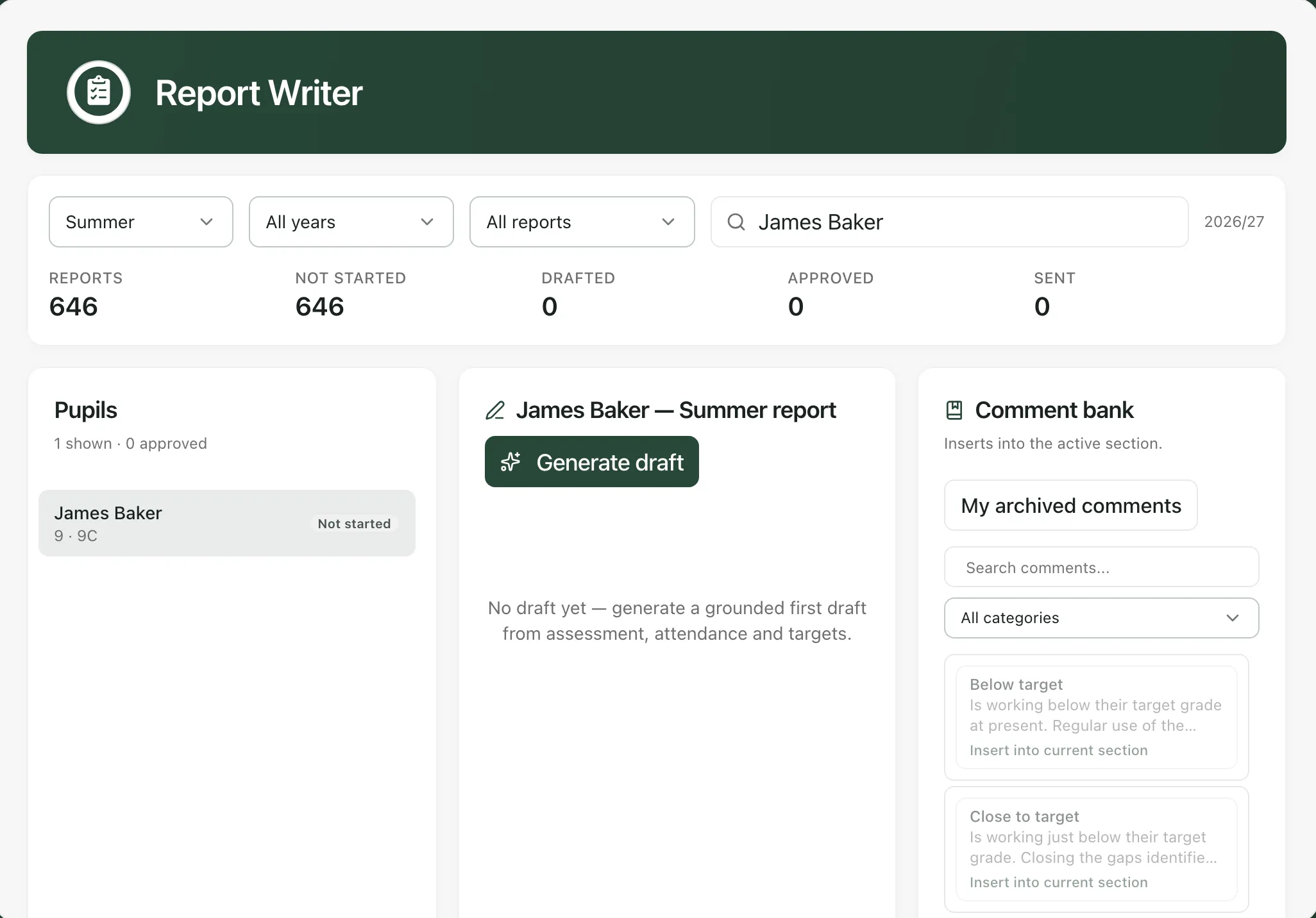
Student Radar gathers the pupil’s assessment results, attendance and targets for the term, then writes a draft in sections. When it’s ready, you’ll see “Draft generated”. If the pupil already has a saved draft for the term, it opens instead.
If the pupil’s attendance for the term is below 95%, the draft includes an Attendance section. Student Radar writes that section from the attendance records, not with AI.
Check the draft against the evidence
Section titled “Check the draft against the evidence”Click Evidence used for this draft to see what the draft was based on:
- the term’s dates, and whether the term is complete or the draft covers the term so far
- the pupil’s attendance, with the number of sessions it’s based on
- which assessment results and targets were included, and how many were left out
- when the evidence was read
Then read every section and check each statement. The AI uses only the evidence listed, so it won’t know about anything that isn’t recorded in Student Radar.
Edit the report
Section titled “Edit the report”Make sure Edit sections is selected. Each section has its own text box: click in it and type your changes. The section you’re in becomes the active section, shown at the top. Unsaved edits appears until you save.
For the active section, you can also use:
- Regenerate section: writes a new AI draft of this section only. Other sections are kept. Check it again afterwards.
- Improve wording: joins the text into one paragraph and removes extra spaces.
- Make warmer: adds a closing line inviting parents to contact the school.
- Add specificity: opens a box where you add a specific example, such as something you saw or a dated piece of work. Click Add example to add it to the end of the section, or Cancel example.
- Comment bank: click a comment on the right to add it to the end of the section. See Build your comment bank.
Under each section’s text box, you can dictate an addition. Speak, check the words that appear, then apply them to the section. Your browser’s speech service may process the audio. Nothing is added until you apply it.
Word limits, effort and assessment results
Section titled “Word limits, effort and assessment results”Above each section’s text box:
- Limit unit and Maximum: set a word or character limit. The count shows the section’s length, and turns red with “Over limit; approval blocked” if it’s too long.
- Effort scale (comma-separated teacher-defined labels): type the effort grades your school uses, separated by commas. Then choose the pupil’s grade under Teacher-entered effort.
- Assessment results: tick any results from the evidence that you want to show in the report under the section.
Click Preview report to see the report as families will read it.
Save and approve
Section titled “Save and approve”- Click Save draft to save your work. The report’s status becomes Drafted.
- When the whole report is right, click Approve.
You’ll see “Report approved”, and the report is locked. To change it, click Reopen for editing, make your changes, then save or approve it again.
Approve is greyed out while a section is over its limit, or while an example or a dictated addition is waiting to be added or cancelled.
Other options
Section titled “Other options”- Print / save PDF: prints the report or saves it as a PDF. Unless the report is approved and unchanged, the printout is marked as a draft that needs review.
- Report history: shows the versions saved so far, with their dates and status.
- Discard: throws away the draft on screen. Student Radar asks you to confirm first.
Report Writer doesn’t send reports to families. Use Print / save PDF to print or save an approved report, and share it in the way your school usually does.
- Who can use Report Writer: teachers, SENCos, safeguarding leads, senior leaders and headteachers can open it by default. Teaching assistants can’t. Schools can change who has access.
- Switching pupil or term: if you have unsaved changes, Student Radar asks before it throws them away. Save first if you want to keep them.
- Term names: schools outside England may see their own term names.
If something doesn’t work
Section titled “If something doesn’t work”| What you see | What to do |
|---|---|
| “Could not generate a draft” | No draft was made. Read the reason shown with the message, then click Generate draft again, or write the report yourself. |
| “Report generation failed. Try again.” | Click Generate draft again. If it keeps failing, try again later. |
| “The generated draft has no verified evidence snapshot. Try again.” | The draft couldn’t be checked against its evidence, so it wasn’t shown. Click Generate draft again. |
| “Save failed” | Your changes weren’t saved. Read the reason shown, then try again. |
| “This report changed in another session.” | Someone saved this report while you were working on it. Copy any text you need, reopen the pupil’s report and check it. |
| “Switching reports will discard unsaved edits to this report. Continue?” | Click Cancel and save your changes first if you want to keep them. |
| “Allow the print window to open” | Allow pop-ups for Student Radar in your browser, then click Print / save PDF again. |
| “Speech recognition is unavailable in this browser.” | Type your addition into the section instead. |
| “Could not load the saved reports, pupil list or comment bank.” | Click Try again before you start or edit a report. |