Filter the Heat Map and save a cohort
Written for: All staff.
The Heat Map starts with every pupil you can access. Filters narrow it to the pupils you want to look at, such as one year group or pupils at the Urgent and High levels. Cohorts let you compare groups of pupils who share a circumstance, such as SEND or EAL. You can also save your own cohort to come back to.
To open the Heat Map, open Overview in the sidebar and choose Heat Map. For what the levels and flags mean, see Read the Heat Map: levels of need and flags.
Filter the pupil list
Section titled “Filter the pupil list”Use any of these, in any combination:
- Level of need: in the Risk profile panel, click Urgent, High, Medium or Low. You can choose more than one.
- Year group: under Pupils, choose a year group from the list that shows All year groups.
- Search: type a pupil’s name, UPN or class in the Search pupils, UPN or class box.
The counts at the top of the page and under Pupils update to match. Under the toolbar, Filtered view lists the filters you’re using.
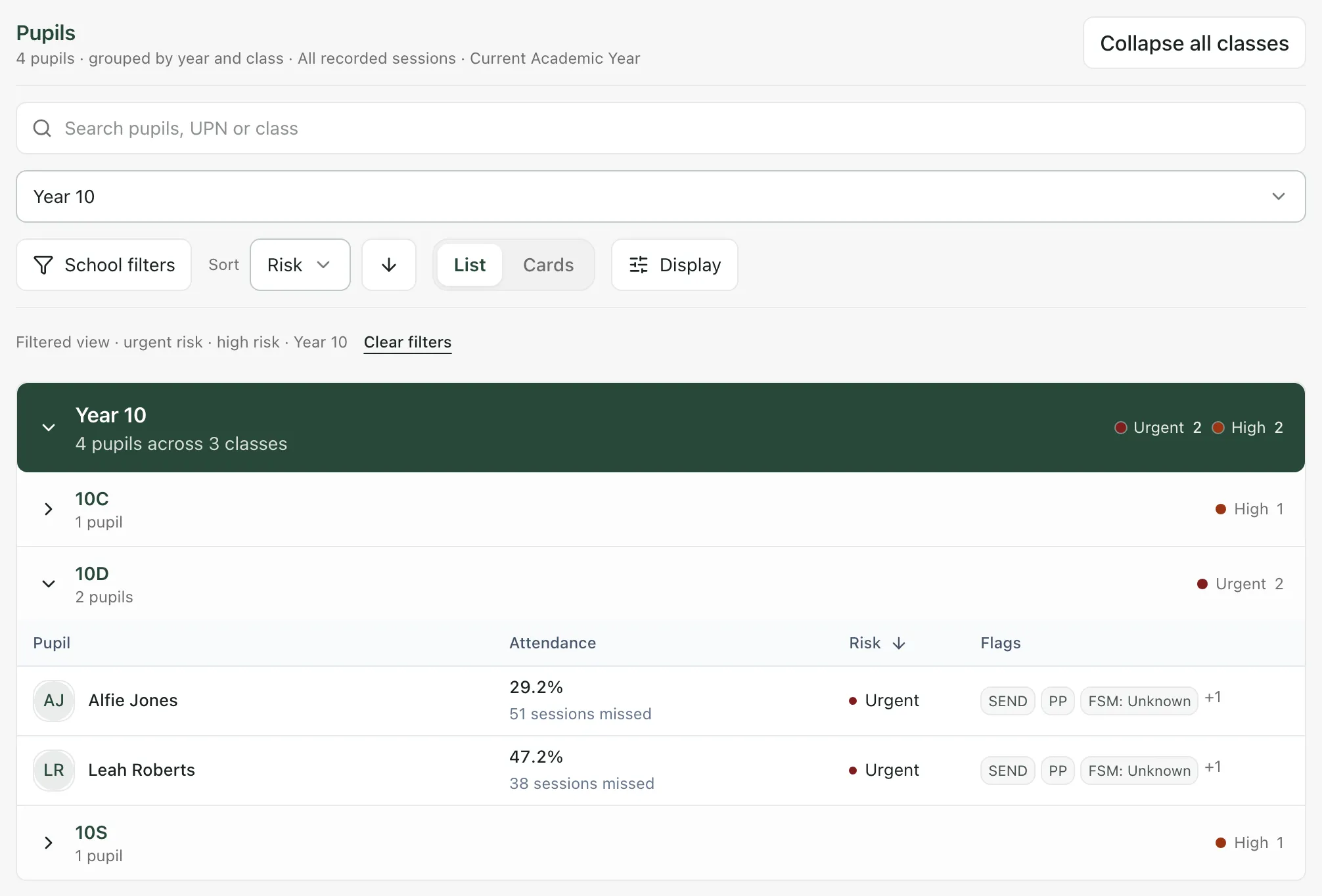
To see everyone again, click Clear filters.
The page address keeps your filters, so you can bookmark a filtered view and come back to it.
Use school filters
Section titled “Use school filters”School filters choose the school cohort you’re working with. Unlike the other filters, they can stay selected when you move to other pages.
-
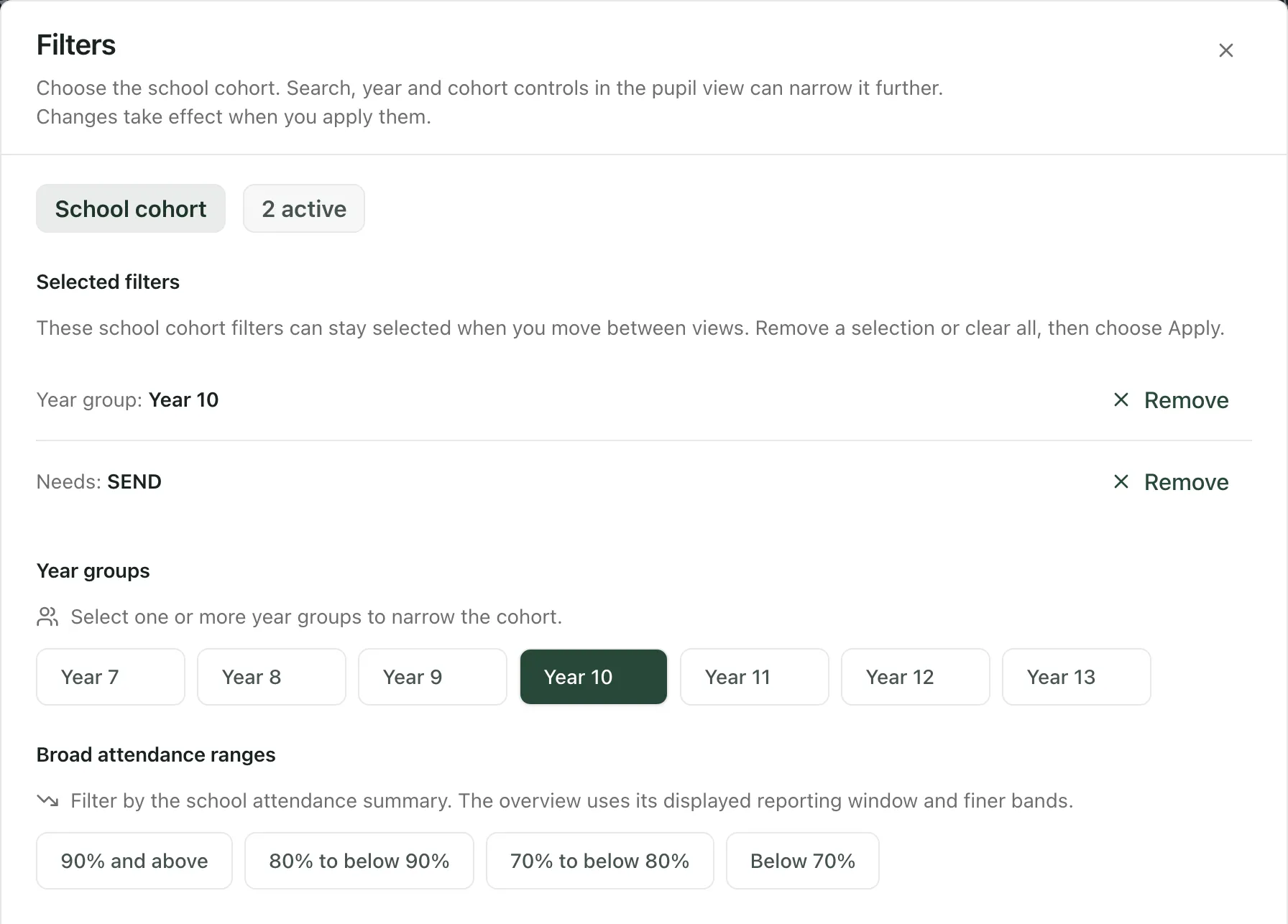
Click School filters, at the top of the page or in the toolbar above the pupil list. The Filters window opens.
-
Choose any of:
- Year groups: one or more year groups.
- Broad attendance ranges: for example, Below 70%.
- Needs: for example, SEND or EAL.
-
Click Apply.
The School filters button shows how many filter groups you’re using. To change them, open School filters again, click Remove next to a filter or Clear to remove them all, then click Apply.
Some needs filters, such as Safeguarding and Young Carer, only appear if your account can see that information for every pupil in view.
Compare groups with Cohort focus
Section titled “Compare groups with Cohort focus”Cohort focus has a button for each cohort, such as SEND, PP, EAL and FSM. Each one shows how many pupils in the current view belong to it.
- Click a cohort. The pupil list shows only those pupils.
- To see pupils who belong to several cohorts at once, click more of them.
A summary of the cohort appears, with figures such as average pupil attendance and how many pupils are at the High or Urgent level. Patterns to review and Pupils to review suggest where to look. Click one to open a review list of those pupils, and click Back to cohort to return. About this cohort explains how the figures are worked out.
The summary says “Patterns support staff review; they do not identify causes.” Use it to decide which pupils to look at more closely, not to draw conclusions about them.
A dash instead of a number means the information isn’t available for the pupils in view, or your account can’t see it. It doesn’t mean zero pupils.
To clear the cohorts you’ve chosen, click Clear selection.
Save your own cohort
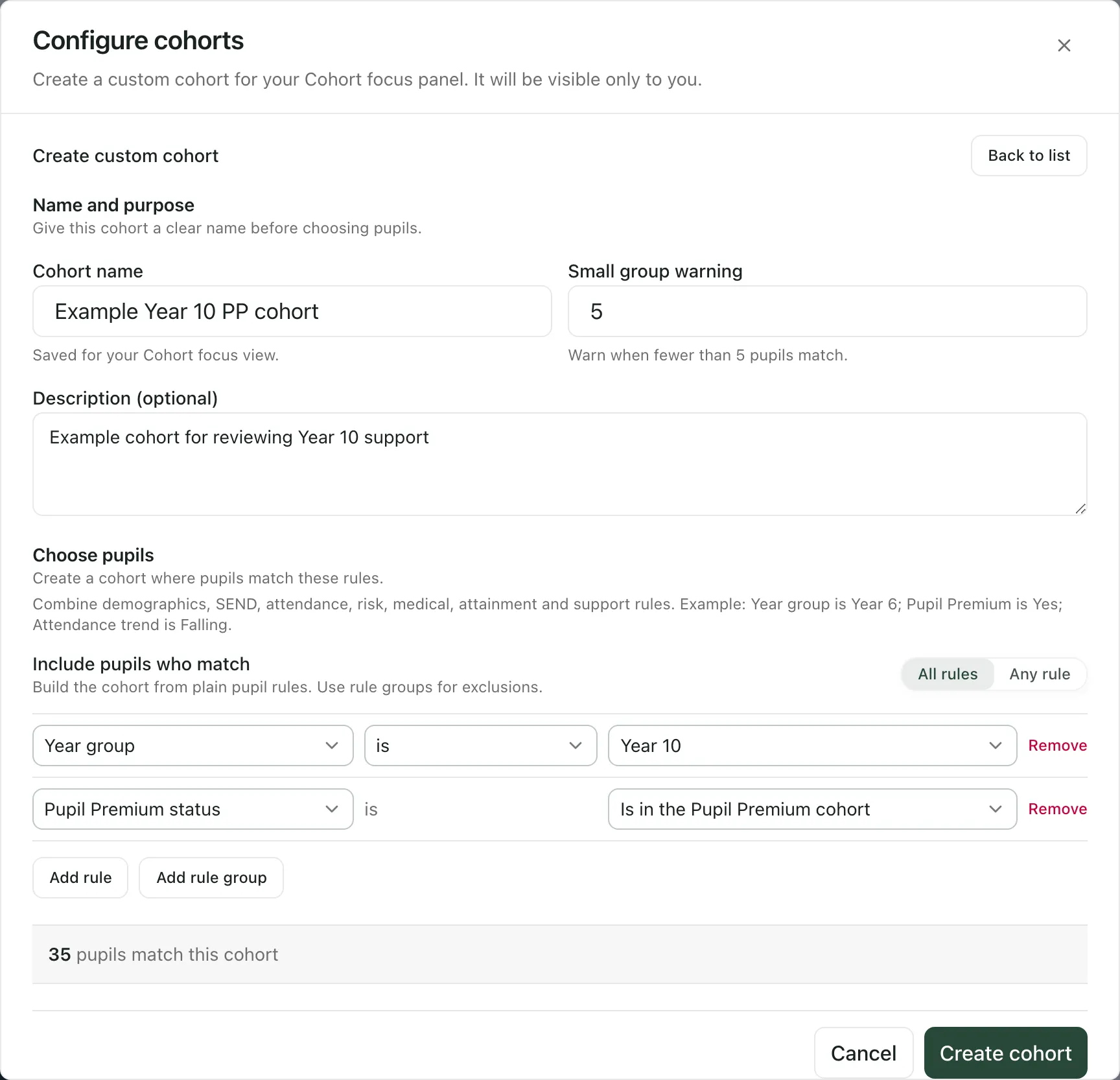
Section titled “Save your own cohort”A custom cohort is a set of rules that picks out the pupils you care about, for example Year 10 pupils in the Pupil Premium cohort. Only you can see your custom cohorts.
-
In Cohort focus, click Configure cohorts.
-
Under Custom cohorts, click New cohort.
-
Enter a Cohort name. You can also add a Description (optional).
-
Leave Small group warning at 5, or change it. You’ll be warned if fewer pupils than this match.
-
Under Include pupils who match, build the first rule: choose a field, such as Year group, then how to compare it and the value, such as Year 10.
-
To add another rule, click Add rule. Choose All rules to include pupils who match every rule, or Any rule to include pupils who match at least one.
-
To leave some pupils out, click Add rule group, add the rules for the pupils to exclude, and tick Exclude pupils matching this group.
-
Check the number of pupils who match, shown below the rules.
-
Click Create cohort.
Student Radar saves the cohort for you and adds it to Cohort focus, if there’s a free space. Click it like any other cohort to see its pupils.
If fewer pupils match than your small group warning, you’ll see “Below your small group warning threshold.” When you click Create cohort, Student Radar warns that saving such a small cohort could risk identifying individuals. Click Create cohort again only if you’re sure.
You can have up to 8 custom cohorts. To change one, click Configure cohorts, then Edit next to it, make your changes and click Save changes. Click Delete to remove it. You can’t undo a delete.
Choose which cohorts appear
Section titled “Choose which cohorts appear”Cohort focus shows up to 8 cohorts. To change which ones:
- Click Configure cohorts.
- Under Shown cohorts, use Up and Down to change the order, and Remove to take a cohort off.
- To add one, choose it from Add cohort. Remove a cohort first if all 8 places are used.
These changes are saved for you straight away. Click Close when you’ve finished.
- Teaching assistants don’t see Cohort focus, so they can’t use or save cohorts. The other filters work in the same way.
- Outside England: if your school’s country doesn’t use Pupil Premium, free school meals or looked-after status, those cohorts and filters aren’t shown.
- Filters and cohorts only ever narrow the pupils you can already access. They don’t give you access to anyone else.
- On the Heat Map, a cohort’s figures follow your other filters. For example, with Year 10 chosen, SEND counts only Year 10 pupils with SEND.
If something doesn’t work
Section titled “If something doesn’t work”| What you see | What to do |
|---|---|
| “No pupils found” | No pupils match all your filters. Click Clear all filters, or remove one filter at a time. |
| “No pupils match these review filters in the available data.” | No pupils in the cohort match that review. Click Back to cohort, or choose a different cohort. |
| “Give your cohort a name.” | Enter a Cohort name. Create cohort stays greyed out until you do. |
| “A cohort with this name already exists.” | You already have a custom cohort with that name. Choose a different name. |
| “Below your small group warning threshold.” | Fewer pupils match than your Small group warning. Check the rules. A very small cohort could make individual pupils identifiable. |
| A cohort shows a dash instead of a number | The information isn’t available for the pupils in view, or your account can’t see it. It doesn’t mean zero pupils. |
| New cohort is greyed out | You already have 8 custom cohorts. Delete one you no longer need. |