Turn on your referral portal and share the link
Written for: Alternative provision leaders who manage referrals.
Your referral portal is a secure online form that schools, local authorities and others can use to send you a referral. You turn it on, then share its link, for example on your website or in an email. Referrers don’t need a Student Radar account, and they never get access to Student Radar. Each submission arrives in Referrals as a new, unverified referral for you to check.
Before you start
Section titled “Before you start”You need permission to set up referrals, which AP leaders usually have. Without it, the Referral portal card isn’t shown.
Turn the portal on
Section titled “Turn the portal on”- In the sidebar, open Referrals and choose Referrals.
- Scroll down to the Referral portal card. It shows Closed until you turn it on.
- Click Show portal settings.
- Check Name shown on the form. It starts as your provision’s name.
- In Welcome message, add anything referring schools should know before they begin.
- Turn on Accept referrals.
You’ll see “Referral portal ready”, and the card shows Open. The name and welcome message are saved at the same time. If you change them later, click Save changes.
Share the link
Section titled “Share the link”While the portal is open, its link is shown under the settings.
- Click Copy link to copy it, then paste it into your website, an email or a letter. You’ll see “Referral link copied”.
- Click Open form to open the live form in a new tab, as a referrer would see it.
Preview the form
Section titled “Preview the form”Click Preview form to see the page referrers use, with your name and welcome message. Nothing can be submitted from the preview, so you can try it out at any time.
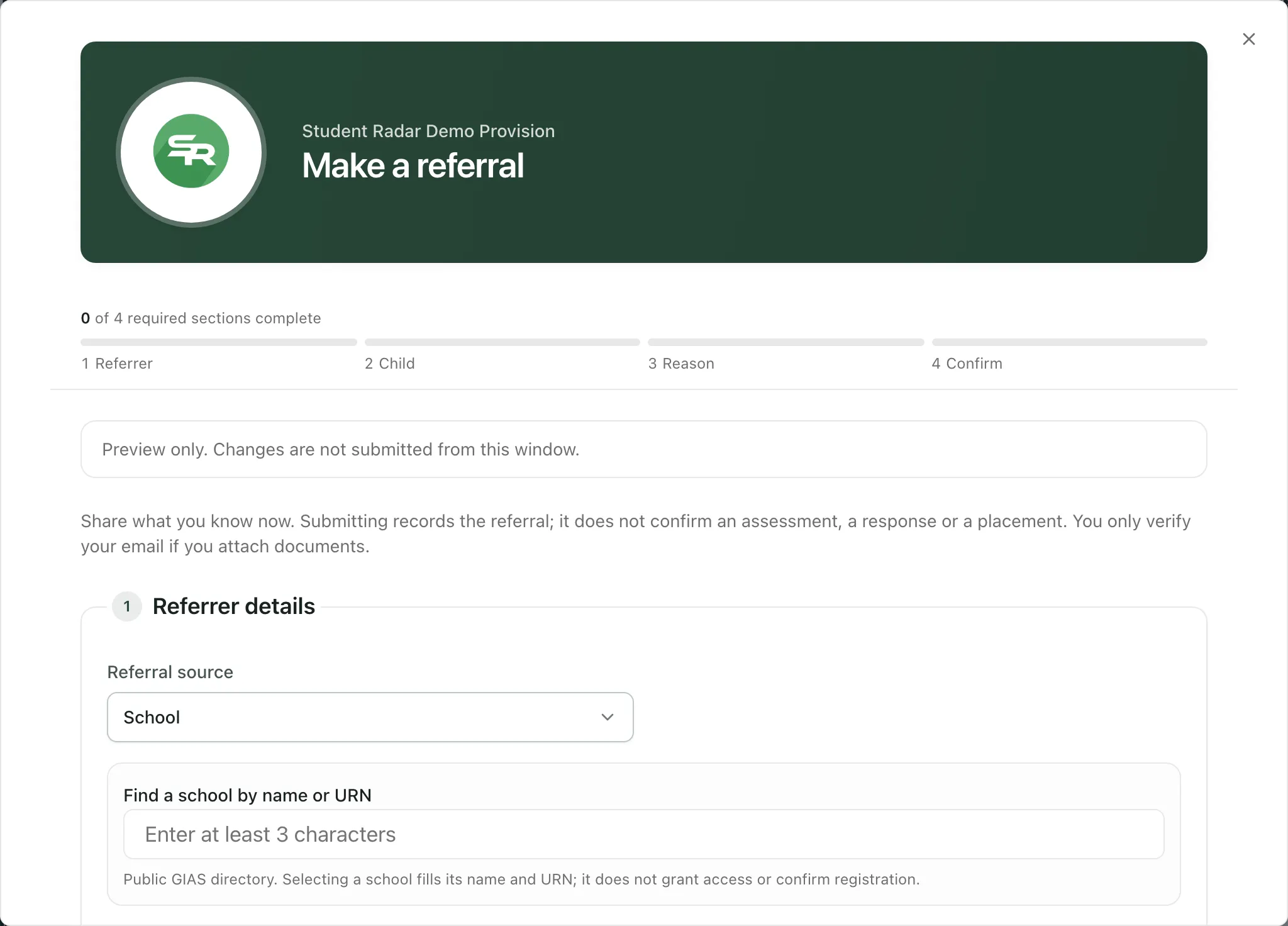
Referrers fill in four sections:
- Referrer details: who they are and which school or organisation they’re from.
- Child details: the young person’s name and any other details they can share.
- Reason and requested placement: why they’re referring and what they’re asking for.
- A confirmation that they’re allowed to share the information.
They can also attach supporting documents, and they verify their email address only if they do. When they click Submit referral, they’re given a receipt reference. The receipt doesn’t confirm when you’ll review or respond.
Share policies with referrers
Section titled “Share policies with referrers”Under the settings, Referral pack lists the documents referrers can download from your form. To add a policy, click Open Policies, open the policy and turn on Include in referral pack. Referrers always get its latest version.
Replace the link
Section titled “Replace the link”If the link has been shared somewhere it shouldn’t be, replace it:
- Click Show portal settings, then Replace link.
- Read the warning and click Replace link.
You’ll see “Referral link replaced”. The old link stops working straight away, so update your website and anything else where you shared it.
Turn the portal off
Section titled “Turn the portal off”Turn off Accept referrals. You’ll see “Referral portal disabled” and the card shows Closed. Turn it back on whenever you’re ready to take referrals again.
When a referral arrives
Section titled “When a referral arrives”- On the Referrals page, the referral is marked New and its next action is to triage it. The pipeline at the top counts how many are new from your referral link.
- In My Actions, the new referrals waiting are listed with an Open referral button. Each one leaves the list once someone starts or declines the referral.
Submissions aren’t verified, so check the details in Enquiry & triage before you go any further. See Move a referral through to placement.
- Demo provisions: a demo provision doesn’t accept public referrals. Its card says “Preview the referral form. Demo provisions do not accept public referrals.” You can preview the form, but you can’t turn it on or get a link.
- Emergencies: the form tells referrers not to use it in an emergency and to follow their own safeguarding procedures.
If something doesn’t work
Section titled “If something doesn’t work”| What you see | What to do |
|---|---|
| The Referral portal card isn’t shown | Your account can’t set up referrals. Ask an AP leader or your Student Radar administrator. |
| “Portal settings could not be loaded.” | Click Try again. Until the settings load, Accept referrals and Save changes are greyed out. |
| “Could not update the referral portal” | Nothing was changed. Try again in a moment. If it keeps happening, ask your administrator to check your access. |
| “Could not copy the link” | Your browser blocked copying. Click Open form and copy the address from the new tab instead. |
| “Could not replace the referral link” | The old link still works. Try again in a moment. |
| Referrers say “This referral link is not available” | They’re using an old or mistyped link. Send them the link from Copy link again, and check that Accept referrals is on. |