Add and cost a provision
Written for: SENCos and inclusion leads.
The Provision Map lists the support your school provides for pupils with SEND: who each provision is for, how many hours it runs and what it costs. Use it to add a provision, link it to the pupils it supports, record its costs and funding source, and set when it’ll be reviewed. The costs are the school’s own estimates, worked out from the hours and rates you record. They aren’t taken from your finance system.
Open the Provision Map
Section titled “Open the Provision Map”In the sidebar, open Inclusion, then SEND, then Provision, and choose Provision Map.
At the top, four boxes summarise the provisions you can access:
| Box | What it shows |
|---|---|
| Active provisions | How many active provisions there are. A group provision is counted once. |
| Need context | How many have a recorded need or reason for support, and how many are missing one. |
| Known weekly cost | The total weekly cost of provisions with a cost recorded, and how many that covers. |
| Review evidence | How many provisions have been reviewed and how many have comparable assessment scores. |
If some records are missing a need, click Review missing context to see them.
Add a provision
Section titled “Add a provision”- Click Add provision.
- Under Pupils and purpose, enter a Provision name and choose the Provision type: General, Small group, 1:1 or EHCP provision.
- Under Linked pupils, click Add pupil, type a pupil’s name, year or form, and choose them. Repeat for each pupil in a group.
- In Need or reason for support, say why the pupils need this support.
- Under Delivery, enter the Hours per week and choose the Status (Active or Paused). Choose the staff who deliver it from Add staff member.
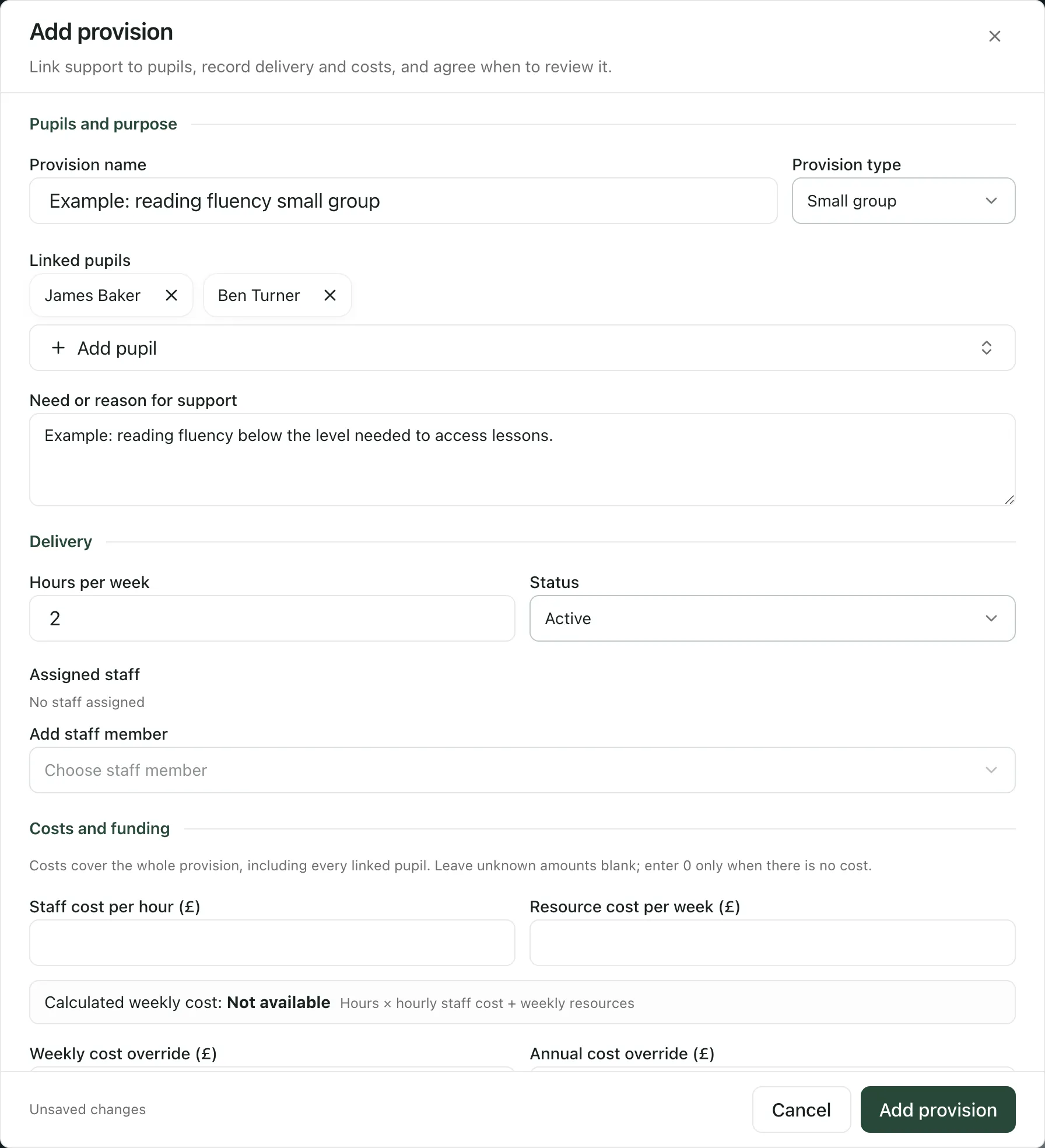
Record the costs and funding
Section titled “Record the costs and funding”Further down the form, under Costs and funding:
- Enter the Staff cost per hour (£) and the Resource cost per week (£), such as materials or a licence. Costs cover the whole provision, including every linked pupil, so don’t divide them between pupils. Leave an amount blank if you don’t know it, and enter 0 only when there’s no cost.
- Check the Calculated weekly cost. It’s the hours per week times the hourly staff cost, plus the weekly resource cost.
- If you know the real weekly or yearly cost, enter it in Weekly cost override (£) or Annual cost override (£). Leave them blank to use the calculation. If there’s no annual cost, the map estimates it as the weekly cost times 38 school weeks.
- Choose the Cost classification:
- Include in planned cost totals for provision that costs the school money.
- Adjustment · exclude from planned costs for adjustments that don’t add a cost. They’re left out of the totals.
- Needs review if you haven’t decided yet. It isn’t counted until someone classifies it.
- In Funding source, enter where the money comes from, such as the notional SEN budget, pupil premium or EHCP top-up funding.
Under Review, choose the Priority, and set the Provision start date, Provision end date and Review date. You can also add Entry criteria and Exit criteria, one per line: the evidence for starting support and what to check before ending it. If you add one, you must add the other.
Click Add provision. The provision appears on the map for each linked pupil.
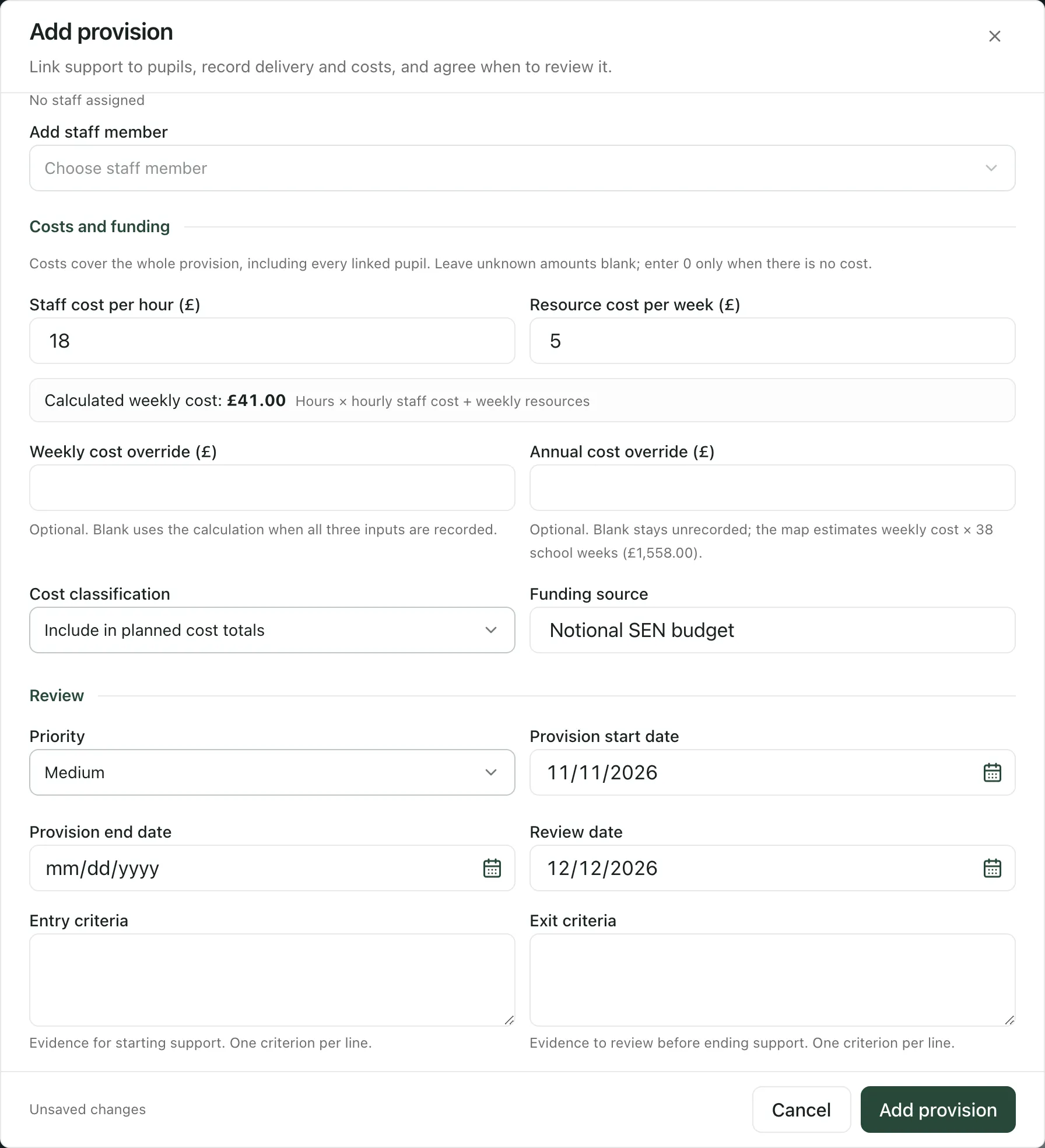
To change a provision later, expand the pupil’s row and click Edit on the provision, change the details and click Save changes.
Record what the provision actually cost
Section titled “Record what the provision actually cost”The costs above are planned costs. To record money the school has actually spent, open the provision with Edit and use School-recorded actual costs:
- Enter the Actual amount (£) and the Incurred date.
- Choose the Cost category: staff, resources, commissioned or other.
- Add an Explanation / source reference, such as an invoice number.
- Click Record actual cost.
The entry is saved straight away, separately from the provision details. If Record actual cost is greyed out, save or discard your other changes first; if it stays greyed out, your account can’t record actual costs for this provision. Record each cost once for the whole provision, even if it’s shared by a group. To correct a mistake, click Reverse entry on it and give a Correction reason. Entries are never deleted, so the audit trail is kept. These amounts aren’t checked against your finance system.
Read the costs
Section titled “Read the costs”By pupil shows one row per pupil, with their number of provisions, Weekly hours and Linked cost / week. Click a row to see each provision, its funding source and its weekly cost.
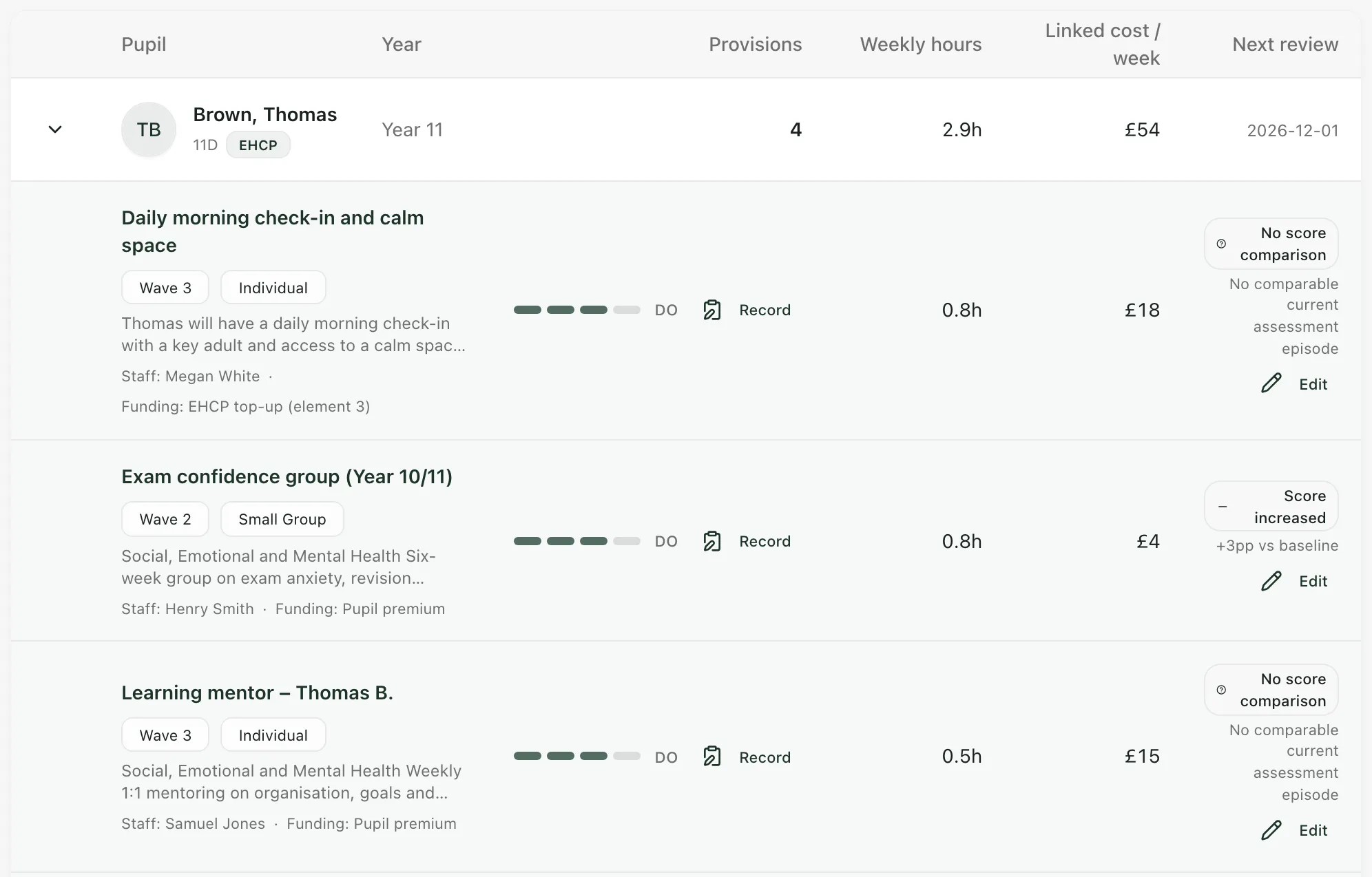
Linked cost / week is the full cost of every active, costed provision linked to the pupil. A group’s full cost appears on every linked pupil’s row, so don’t add the rows together. Instead of a cost, you may see Not recorded, Needs review or Adjustment, or a note that the costs are incomplete or include shared provision.
Open Funding context and next steps below a pupil’s provisions to see their Estimated annual additional provision cost. The card lists what the estimate is based on, such as the provisions counted, the weekly cost, the weeks per year, the staff rate per hour and the group size. It’s shown for your professional judgement only: as it says, it “does not restrict the additional support a school may provide”. From here you can click Prepare EHCNA request pack or Prepare top-up evidence bundle. See Prepare a top-up funding request.
The other views:
- By provision groups every provision by recorded area of need and similar support.
- Cost impact shows known costs by funding source, the actual costs the school has recorded, and the review evidence for each provision. As the page says, “Totals include known amounts only. Missing amounts are not £0.”
- Costed estimate, if you can see it, shows a school-level estimate with funding context.
None of the views show whether a provision caused a change for a pupil. Use the review evidence alongside your professional judgement.
Find a provision
Section titled “Find a provision”Type in Search pupil or provision, or choose from All year groups and All need areas. Click More filters to filter by APDR stage, Score change, Wave, Cost band or Status. Click Clear to remove the filters.
Change the default rates
Section titled “Change the default rates”Click Change cost defaults at the top of the Provision Map to open Provision Settings, where your school sets its default TA and HLTA hourly rates and review periods. See Set default provision costs and review periods.
Take the built-in tour
Section titled “Take the built-in tour”Click Take a tour at the top of the Provision Map. It explains the summary boxes and the views.
England only: Funding context and next steps and the top-up and EHCNA links follow English SEND funding. They’re hidden for schools in other countries.
If something doesn’t work
Section titled “If something doesn’t work”| What you see | What to do |
|---|---|
| “Check the highlighted fields before saving.” | Look for the message under each highlighted field, correct it and click Add provision again. |
| “Enter a provision name.” | Fill in Provision name. |
| “Choose at least one pupil.” | Click Add pupil and choose the pupils the provision supports. |
| “End date must be on or after start date.” | Change the Provision end date or Provision start date. |
| “Add an exit criterion before saving criteria.” | You’ve added entry criteria, so add at least one exit criterion too (or the other way round). |
| “Couldn’t save this provision. Your changes are still here. Check your connection and editing access, then try again.” | Click Add provision or Save changes again. If it keeps happening, ask your SENCo whether you can edit provision. |
| “Enter an amount (up to two decimal places), incurred date and explanation.” | Fill in all three before clicking Record actual cost. |
| “Provision summary unavailable. Please refresh before using these figures.” | Click Retry. Don’t rely on the summary boxes until they load. |
| “Couldn’t load provisions” | Reload the page. If it keeps happening, wait a few minutes and try again. |
| “Pupil details could not be loaded. The map has not substituted an empty cohort.” | Click Retry. |
| “Could not load costs and review evidence.” | Click Retry. |
| “No pupil-linked provisions yet” | No provision is linked to a pupil yet. Click Add provision, or switch to By provision. |
| “No pupils match the current filters” | Change the search or filters, or click Clear. |