Find anything with the command palette
Written for: All school staff.
The command palette is a quick way to jump to a page or a pupil without using the sidebar. Open it with a keyboard shortcut, type a few letters and press Enter.
Open the command palette
Section titled “Open the command palette”Press ⌘K on a Mac or Ctrl+K on Windows. You can do this from any page in your school workspace, even while you’re typing in another box.
The ⌘K at the right of the Search pupils… box at the top of the screen is a reminder of this shortcut. Pressing it opens the command palette, not the pupil search list. Clicking the search box itself still searches for pupils in the usual way.

Search and open a result
Section titled “Search and open a result”- Start typing. Until you do, the palette shows “Start typing to search the app.”
- Results appear in two groups as you type:
- Pupils: pupils whose name, UPN, class or year group matches. Each shows the pupil’s year group, class and UPN.
- Views: pages whose name or description matches, such as Take Register or SEND Register.
- Click a result, or use the up and down arrow keys to highlight one and press Enter.
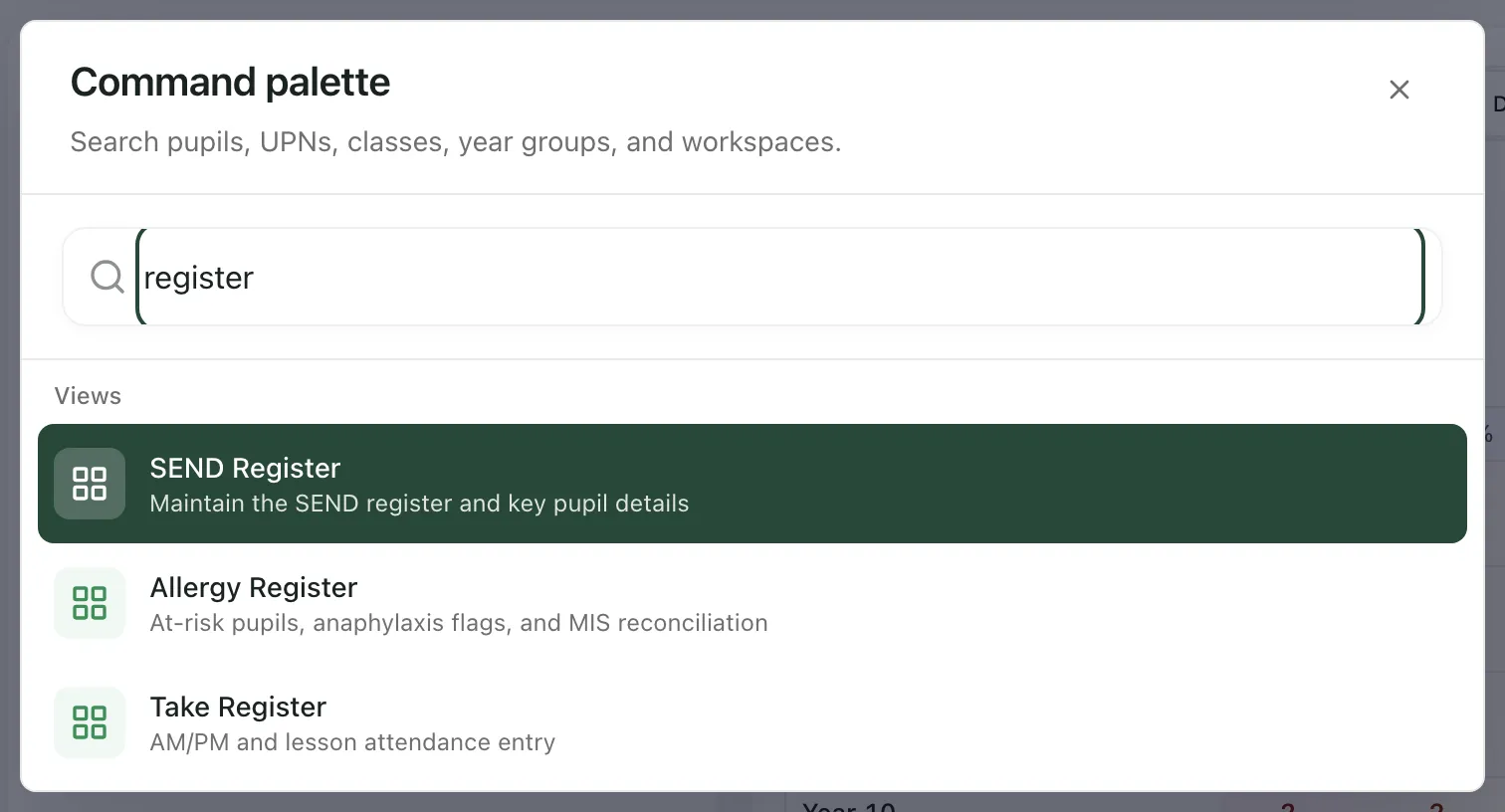
Choosing a page opens it. Choosing a pupil opens their profile over the page you’re on.
To close the palette without choosing anything, press Esc or click ×.
What you’ll see
Section titled “What you’ll see”- The palette lists only the pages you can open, the same as your sidebar. If your school has switched a feature off, its pages don’t appear.
- Pupils appear once Student Radar has finished loading the pupils you can see. If you’ve just signed in and no pupils appear, wait a moment, close the palette and open it again.
- Governors see pages only. Pupils aren’t listed for governors.
- The best matches come first. A result whose name starts with what you typed ranks above one that only mentions it in its description.
Other keyboard shortcuts
Section titled “Other keyboard shortcuts”Press ? to see the keyboard shortcuts, including ⌘/Ctrl + K for the command palette and N for notifications. Shortcuts other than the command palette don’t work while you’re typing in a box.
On a phone or tablet without a keyboard, use the search icon at the top of the screen to find a pupil, and the Menu button at the bottom of the screen to find a page.
If something doesn’t work
Section titled “If something doesn’t work”| What you see | What to do |
|---|---|
| “No matching app results.” | Check the spelling, or type less. The page may also be one you don’t have access to. |
| No pupils appear, only views | Wait for the page behind the palette to finish loading, then try again. If pupils never appear, ask your school’s Student Radar administrator. |
| Nothing happens when you press the shortcut | Click somewhere on the page first, then try again. The shortcut works on pages in your school workspace. |