Manage cases on the DSL Action Board
Written for: Designated Safeguarding Leads, deputies and senior leaders.
The DSL Action Board shows every open safeguarding case you can see in one place: which cases need a decision today, who owns each one and when it’s next reviewed. Use it to keep cases moving from the first concern to closure. Student Radar records each step and who took it. The decisions are yours and your safeguarding team’s, made under your school’s safeguarding procedure.
Open the board
Section titled “Open the board”In the sidebar, open Safeguard, then Concerns & Response, and choose DSL Action Board.
Along the top, choose the kind of work you want to see:
| Tab | What it holds |
|---|---|
| Pupil safeguarding | Open safeguarding cases about pupils. |
| Staff allegations | Concerns about adults who work at the school, kept on their own board. |
| Worry box | Reports from your school’s worry box, waiting for someone to decide what they are. |
| Medical review | Prompts from first aid records that may need a safeguarding decision. |
| Coverage review | Wording found in saved school records that may be relevant to safeguarding. |
| Watchlists | Automatic checks across attendance, behaviour, safeguarding and risk that bring pupils to review. |
The number in brackets is how many items the tab holds. Staff allegations is shown only to the DSL, deputy DSLs and the headteacher. For the Worry box, Medical review and Coverage review tabs, see Review a new concern: promote or dismiss it.
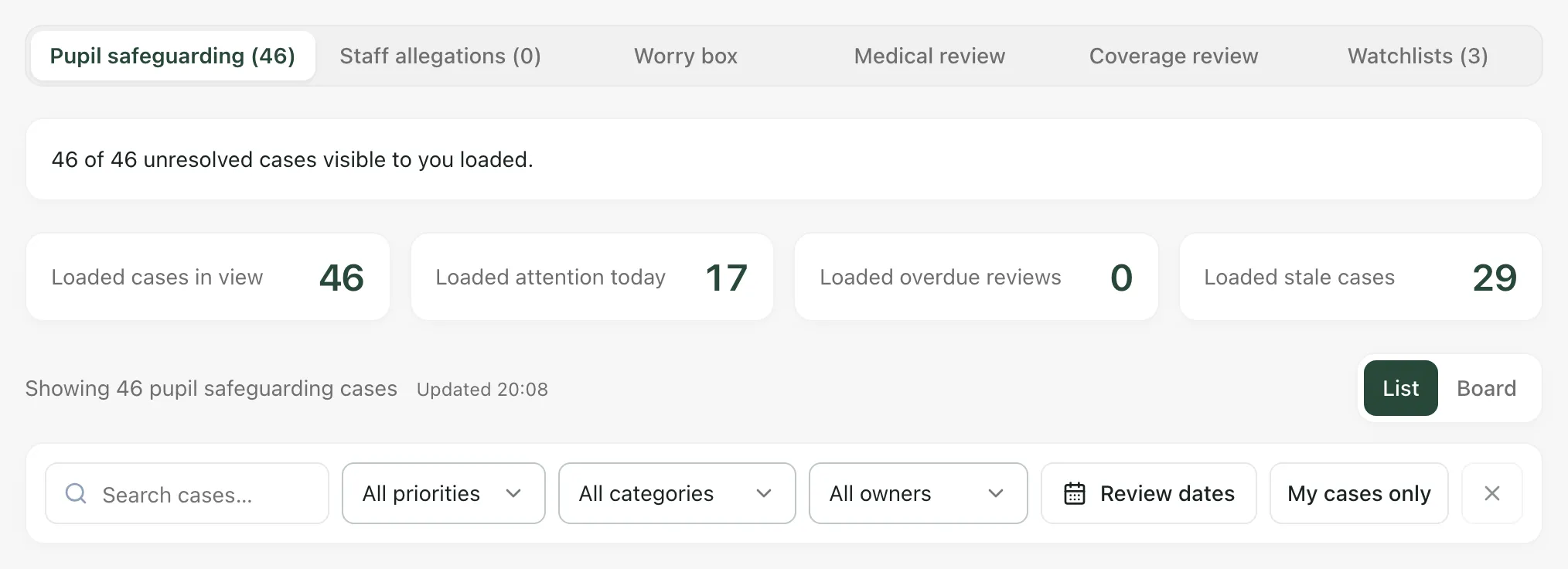
Under the tabs, Student Radar says how many of the unresolved cases you can see have loaded. If Load more cases appears, click it before you decide the queue is clear. The four counts below cover the loaded cases:
- Loaded cases in view: the cases that match your filters.
- Loaded attention today: cases in the Needs attention today stage.
- Loaded overdue reviews: cases past their review date.
- Loaded stale cases: cases with no recent update.
Find the cases you need
Section titled “Find the cases you need”Use the filters above the cases:
- Search cases…: type a pupil’s name, year group, category or words from the case summary.
- All priorities: show one priority only.
- All categories: show one category. Choose Needs classification to find new concerns that haven’t been given a category yet.
- All owners: show the cases one person owns, or choose Unassigned.
- Review dates: set Review from and Review to to find cases reviewed in that period. Cases with no review date are matched on their last update. Click Clear dates to remove the dates.
- My cases only: show only the cases assigned to you.
Click the × at the end of the filters to clear them all.
Choose List or Board to change how the cases are laid out.
The List view
Section titled “The List view”Each row shows the pupil, their year group and the category, a short summary and:
- Stage: where the case is in its lifecycle. You can change it here.
- Primary alert: the most pressing time warning, such as a review that’s overdue or a case with no recent update.
- Owner: who is responsible for the next step, or Unassigned.
- Review: the next review date, or Not set.
- Open case: opens the full case.
The Board view
Section titled “The Board view”The Board view shows the same cases as cards in five columns, one for each stage:
| Stage | What it means |
|---|---|
| Needs attention today | Cases requiring action or a decision today |
| In progress | Actively being followed up by a staff member |
| Waiting for response | On hold pending an external reply or outcome |
| Monitoring | Under review on a regular schedule |
| Ready to close | Resolved — awaiting final sign-off |
Each column shows how many cases it holds and how many are overdue, ageing or stale, or On track. A card in Needs attention today says why it’s there, for example a new concern or an overdue review, and suggests a Next step. The suggestion is a prompt, not a decision: decide what the case needs.
Move a case to another stage
Section titled “Move a case to another stage”Choose a new stage from Stage on the case’s row or card. In the Board view you can also drag a card by its handle into another column.
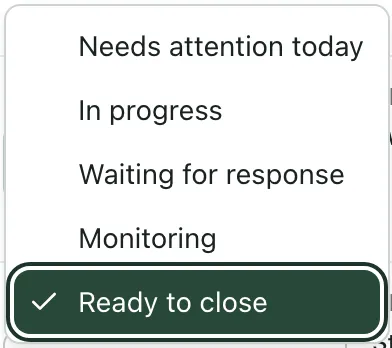
The move is saved straight away and recorded in the case history. Some moves ask for more first:
- Out of Needs attention today: Student Radar asks you to confirm, so the board keeps an accurate record of what still needs same-day attention. Click Confirm move.
- Into Monitoring: under Enter monitoring details, explain why in Monitoring rationale (required), choose a Review cadence and a First review date, then click Save monitoring.
- Into Ready to close: under Enter closure context, summarise the outcome in Closure context (required), then click Save closure context.
If you click Cancel, the case stays where it was.
Assign, add a note or flag a case urgent
Section titled “Assign, add a note or flag a case urgent”In the Board view, click More actions (the three dots) on a card.
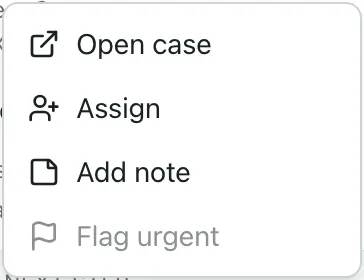
- Assign: in Assign case, find the colleague under Search staff, choose them as the Assignee, then click Assign. They become the case owner.
- Add note: in Add quick note, give the update a Title, write the Details, then click Save note. The note is added to the case chronology.
- Flag urgent: marks the case as urgent straight away. It’s greyed out if the case is already flagged, if it’s a staff allegation, or if the case has no pupil record linked.
Review a case for closure
Section titled “Review a case for closure”Cards in Ready to close have a Review for closure button. Click it, then:
- Under Decision, choose Close case, Continue monitoring or Escalate.
- If you’re closing the case, enter the Actual closure date (required): the day the case actually closed. Then tick each item in the Closure checklist: Chronology reviewed, Evidence reviewed, Outstanding actions resolved, Parent/carer communication considered, External agency communication considered and DSL closure rationale recorded.
- Explain your decision in Rationale (required).
- Click Confirm decision.
Continue monitoring moves the case back to Monitoring. Escalate moves it back to Needs attention today. You can’t close a case until every checklist item is ticked. The checklist is a reminder of the checks your procedure expects. Ticking it doesn’t make the decision for you.
Open a case
Section titled “Open a case”Click Open case on a row or card. The case opens with its Stage, Owner and Next review at the top, and these sections:
- Overview: the case summary and its Case type.
- Timeline: the Case timeline, every observation, action, communication and review in date order.
- Actions: actions and reviews for the case.
- Evidence: evidence attached to the case.
- People & access: who is involved and who can see the case.
Operation Encompass follow-up
Section titled “Operation Encompass follow-up”At the top of the board, Operation Encompass follow-up lists Operation Encompass follow-ups recorded with a report that you’re allowed to see. Student Radar doesn’t schedule these follow-ups or remind anyone about them. Make sure each one is followed up through your school’s Operation Encompass and safeguarding procedure.
Keep the board up to date
Section titled “Keep the board up to date”The board updates as colleagues change cases, and shows when it was last updated. Click Refresh at the top to reload it.
Take the built-in tour
Section titled “Take the built-in tour”Click Take a tour at the top of the board. It walks you through the tabs, filters, columns and case timeline. The tour uses shorter names for some stages, such as Attention today for Needs attention today.
If something doesn’t work
Section titled “If something doesn’t work”| What you see | What to do |
|---|---|
| “Checking safeguarding access…” | Wait a moment. The board loads once Student Radar has confirmed what you can see. |
| “Unable to load safeguarding cases” | Click Refresh. Until the cases load, the case totals aren’t available. |
| “Authorised queue coverage is not yet confirmed.” | Student Radar hasn’t confirmed how many cases there are. Click Refresh before you rely on the counts. |
| “Totals cover authorised cases. Filters and the summary below apply to loaded cases; load more before concluding the queue is clear.” | Click Load more cases until it no longer appears. |
| “No cases match the current filters.” | Click × to clear the filters, or change them. |
| “Could not update status” | The case has gone back to its stage. A colleague may have changed it at the same time. Click Refresh, check the case, then try again. |
| “Unable to flag urgent” | The case has no pupil record linked, so it can’t be flagged. Open the case to check who it’s about. |
| “Follow-up coverage is unavailable. Refresh to try again; this does not mean there are no outstanding reports.” | Click Refresh follow-up coverage. Until it loads, check Operation Encompass follow-ups through your school’s procedure. |