Create a school improvement priority
Written for: Headteachers and senior leaders who plan and track school improvement.
School Priorities turns your school improvement plan into a working board. Each priority is linked to an evaluation area from your school’s inspection framework, has an owner and a review date, and keeps its actions, measures and evidence together. This article shows you how to write a priority yourself. To have AI draft one from a short description instead, see Draft a priority from your data with AI.
Open School Priorities
Section titled “Open School Priorities”- In the sidebar, open Leadership, then Strategy & assurance.
- Choose School Priorities.
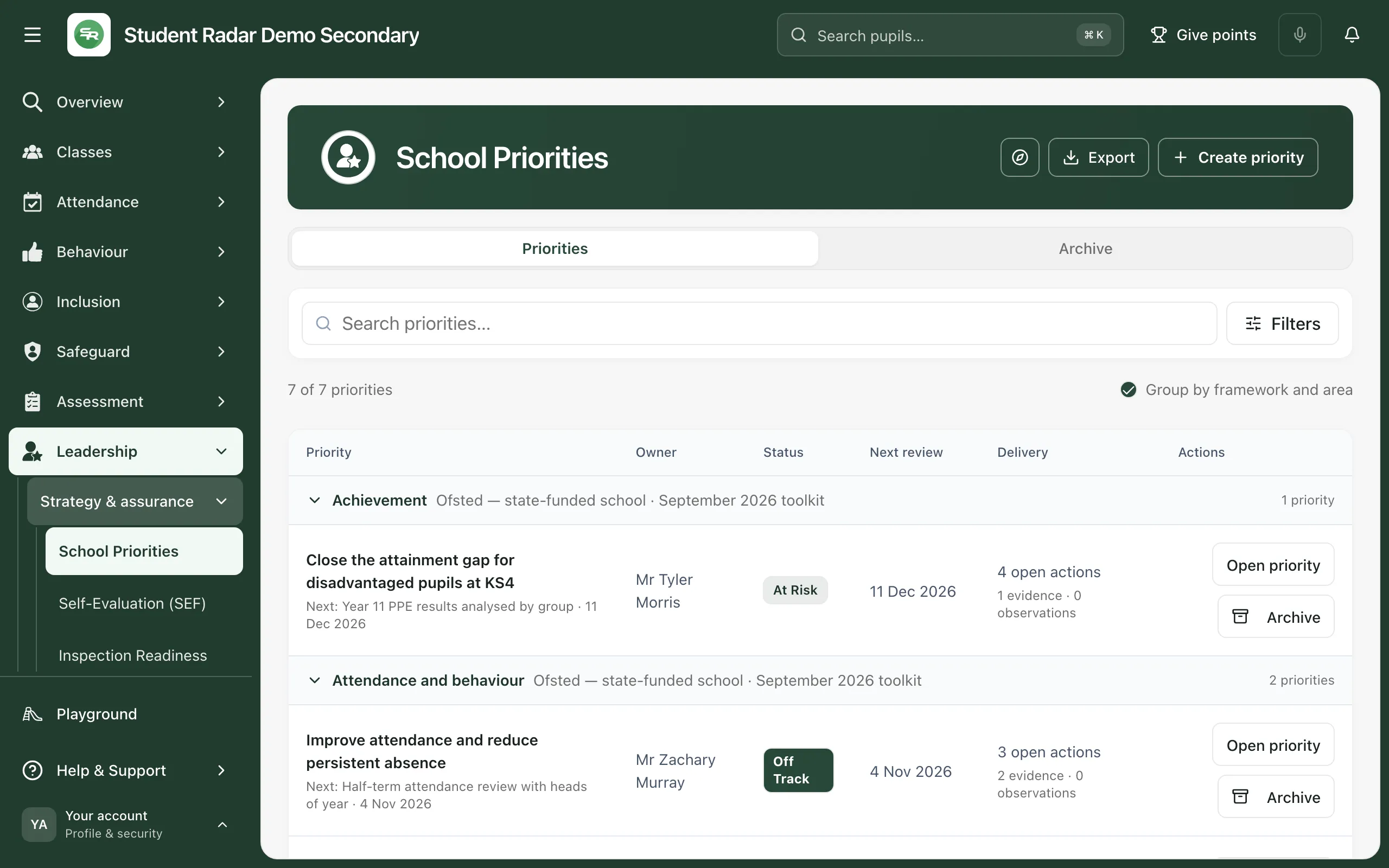
The board lists your school’s active priorities. With Group by framework and area ticked, they’re grouped under the evaluation area each one belongs to, so you can see which areas have improvement work and which don’t. For each priority you’ll see:
- Owner: the leader responsible for it.
- Status: whether it’s on track, at risk or off track.
- Next review: when it’s next due for review.
- Delivery: open actions, and how much evidence and how many observations are linked.
Type in Search priorities… to find a priority by name. Click Filters to narrow the board by evaluation area, owner, status or pupil group, or tick Needs attention. On a wide screen, the filters sit next to the search box instead.
Create the priority
Section titled “Create the priority”-
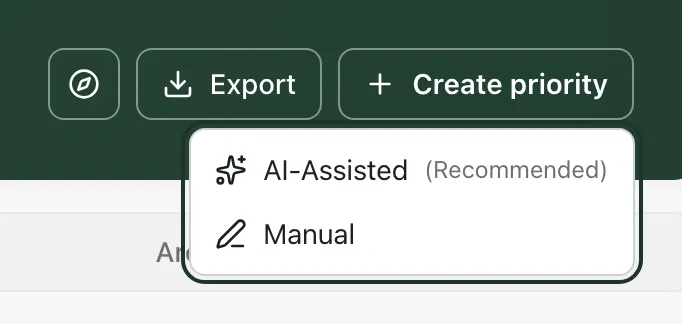
Click Create priority at the top of the page.
-
Choose Manual. (AI-Assisted drafts the priority for you to review instead.)
-
Under Priority details, fill in:
- Title: a short statement of what you want to improve.
- Evaluation area: the area of your inspection framework that this priority will improve. The list shows the areas your school’s framework uses.
- SIP cycle (optional): the school improvement plan year, for example 2026-27.
- Description: what you want to improve and why. This is optional, but it helps colleagues and governors understand the priority.
-
Under Ownership and review, fill in:
- Owner (optional): the member of staff who leads the priority. Leave it as Unassigned until it’s agreed.
- Review cadence (optional): how often you’ll review it, from Weekly to Termly.
- Start date: today, unless you change it.
- Next review date (optional): the date of the first review.
- Trust priority (optional): if your trust has its own priorities, link this priority to one of them.
-
Under Target pupil groups, tick any groups the priority is aimed at, such as Pupil Premium or SEND.
-
Check the summary at the top of the window. It shows the evaluation area, owner and review cadence you’ve chosen.
-
Click Create.
Create stays greyed out until the priority has a title and an evaluation area. The priority is saved as active and opens straight away.
Plan the work
Section titled “Plan the work”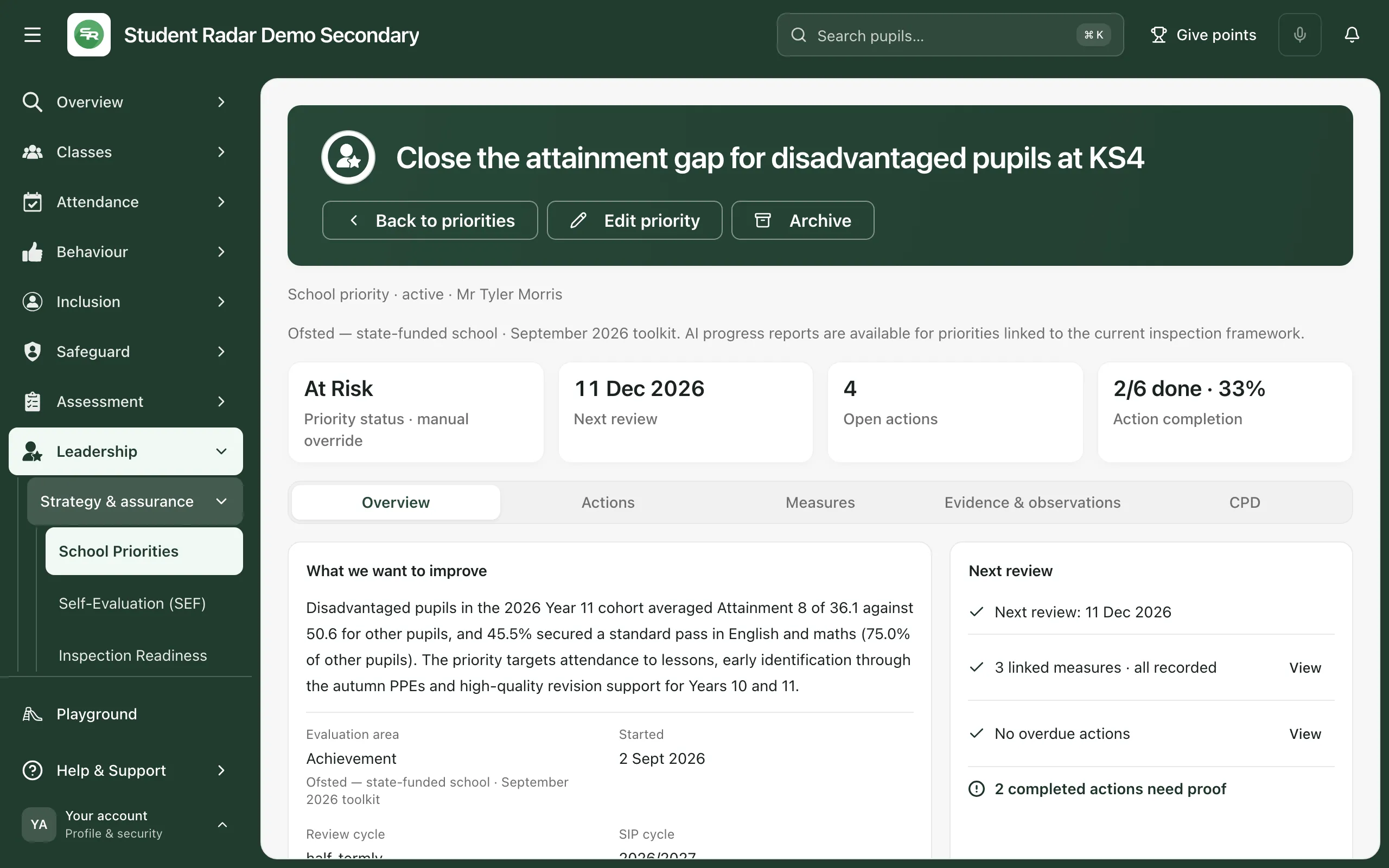
The cards across the top show the priority’s status, next review date, open actions and how many actions are complete. Use the tabs to plan and evidence the work:
| Tab | What it’s for |
|---|---|
| Overview | What you want to improve, the evaluation area and review dates. |
| Actions | The actions that deliver the priority, with owners and due dates. |
| Measures | The measures you’ll use to judge progress. |
| Evidence & observations | Evidence and monitoring observations linked to the priority. |
| CPD | Staff development that supports the priority. |
If you left the owner as Unassigned, the priority shows “This priority has no lead”. Click Assign a lead to choose one, so review reminders go to someone. Click Edit priority to change any other details, or Back to priorities to return to the board.
Create a priority from your self-evaluation
Section titled “Create a priority from your self-evaluation”When your self-evaluation identifies a next step, you can turn it straight into a priority:
- Open Self-Evaluation (SEF) and open the evaluation area.
- Save the area if you’ve changed it. The priority links to the saved evaluation.
- On the Actions tab, under Give the next step an owner, click Create priority.
The form opens with the evaluation area already chosen and a title ending in next steps. Finish the form as above. See Write your self-evaluation.
Who can create priorities
Section titled “Who can create priorities”Creating a priority needs permission to manage the school’s self-evaluation. By default, headteachers, senior leaders, DSLs, SENCos and administrators have it. Your school’s inspection framework must also be confirmed first, in Self-Evaluation (SEF). Schools can change who has access, so if you can’t create a priority, ask your headteacher or Student Radar administrator.
Take the built-in tour
Section titled “Take the built-in tour”Click the compass button at the top of School Priorities (Take a tour). The tour shows both ways to create a priority, the board, a priority’s tabs and the export options.
If something doesn’t work
Section titled “If something doesn’t work”| What you see | What to do |
|---|---|
| “Confirm the inspection framework in school settings before creating a priority.” | Your school’s framework isn’t confirmed yet, or your account can’t manage the self-evaluation. Ask your headteacher or administrator. |
| “The inspection context changed while this draft was open. Your draft is retained; close it and start again to use the current evaluation.” | Someone changed the school’s framework while you were writing. Copy anything you need, close the form and start again. |
| “Unable to create priority. Your draft is still here.” | Check your connection and click Create again. |
| “This draft already created a priority. Review that priority before changing its content.” | The priority was saved, but the confirmation didn’t reach you. Click Open existing priority instead of creating it again. |
| “No active priorities yet. Create one to start tracking.” | Your school has no active priorities. Click Create priority to add the first one. |
| “No priorities match the selected filters.” | Click Clear filters to see every priority. |
| “Your role does not have access to School Improvement.” | Your account can’t open School Priorities. Ask your Student Radar administrator. |