Read the Heat Map: levels of need and flags
Written for: All staff.
The Heat Map shows the pupils you can access in one place, grouped by year and class. For each pupil it shows a level of need, their attendance and short flags for circumstances such as SEND or EAL. Use it to decide where to look first.
Levels of need and flags are prompts for your professional judgement. They aren’t diagnoses, labels or decisions. Always open the pupil’s profile to check the evidence, and use what you know about the pupil, before you act.
Open the Heat Map
Section titled “Open the Heat Map”- In the sidebar, open Overview.
- Choose Heat Map. The page is headed Overview.
Read the levels of need
Section titled “Read the levels of need”The Risk profile panel at the top of the page sums up the pupils in view.
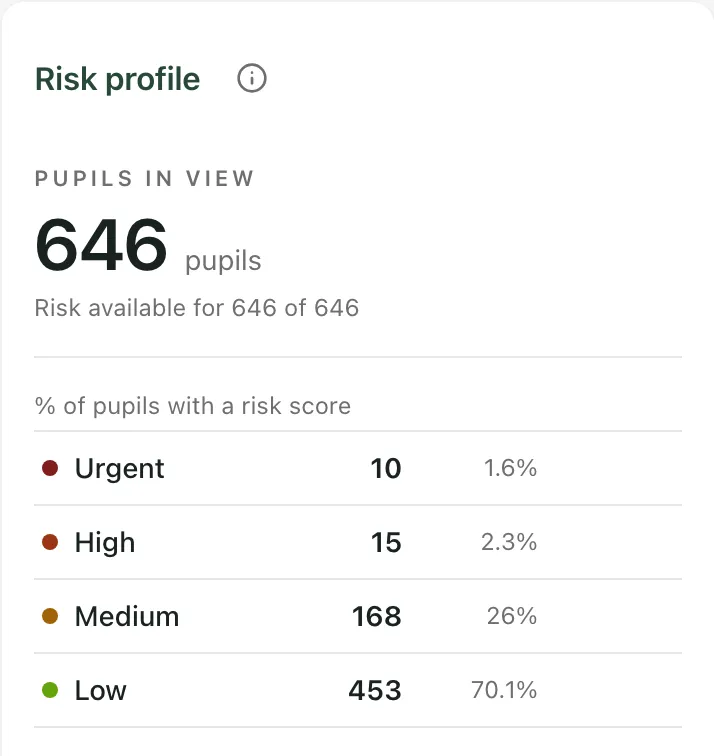
- Pupils in view is the number of pupils the page is showing, after any filters.
- Under it, you can see how many of those pupils have a risk score. Pupils without one aren’t counted in any level.
- Each pupil with a risk score is in one of four levels: Urgent, High, Medium or Low. The panel shows how many pupils are in each level and what share of the scored pupils that is.
Click a level to show only the pupils at that level. The panel then lists the year groups they’re in. Click a year group to jump to it. Click the level again to show everyone.
A pupil’s level comes from their risk score, which Student Radar builds from information recorded about them, such as attendance, behaviour and attainment. To see what’s behind a pupil’s level, open their profile and read the Why this score panel.
Below the levels, the panel also summarises attendance for the pupils in view, using the DfE method. Attendance by year group, next to it, breaks attendance into bands for each year. Choose Whole school to include every pupil with recorded attendance.
Read a pupil’s row
Section titled “Read a pupil’s row”Further down, under Pupils, the page lists pupils by year group and class. Click a year group or class to open or close it, or click Expand all classes.
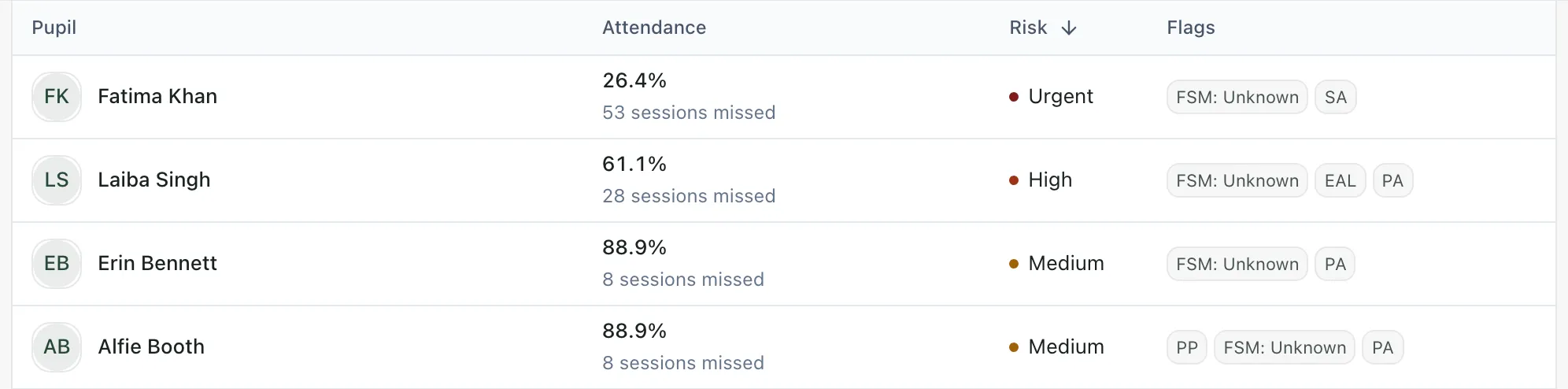
Each pupil has a row with four columns.
| Column | What it shows |
|---|---|
| Pupil | The pupil’s name. Click it to open their profile. |
| Attendance | Attendance for the current reporting window, and how many sessions the pupil has missed. |
| Risk | The pupil’s level of need, with a coloured dot. |
| Flags | Up to three flags. If there are more, you’ll see +1, +2 and so on. Hover to see them all. |
A risk of “Unavailable” means there’s no risk score for the pupil. It doesn’t mean low risk.
What the flags mean
Section titled “What the flags mean”| Flag | Meaning |
|---|---|
| SEND | The pupil has special educational needs or a disability recorded. |
| PP | The pupil is in the Pupil Premium cohort. |
| FSM | The pupil is eligible for free school meals. |
| FSM: category | Where your school records it, the free school meals category, for example FSM: Targeted. FSM: Unknown means the category isn’t recorded. |
| EAL | English is an additional language for the pupil. |
| LAC | The pupil is looked after or previously looked after. |
| PA | Persistent absence: the pupil has missed 10% or more of their possible sessions. |
| SA | Severe absence: the pupil’s attendance is 50% or below. |
PA and SA only appear once a pupil has had at least 20 possible sessions, so a new pupil won’t have an absence flag straight away. Your school can also add its own flags, which appear in colour.
Switch to cards
Section titled “Switch to cards”Click Cards to see each pupil as a tile instead of a row. The colour band on each tile shows the level of need, from deep red for Urgent to green for Low. Click List to go back.
Tiles can show more flags than rows, including:
| Flag | Meaning |
|---|---|
| IHCP | Individual healthcare plan |
| ANA | Anaphylaxis risk |
| ALG⚠ | Allergy record needs reconciliation |
| SC | Service child |
| YC | Young carer |
| MON | Monitoring |
| ATT↓ | Attendance trending down |
| RTT | Reduced timetable |
| EHE | Elective home education |
| CME | Children missing education |
| EST | The risk level is an estimate |
Staff with safeguarding access may see safeguarding flags on tiles too. If you’re worried about a pupil, click Raise concern on their profile and follow your school’s safeguarding procedure.
Make the Heat Map easier to read
Section titled “Make the Heat Map easier to read”Click Display to open Display options:
- Density changes how closely tiles are packed: compact, comfortable or spacious.
- Color-blind mode, High contrast and Patterns make the levels easier to tell apart.
- Trends adds attendance trends to tiles, when trend data is available.
To change the order of pupils, use Sort, or click the arrow next to it to switch between highest first and lowest first.
Take the built-in tour
Section titled “Take the built-in tour”Click Take a tour at the top of the page. It walks you through the Heat Map in 13 steps, from the levels of need to cohorts.
- You only see pupils your account can access.
- Teaching assistants don’t see the Risk profile, the attendance summaries or Cohort focus. The pupil list works in the same way.
- To narrow the page down or compare groups of pupils, see Filter the Heat Map and save a cohort.
- To read a pupil’s full record, see Find a pupil and read their profile.
If something doesn’t work
Section titled “If something doesn’t work”| What you see | What to do |
|---|---|
| “Risk information is not available for these pupils yet.” | No risk scores have been worked out for the pupils in view. Use their attendance and profiles instead, and check again later. |
| “No attendance data” | There’s no attendance recorded for the pupil in this reporting window. |
| “Flags loading” or “Flags incomplete” | Some flag information hasn’t loaded. Wait a moment, or refresh the page. Don’t read a missing flag as meaning the circumstance doesn’t apply. |
| “No pupils found” | Nothing matches your search or filters. Click Clear all filters. |
| “Data quality warning” | Some pupil records have problems. Click View details to see which, and tell your school’s data manager. |
| “You are offline. Some features may be unavailable until your connection is restored.” | Check your internet connection, then click Retry connection. |