Record a controlled drug movement
Written for: Staff who give or look after controlled drugs in school.
Controlled drugs, such as some ADHD medicines, need a stricter record than other medicines. The Controlled Drugs Register in Student Radar keeps a running balance for each drug and records every movement: stock received, doses given, disposals, returns and stock counts. Giving a dose, disposing of a drug and returning it all need an independent witness.
Entries can’t be changed once they’re recorded. If a count shows the balance is wrong, you record a correction as a new entry, so the full history stays visible.
Open the register
Section titled “Open the register”In the sidebar, click Health, then Medication & Clinical Safety, then Controlled Drugs.
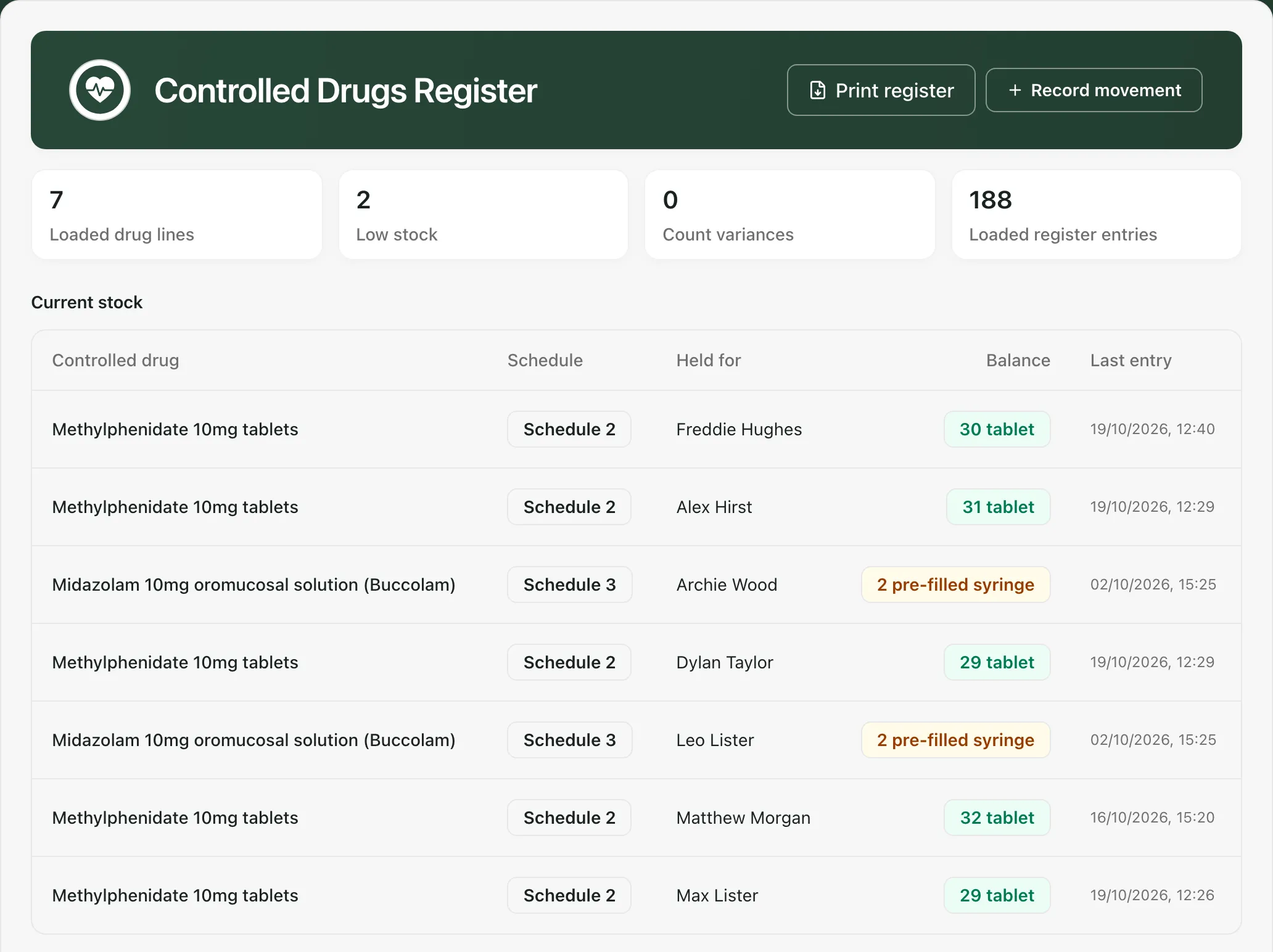
The cards along the top show:
- Loaded drug lines: each drug held for a pupil, or as school stock.
- Low stock: drug lines with 5 units or fewer left.
- Count variances: drug lines where the last stock count didn’t match the balance and no correction has been recorded since.
- Loaded register entries: the number of movements recorded.
Current stock lists each drug line with its Schedule, who it’s Held for (a pupil, or School stock), its Balance and its Last entry. A balance turns amber when it’s low and red when it reaches zero. A Count variance label next to a drug means it needs investigating.
Record a dose given to a pupil
Section titled “Record a dose given to a pupil”For a pupil’s own controlled medicine, start from their medication. Student Radar then fills in the drug, its schedule and the pupil for you.
-
In the sidebar, click Health, then Medication & Clinical Safety, then Medications.
-
Find the pupil’s medicine under Active medications on site and click its row.
-
In Record administration, click Record in CD register.
-
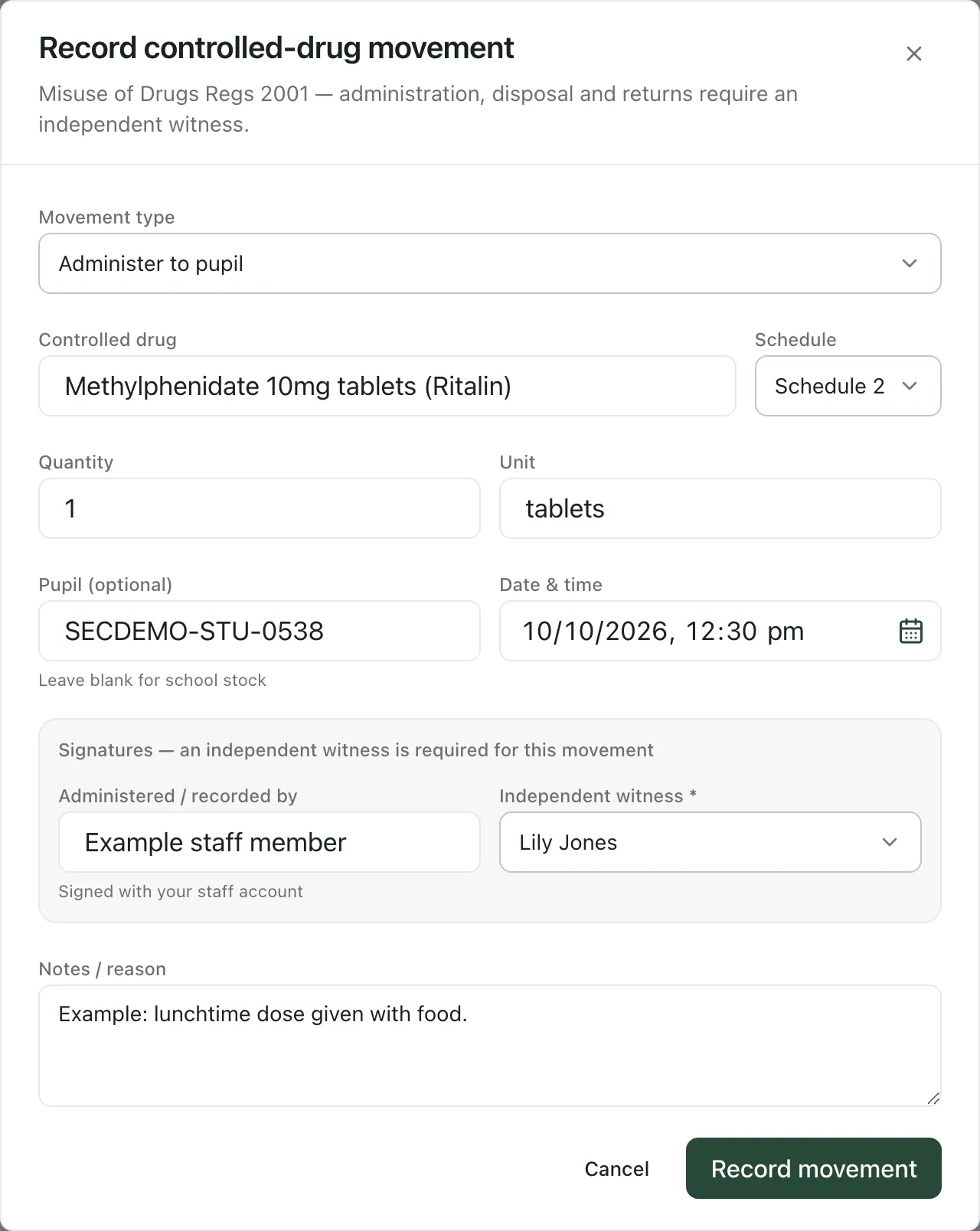
Check that Movement type says Administer to pupil.
-
Enter the Quantity given and check the Unit, for example tablets.
-
Set Date & time to when the dose was given.
-
Under Administered / recorded by, check your name. The entry is signed with your staff account.
-
Under Independent witness, choose the colleague who watched the dose being given. You can’t choose yourself. If the witness doesn’t use Student Radar, choose Named signatory (not on the system) and type their full name in Named signatory.
-
Add anything useful in Notes / reason.
-
Click Record movement.
You’ll see Controlled-drug movement recorded, and the balance goes down by the quantity given.
Note: For a controlled drug, the usual Record administration form on the Medications page can’t record a dose as given, because it has no witness. Use it only for a dose that was refused, missed or unavailable: click Record exception instead.
Record stock coming in, going out or being counted
Section titled “Record stock coming in, going out or being counted”-
On the Controlled Drugs Register, click Record movement.
-
Choose the Movement type:
Movement type Use it when Witness needed Receive stock Stock arrives, for example from a parent or pharmacy. Add the Batch no. and Expiry date. No Administer to pupil A dose is given. Yes Dispose A drug is destroyed, for example because it’s out of date. Yes Return to pharmacy / parent A drug leaves school, for example at the end of a course. Yes Balance check (count) You count the stock. Enter the number you counted in Counted quantity. No Adjustment You correct the balance after investigating a count variance. Explain why in Notes / reason. No -
Type the drug’s name in Controlled drug and choose its Schedule, from Schedule 2 to Schedule 5.
-
Fill in Quantity (or Counted quantity), Unit and Date & time.
-
Pupil (optional) links the movement to a pupil’s own supply. It needs the pupil’s reference in Student Radar, so for a pupil’s medicine it’s easier to start from their medication, as described above. Leave it blank for school stock.
-
Fill in the signatures and notes, then click Record movement.
Even when a witness isn’t required, you can choose one. A second person for a stock count is good practice.
Read the register
Section titled “Read the register”Below the stock, the Register lists every movement, newest first.
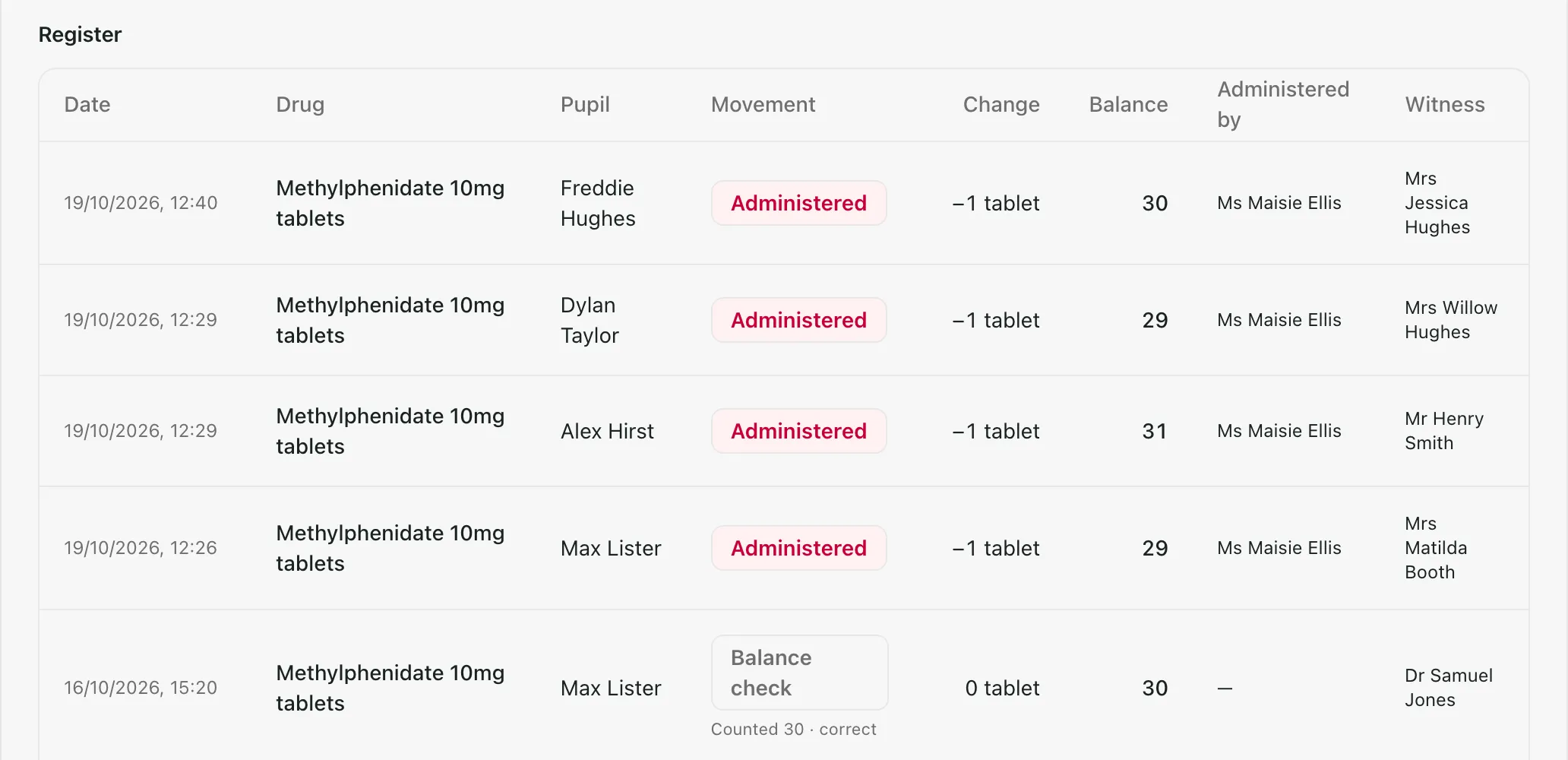
Each row shows the Date, Drug, Pupil, Movement, the Change to the balance, the Balance afterwards, who it was Administered by and the Witness. Movements are labelled Received, Administered, Disposed, Returned, Adjustment or Balance check. Under a balance check you’ll see the number counted, and whether it was correct or how far out it was.
Print the register
Section titled “Print the register”Click Print register to download the register as a PDF, with the current stock and every movement. The button only appears when the whole register has loaded and there’s at least one drug line. Store the PDF securely, in line with your school’s data protection policy.
Who can use the register
Section titled “Who can use the register”By default, the register is open to class teachers, the SENCo, the DSL and deputies, the headteacher, admins and office staff. Senior leaders who don’t hold one of those roles don’t see it. Record movement is shown to staff who manage controlled drugs: by default the SENCo, headteacher, DSL and deputies, admins, office managers and medical leads. Your school can change these defaults.
If something doesn’t work
Section titled “If something doesn’t work”| What you see | What to do |
|---|---|
| “A drug name is required” | Type the drug’s name in Controlled drug. |
| “Enter a quantity” | Enter a quantity other than 0. |
| “Enter the counted quantity” | For a Balance check (count), type the number you counted. |
| “Could not record the movement” | Nothing was saved. Read the reason shown, for example a missing or non-independent witness, fix it and click Record movement again. |
| “Use the controlled-drug register” | You tried to record a controlled-drug dose as given on the ordinary form. Use Record in CD register instead. |
| “Controlled-drug records unavailable” | Click Retry. Don’t rely on the register until it loads. |
| “Register display limit reached” | Only the latest 1,000 entries are loaded, so totals, variance labels and printing are switched off. Contact Student Radar support. |
| Pupil unavailable in the Held for column | The pupil reference doesn’t match a pupil you can see. Check with the colleague who recorded it. |
| You can’t see Record in CD register | The medicine isn’t marked as a controlled drug. Check its details with the colleague who added it. |
| You can’t see Record movement | Your role can view the register but not record in it. Ask a colleague who manages controlled drugs. |