Find what needs your attention on Home
Written for: All staff.
Home is your morning view of the school day. It brings together your timetable, the pupils who need a check today, what has changed since the last school day, and the actions and messages waiting for you. For most staff it’s the first page you see after signing in.
Open Home
Section titled “Open Home”- In the sidebar, open Overview.
- Choose Home. The page is headed Staff Home.
Home shows the date at the top, with the time it was last updated. Click Refresh to load the latest information.
Below the date, Today is selected. It shows your own day. If you’ve chosen favourite classes, year groups or forms, they appear next to it as lenses, so you can see the same page for one group. See Choose your Home favourites.
Check the day at a glance
Section titled “Check the day at a glance”Now and next
Section titled “Now and next”Now and next lists your lessons, cover and duties for today, in time order. Cover and duties are marked Cover and Duty. Click an item to open it in the calendar, or to see its details.
This section is always about your own timetable, whichever lens you choose.
Needs attention
Section titled “Needs attention”Needs attention counts the things to look at first today, for the pupils in the lens you’re using.
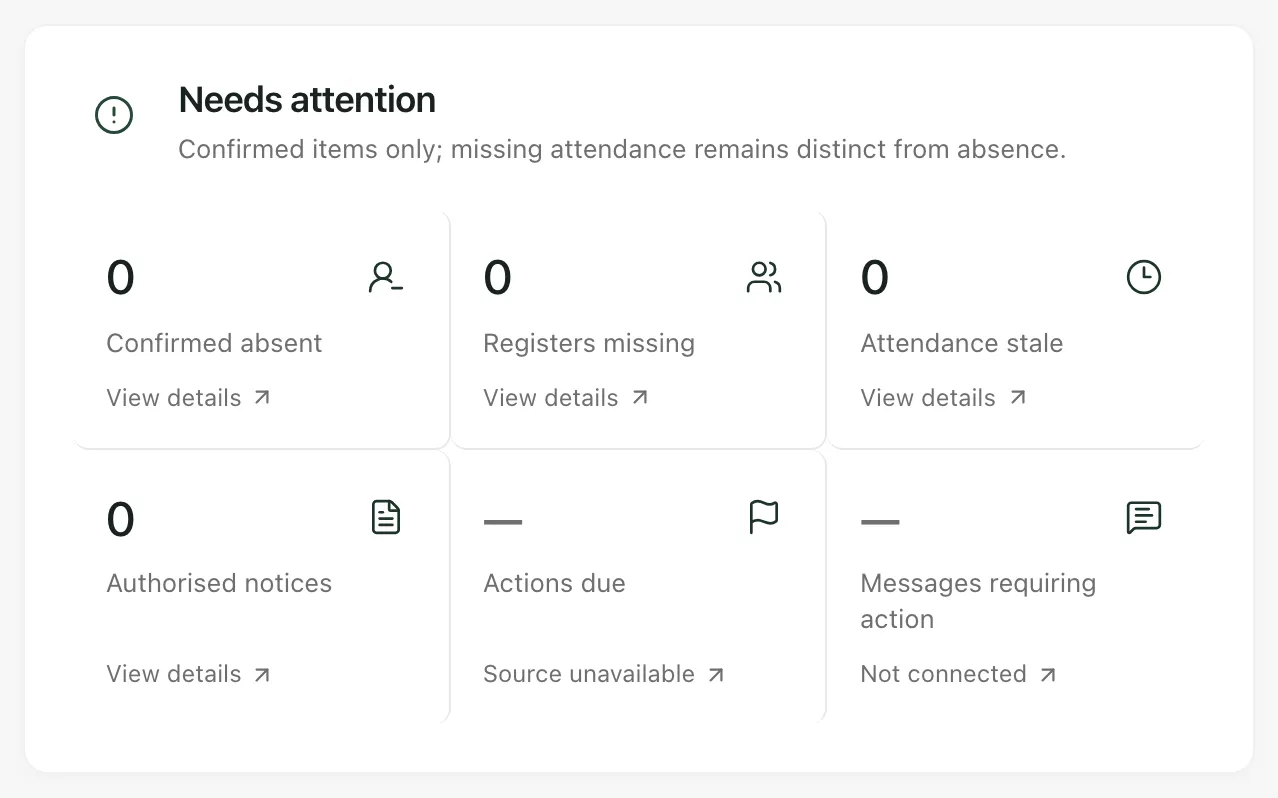
| Count | What it counts |
|---|---|
| Confirmed absent | Pupils recorded as absent today. |
| Registers missing | Pupils whose register hasn’t been taken yet. |
| Attendance stale | Pupils whose attendance information may be out of date. |
| Authorised notices | Notices about today’s pupils that you’re allowed to see. |
| Actions due | Actions assigned to you that are due. |
| Messages requiring action | Messages that are waiting for you to do something, such as a reply. |
A missing register is counted separately from an absence. Don’t treat a pupil with a missing register as absent until the register is taken.
Click a count to jump to the list behind it further down the page. The line under each count tells you how far to trust it:
- “Needs attention”: there’s at least one item to look at.
- “View details”: nothing is waiting, but you can still open the list.
- “Last known count”: the source may be out of date, so the number may have changed.
- “Source unavailable” or “Not connected”: Student Radar couldn’t read that source, so the count shows a dash. A dash doesn’t mean zero.
Today’s pupils
Section titled “Today’s pupils”Today’s pupils lists the pupils who need a check today. With the Today lens, these are pupils in the classes on your timetable today. With a favourite lens, they’re pupils in that class, year group or form. Pupils with a notice come first, followed by those you’ll see soonest, those with a recent change, those who are absent and those with an action due.
Each card shows the pupil’s year group, form and next class, and may show:
- An attendance tag, such as Absent, Register missing, Attendance stale, Not yet registered or No register expected.
- Notices you’re allowed to see, such as a medical notice or recent behaviour context.
- The support to put in place in your lesson, after Lesson support:.
- How many actions are due for the pupil.
Click a pupil to open their profile. See Find a pupil and read their profile.
Changes
Section titled “Changes”Changes lists what has changed since the previous school day, such as a timetable or cover change, or a message that needs action. Click a change to open where it came from.
Due work and messages
Section titled “Due work and messages”Due work and messages has two lists:
- Actions due: click an action to open it. If you have actions for pupils outside the lens you’re using, a link takes you to My Actions.
- Messages requiring action: click a message to open it. Below the list you’ll see how many unread messages are for information only.
Leadership pulse
Section titled “Leadership pulse”If you’re a headteacher, senior leader, year leader, SENCo, Pupil Premium lead, DSL or deputy, or a school administrator, Home also shows Leadership pulse. It gives whole-school figures, such as overdue actions and attendance anomalies, and doesn’t change with the lens you choose. Click a figure to open the page behind it.
These counts and tags are prompts to check, not conclusions. Open the pupil or the source record and use what you know before you act.
- Per-school switch: your school can switch Home off. If it’s off, opening Home takes you to the Heat Map and you see “Returning to Heat Map…”.
- Landing page: some schools choose the Heat Map as the page staff see after signing in. You can still open Home from Overview.
- Time zone: the school date and deadlines on Home use your school’s time zone, shown at the bottom of the page.
- On a phone, the lenses appear as a drop-down list at the top of the page.
If something doesn’t work
Section titled “If something doesn’t work”| What you see | What to do |
|---|---|
| “Staff Home is unavailable” | Click Try again. Nothing has been filled in from another source, so wait for the page to load before relying on it. |
| “Timetable not connected” or “Timetable currently unavailable” | Student Radar can’t read your timetable. Ask your school’s Student Radar administrator to check it’s connected. |
| “Your account is not linked to a staff timetable.” | Your account isn’t matched to your timetable record, so lessons and actions can’t be matched to you. Ask your administrator. |
| “Source data may be out of date” | The information shown may have changed. Click Refresh, and check the source page before acting on it. |
| “This source is not configured” | Your school hasn’t set up this source. The section stays empty until it’s connected. |
| “The selected lens could not be loaded.” | Click Retry lens. Until it loads, the page may still show the previous lens, so don’t use it for the new group. |
| “Returning to Heat Map…” | Home is switched off for your school. Use the Heat Map instead. |