Work your SEND caseload in the SEND Hub
Written for: SENCos and inclusion leads.
The SEND Hub is where you run your SEND caseload day to day. It lists every pupil on the caseload with their support records, agreed provision, next review and who owns the work. Open a pupil’s support story to compare what the plan promised with what actually happened, then record your decision and an owned next step.
Open the SEND Hub
Section titled “Open the SEND Hub”In the sidebar, open Inclusion, then SEND, and choose SEND Hub. It opens on the Caseload tab. The other tabs are Reviews, Follow-ups, Intervention Library and Templates.
Check the school summary
Section titled “Check the school summary”At the top of Caseload, School SEND summary shows how many pupils are on the SEND caseload, with six cards:
| Card | What it counts |
|---|---|
| Cases needing attention | Cases with something to follow up. |
| Pupils due a review | Pupils whose review is overdue or due in the next 30 days. |
| Cases with provision gaps | Cases where provision is missing or needs attention. |
| Actions without an owner | Support actions nobody has been named to carry out. |
| Monitoring separately | Pupils being monitored, counted separately from the caseload. |
| Review date not recorded | Pupils with no review date recorded. |
Click a card to list the records behind the number. From the list, click Open support story, Open pupil record or Open action. The summary covers the whole school, within your access, so the caseload filters below don’t change it. Click School SEND summary to hide or show the cards.
Find pupils in the caseload
Section titled “Find pupils in the caseload”Pupils are listed in priority order, 50 to a page. To narrow the list:
- Type in Search pupil, need area, or queue reason.
- Choose a year group from All year groups.
- Choose a cohort from All cohorts: SEND (SEN Support), EHCP, SEND + EHCP or Monitoring.
- Click Assigned to me to see only your cases.
Click Clear filters to see everyone again.
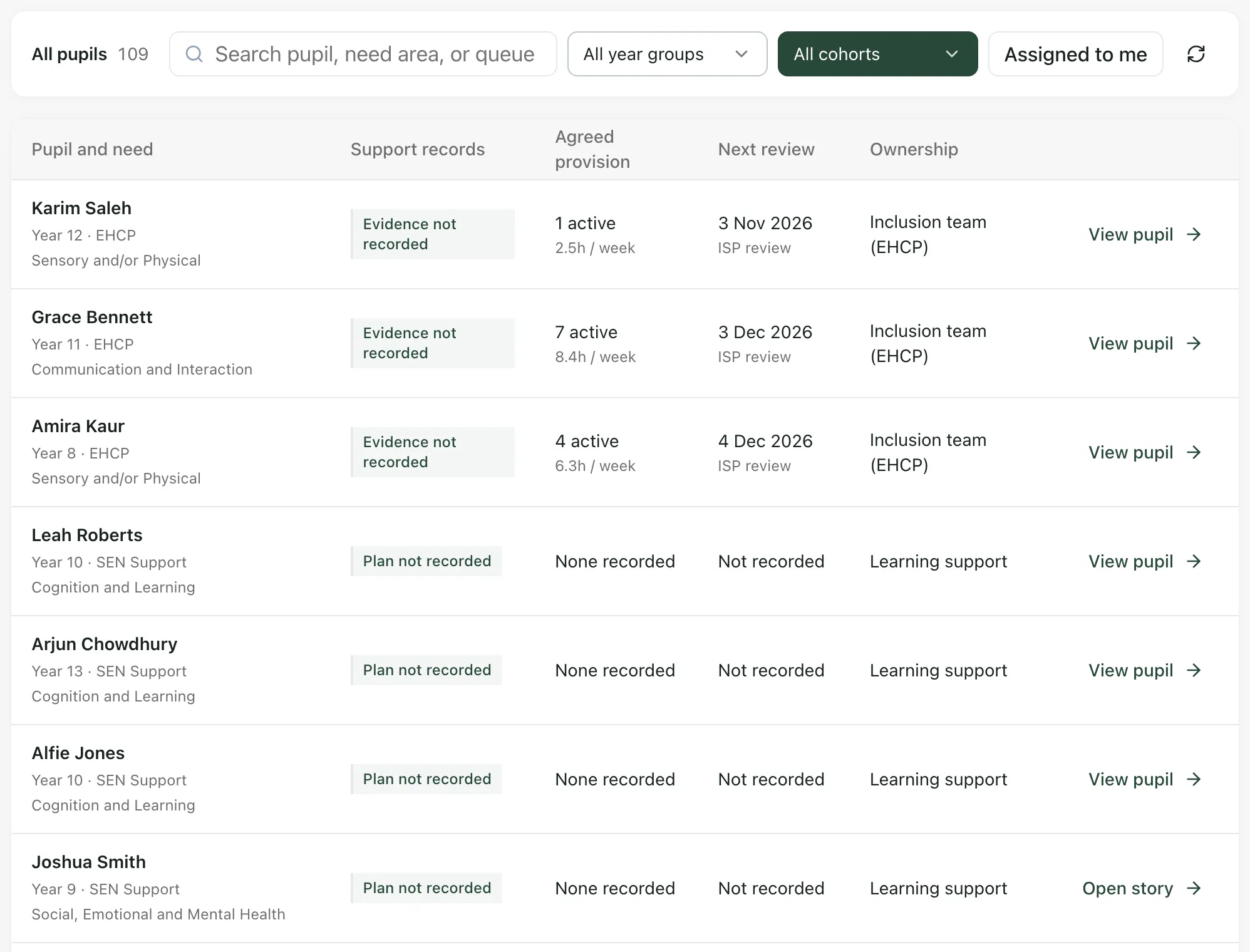
Each row shows:
- Pupil and need: year group, SEN status and main area of need.
- Support records: the most important gap, such as Plan not recorded, Provision not recorded, Provision owner needed, Review overdue or Evidence not recorded. Plan and provision recorded means nothing is missing.
- Agreed provision: how many provisions are active and the hours each week.
- Next review: the date and what kind of review it is, such as an ISP review.
- Ownership: the team or person responsible.
A gap in the records doesn’t mean support hasn’t happened. It means it hasn’t been recorded in Student Radar.
Open a pupil’s support story
Section titled “Open a pupil’s support story”- Click Open story on the pupil’s row, or anywhere on the row.
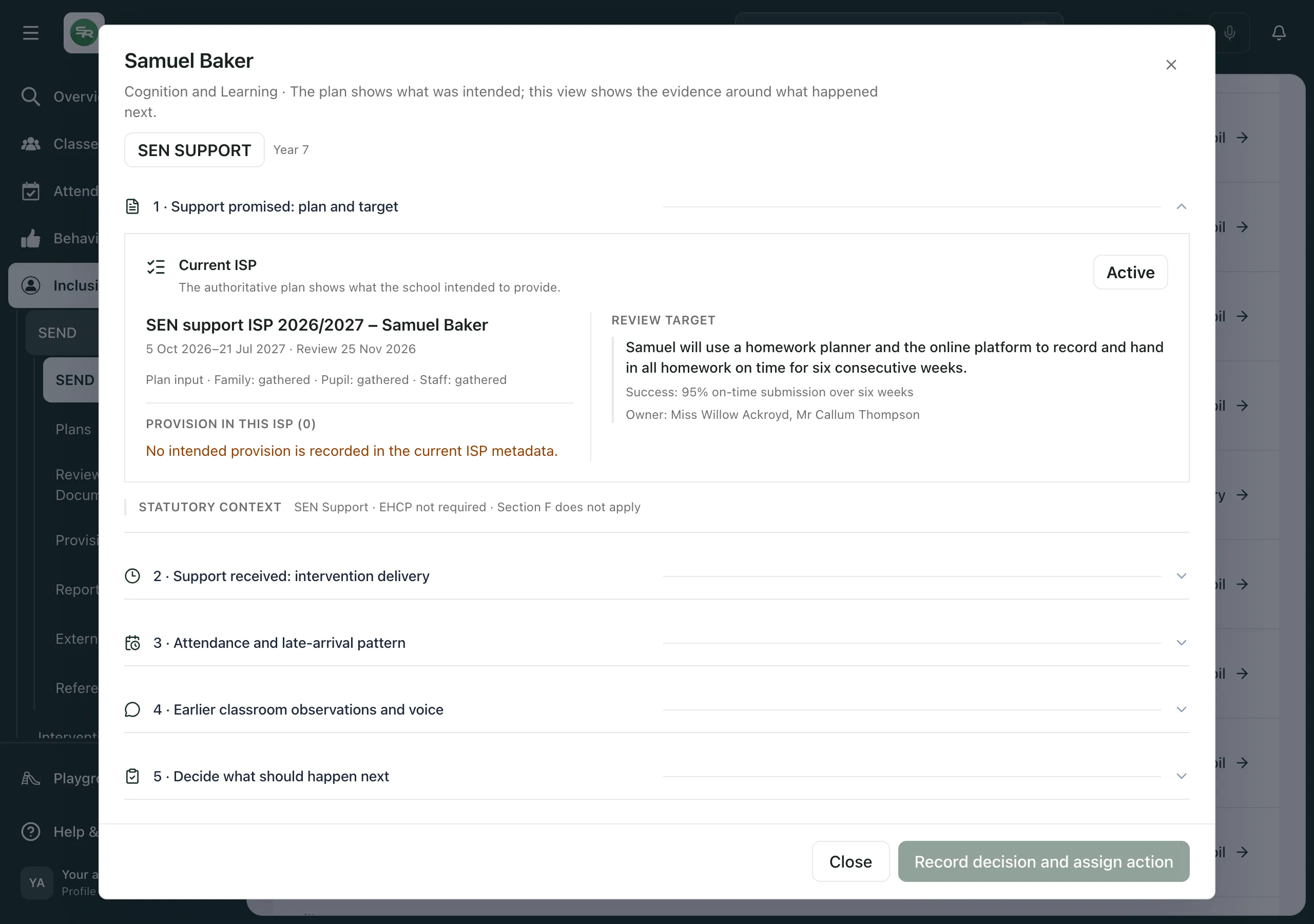
- The support story opens, with the pupil’s area of need, SEN status and year group at the top.
If a row shows View pupil instead, there’s no support story to open for that pupil. The button opens their profile at the SEND section instead.
Records needing attention
Section titled “Records needing attention”If a record is missing, Records needing attention appears at the top of the story with a button to fix it:
- Upload EHCP or Resolve EHCP for a pupil with EHCP status. See Upload a pupil’s EHCP.
- Create ISP when there’s no current plan. See Create an ISP from an EHCP.
- Review Section F or Structure Section F when the EHCP’s provision section needs checking.
- Assign provision when no provision is linked. See Assign an intervention from the EHCP.
- Create passport when the pupil has no pupil passport.
The six parts of the story
Section titled “The six parts of the story”Click a heading to open it.
| Part | What it shows |
|---|---|
| Support promised: plan and target | The current ISP, the provision it lists and the target under review. For EHCP pupils, the EHCP document and the Section F checklist too. |
| Support received: intervention delivery | The pupil’s provision and how many planned sessions were delivered, missed or cancelled. |
| Attendance and late-arrival pattern | Attendance in a recent and an earlier period, and the pattern by weekday. |
| Earlier classroom observations and voice | Earlier behaviour records, and evidence from the classroom, the pupil, the family and professionals. |
| Decide what should happen next | Where you record your decision. |
| Ownership and review | The actions agreed so far, who owns them and what happened. |
Where evidence is missing or you don’t have access to it, the story says so rather than leaving it out. The story shows recorded facts. It doesn’t work out why a session was missed or whether an intervention caused a change: that’s your professional judgement.
Record a decision and the next step
Section titled “Record a decision and the next step”If the pupil has more than one provision, open Support received: intervention delivery and click the one you’re reviewing. It’s marked Delivery focus. Then:
- Open Decide what should happen next.
- Choose a Professional decision: Continue as agreed, Adapt the provision, Stop this provision or Escalate for further review.
- In Why this review is needed, summarise the evidence you considered and your reasoning.
- In Agreed next step, describe what will happen next.
- Set the Action due date and the Next review date. The review date can’t be before the due date.
- Click Record decision and assign action.
The action is assigned to you, so it appears in your My Actions. It’s listed under Ownership and review, and its due and review dates appear in the Calendar. Recording a decision doesn’t change the provision itself: as the form says, “This records your decision and evidence trail. It does not diagnose the pupil or change provision automatically.”
When the action is done, open Ownership and review, click Record outcome, describe What happened next? and click Complete and record outcome.
Use the other tabs
Section titled “Use the other tabs”- Reviews: Active ISP reviews lists every active ISP with its review date and whether it’s Overdue, Due soon, Scheduled or has No date set. To set several dates at once, tick the plans, choose a Review date and click Set review date.
- Follow-ups: ask a colleague for information about a pupil. Choose the pupil in Ping a colleague about a pupil…. Their reply is attached to the pupil’s SEND record and timeline. See Ping a colleague about a pupil and reply to pings.
- Intervention Library and Templates: see Manage the intervention library and plan templates.
Take the built-in tour
Section titled “Take the built-in tour”Click Take a tour at the top of the SEND Hub. It walks you through the caseload, the support story and each tab.
Who can use the SEND Hub
Section titled “Who can use the SEND Hub”By default, SENCos, teachers, safeguarding leads, headteachers and administrators can open the SEND Hub. Senior leaders and year leads can’t. Your school can change who has access. What you can record in a support story depends on your SEND permissions for that pupil, so some parts may be read-only.
If something doesn’t work
Section titled “If something doesn’t work”| What you see | What to do |
|---|---|
| “No SEND pupils on the register yet” | Pupils appear once they’re added to the SEND Register. |
| “No SEND pupils match these filters” | Change the search or filters, or click Clear filters. |
| “Pupil list unavailable” | Click Retry. |
| “School summary unavailable. Reload to try again; pupil records are shown separately.” | Reload the page. You can carry on with the caseload list meanwhile. |
| “Review dates could not be checked. Reload to try again.” | Reload the page. Until then, Pupils due a review and Review date not recorded show a dash. |
| “Unable to open this pupil” | Click Try again. If it keeps happening, your access may not cover this pupil: ask your SENCo. |
| “Review is read-only” | You can read the evidence but not record a decision for this pupil. Ask your SENCo. |
| “This review has not been confirmed. Submit again to check the same decision and action before starting another review. Your submitted details are kept unchanged.” | Click Record decision and assign action again. It won’t create a second action. |
| “ISP reviews unavailable” | Click Retry. |
| “No active ISPs to review” | No pupil has an active ISP yet. Click View caseload to go back to the caseload. |