Record a late arrival or change an attendance code
Written for: Teachers and form tutors.
When a pupil arrives late, or you need to give an absence a different attendance code, you do it in the register for that session. Each pupil has a details panel where you set the minutes late, choose the attendance code and add a comment. Nothing changes on the pupil’s record until you save the register.
To open the register, click Classes in the sidebar, choose the class, then click Register. For the full steps, see Take the register for your class.
Change a pupil’s mark
Section titled “Change a pupil’s mark”If you need to change a mark, for example because a pupil you marked absent has just arrived:
-
Check the date and session at the top of the register. To change an earlier register, use the arrows beside the date or pick the date.
-
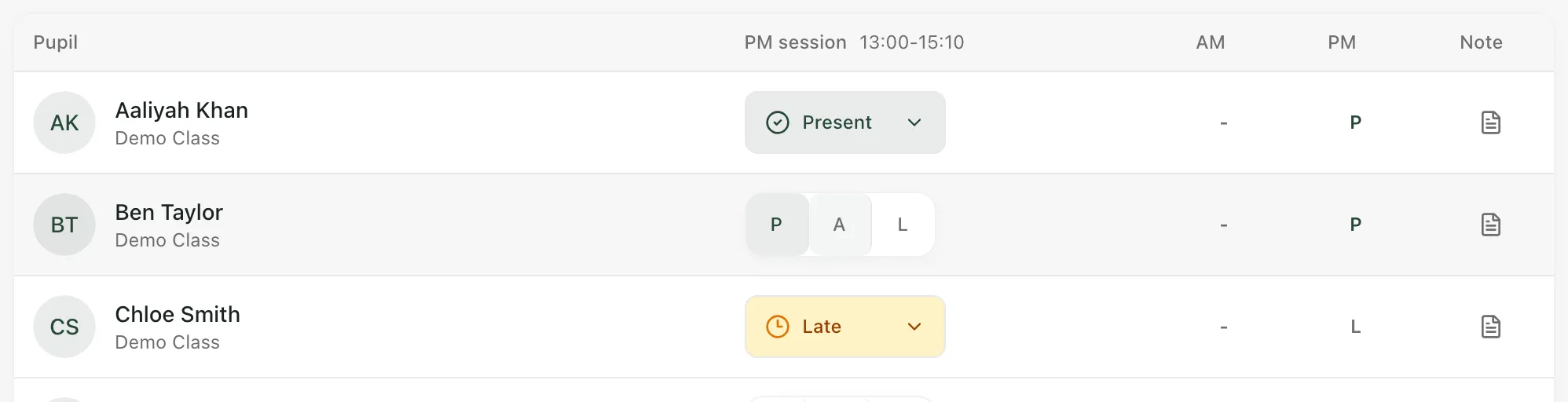
Click the pupil’s current mark, such as Present or Absent. The P, A and L buttons appear again.
-
Click the new mark.
-
Click Save register.
When a register has already been saved, the saved marks are shown when you open it. Change the marks you need to, then save again.
Record a late arrival
Section titled “Record a late arrival”-
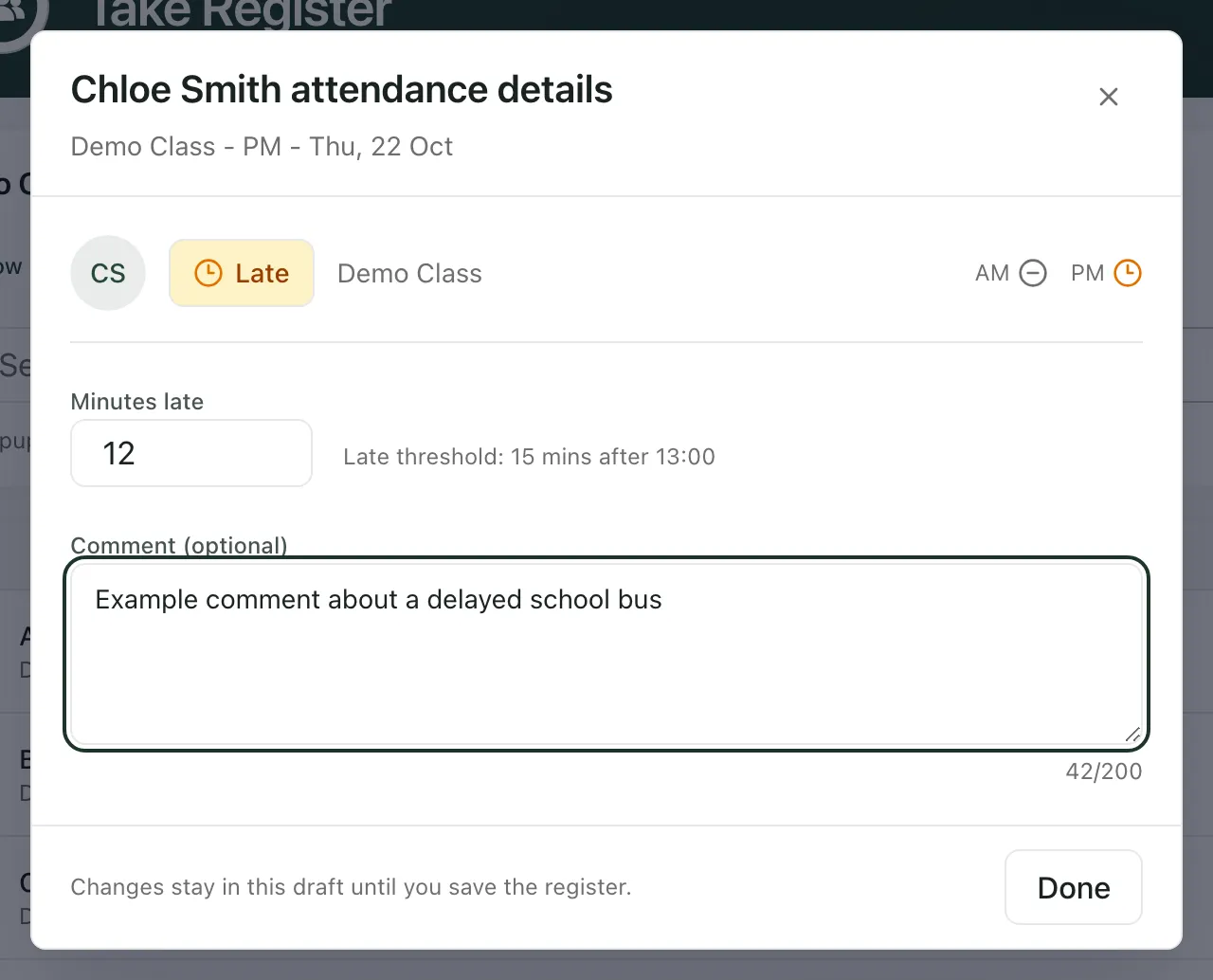
Click L for the pupil. Student Radar records them as 5 minutes late to start with.
-
Click the note icon in the pupil’s Note column to open their attendance details.
-
In Minutes late, type how many minutes late they arrived, as a whole number up to 255. Beside the box, you can see your school’s late threshold for the session.
-
If you like, add a comment, such as the reason the pupil gave.
-
Click Done. Your changes stay in the register until you save it.
-
Click Save register.
Follow your school’s attendance policy for pupils who arrive after the register closes. Your attendance office may record those arrivals with a different code.
Choose or change an attendance code
Section titled “Choose or change an attendance code”Every pupil you mark absent needs an attendance code before you can save the register.
-
Click A for the pupil, or click their current mark and choose A.
-
Click the note icon in the pupil’s Note column.
-
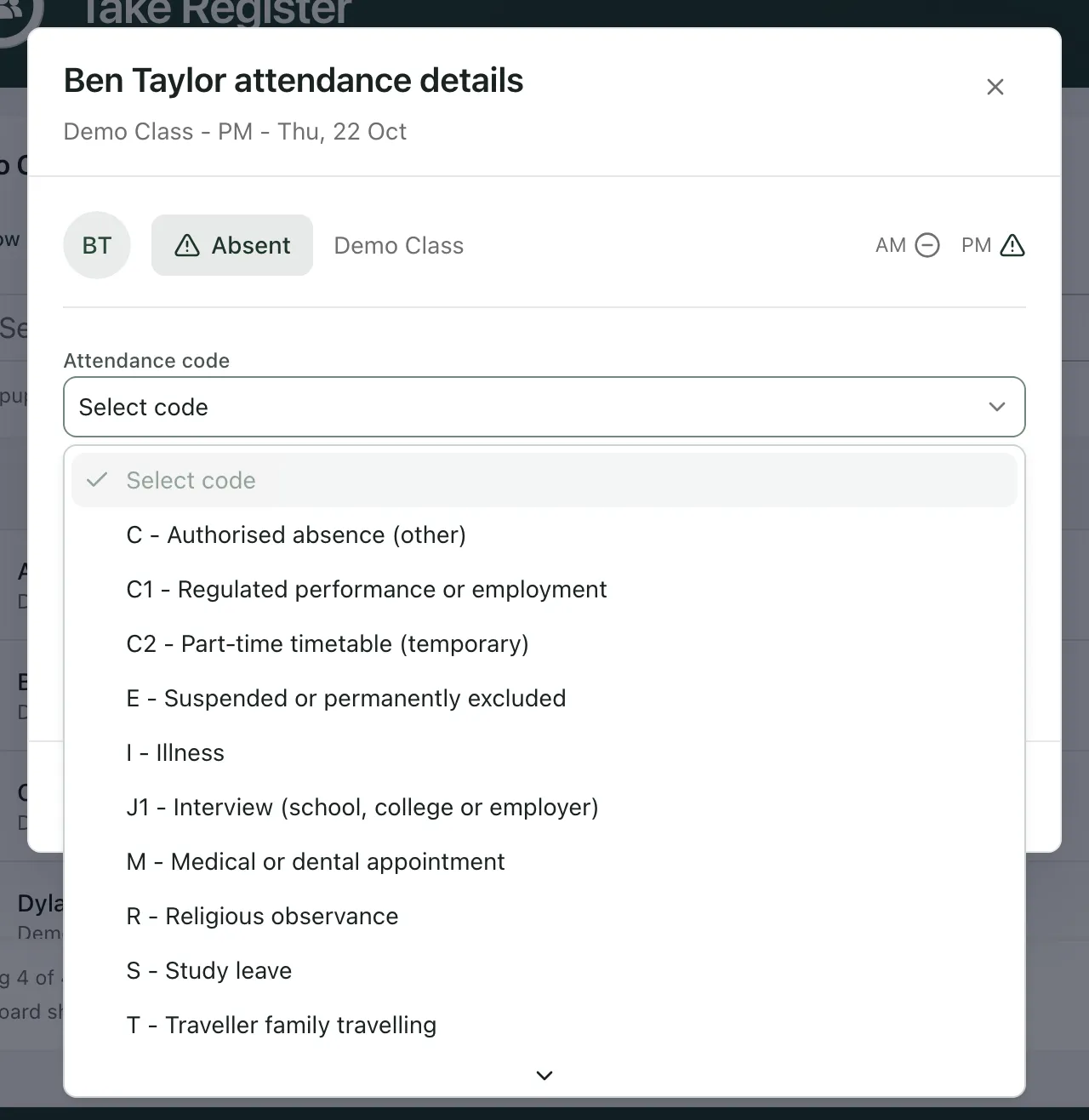
Click Attendance code and choose a code from the list.
-
If you like, add a comment, for example who reported the absence.
-
Click Done, then click Save register.
To change the code of a pupil who’s already marked absent, open their details in the same way, choose a different code, click Done and save the register.
The list shows authorised absence codes first, then unauthorised ones, then the code for an absence with no reason yet. If you don’t know the reason yet, use your school’s code for a reason not yet provided, and update it later or let your attendance office know.
When a saved mark for a present or late pupil has a code, their details show it next to Recorded code:.
- Your school’s codes: the codes in the list depend on your school. Schools in England use the DfE attendance codes, such as I for illness and M for a medical or dental appointment. Schools outside England, such as schools in Thailand, can use their own set of codes and descriptions, so your list may look different.
- Older registers: you can change registers from the last 7 days. For anything older, ask your school’s attendance office.
- AM and PM columns: these show the pupil’s marks for the day’s morning and afternoon sessions. They’re for reference. To change a mark, open the register for that session.
- Not required: some codes, such as those for days a pupil isn’t expected in school, show as Not required. You can’t choose these in the register. Ask your attendance office if one looks wrong.
If something doesn’t work
Section titled “If something doesn’t work”| What you see | What to do |
|---|---|
| “Select an attendance code.” | A pupil marked absent has no code. Their details open for you: choose a code, click Done, then save again. |
| “Select an attendance code for every absent pupil” | As above. Check each pupil marked absent has a code, then save again. |
| “Mark every pupil as present, absent, or late before saving.” | Some pupils don’t have a mark. Choose Not marked in the status list to find them. |
| A message under Minutes late says the minutes must be between 0 and 255 | Correct the number of minutes, then save again. |
| “This register is more than 7 days old and cannot be edited.” | You can only change registers from the last 7 days. Ask your school’s attendance office to change older marks. |
| “This register has changed. Your draft has been kept; reload the latest marks before saving.” | Someone else saved this register while you were working. Click Reload latest marks, check the marks, then make your change again. |
| “You don’t have permission to edit this register” | Your account can’t save this register. Ask your school’s Student Radar administrator. |
| “Register date changed. Review the visible date and try again” | The date changed while you were saving. Check the date at the top of the register, then save again. |