Get a whole-school SEND overview
Written for: SENCos, school leaders and staff who report on SEND.
SEND on a Page brings the school’s SEND picture together on one page: how many pupils are on the SEND register, how their attendance compares with the whole school, which reviews are due, what provision is in place and what leaders should look at next. Every figure shows what it was worked out from, and you can open the pupils behind most of them.
Open SEND on a Page
Section titled “Open SEND on a Page”- In the sidebar, open Inclusion, then SEND.
- Under Reports, choose SEND on a Page.
The page builds a fresh snapshot each time you open it, so it may take a few seconds to load. Click Refresh snapshot to build it again, for example after the register has been updated.
Read the headline figures
Section titled “Read the headline figures”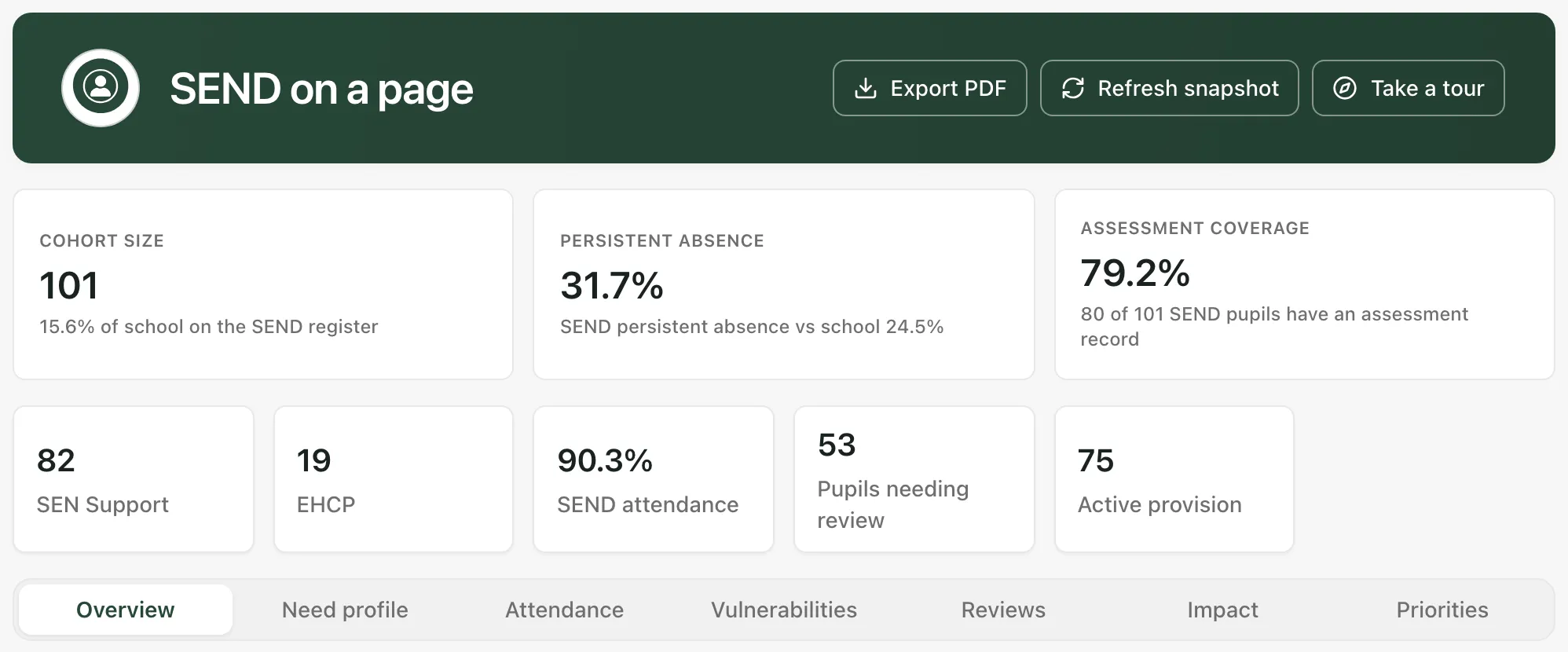
The three large cards are the figures leaders usually ask for first:
- Cohort size: the number of pupils on the SEND register, and what share of the school’s roll that is.
- Persistent absence: the share of pupils with SEND who are persistently absent, next to the figure for the whole school.
- Assessment coverage: how many pupils with SEND have an assessment record, out of all pupils with SEND. A low figure means less assessment evidence to go on, not lower attainment.
The smaller cards below split the cohort into SEN Support and EHCP, and show SEND attendance, Pupils needing review (pupils with at least one review date that’s overdue or due soon) and Active provision.
If your MIS sends some pupils’ needs without a SEN status, an extra card, Needs recorded · no SEN status, counts them. They stay in the SEND cohort, so they’re included in Cohort size.
Tip: Click any figure to see the pupils behind it. The list opens in a full-screen window. Pupils are ordered by their recorded attendance and other recorded vulnerabilities, as a prompt for where to look first, not as a risk assessment. Click a pupil to open their profile, and close the window to come back.
Move between sections
Section titled “Move between sections”Use the buttons under the headline figures to open each section.
| Section | What it shows |
|---|---|
| Overview | Recommended actions: the next checks the snapshot suggests, such as reviews to chase. SEND compared with whole school for attendance and absence. |
| Need profile | Broad areas of need, with each area as a share of the SEND cohort and of the school, and the Legal status split with national figures. |
| Attendance | Attendance and absence by legal status and by area of need, and where SEND overlaps with other groups. |
| Vulnerabilities | Overlaps with pupil premium, EAL and other recorded groups, and the SEND cohort by ethnicity. |
| Reviews | EHCP annual reviews (overdue, due soon, completed this year), SEND review cadence and Key transition cohorts. |
| Impact | Assessment signals and Provision and recorded outcomes. |
| Priorities | Leadership priorities, Workforce and training and CPD and training, with links to School Priorities and the Inclusion Strategy. |
Some notes on reading the sections:
- Need profile: a pupil can have more than one area of need, so the rows can add up to more than the cohort. Pupils whose legal status wasn’t supplied stay in the SEND cohort but aren’t in the SEN Support or EHCP rows. Under the table, each national comparison shows its reference year, population and source, where the snapshot includes them.
- Vulnerabilities: small groups are easy to over-read. Treat them as prompts to look more closely, not as trends.
- Priorities: a priority with no owner or milestone shows Unassigned or Not set. The page treats that as a gap to fill, not as nothing to do.
Check what the figures are based on
Section titled “Check what the figures are based on”Each section says what its figures were worked out from. Check this before you compare figures or share them.
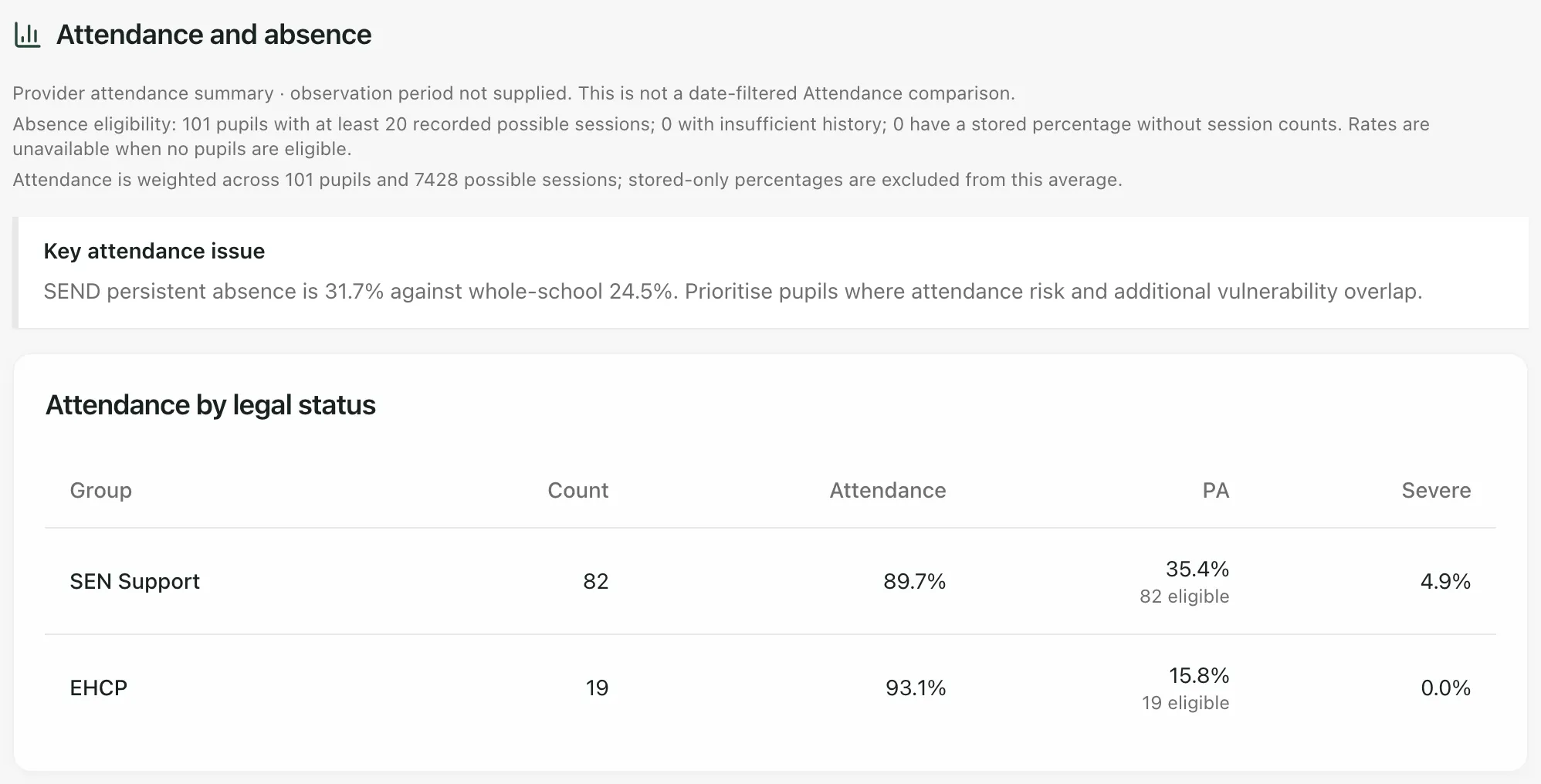
In the Attendance section, the notes under the heading tell you:
- whether the figures come from recorded attendance between two dates, or from a summary with no observation period. A summary without dates isn’t a like-for-like comparison with the Attendance pages.
- how many pupils have enough recorded sessions to count towards absence rates (the note gives the minimum), and how many don’t.
- how the attendance average was worked out, and how many pupils and sessions it covers.
Each persistent absence (PA) rate shows how many pupils were eligible underneath it. A dash (—) means the figure isn’t available, for example because no pupils were eligible.
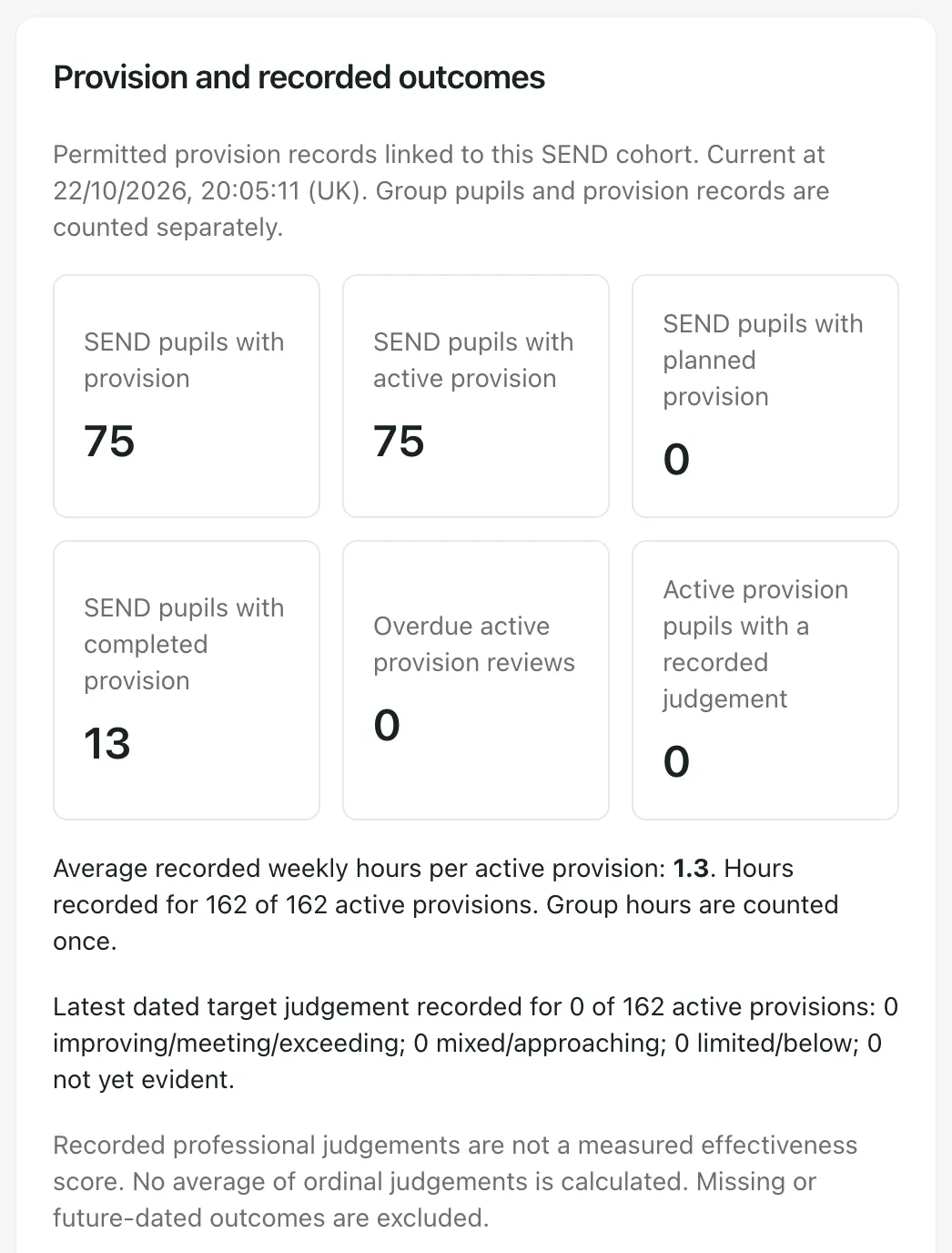
In the Impact section, Provision and recorded outcomes says when the provision figures were read and how many active provisions have hours and a dated target judgement recorded. In the example, no active provision has a recorded judgement yet, so there’s no outcome evidence to summarise.
Note: Assessment results and provision judgements support professional review. They don’t show that a piece of provision caused an outcome. Latest numeric results can come from different subjects, dates and scales, so the SEND and school scores aren’t a like-for-like comparison. Check the underlying records before you draw conclusions.
Export the page as a PDF
Section titled “Export the page as a PDF”Click Export PDF to download the snapshot as a PDF with your school’s name and colours, for example for a governors’ meeting. The button only appears if your account can export SEND reports. The PDF holds whole-school figures, so check it before you share it, as you would any SEND report.
Take the built-in tour
Section titled “Take the built-in tour”Click Take a tour in the banner. It walks you through the headline figures and each section, one step at a time.
- Safeguarding access: looked-after and young carer groups, and pupils with several additional vulnerabilities, are only counted for staff who can see safeguarding information for every pupil with SEND. Otherwise those groups are left out, and the page says so.
- Who can open the page: by default, teachers, SENCos, the DSL team, headteachers and administrators can open SEND on a Page. Your school can change who has access.
If something doesn’t work
Section titled “If something doesn’t work”| What you see | What to do |
|---|---|
| “SEND on a page unavailable” | The snapshot couldn’t be loaded. Click Retry loading, or Build snapshot if that’s what the button says. |
| “Refresh failed. Showing the last successfully loaded snapshot.” | The figures on screen are from the last snapshot that loaded. Click Retry refresh. |
| “Unable to verify access” | Your access check didn’t finish. Click Retry access check. |
| “School context unavailable” | Click Reload page. If it keeps happening, sign out and back in. |
| “No active pupils found” | Student Radar has no current roll for your school to summarise. Ask your administrator to check the MIS sync. |
| “Looked-after, young carer and overlap groups are withheld: your access does not include safeguarding information for every SEND pupil.” | Those groups aren’t counted for your account. The rest of the page is unaffected. If you need them, speak to your Designated Safeguarding Lead. |
| “Export could not be completed. Check your access and try again.” | Try Export PDF again. If it keeps failing, ask your administrator whether your account can export SEND reports. |