Import assessment results from a spreadsheet
Written for: Assessment leads and others who manage their school’s assessment set-up.
If your school’s assessment results come from another platform, you can import them into Student Radar instead of typing them in. You upload the file, check how its rows match your pupils, then apply the results you’re happy with. Rows that can’t be matched safely are held back for you to check, so nothing is added to the wrong pupil.
There are two ways to import:
- Upload CSV imports a Quest export of English and maths scores. It’s for staff who manage your school’s assessment set-up.
- Upload scores loads scores from a CSV file into the grid on the page, for you to check and save. See Load scores into the grid.
Import a Quest export
Section titled “Import a Quest export”Open the import
Section titled “Open the import”- In the sidebar, click Assessment, then Entry, then Non-Statutory Assessments.
- Click Upload CSV, beside Assessment scheme.

If your school also uses the Assessment Tracker workbook, the button is called Upload assessments. See Import an Assessment Tracker workbook.
Choose the file
Section titled “Choose the file”- Under Assessment platform, choose Quest.
- Under Assessment CSV, choose the CSV file you exported from Quest. It can hold up to 1,000 pupils and be up to 5 MB.
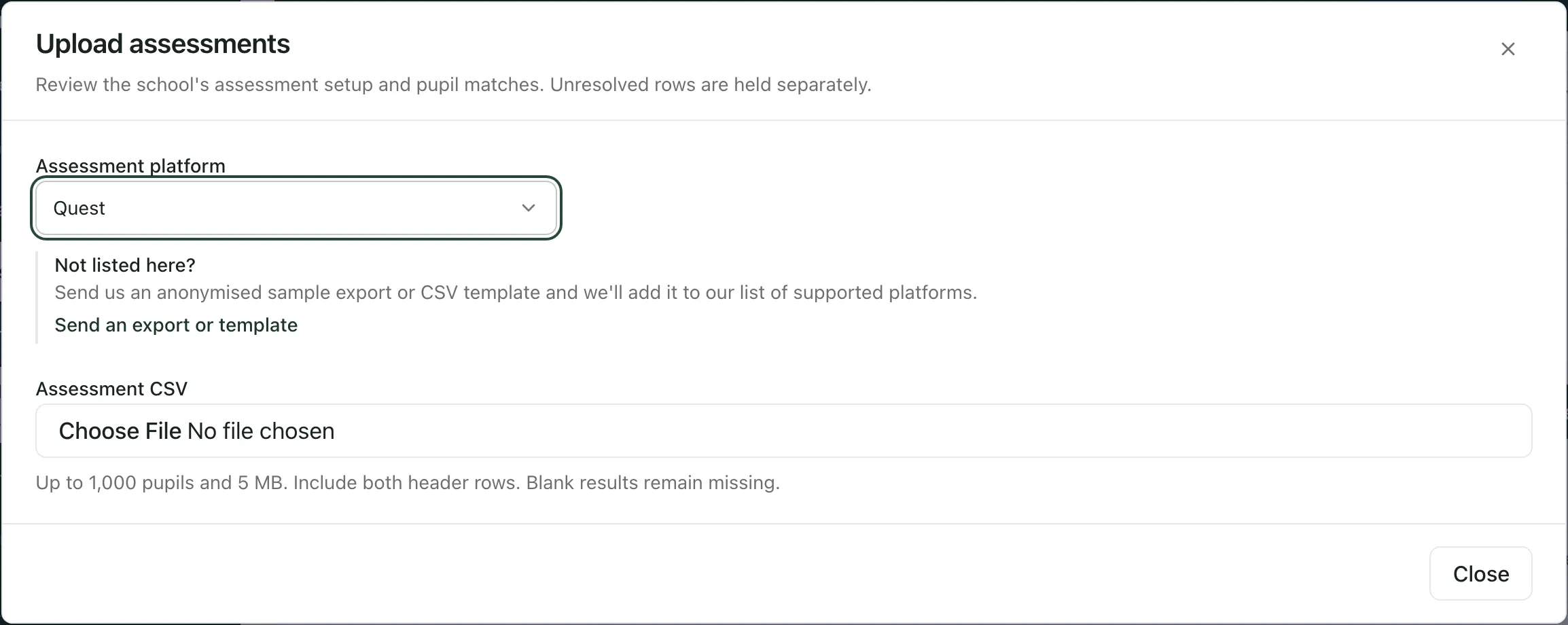
Use the file as Quest exports it, with both header rows. The first header row names the term, year and subject, for example Autumn 2026 English and Autumn 2026 Maths. The second has the columns Student Radar needs:
- YG, Classes List, DOB, Gender, SEN, EAL and Combined attainment in English and maths.
- SAS /142, Stanine /9 and Percentile /100 for both English and maths.
Leave a result blank if the pupil didn’t sit the test. Blank results stay missing; they aren’t counted as zero.
If your assessment platform isn’t listed, click Send an export or template to email us an anonymised sample, and we’ll look at adding it.
Check the file
Section titled “Check the file”Student Radar reads the file and shows a preview: the term and academic year, how many rows there are, and how many pupils have a score for each subject. It also lists the Combined attainment options from this file.
The preview notes that the test date isn’t in the file, and that the year group, class, SEN and EAL values in the file don’t change your pupils’ records.
Match the rows to pupils
Section titled “Match the rows to pupils”- Click Review pupil matches. Student Radar saves a copy of the file and matches each row to a pupil by date of birth, gender and whether they were on roll during the assessment period.
- Read the summary above the table, which counts the rows that are ready, held, needing a correction review and already applied.
- Use Rows to review to show All rows, Held, Ready, Corrections or Applied.
Each row shows its place in the file, the year group and classes from the file, the matched pupil and the English and maths scores.
| Status | What it means |
|---|---|
| Ready | Matched to one pupil. It’s added when you apply the import. |
| Held separately | No safe match, more than one possible match, or a pupil you don’t have access to. It isn’t added. |
| Correction needs review | The pupil already has results for this period. They aren’t replaced unless you confirm it. |
| Applied | Already added. |
Resolve held rows
Section titled “Resolve held rows”- Click Review match for row beside the held row.
- Check the pupil against your own records, such as the original class list or register.
- Choose the pupil under Verified pupil.
- Under How did you confirm the match?, say how you checked.
- Click Save verified match. The row becomes ready.
Each pupil can only be matched once in a file. If no pupil is suggested, the row stays held: use your school’s records to work out who it is.
Confirm corrections
Section titled “Confirm corrections”For a row marked as a correction, open Compare correction to see the pupil’s saved results beside the new ones. To use the new results, click Confirm replacement for row followed by the row number.
Apply the results
Section titled “Apply the results”Click Use this setup and apply followed by the number of matched rows. The ready rows are added, and the page switches to show them: Assessment scheme changes to Quest.
Held rows aren’t added. They stay in your saved import, so you can come back to them.
See imported Quest results
Section titled “See imported Quest results”Set Assessment scheme to Quest. Choose the Assessment period, and use Combined attainment to show only pupils with a particular combined result.
Each pupil’s row shows their English and maths SAS /142, Stanine /9 and Percentile /100, and their combined attainment from Quest. A dash means no score was supplied. Open Source details to see which file and row a result came from. Click a pupil’s name to open their profile.
Come back to an import
Section titled “Come back to an import”Click Review saved imports beside Assessment scheme. Under Your saved imports, each file shows how many rows have been applied and how many remain. Click Reopen import to carry on where you left off.
To download the file you uploaded, reopen the import and click Download source CSV.
Import an Assessment Tracker workbook
Section titled “Import an Assessment Tracker workbook”Some schools record primary assessments in the Assessment Tracker workbook. If your school does, Upload assessments lets you choose Assessment Tracker (.xlsx) as the platform.
- Under Academic year starting in September, type the year the assessments belong to. For September 2026 to July 2027, type 2026.
- Choose the workbook under Assessment Tracker workbook (.xlsx). Use the Reception to Year 6 sheets with their original column headings, and include pupils’ first names and surnames.
- Click Review pupil matches, then resolve any held rows with Review match, Authorised pupil, How did you verify this match? and Confirm pupil match.
- If a pupil already has Tracker results for the year, tick the box to approve replacing them. This replaces all their Tracker values for that year, including any that are now blank.
- Click Apply followed by the number of reviewed rows.
To see the results, set Assessment scheme to Assessment Tracker. To come back to an import, click Review Tracker imports.
Load scores into the grid
Section titled “Load scores into the grid”Upload scores brings scores from a CSV file into the grid on the page for the term you’ve chosen. Nothing is saved until you save the grid. You’ll see the button when you can edit results for the pupils on the page.
- Choose the Year group, Class and Term first. Scores go into the term that’s selected.
- Click Upload scores, then choose your CSV file under CSV file. If the file looks like it belongs to a different term, you’ll see a warning: change the page’s term first if you need to.
- Under Match pupils by, choose UPN, Student ID, Full name or Full name + DOB, then choose the Identifier column (and the DOB column, if you need it).
- Under Score column mapping, choose a Target subject for each score column, or Ignore this column. If you manage assessment set-up, you can click Create target subject to add a new score subject from the column.
- Check the Import preview: Rows in file, Matched pupils, Unmatched rows and Applied scores. Unmatched or ambiguous rows are skipped.
- Click Apply to grid. You’ll see “Scores loaded into the grid”.
- Check the scores in the grid, then save them with the save button at the top right of the grid.
Only pupils in the year group and class you’ve chosen, whose results you can edit, are included.
- Who can import: you’ll only see Upload CSV or Upload assessments if your account can manage your school’s assessment set-up. Schools decide who can. The Assessment Tracker import is only available to schools that use that workbook.
- Your access still applies: rows for pupils you can’t access are held, even when they match.
- Setting up subjects: see Set up your assessment subjects and scales.
- Typing results in: see Enter assessment marks for your class and Enter standardised test scores.
If something doesn’t work
Section titled “If something doesn’t work”| What you see | What to do |
|---|---|
| “Upload a CSV smaller than 5 MB.” | Split the file into smaller files and import each one. |
| “Upload at most 1,000 pupils per file.” | Split the file, for example by year group, and import each one. |
| “Include both Quest header rows and at least one pupil.” | Export the file from Quest again without removing the first header row. |
| “Every CSV row must have the same number of columns as the headers.” | The file has been changed since it was exported. Export it from Quest again. |
| “Include SAS /142, Stanine /9 and Percentile /100 for English and Maths.” | The file needs all three score columns for both subjects. Export it from Quest again. |
| “English and Maths must use the same assessment period.” | Export one term at a time. |
| “The source file is missing. Close this review and upload the same CSV again to finish saving it.” | Close the box, click Upload CSV and choose the same file again. |
| “The saved Quest setup differs from this export. Review the school setup before importing.” | This file doesn’t match the Quest set-up saved for your school. Check you’ve exported the right test, or contact support. |
| “These results changed after your preview. Reopen the import and review the latest values.” | Someone else changed these results. Reopen the import from Review saved imports and check the rows again. |
| “Your current access does not allow this action. Reload the import before continuing.” | Reload the page and reopen the import. If it keeps happening, ask your school’s Student Radar administrator to check your access. |
| “The import limit has been reached. Please try again later.” | Wait a while, then try again. |
| “No imported results are available in this period for pupils you can access. Held rows remain in the uploader’s saved import review.” | Choose another Assessment period, or reopen the import to resolve held rows. |
| “This file does not contain a detectable identifier column. To match pupils reliably, include UPN, student ID, or a full-name field.” | Add a column with each pupil’s UPN, student ID or full name, then choose the file again. |
| “No pupil rows matched the selected identifier mapping.” | Check Match pupils by and Identifier column, and that the pupils are in the year group and class you’ve chosen. |
| “Each imported score column must map to a different assessment subject.” | Two columns have the same Target subject. Change one of them. |