Get a one-page brief for a class
Written for: Staff and governors.
Class Overview puts the picture of a whole class on one page: its support needs, recorded risk flags, behaviour over the last 30 days and classroom routines. It can also give you a Cohort Strategy Brief, an AI-written summary with suggested strategies for the class. Use it to plan for the class, or to brief a cover teacher or teaching assistant.
Open the class overview
Section titled “Open the class overview”- In the sidebar, click Classes.
- Choose the class:
- In a secondary school, click Tutor groups, then the year group and the tutor group. For a subject class, click Teaching classes, then the subject and the class.
- In a primary school, click the year group, then the class.
- Click Class Overview.
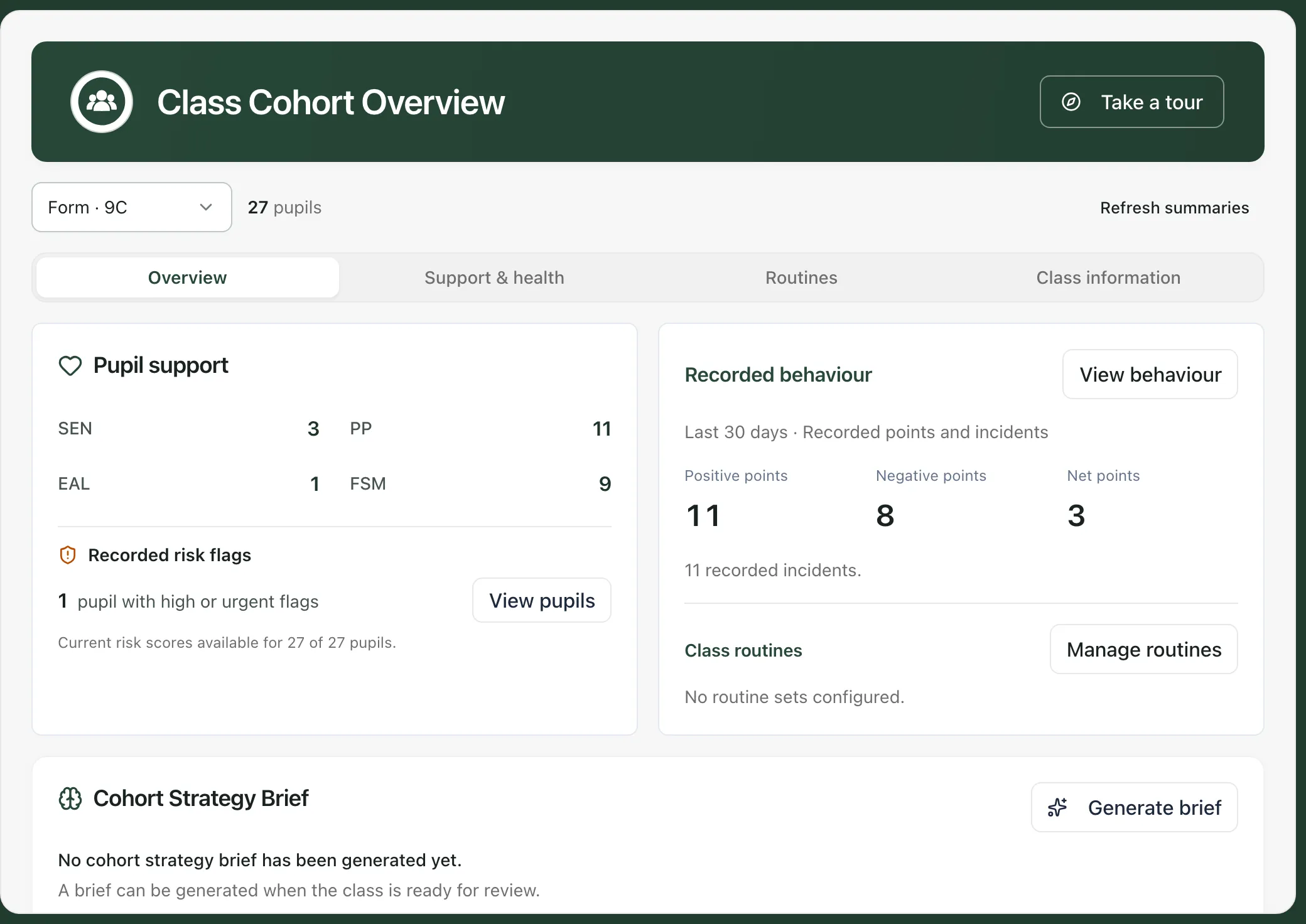
The Class Cohort Overview page opens on the Overview tab. To look at another class, choose it from the class list at the top. Refresh summaries reloads the figures.
What the Overview tab shows
Section titled “What the Overview tab shows”- Pupil support: how many pupils have SEN, Pupil Premium (PP), English as an additional language (EAL) or free school meals (FSM). Click a figure to see the pupils it covers.
- Recorded risk flags: how many pupils have a high or urgent risk level. Click View pupils to see who they are. Underneath, you can see how many pupils in the class have a current risk score.
- Recorded behaviour: Positive points, Negative points and Net points for the last 30 days, and the number of recorded incidents. Click View behaviour to see the latest activity, and click a pupil there to open their profile.
- Class routines: how many routine sets the class has. Click Manage routines to add or change them. See Set up class routines, events and helpers.
- Cohort Strategy Brief: the AI-written summary for the class, described below.
The figures come from the records in Student Radar. Where some pupils have no records yet, the card says how many pupils its totals cover.
Get the cohort strategy brief
Section titled “Get the cohort strategy brief”The brief sums up the class for the current term and suggests what to try. It’s written by AI from class totals, such as SEND and support needs, attendance, behaviour and health. It isn’t built from individual pupil records, and it doesn’t name pupils.
- Under Cohort Strategy Brief, click Generate brief. While it’s being written, you’ll see “Preparing this term’s cohort brief”.
- When it’s ready, the card shows a one-line summary and the date it was generated. Click View full brief.
The full brief has these parts:
| Part | What it gives you |
|---|---|
| Cohort priority | The main thing to focus on for this class. |
| Why this matters | The evidence behind the priority. |
| Do first | One action to start with. |
| Confidence | How confident the brief is, with a note explaining why. |
| Quick wins | Small changes you could make straight away. |
| Watch-outs | Things to keep an eye on, each with a trigger to look out for. |
| Strategies | Suggested strategies. Click one to see the full description, the area it covers and the effort it needs. |
| Data gaps | Information that was missing, so the brief couldn’t take it into account. |
Under each strategy:
- Copy to planning copies the strategy’s title and description, so you can paste them into your planning notes.
- Add to routines appears on routine strategies. It adds the strategy to the class’s routines as a new routine set.
To update the brief after things change, click Regenerate. Each class’s brief can only be regenerated a limited number of times each term. The bottom of the full brief shows how many refreshes are left.
Check the brief before you act on it: it’s written by AI, so it can be wrong or miss things you know about the class. Read it alongside what you and your colleagues know, check the confidence note and data gaps, and decide for yourself what to do. It’s a starting point for planning, not a decision about the class or any pupil.
- Term dates: the brief is written for the current term, so your school needs its term dates in Student Radar. If they’re missing, ask your administrator to add them in School settings.
- Other tabs: Support & health shows the class’s support needs and health conditions in more detail. Routines and Class information are covered in Set up class routines, events and helpers.
- Tour: click Take a tour at the top of the page for a step-by-step guide.
If something doesn’t work
Section titled “If something doesn’t work”| What you see | What to do |
|---|---|
| “No cohort strategy brief has been generated yet.” | Click Generate brief. |
| Generate brief or Regenerate is greyed out | A brief is being written, or there are no refreshes left this term. Use the brief you have. |
| “No teaching periods are configured for this school.” | Your school’s term dates are missing. Ask your Student Radar administrator to add them in School settings. |
| “The configured teaching periods overlap.” | Two of your school’s terms overlap. Ask your administrator to correct the term dates in School settings. |
| “This class is not yet linked to a synced class record, so the cohort brief cannot be generated yet.” | The class isn’t linked to your MIS yet. Ask your administrator. The rest of the page still works. |
| “The cohort strategy brief is unavailable right now.” | Try again later. If it says you can try again, click Generate brief or Regenerate. |
| “The cohort strategy brief could not be loaded right now. You can continue using the rest of the class overview.” | Carry on with the rest of the page, and come back to the brief later. |
| “No classes are available in your current pupil list.” | Your account can’t see the pupils in any class. Ask your school’s Student Radar administrator. |