Add a medication and its schedule
Written for: Staff who look after medicines held in school, such as medical leads and office staff.
Record each medicine your school holds for a pupil on the Medications page, with the times its doses are due. The schedule builds Today’s medication round, so staff can see which doses are due, given or missed. For medicines given only when needed, you can record PRN (as needed) guidance instead of set times.
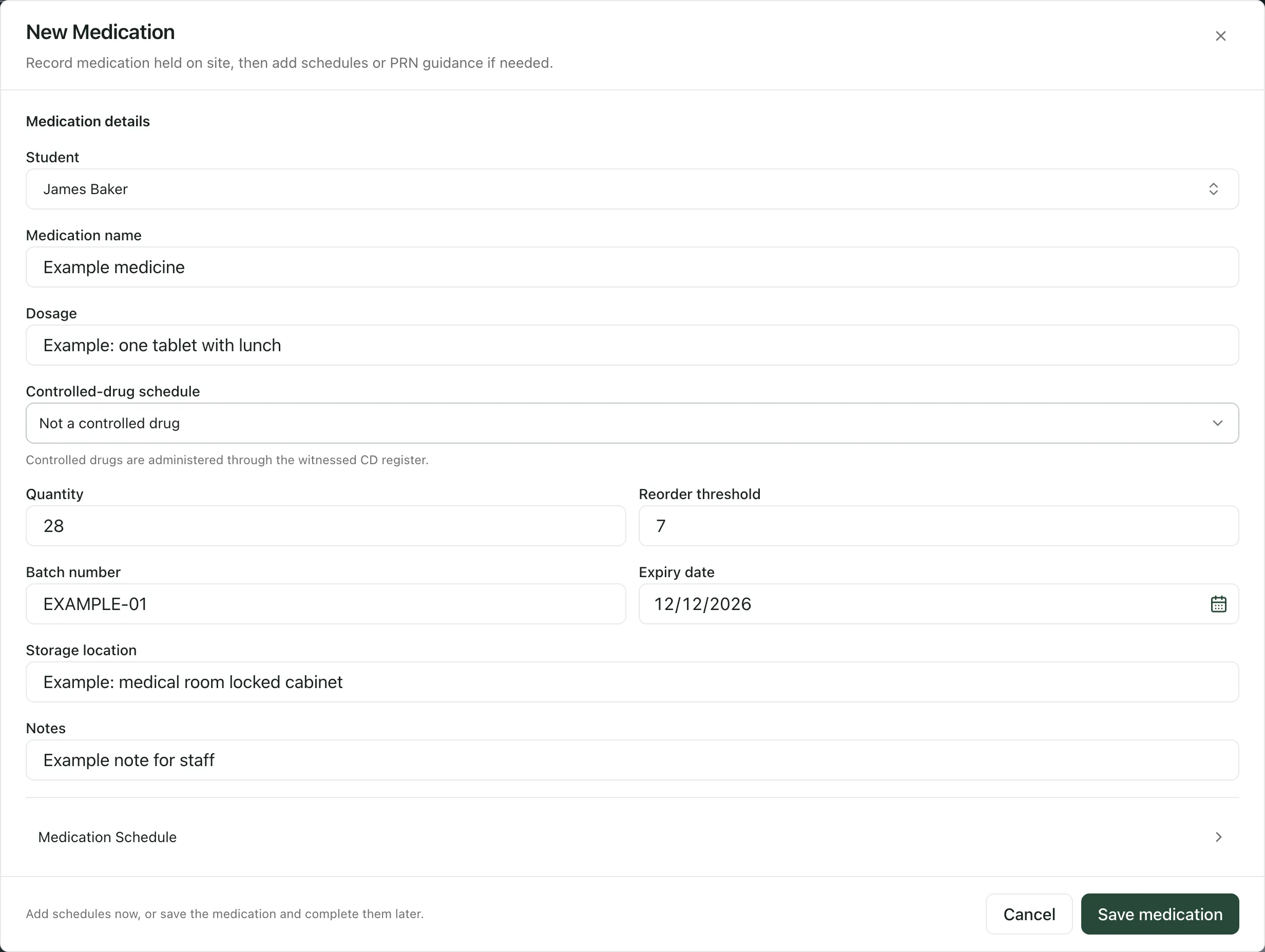
Add the medication
Section titled “Add the medication”- In the sidebar, open Health, then Medication & Clinical Safety, and choose Medications.
- Click New Medication.
- Under Student, click the box, search for the pupil and choose them.
- Enter the Medication name, as it appears on the pharmacy label.
- In Dosage, enter the dose and how to give it. Staff see this as the medicine’s instructions.
- Leave Controlled-drug schedule as Not a controlled drug, unless the medicine is a controlled drug. If it is, choose its schedule.
- Enter the Quantity held, and a Reorder threshold if you want a low stock warning when the quantity falls to that number.
- Enter the Batch number and the Expiry date. You must enter the expiry date.
- Enter the Storage location, such as a locked cabinet in the medical room, and any Notes for staff.
Add the schedule
Section titled “Add the schedule”- Click Medication Schedule to open the schedule section.
- Click Add schedule.
- Set when the dose is due:
- Regular dose: choose the Time and tick the Days it’s given. If you don’t tick any days, the dose is due every day.
- As needed: tick PRN (as needed). Then fill in the PRN protocol (when it can be given and what to check first), the Minimum interval (minutes) between doses, the Maximum daily doses and the Escalation instructions (who to contact if symptoms persist or the limit is reached).
- Add any Notes, such as giving the dose with food.
- Click Add. Add a separate entry for each time a dose is due.
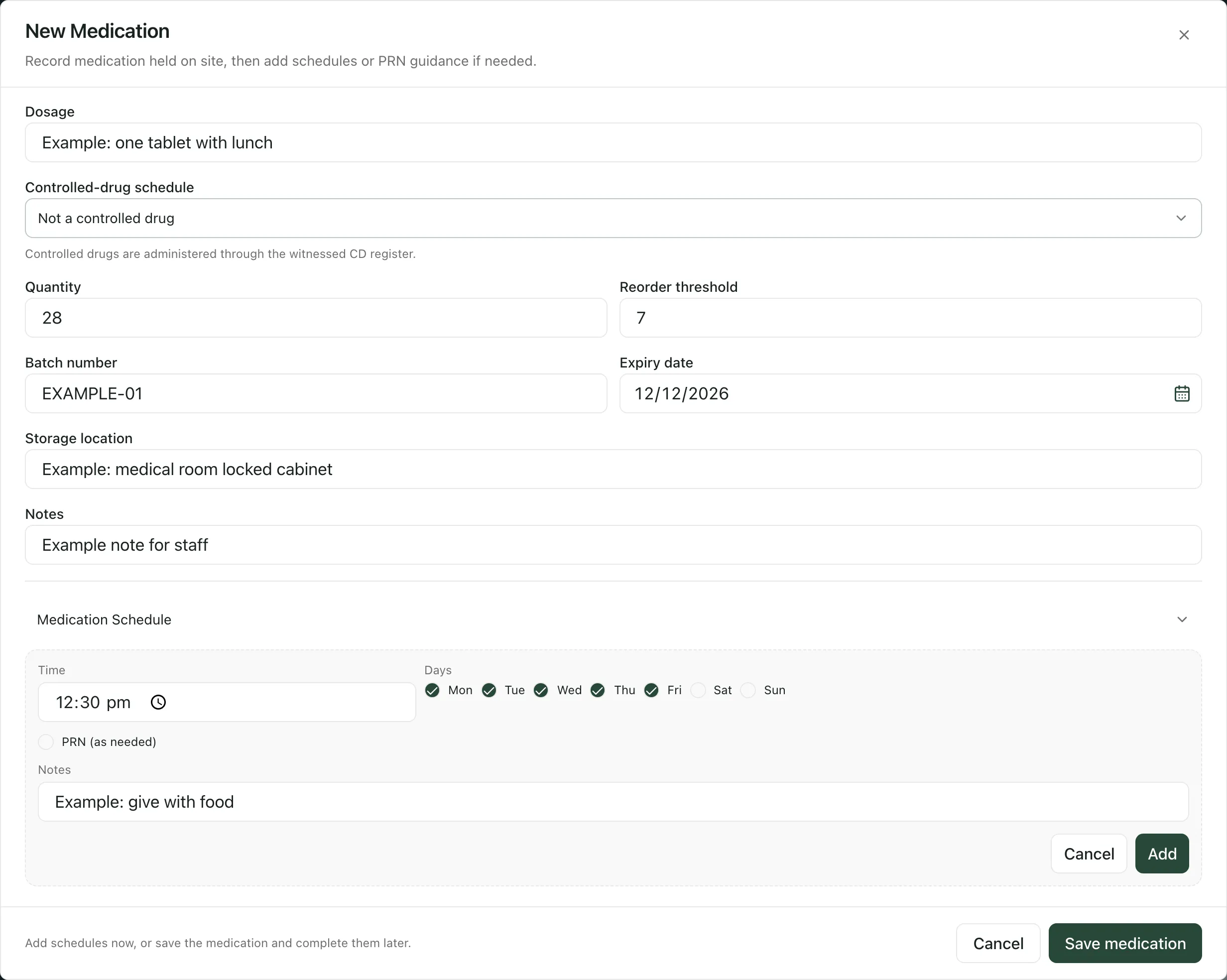
- Click Save medication.
You don’t have to add the schedule straight away. You can save the medication and add its schedule later.
After you save
Section titled “After you save”The medicine appears in Active medications on site. Its doses appear in Today’s medication round on the days and at the times you set. A medicine with no schedule shows No schedule set in the round, with a Set schedule button.
A medicine past its expiry date isn’t included in the round. The Expiry watch card counts medicines that expire within 28 days.
Change the schedule later
Section titled “Change the schedule later”- In Active medications on site, click the medicine.
- Under Schedule:
- To change an entry, click Edit, make your changes and click Save.
- To remove an entry, click Remove.
- To add an entry, fill in the fields under Add schedule and click Add schedule.
- Click Close.
- Controlled drugs: a medicine with a controlled-drug schedule is given through the witnessed controlled drugs register, not the ordinary administration form.
- Recording doses: see Record a dose given.
- Medical needs: to check a pupil’s recorded conditions and allergies, see Check medical needs and allergies for your class.
- Tour: click Take a tour at the top of the Medications page for a step-by-step guide to the page and the form.
If something doesn’t work
Section titled “If something doesn’t work”| What you see | What to do |
|---|---|
| “Medication name required” | Enter the Medication name. |
| “Dosage required” | Enter the Dosage. |
| “Expiry date required” | Choose the Expiry date. |
| “Add a time or mark as PRN.” | Choose a Time for the schedule entry, or tick PRN (as needed). |
| “Maximum daily doses must be a whole number.” | Enter a whole number, such as 4. |
| “Medication not saved” | Your entries are still in the form. Fix anything marked and try again. If it keeps happening, ask your medical lead whether your account can add medicines. |
| “Some schedules were not saved” | The medication was saved. Open it from Active medications on site and add the missing schedule entries. |
| “Set your school context to add medications.” | Choose your school, then try again. |
| “Medication records could not be loaded.” | Click Retry medication records. |