Ask parents to authorise a medication
Written for: Staff who look after medicines in school.
Before your school gives a pupil a medicine, it needs the parent or carer’s authorisation. Student Radar can email the parent a secure link so they can authorise or decline online, without signing in. The Medications page shows which medicines have current consent, which are still waiting for a reply and which have none, so you can follow up.
Sending requests is for staff who manage medications: by default the SENCo, headteacher, DSL and deputy DSLs, admins, office managers and medical leads. Other staff can see the consent checks but don’t see the request buttons.
See which medicines need authorisation
Section titled “See which medicines need authorisation”- In the sidebar, click Health, then Medication & Clinical Safety, then Medications.
- Scroll down to Safety & compliance.
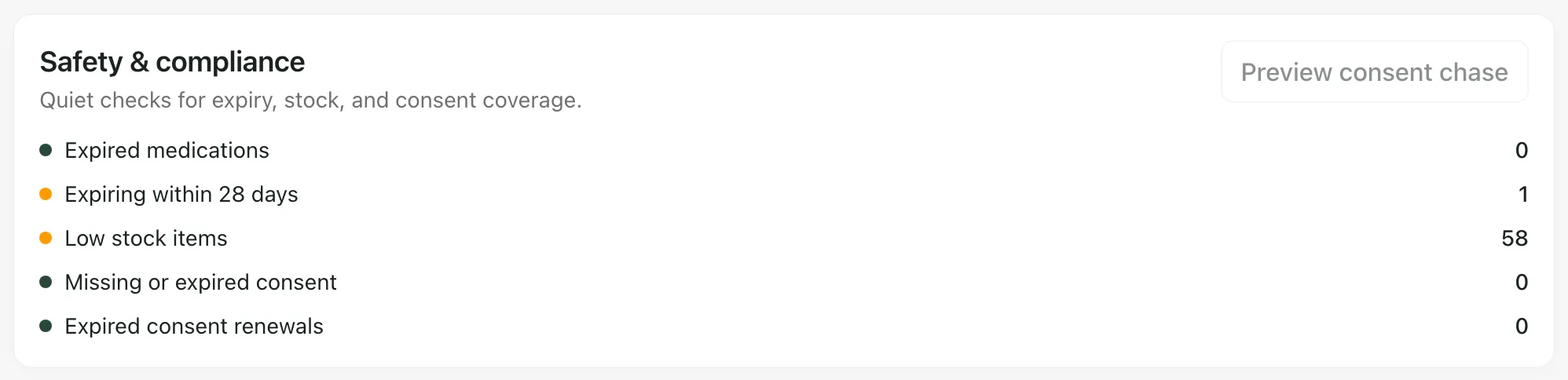
Two lines in the card are about consent:
- Missing or expired consent: active medicines without a current authorisation. This includes requests still waiting for a reply.
- Expired consent renewals: medicines whose authorisation has run out.
When any medicine is missing consent, a Consent matrix appears below the counts. It lists up to five of those medicines, with the pupil, the consent state and the Valid until date.
| Consent state | What it means |
|---|---|
| Current | The parent has authorised it and the authorisation is in date. |
| Awaiting response | A request has been sent and the parent hasn’t replied yet. |
| Expired | The parent authorised it, but the authorisation has run out. |
| Rejected | The parent declined. |
| Missing | No authorisation has been requested or recorded. |
The same count also appears in the Compliance card at the top of the page.
Send a request for one medicine
Section titled “Send a request for one medicine”-
Under Active medications on site, find the medicine. You can type the pupil’s name or the medicine into Search medications to narrow the list.
-
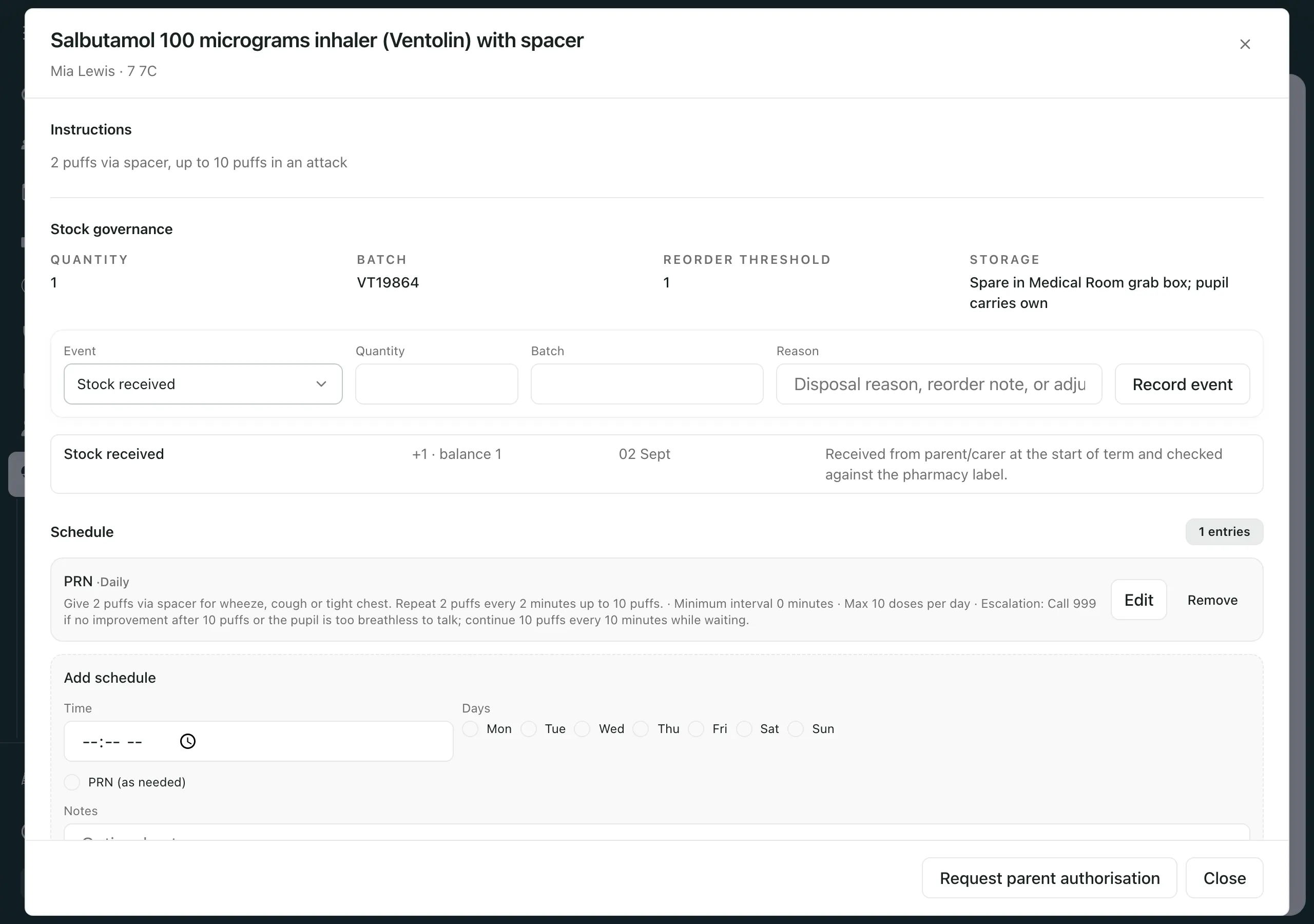
Click the medicine’s row. Its details open.
-
At the bottom, click Request parent authorisation.
-
Student Radar looks up the parent or carer’s contact and shows a preview: their name, a partly hidden email address and the email subject. Nothing has been sent yet.
-
If a mobile number is on file, Also send the link by text is ticked. Untick it to send the email only.
-
Check the details, then click Send request. If the text box is ticked, the button says Send request + text.
You’ll see Authorisation request sent. The medicine then shows as Awaiting response until the parent replies.
What the parent sees
Section titled “What the parent sees”The parent receives an email headed Medication authorisation, with the pupil’s first name, the medicine and the dose. The link opens a page where they can read the request, add a note for the school and choose Authorise or Decline. They don’t need an account.
When they reply, the consent state changes to Current or Rejected. An authorisation lasts about a year from the date of the request. The Valid until date shows when it runs out.
Note: The link is unique to that parent. If they say it has expired, send a new request.
Chase several parents at once
Section titled “Chase several parents at once”- In Safety & compliance, click Preview consent chase. The button is greyed out when every active medicine already has current consent.
- The Preview consent chase window checks each medicine missing consent before anything is
sent. It shows:
- Consent gaps: medicines without current consent.
- Ready to send: the pupil, the consent state, and the parent who will receive the link.
- Skipped: medicines that can’t be chased, with the reason, such as No parent contact.
- Batch cap: up to 25 requests are sent in one go. Run the chase again for the rest.
- Check the list, then click the send button. It shows how many requests will be sent.
A chase sends emails only, not texts. When it finishes, you’ll see Consent chase complete with the number sent and skipped.
- Follow your school’s medicines policy on what authorisation you need before a medicine is given. A request on its own doesn’t authorise anything.
- To add a medicine first, see Add a medication and its schedule. To record a dose, see Record a dose given.
- In the demo schools, no emails are sent.
If something doesn’t work
Section titled “If something doesn’t work”| What you see | What to do |
|---|---|
| “No parent/carer email address could be found for this pupil, so a request link cannot be sent. Update the pupil’s contact details and try again.” | The pupil has no parent or carer email address on record. Ask your school office to update the contact details, usually in your school MIS. |
| “Email sending is disabled in the demo, so consent requests cannot be sent.” | You’re in a demo school. Requests only go out from your own school. |
| “Unable to prepare the request.” | Click Try again. If it keeps happening, wait a minute and try again. |
| “The request could not be sent.” | Nothing was sent. Click Try again to reload the preview, then send again. |
| “Medication records could not be loaded. The medication round and consent summary are unavailable.” | Click Retry medication records. |
| You can’t see Request parent authorisation or Preview consent chase | Your role can’t send requests. Ask a colleague who manages medications, such as your SENCo or medical lead. |