Find a time and book a meeting
Written for: School staff.
When you need to get colleagues together, for example for a review or a parent meeting, the Calendar can show you when everyone is free and suggest times. If you’d rather let people choose, you can send round a poll with a few times and book the one that suits most people.
Both are on the Scheduling tab of the Calendar. In the sidebar, open Overview, choose Calendar, then click Scheduling.
Find a time when everyone is free
Section titled “Find a time when everyone is free”-
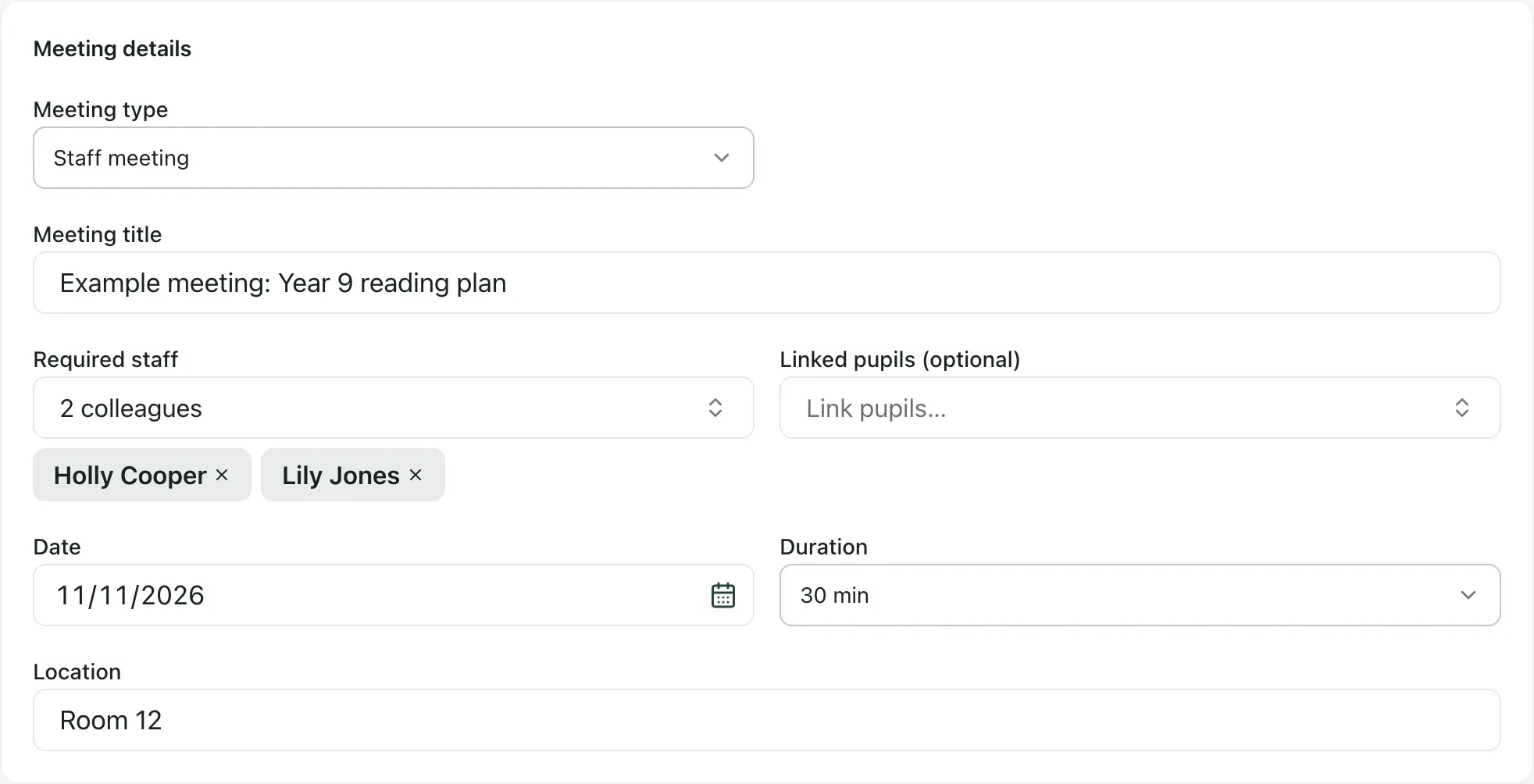
On the Find a time tab, under Meeting details, choose a Meeting type, such as SEND review, Parent meeting or Staff meeting.
-
Enter a Meeting title.
-
Under Required staff, search for each colleague who needs to be there and select them. They appear as tags under the box. Click × on a tag to remove someone.
-
If the meeting is about particular pupils, add them under Linked pupils (optional).
-
Choose the Date and the Duration, and add a Location if you want to.
-
Under Availability, look at the Suggested times and the grid below them:
- Each row of the grid is a person, with a Required staff row at the top that combines them. Green means Free, red means Busy and grey means Availability unknown.
- A suggested time marked All required staff free suits everyone. Other suggestions say how many of the required staff are free.
- The grid covers 08:00 to 18:00.
-
Click a suggested time, or click a column in the grid to start the meeting then. The time you’ve picked is shown next to Selected.
-
Click Book meeting.
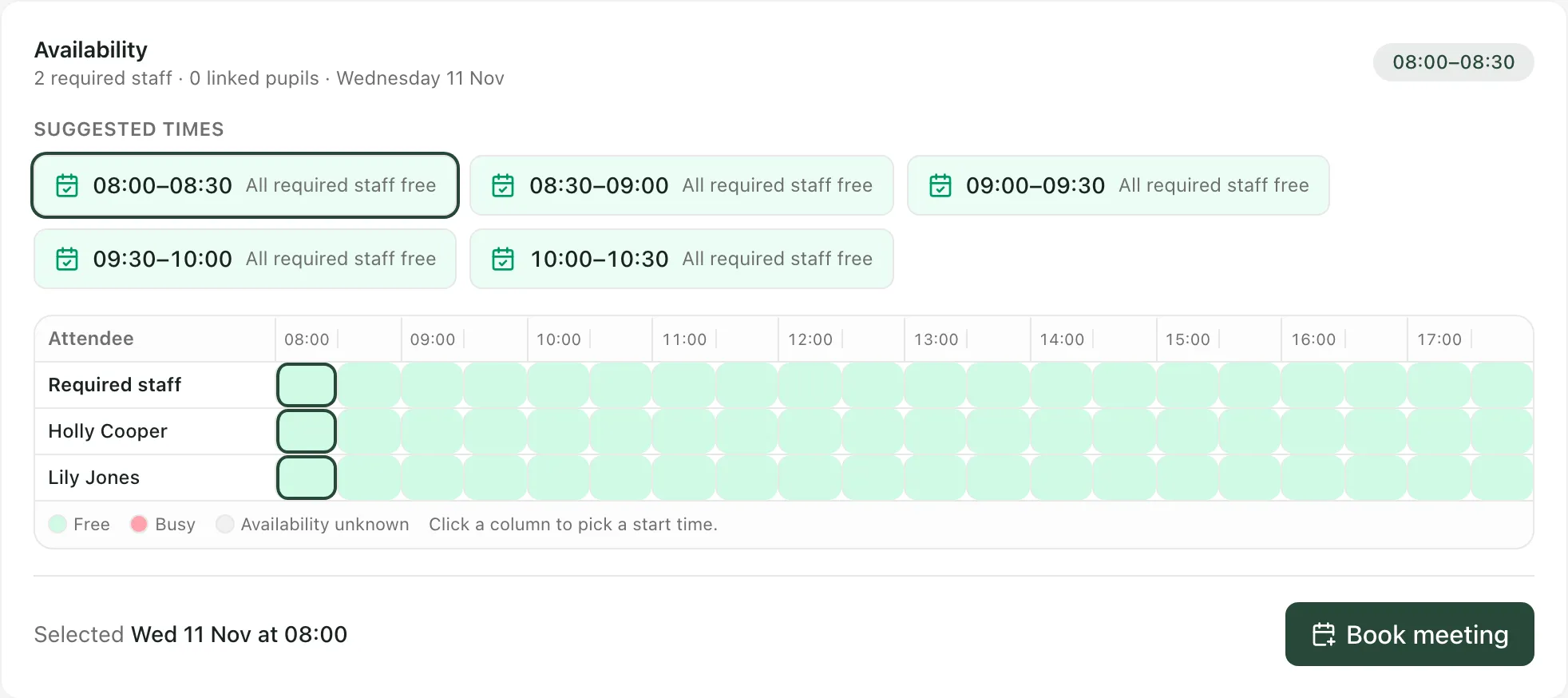
The meeting is added to your calendar, with the required staff and any linked pupils attached.
Pupils you link are treated as optional. Their availability is shown, but it doesn’t stop a time being suggested.
Ask colleagues to vote on a time
Section titled “Ask colleagues to vote on a time”- On the Scheduling tab, click Polls, then New poll.
- Under Meeting details, enter a Title, choose the Duration, and add a Location and Notes if you want to.
- Under Proposed times, set the date and time of the first option. Click Add time option for each extra time you want to offer (up to 20). Click × beside an option to remove it.
- Click Create poll.
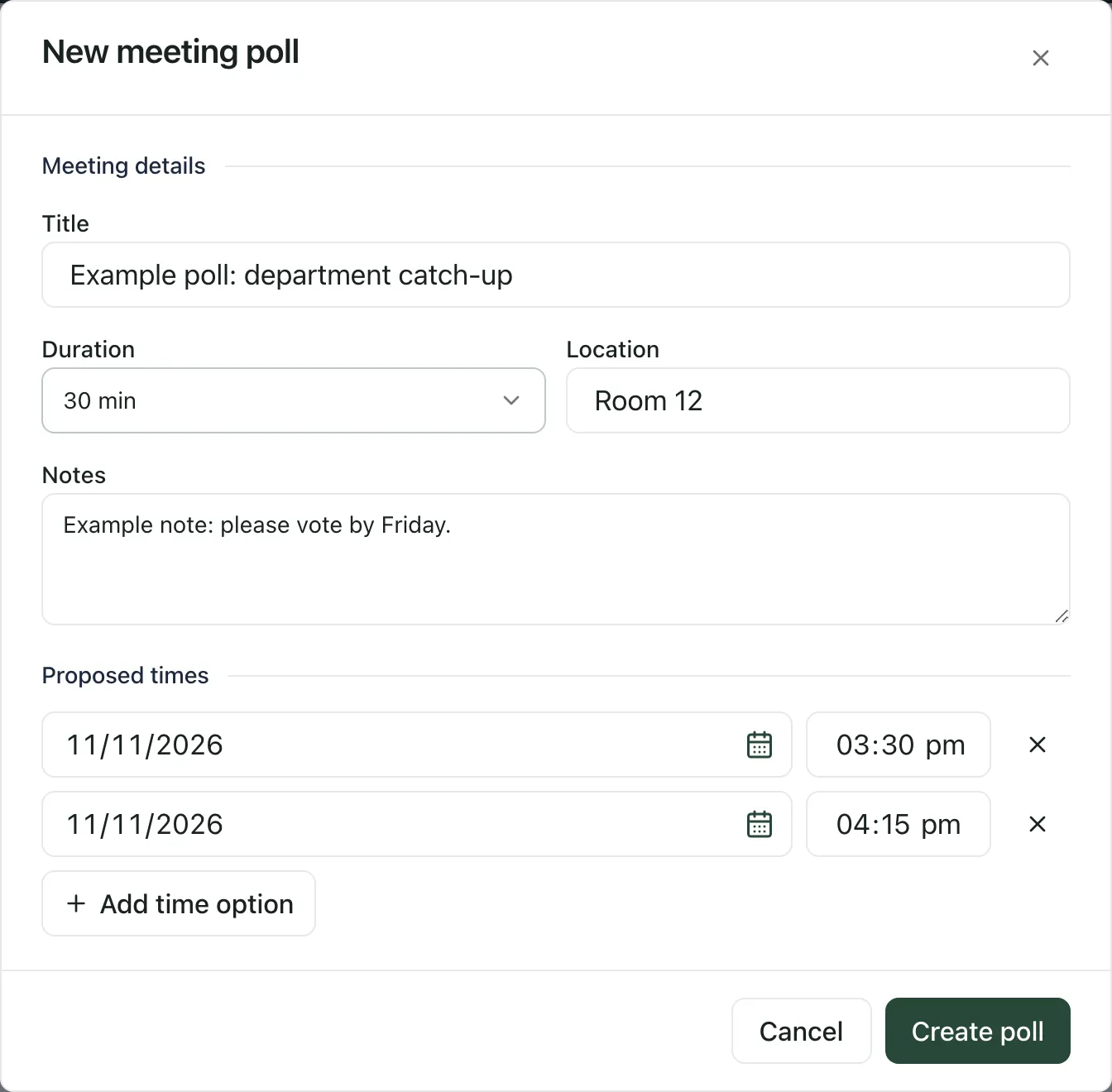
Your poll appears on the Polls tab, where colleagues can see it.
Vote on a poll
Section titled “Vote on a poll”On the Polls tab, each open poll lists its proposed times and how many people have said yes, maybe or no. Click Yes, Maybe or No beside each time. You can change your vote while the poll is open.
Book the winning time
Section titled “Book the winning time”If you created the poll, click Book beside the time you want. Student Radar adds the meeting to your calendar and invites everyone who voted Yes or Maybe for that time. The poll is then marked Booked.
To call off a poll you created, click Cancel at the top of it.
- Free and busy times come from what’s in Student Radar’s calendar. If someone’s commitments aren’t recorded there, their time shows as Availability unknown, or as free when it isn’t. Check with them before you book.
- Polls currently work only for some roles, including class teachers, teaching assistants, the DSL, headteachers and administrators. If you can’t create or see polls, use Find a time instead.
- Meetings you book here go on My calendar. To add a meeting with more detail, such as a repeat or a reminder, see Add an event to the calendar.
If something doesn’t work
Section titled “If something doesn’t work”| What you see | What to do |
|---|---|
| “Add staff to get started” | Add at least one person under Required staff to see their availability. |
| “Some required staff have no availability data. Check with them before booking.” | Student Radar has no calendar information for at least one person. Ask them directly. |
| “Availability could not be checked. Try again before choosing a meeting time.” | Click Try again. |
| “Add a meeting title” | Enter a Meeting title, then click Book meeting again. |
| “Could not book the meeting” | Nothing was booked. Try again. |
| “Scheduling polls could not be loaded. Try again to check existing polls.” | Click Try again. |
| “Add a poll title” | Enter a Title for the poll. |
| “Could not create the poll” | Try again. If it keeps happening, your role may not be able to create polls yet. |