Raise a safeguarding concern about a pupil
Written for: All school staff.
If something you see or hear worries you about a pupil’s safety or wellbeing, record it in Student Radar so it reaches your school’s safeguarding team. You don’t need to investigate or be certain. Write down what you know, and the Designated Safeguarding Lead (DSL) and their team will decide what happens next.
Important: Student Radar records your concern and sends it to the safeguarding team. It doesn’t replace telling the DSL straight away if a child may be at immediate risk of harm, or following your school’s safeguarding procedure. If anyone is in immediate danger, follow your school’s emergency procedure first and fill in the form afterwards.
Open the concern form
Section titled “Open the concern form”In the sidebar, open Safeguard, then Concerns & Response, and choose Raise Concern. The Report a concern form opens.
At the top of the form are two reminders:
- If anyone is in immediate danger: follow your school’s emergency procedure before completing this form.
- Help with recording and confidentiality: click it for short tips. Write what you saw or heard, use the child’s own words, and separate fact from opinion.
The steps along the top (Person, What happened, Immediate safety, Additional information and Review) show where you are. Click a step to jump to it.
Fill in the form
Section titled “Fill in the form”-
Under Who is this concern about?, check that Pupil is selected. For a concern about an adult who works at the school, see Report a concern about a member of staff.
-
In Pupil name, type part of the pupil’s name and choose them from the list. Their year group fills in by itself.
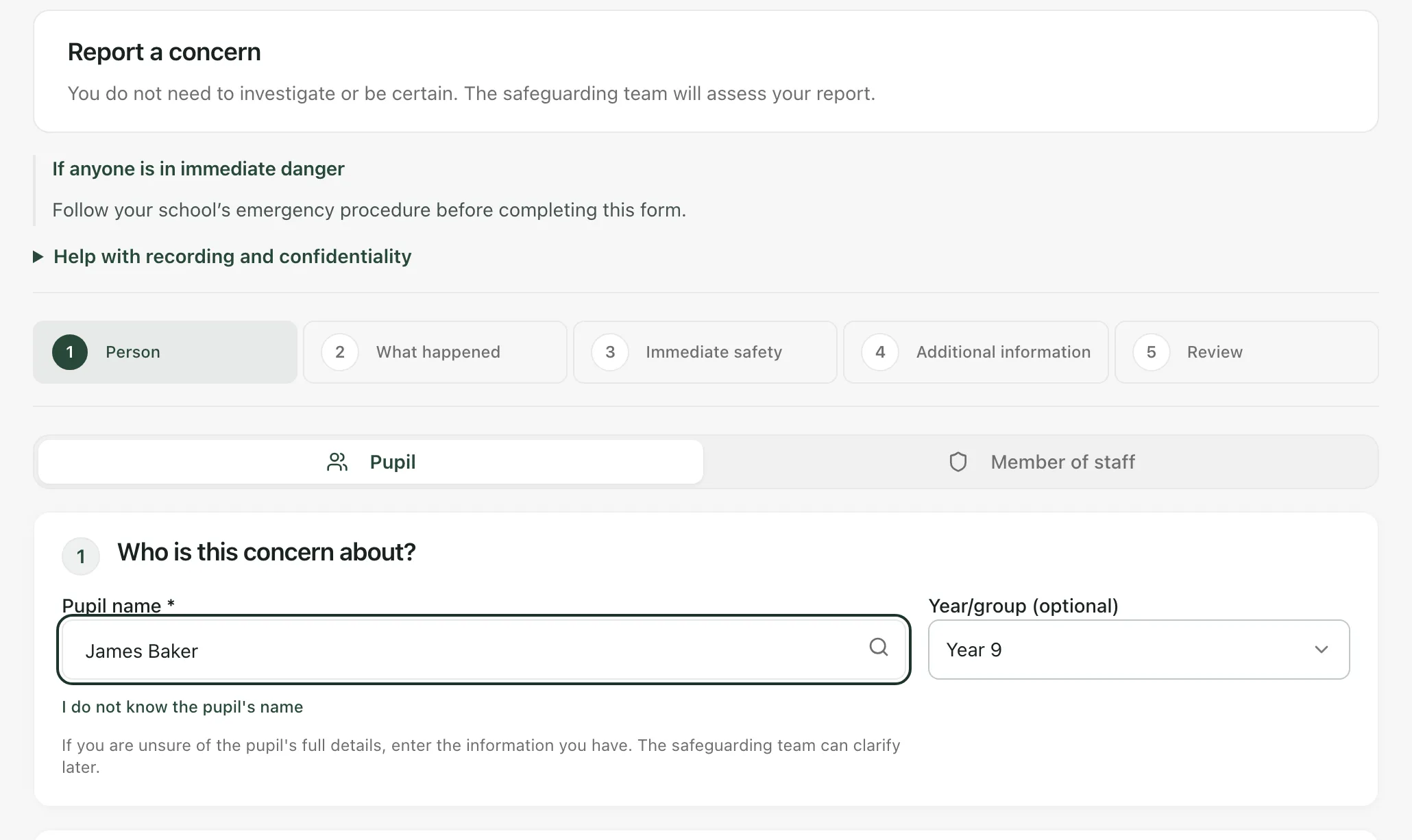
If you don’t know who the pupil is, click I do not know the pupil’s name. If the pupil isn’t in the list, type what you know and tick Pupil not in list / details unclear. The DSL will follow up to confirm who it is.
-
Under What happened, check the Date and Time this happened, and enter the Location. If you aren’t sure of the time, tick Time unknown / approximate. You can also click Location unknown or Not on school site.
-
Describe what you saw, heard or were told. You don’t need safeguarding terms; write in your own words. Click What to include for prompts.
-
If a pupil told you something, record their exact words in Exact words spoken, if a disclosure was made. Don’t paraphrase if you can record the words they used.
-
Under What actions did you take immediately?, record what you did at the time, such as staying with the pupil or telling the DSL. If you took no action, say why. Click Examples for ideas.
-
Under Additional information, add anything else the safeguarding team should know, such as who else was there. You can also record where on the body you saw a mark under Body map observations (optional). Body map notes record what you observed. They aren’t a diagnosis.
-
Click Review concern.
Check and submit
Section titled “Check and submit”The review screen shows everything you’ve entered. Read it carefully, especially the pupil’s name. Click Edit next to any part to change it, or Back to edit to return to the form.
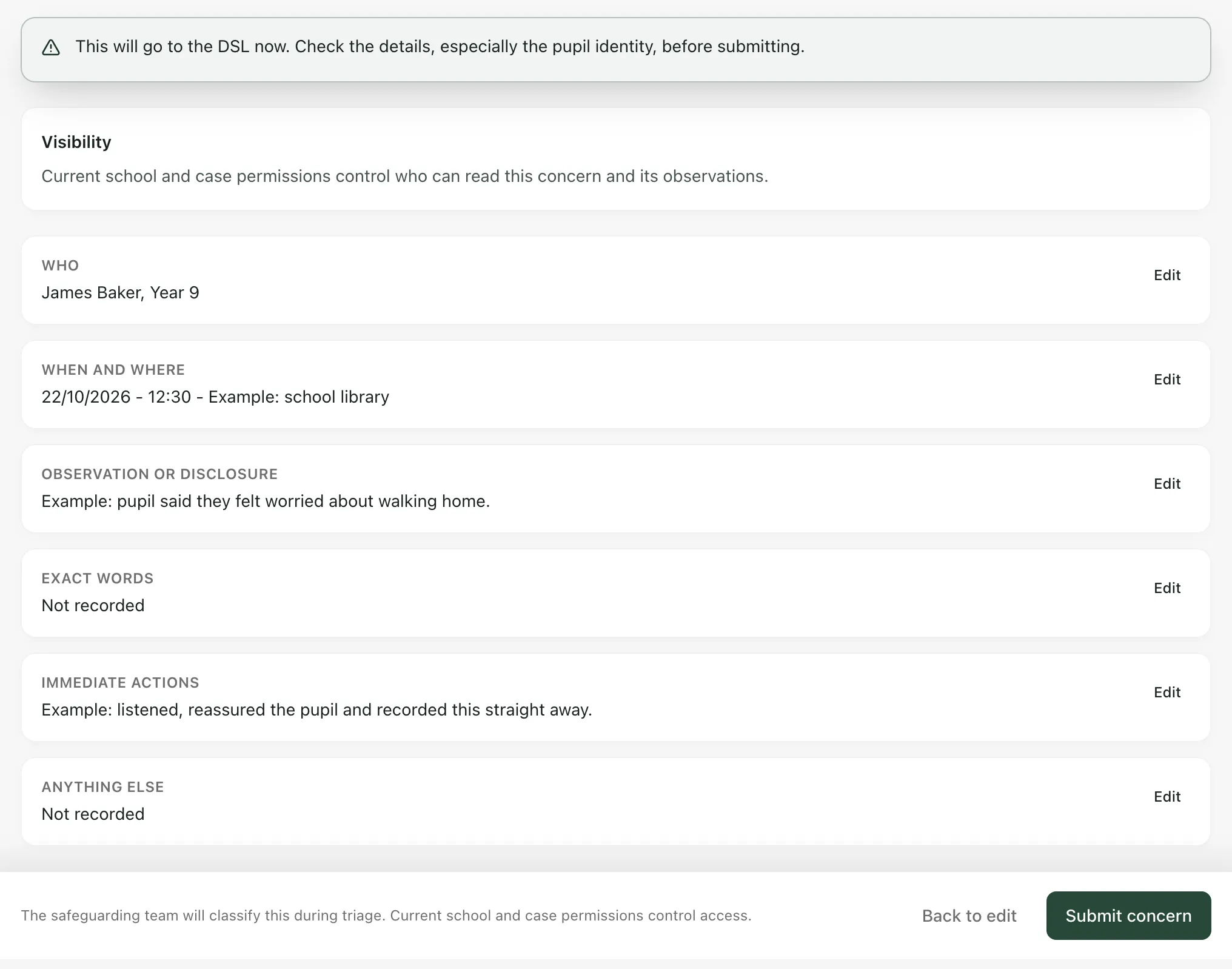
When you’re happy, click Submit concern. Wait until you see Concern submitted and a reference. That confirms your report has been accepted for the safeguarding team to review. To record another concern, click Report another concern.
You don’t need to choose a category or priority. The safeguarding team classifies the concern when they review it. Your school’s safeguarding permissions control who can read it.
Raise a concern from a pupil’s profile
Section titled “Raise a concern from a pupil’s profile”If you already have the pupil’s profile open, you can raise a short concern from there.
- Click Raise concern at the top of the profile. The pupil’s name is filled in for you.
- Under What did you see or hear?, describe what you observed. If the pupil spoke, use their exact words in quotation marks.
- Click Raise Concern.
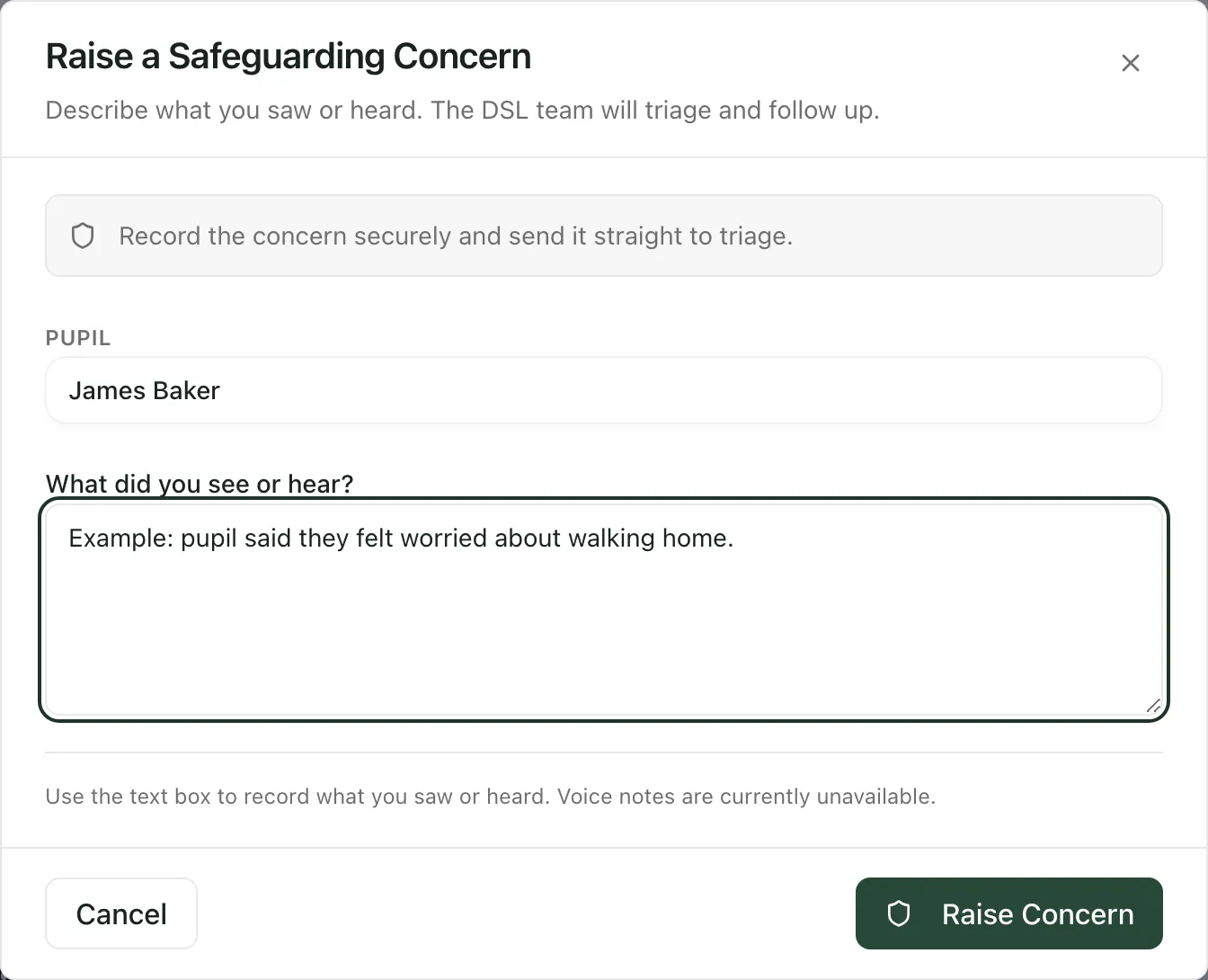
A message confirms that your concern has been recorded for safeguarding review. Use the full form under Safeguard when you have more to record, such as exact words, the time and place, or what you did at the time.
Take the built-in tour
Section titled “Take the built-in tour”On the Safeguard page, click Take a tour for a short guide to the form.
- Safeguarding switched off: your school can turn off Student Radar’s safeguarding tools. When it’s off, the Safeguard menu items are greyed out and Raise concern on the pupil profile can’t be clicked. Follow your school’s usual safeguarding procedure instead.
- Audio recordings: recording original audio with a typed transcript only works once your school has set it up. Until then, type your account in the form.
- After you submit: if you’re still worried about the pupil, speak to the DSL directly. Don’t wait for a reply in Student Radar.
If something doesn’t work
Section titled “If something doesn’t work”| What you see | What to do |
|---|---|
| “Please address these issues:” with a list such as “Location is required” | Fill in each missing part, then click Review concern again. |
| “Enter the pupil’s name or identifying details.” | Choose the pupil, type what you know about them, or click I do not know the pupil’s name. |
| “Your report has not been confirmed as submitted. Your text is still here. Try again, or contact your safeguarding team if the problem continues.” | Keep the page open and click Submit concern again. If it still fails, tell the DSL in person. |
| “The original report may already be recorded.” | Click Confirm original submission rather than sending the concern again. This checks whether your first report arrived. |
| “Please provide at least a brief description (10+ characters).” | On the profile’s Raise concern window, add more detail before clicking Raise Concern. |
| “Safeguarding features are not enabled for this school.” | Safeguarding is switched off in Student Radar for your school. Follow your school’s usual safeguarding procedure, and tell the DSL straight away. |