Record an alternative provision placement
Written for: SENCos and staff who commission alternative provision.
When your school places a pupil off-site with an alternative provider, your school still keeps its duty of care. Use Alternative Provision to record the providers you use, each pupil’s placement, the checks you’ve made, the sessions the pupil attends and the evidence behind them. This page is for schools that commission alternative provision. If your setting is itself an alternative provider, Student Radar gives you a separate set of pages for the pupils placed with you.
Open Alternative Provision
Section titled “Open Alternative Provision”In the sidebar, open Inclusion, then SEND, then Provision, and choose Alternative Provision. It opens on the Placements tab.
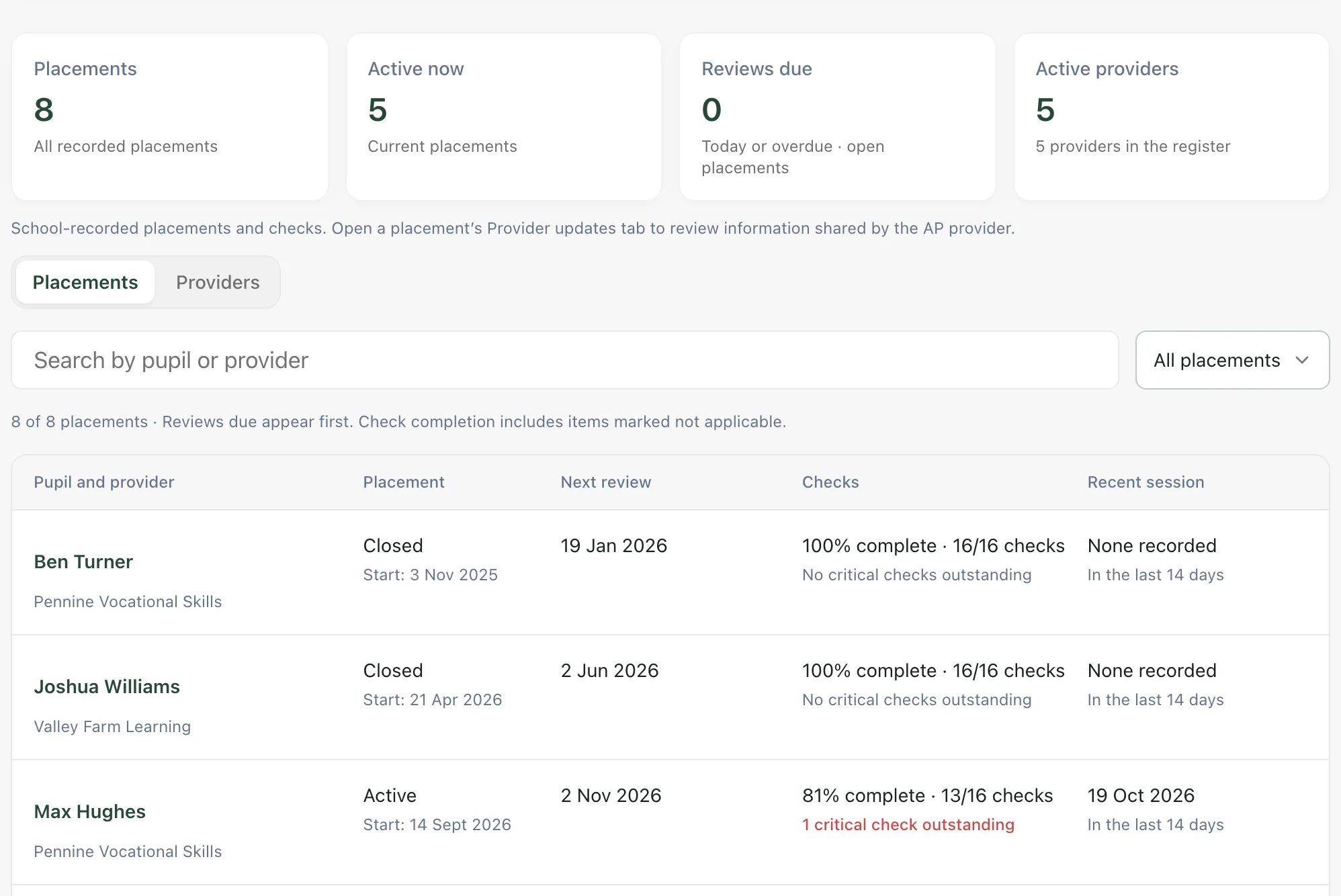
Across the top:
- Placements: every placement recorded.
- Active now: placements currently running.
- Reviews due: open placements whose review date is today or has passed.
- Active providers: providers in use, out of all the providers in your register.
Each placement shows the pupil and provider, its status and start date, the Next review, how many checks are complete and whether any critical checks are outstanding, and the most Recent session logged in the last 14 days. Reviews due appear first, then the rest by review date.
To find a placement, type in Search by pupil or provider, or choose Active placements, Planned placements, Reviews due or Closed placements from All placements.
Add the provider
Section titled “Add the provider”Every placement is linked to a provider, so add the provider first if it isn’t already in your register.
- Click the Providers tab, then click Add provider.
- Enter the provider’s Name and choose its Provider type.
- Under Contact details, add a Contact name, Email and Phone.
- Add any Notes.
- Click Create.
Then click the provider’s name to open its checklist. Work through the due-diligence checks, such as safeguarding, DBS and insurance, and attach the evidence for each one. These provider checks then appear on every placement with that provider.
Add the placement
Section titled “Add the placement”- On the Placements tab, click Add placement.
- Under Placement details, choose the Pupil and the Provider.
- In Purpose, explain what the placement is for.
- Under Dates and status, set the Status (planned, active or closed), the Start date and the Next review date.
- Under Schedule, choose the Days and Session parts the pupil attends. You can also enter the Hours per week (optional).
- In Reintegration plan, record how and when the pupil will return to a full timetable at your school.
- Click Create.
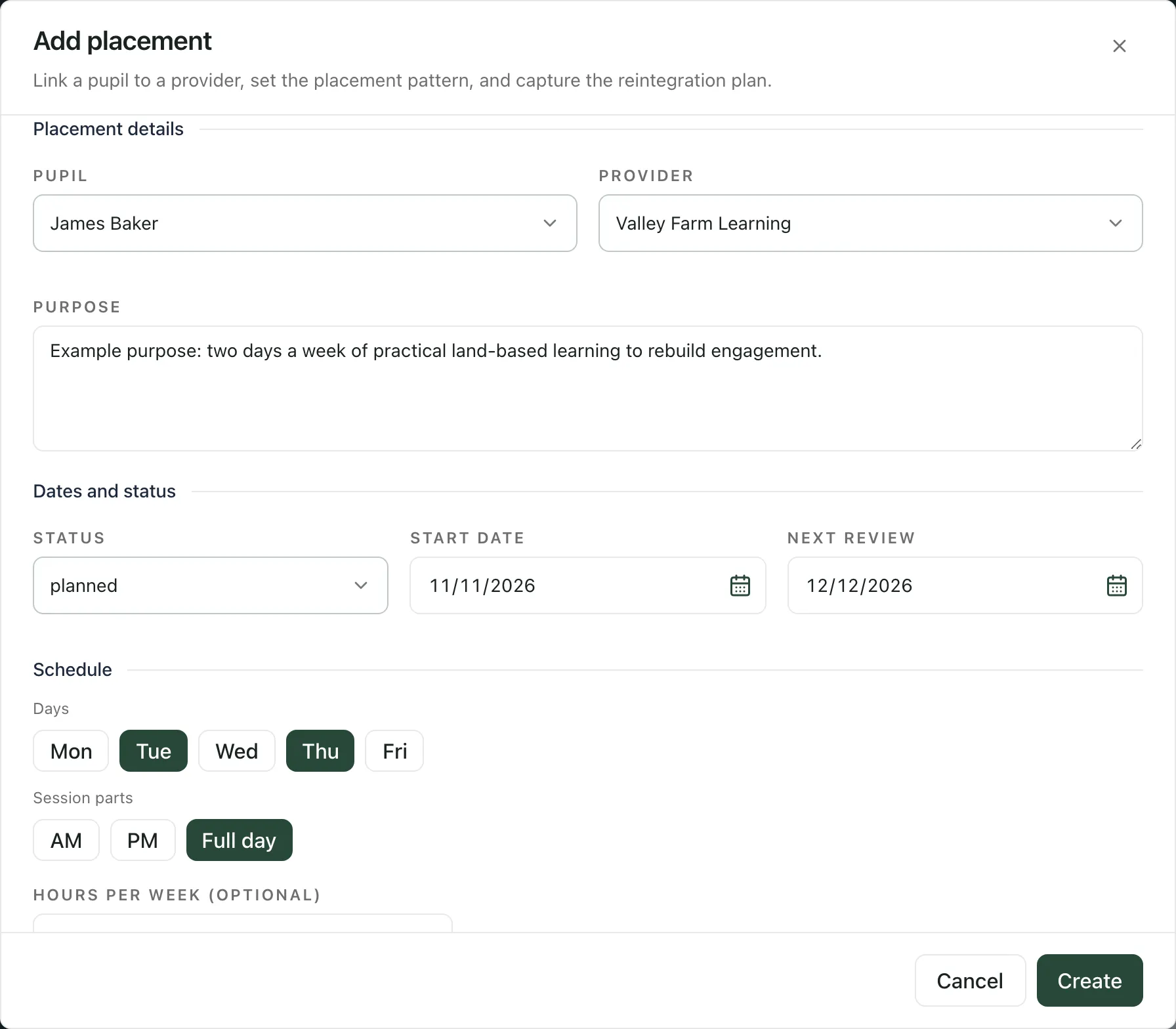
Create stays greyed out until you’ve chosen a pupil and a provider and written a purpose. The new placement then appears in the register.
Keep the placement up to date
Section titled “Keep the placement up to date”Click the pupil’s name in the register to open the placement. It has six tabs:
| Tab | What it’s for |
|---|---|
| Overview | Change the status, start date, next review, purpose or reintegration plan. Click Save to keep your changes, or Reset. |
| Compliance | The provider’s due-diligence summary and the placement checks, grouped by stage. |
| Sessions & Feedback | Log each session the pupil attends, with feedback from the provider. |
| Provider updates | Information the provider has shared with you through Student Radar, if they’ve been invited to share it. |
| Documents | Placement documents and Provider documents attached as evidence. |
| Evidence Pack | Download the placement’s record. |
Work through the checks
Section titled “Work through the checks”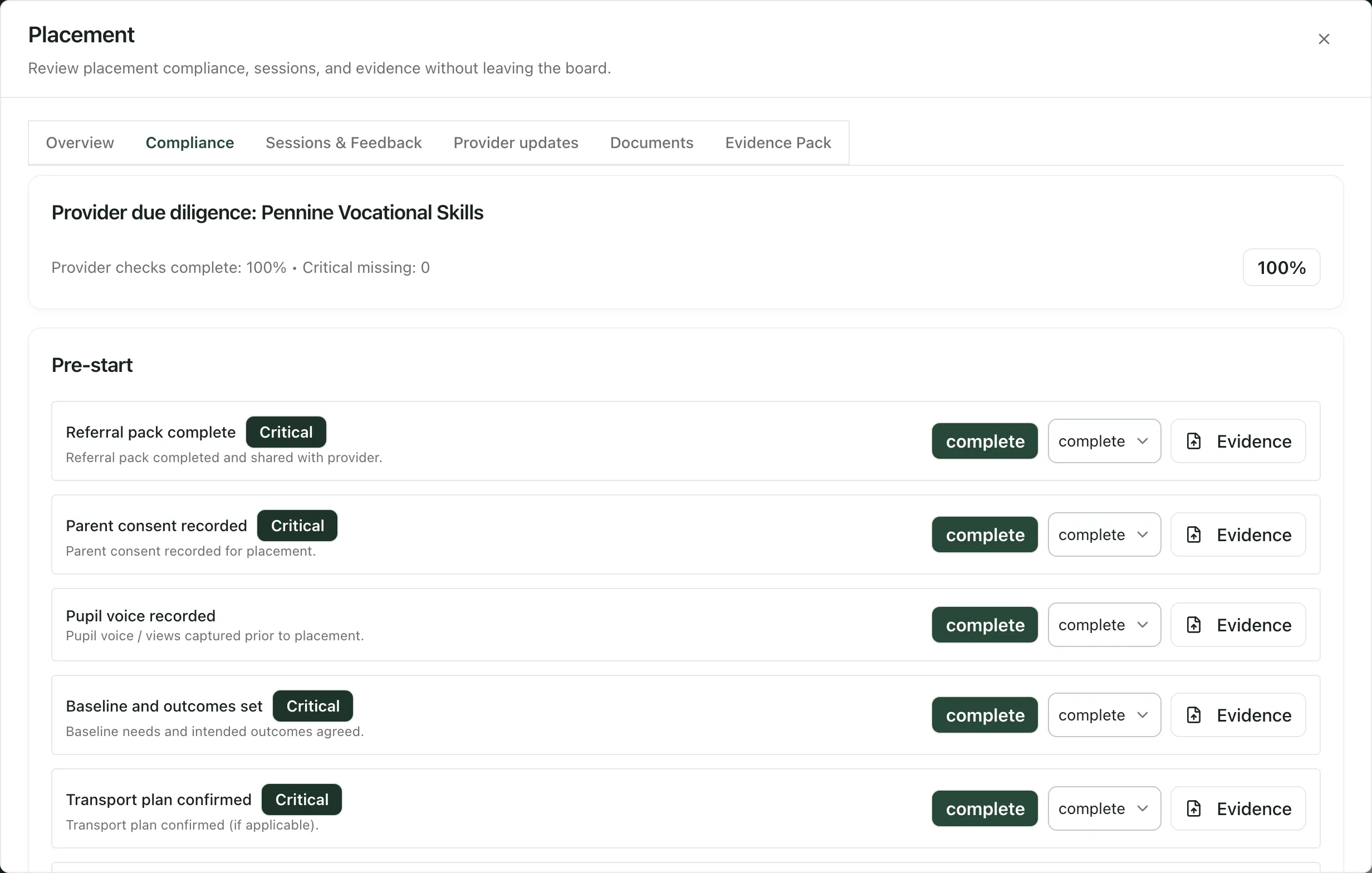
Checks are grouped by stage, such as Pre-start, In-flight and Review/exit. Checks marked Critical must be done for the placement to be safe and compliant; any that aren’t complete count towards the critical checks outstanding in the register.
For each check:
- Choose its status from the menu: missing, in_progress, complete or n/a. The change is saved as soon as you choose it, so there’s no save button.
- Click Evidence to attach the document that proves it, such as a signed placement agreement or a risk assessment.
The weekly attendance and feedback checks can also show an Auto status, worked out from the sessions and feedback you’ve logged in the last seven days. If evidence attached to a check is withdrawn, the check shows Review needed until someone looks at it again.
Log a session
Section titled “Log a session”- Open Sessions & Feedback.
- Under Log Session, set the Date and Part of the day, and the Minutes if you know them.
- Untick Attended if the pupil didn’t attend.
- Add a Feedback summary from the provider.
- Click Add session.
The session is listed under Sessions, marked attended or missed. Click Upload doc on a session to attach the provider’s feedback form or report.
Download the evidence pack
Section titled “Download the evidence pack”On Evidence Pack, click Export PDF or Export JSON. The pack “Includes current provider + placement checks, last 20 sessions, and active document index.”
Take the built-in tour
Section titled “Take the built-in tour”Click Take a tour at the top of the page. It explains the summary, the two tabs, and the provider and placement forms, and shows a provider’s compliance checklist.
Who can use Alternative Provision
Section titled “Who can use Alternative Provision”By default, teachers, SENCos, safeguarding leads, senior leaders, headteachers and office staff can open Alternative Provision. Your school can change who has access. If your school gives governors access, they see Read-only view at the top of the page: they can read the register but can’t open placements or make changes.
If something doesn’t work
Section titled “If something doesn’t work”| What you see | What to do |
|---|---|
| “No placements recorded yet. Add a provider, then create a placement.” | Add the provider on the Providers tab first, then click Add placement. |
| “No placements match your search or filter.” | Clear the search box or choose All placements. |
| A message that the alternative provision register couldn’t be loaded | Click Try again. If it keeps happening, wait a minute and try again. |
| “Failed to create placement.” | Check your connection and try again. If it keeps happening, your account may not be able to add placements: ask your SENCo. |
| “Failed to update compliance check.” | The check’s status wasn’t saved. Choose it again. |
| “Unable to upload evidence.” | Check the file and try again. |
| “Failed to log session.” | The session wasn’t saved. Check the details and click Add session again. |
| “Your account does not have access to provider sharing for this placement.” | You can’t see the provider’s updates for this placement. Ask your SENCo or administrator. |