Record a Small Steps assessment
Written for: Teachers and SENCos.
Use Small Steps Assessment to record what a pupil with SEND can do, one small teaching question at a time. You choose the pupil and a curriculum pack, then record a judgement against each question you’ve observed. Each judgement is saved to the pupil’s record with your name and the time.
Open Small Steps
Section titled “Open Small Steps”- In the sidebar, click Assessment, then Entry, then Small Steps Assessment.
- Make sure Curriculum assessment is selected at the top.
Choose the pupil and curriculum pack
Section titled “Choose the pupil and curriculum pack”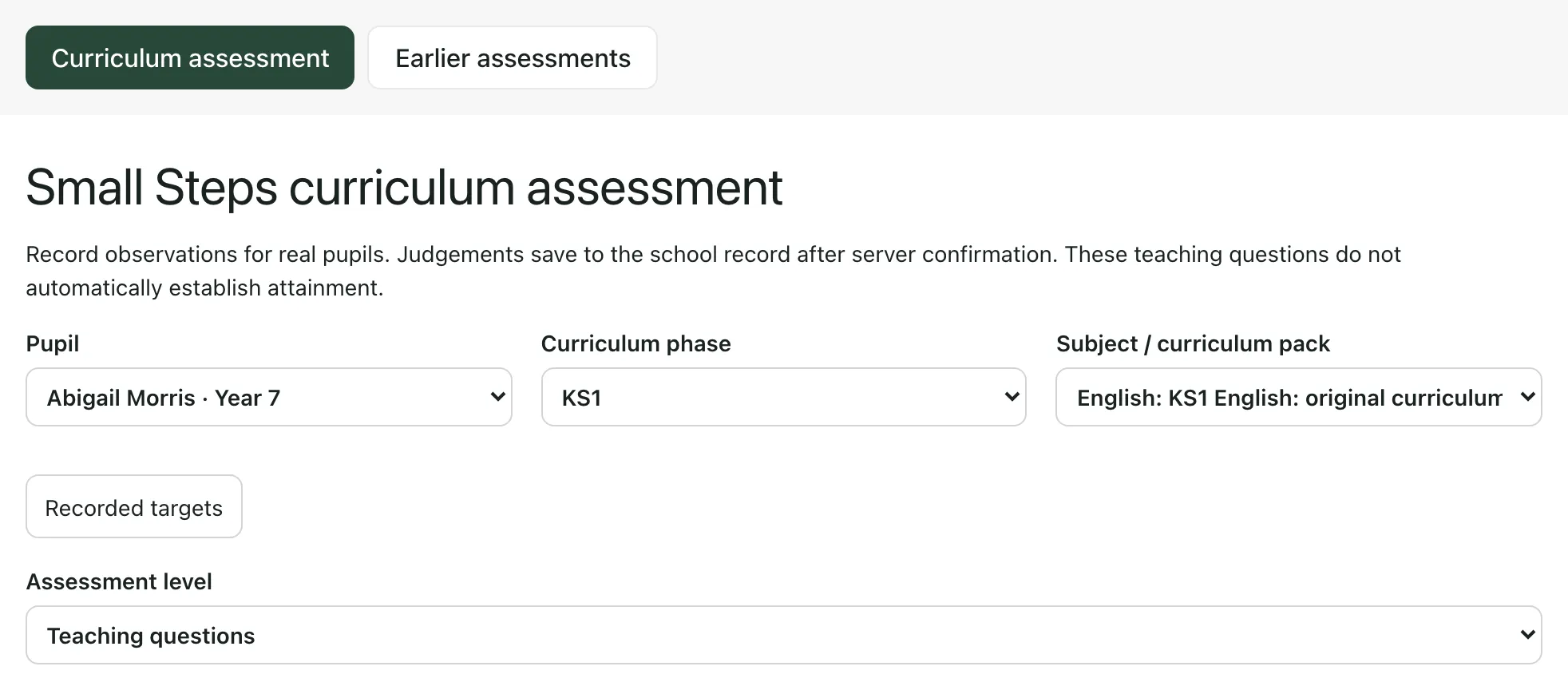
- Under Pupil, choose the pupil. The list shows pupils recorded as having SEN support, an EHCP or another SEN status.
- Under Curriculum phase, choose the phase to assess against, from EYFS to KS5. This doesn’t have to match the pupil’s year group: choose the phase that fits what they’re working on.
- Under Subject / curriculum pack, choose the subject.
- Under Assessment level, choose Teaching questions, or Teaching questions with smaller steps to break some questions into finer steps.
To find a question, type in Search teaching questions, or choose a strand under Focus strand. Click Curriculum sources and coverage to see where the pack’s questions come from and what it covers.
Record a judgement
Section titled “Record a judgement”Each row is a teaching question, with a short description of what the pupil does to show it.
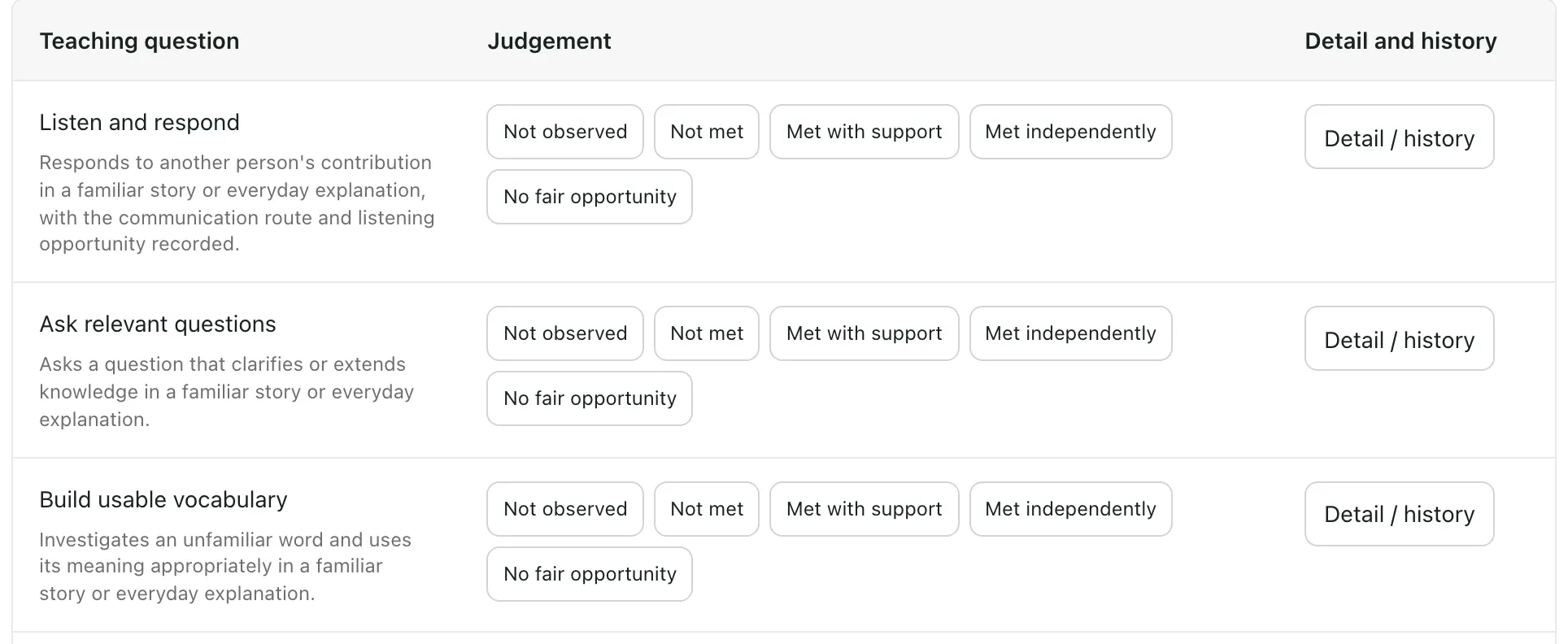
- Find the question you’ve observed.
- Click the judgement that fits what you saw: Not observed, Not met, Met with support, Met independently or No fair opportunity.
The judgement is saved as soon as you click it. The button stays highlighted, and a line under the buttons shows the judgement, who recorded it and when. To change it, click a different judgement. Each change is kept in the question’s history.
A judgement records what you observed for that question. It doesn’t on its own establish the pupil’s attainment, so use it alongside your other assessment and what you know of the pupil.
When you choose Teaching questions with smaller steps, the finer steps are labelled Smaller step. A smaller step has its own judgement. Recording it doesn’t record the teaching question it belongs to.
Add detail to a judgement
Section titled “Add detail to a judgement”Click Detail / history on the question’s row. The box shows what the question looks for and a suggested activity.
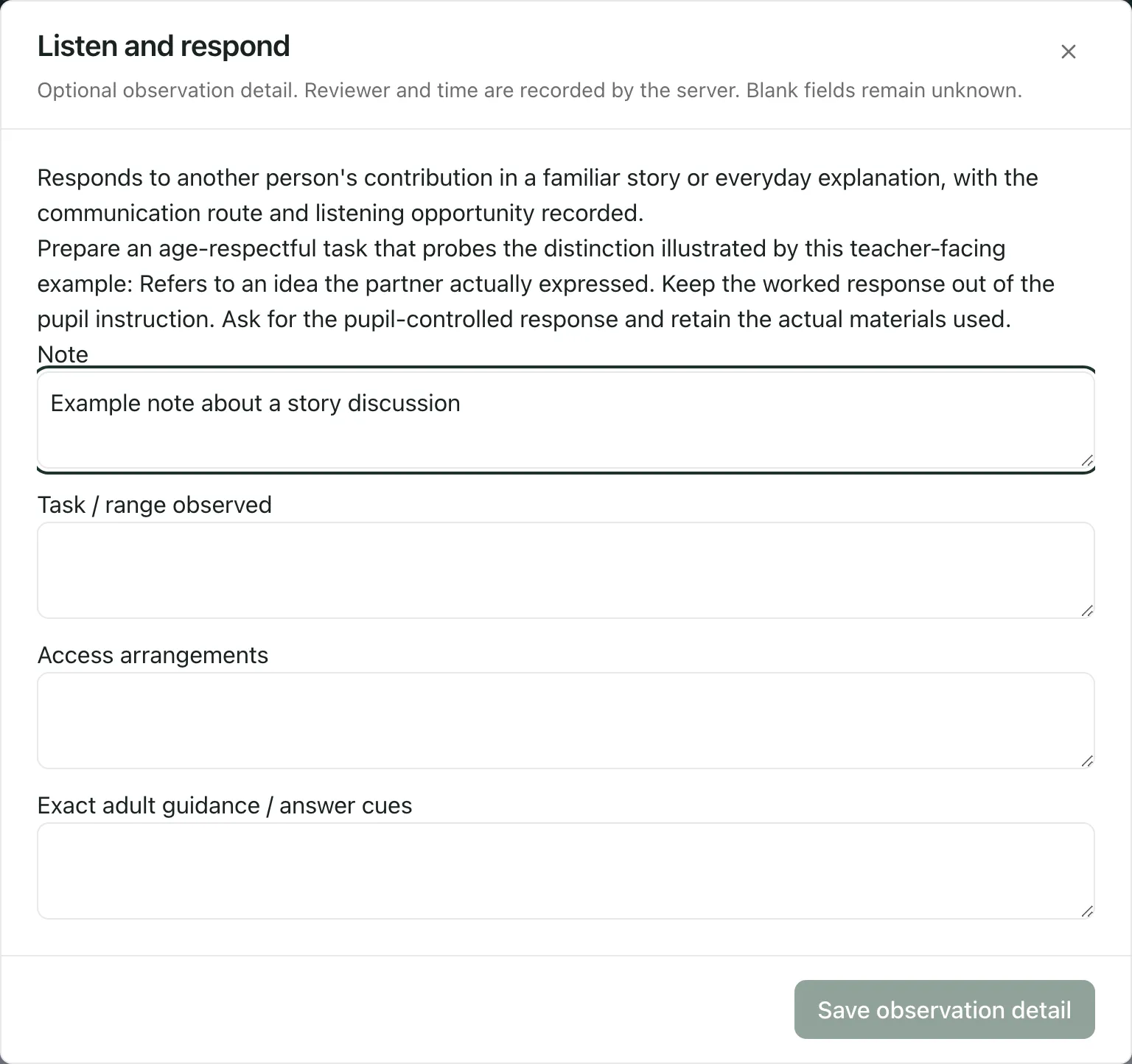
- Fill in any of these. Anything you leave blank is recorded as unknown.
- Note
- Task / range observed
- Access arrangements
- Exact adult guidance / answer cues: any prompts or cues you gave the pupil.
- Next teaching move
- Finer distinction: for questions with smaller steps, the step the pupil showed.
- Click Save observation detail.
You can save detail once the question has a judgement. If you fill in the detail first, close the box and click the judgement: the detail you typed is saved with it.
If you gave answer cues
Section titled “If you gave answer cues”If you record Met independently for a question where you’ve noted adult guidance or answer cues, Student Radar asks you to decide first. In the detail box, choose either:
- Answer cues helped: record met with support, which records Met with support instead.
- Confirm no answer cues were supplied, which keeps Met independently.
Then click Save observation detail.
See the history
Section titled “See the history”Under Saved history in the detail box, you’ll see every saved judgement for the question, newest first, with who recorded it and when. Click Load earlier history to see older entries.
Find questions you’ve already assessed
Section titled “Find questions you’ve already assessed”Click Recorded targets to list the questions with recorded observations for this pupil, across every curriculum pack. Click Jump to question to open the pack at that question. These are the questions you’ve recorded, not necessarily the pupil’s current targets.
- Who can record Small Steps: teachers, SENCos, senior leaders and headteachers can open the page by default. Teaching assistants and governors can’t. Schools can change who has access.
- Earlier assessments: the Earlier assessments button at the top opens the earlier Small Steps caseload view. It’s still a preview, so its features and wording may change.
- While a judgement saves: you can’t change the pupil, phase or pack until it has finished.
- Older versions of a pack: if a question’s wording has changed since a judgement was saved, the line under the buttons says it was saved against a previous content version.
If something doesn’t work
Section titled “If something doesn’t work”| What you see | What to do |
|---|---|
| “No authorised SEND pupils are available.” | There are no pupils with a recorded SEN status that you can access. Ask your SENCo or your school’s Student Radar administrator to check pupils’ SEN status and your access. |
| “Could not load authorised pupils.” | Click Retry pupils. |
| “Could not load saved judgements. Assessment storage may be unavailable.” | Click Retry judgements. You can’t record judgements until saved ones have loaded. |
| “Resolve the answer cues before recording independence.” | In the detail box, choose whether the answer cues helped, then click Save observation detail. |
| A save error with Retry original save | Click Retry original save. It sends exactly the same judgement again, so nothing is recorded twice. |
| A save error with Reload saved judgements | Someone may have changed the record. Click Reload saved judgements, check the latest judgement, then record yours again. |
| “Could not load history.” | Click Retry history. |