Move a referral through to placement
Written for: Alternative provision referral leads and staff who decide on referrals.
Every referral moves through five steps: Enquiry & triage, Referral assessment, Professional visit, Young person visit and Placement confirmation. At each step you record what happened and choose what happens next, until you either confirm the placement or close the referral. This article walks through each step.
To record a new enquiry first, see Record a new enquiry.
Before you start
Section titled “Before you start”Anyone who can open Referrals can follow a referral. Recording decisions, such as a triage outcome, an assessment decision or a visit outcome, needs a referral leader’s decision rights. Confirming the placement also needs permission to place referrals. When you can’t take a step, the page tells you, for example “A referral leader records the visit outcome.”
See where your referrals are
Section titled “See where your referrals are”In the sidebar, open Referrals and choose Referrals. The card at the top counts your open referrals and splits them across the five steps.
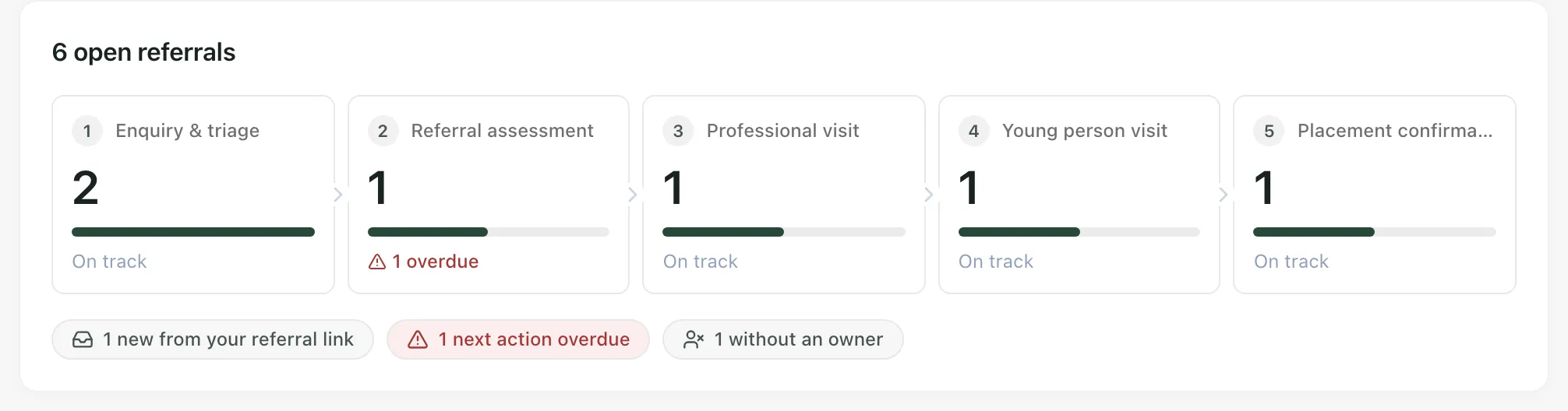
- Click a step to list only the referrals in it. Click Show all to see every open referral again.
- The signals underneath pick out referrals that need attention: new arrivals from your referral link, overdue next actions and referrals without an owner. Click one to list them.
- Use Open, On hold, Placed, Declined, Withdrawn and All to change which referrals are listed, or search with Search name or referrer.
Each row shows the young person, the step the referral is in, its next action and due date, and its owner. Click a row to open the referral.
Start the workflow
Section titled “Start the workflow”A new referral shows its five steps as not started.
- Open the referral and click the Stages tab.
- Under Start the workflow, choose a Workflow template, or leave it on your provision’s default workflow. If your provision has more than one site, choose the Site first.
- Click Start workflow.
The referral moves into Enquiry & triage.
Work on a step
Section titled “Work on a step”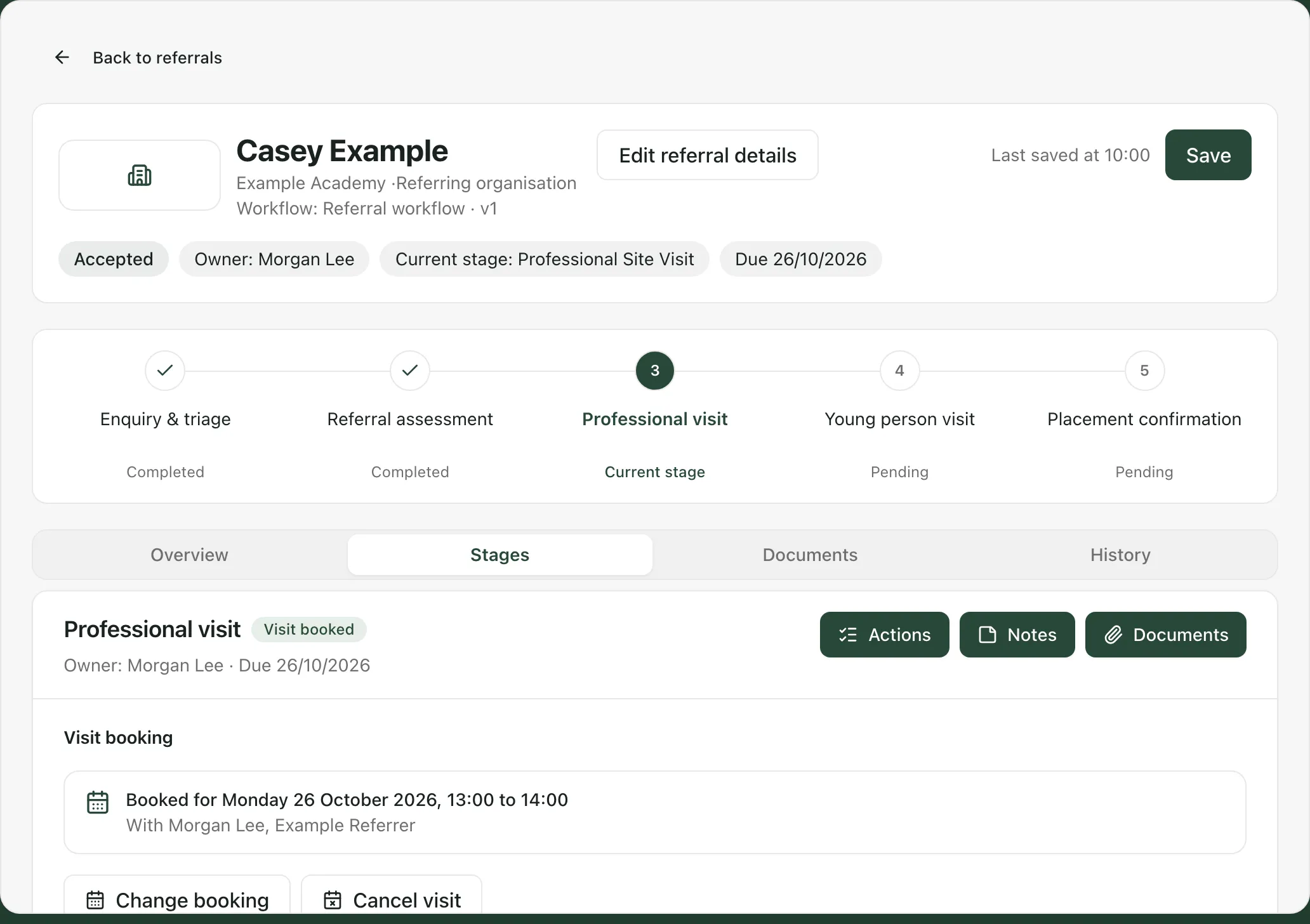
The referral opens on its current step. Across the top are the young person’s name, the referring school, the workflow version, the owner and the due date. Click any of the five steps to look at it, and use the Overview, Stages, Documents and History tabs to see the whole referral.
Each step is a card. At the top of the card:
- Actions lists the step’s owned work. Use New action to give someone a task, which also appears in their My Actions, and Owner & due date to change who owns the step and when it’s due.
- Notes adds a note to the referral record. Notes can’t be edited once recorded.
- Documents holds the step’s documents and forms. Use Upload document to add a file, or Attach form to add one of your custom forms.
At the foot of the card are the choices for what happens next. If you change answers or details on the page, click Save at the top.
Step 1: Enquiry & triage
Section titled “Step 1: Enquiry & triage”Check the enquiry details and fill in any Additional information, such as the referral context. Then choose a Triage outcome:
- Decline: close the referral and record why.
- Request more information: record what’s still needed. If secure request emails are set up for your provision, this emails the referrer a link to respond. Otherwise it records the request only.
- Proceed to assessment: complete triage and move on.
Each choice opens a short form for your note, such as the call record or the reason for declining. Under Triage call details (optional) you can add the Call date and the People on the call. Notes are kept on the referral record and aren’t sent to the referrer.
Step 2: Referral assessment
Section titled “Step 2: Referral assessment”What the assessment needs lists the evidence and answers the assessment needs, and which are still missing. Fill in the Assessment answers, such as needs and support, and known risks. Then choose an Assessment outcome:
- Decline referral: close the referral and record why.
- Request more information: ask the referrer for what’s still needed.
- Issue proposal: offer a placement.
To issue a proposal:
- Click Issue proposal.
- Set the placement terms: the agreed hours, the sessions, the staffing ratio and the start date.
- Tick I have reviewed suitability.
- Click Issue reviewed proposal.
If secure emails are set up for your provision, click Email the proposal to send it to the referrer, who answers through a secure link. When they’ve accepted, click Confirm acceptance (or Review and record acceptance if their answer came another way), check the Person accepting the offer and Acceptance date, and click Record acceptance.
Issue proposal stays greyed out until the required evidence is in place. Its caption names what’s missing.
Step 3: Professional visit
Section titled “Step 3: Professional visit”- Under Visit booking, enter the Visit date and start time and Visit end time, and add the people attending under Who is attending.
- Click Book visit. The visit is added to the referral calendar.
- Use Email visit details to send the people attending the details with a calendar invite.
To move a visit, click Change booking. To call it off, click Cancel visit.
Once the visit has happened, choose a Visit outcome:
- Decline referral: close the referral and record why.
- Proceed to young person visit: record when the visit happened, who was there and what happened, then click Record outcome and proceed.
A visit is evidence for your review. It doesn’t count as attendance at the placement.
Important: the professional visit outcome relies on the assessment decision that issuing the proposal records. If the referral has no recorded assessment decision (for example, it was assessed before the decision steps were added), the card says so and you can’t record the outcome yet. If the card shows a reopen button, use it to reopen the assessment step, issue the proposal, record its acceptance, then come back to the professional visit. If the card asks you to contact Student Radar support, do that: the assessment step can’t be reopened from the page in your workflow.
Step 4: Young person visit
Section titled “Step 4: Young person visit”This works in the same way as the professional visit. Book the visit, email the details, and once it has happened choose Decline referral or Proceed to placement confirmation.
Step 5: Placement confirmation
Section titled “Step 5: Placement confirmation”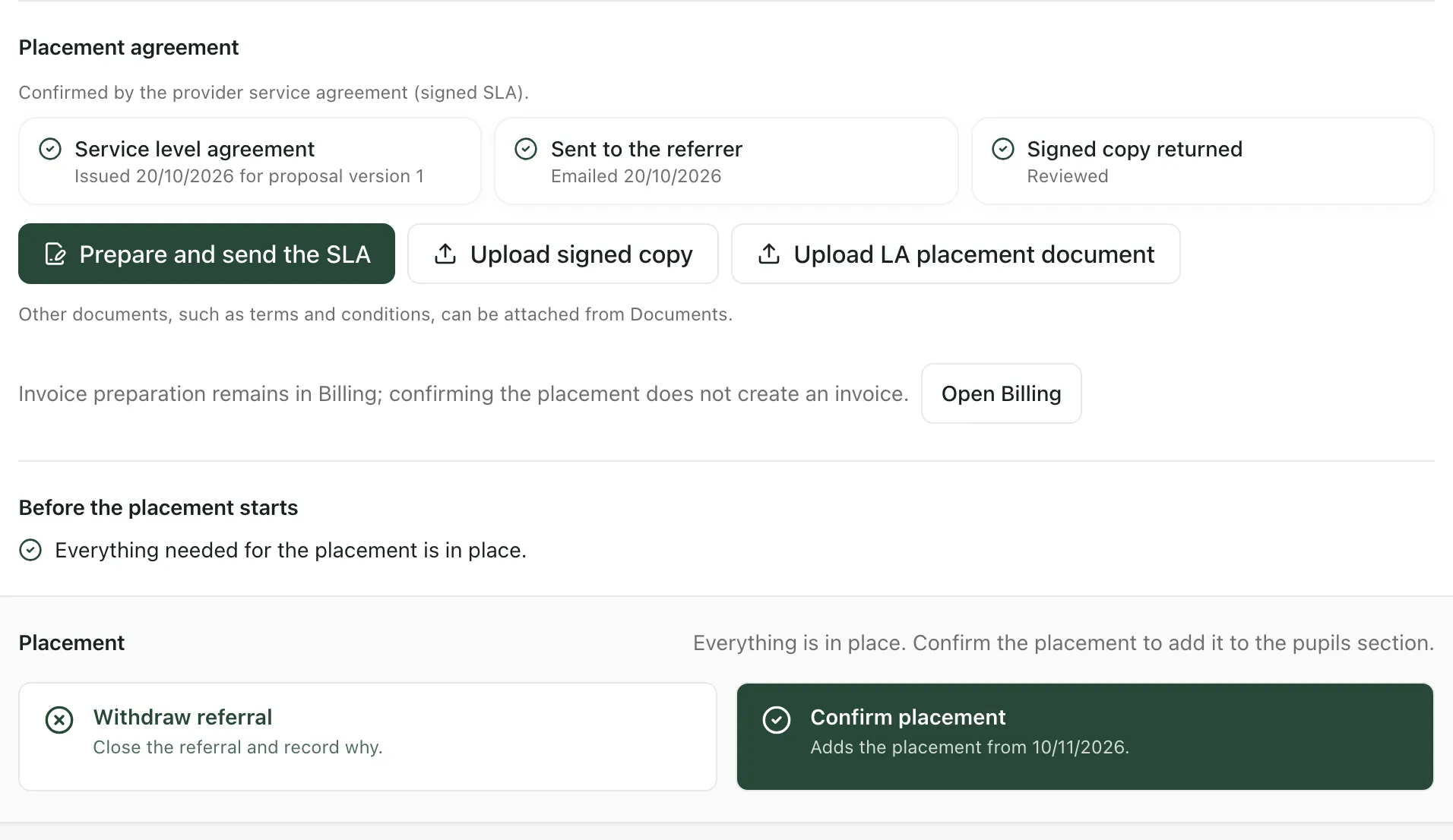
Agreed placement shows the accepted start date, review date, hours a week, staffing and sessions. To change the times, click Amend times. An amendment is accepted again before it applies.
Under Placement agreement, confirm the placement in one of two ways:
- With your SLA: click Prepare and send the SLA to send the referrer your service level agreement. When the signed copy comes back, click Upload signed copy and review it.
- With the local authority’s document: click Upload LA placement document and review it.
Fill in any Placement checks. Before the placement starts lists anything still missing. When it says “Everything needed for the placement is in place.”:
- Click Confirm placement.
- Check the details and click Confirm placement again.
The young person is added to your pupils with this placement, and the referral moves to Placed. To see the pupil, click Open pupil record. Confirming the placement doesn’t create an invoice: set a rate and raise invoices in Billing. See Set placement rates and raise invoices.
Complete, waive or reopen a step
Section titled “Complete, waive or reopen a step”Some steps don’t need a decision. Click Mark section complete (or Mark section complete and continue at the foot of the card) when the step is done. If a step doesn’t apply, a referral leader can waive it with a reason of at least five characters and Confirm waive.
To go back to an earlier step, click Reopen section, give a reason of at least five characters, and click Confirm reopen. Reopened work needs fresh review before placement.
Decline or withdraw a referral
Section titled “Decline or withdraw a referral”You can decline a referral at triage, at assessment or after a visit, and withdraw it at Placement confirmation. Each asks for a reason. The referral closes, but its record and history are kept. Find closed referrals with the Declined and Withdrawn filters.
- Your judgement: the checklists show what’s recorded and what’s missing. They don’t decide whether a placement is right.
- Your own workflow: if your provision has customised its workflow, your steps may have their own names, forms and requirements. See Customise your referral workflow and forms.
- Wording: your setting profile decides some words, such as what you call the schools that place pupils with you. “Commissioning school” is the default.
If something doesn’t work
Section titled “If something doesn’t work”| What you see | What to do |
|---|---|
| “The visit outcome cannot be recorded yet because this referral has no recorded assessment decision.” | Follow the instructions on the card: reopen the assessment step, issue the proposal and record its acceptance, then return. If the card says to, contact Student Radar support. |
| “A referral leader records the visit outcome.” | Your account can’t record decisions. Ask a referral leader. |
| “Needs an accepted proposal.” | Confirm placement needs an accepted proposal. Record the referrer’s acceptance in Referral assessment first. |
| “Readiness checks must pass before placement.” | Complete everything listed under Before the placement starts. |
| “You do not have permission to confirm placement.” | Ask a colleague who can place referrals. |
| “Required evidence or answers are missing for this stage. Save the answers and review the outstanding documents before completing it.” | Fill in the missing answers, click Save, and review any outstanding documents. |
| “Complete the prerequisite stages before completing this stage.” | Finish the earlier steps first. |
| “This referral changed while you were working. Your draft is retained. Load the latest version on this page before saving again.” | Someone else changed the referral. Click Load latest record, check your changes and save again. |
| “A submitted decision is unconfirmed. Retry it with its original details; check referral history before making another decision.” | Click Retry submitted decision. It retries the same decision, so it won’t be recorded twice. |
| “Referral access could not be confirmed.” | Student Radar couldn’t confirm that you can open this referral. Refresh the page, or ask your administrator to check your access. |