Prepare an EHC needs assessment request
Written for: SENCos and inclusion leads.
Use the EHCNA workspace to prepare a school-led request for an education, health and care (EHC) needs assessment. It brings together the school records you can access, the family’s and child’s views and your evidence files, then helps you draft the request letter. You record each milestone, such as submission and the local authority’s response, after it happens.
Creating a request in Student Radar doesn’t send it to the local authority. Use your LA’s current request form and process, and check its requirements and deadlines. Student Radar doesn’t decide whether a request meets the threshold for assessment: that’s a professional judgement for you and the LA.
Start a request
Section titled “Start a request”- In the sidebar, open Inclusion, then SEND, then Reviews & Documents, and choose EHCNA.
- Make sure School-led requests is selected.
- Under Child, click Select a pupil and choose the pupil. You can search by name, year or class.
- Check the Request preparation date: the date you started preparing the request. It’s separate from the date you submit it and the date the LA receives it.
- Add an Optional note if it helps colleagues.
- Click Create new request.
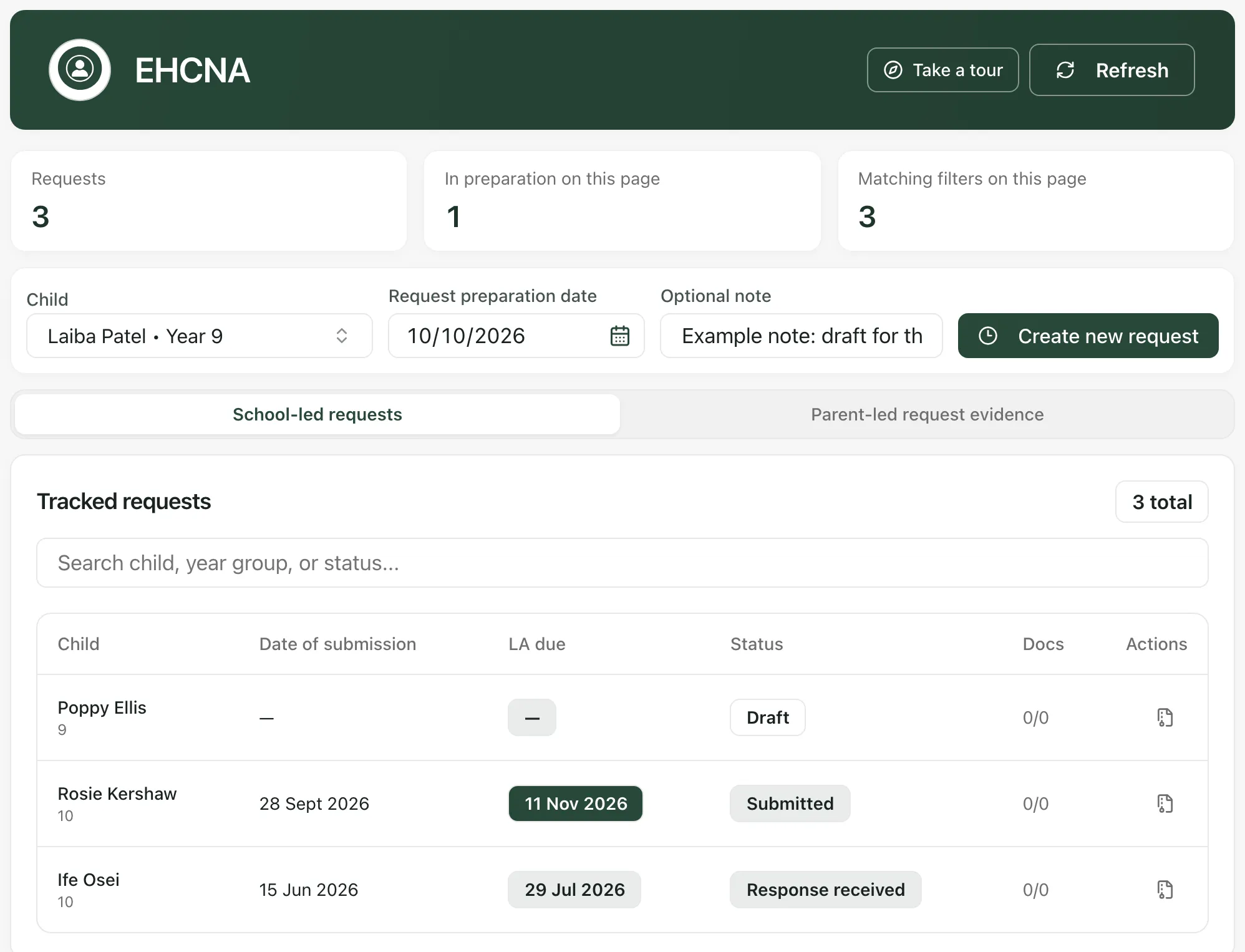
You’ll see “EHCNA request created” and the request opens.
Tracked requests lists the requests you can access, with the Date of submission, the LA due date, the Status and how many linked documents have been read (Docs). The status moves from Draft to Letter ready, Submitted, Response received and Closed. Dates stay blank until you record the milestone they depend on. Click a request to open it.
Review the evidence
Section titled “Review the evidence”The request opens with its dates and progress across the top: Date of submission, LA response due, Plan decision due and Evidence extracted.
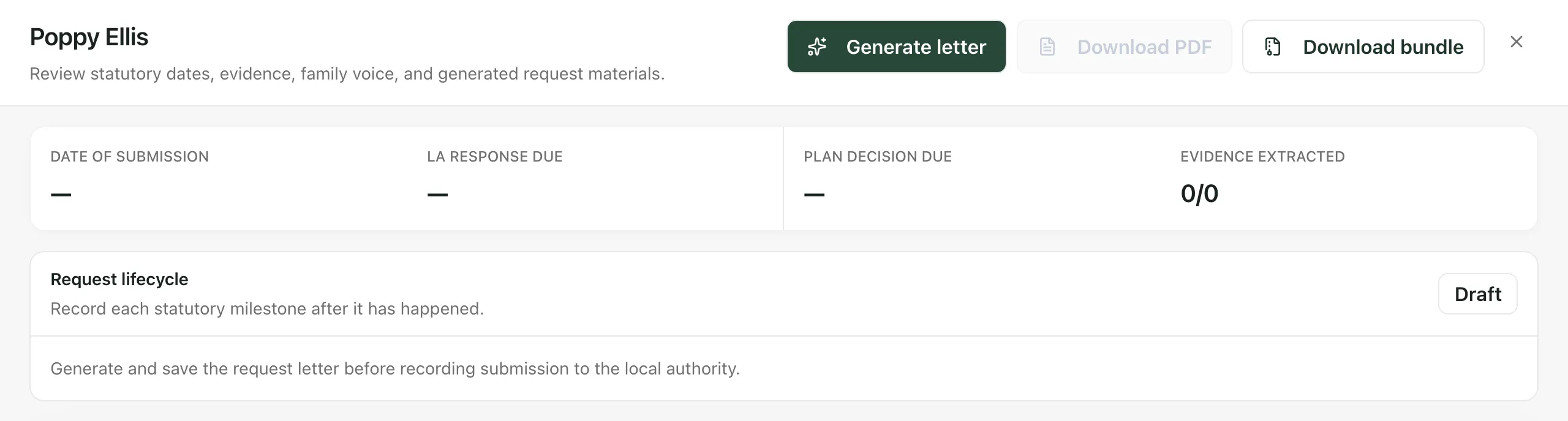
Scroll down to see:
- Attendance, Behaviour, Attainment, Provision map and Reviews & notes: summaries of the school records you can access. Some say what can’t be worked out automatically, such as progress across different assessment scales. Treat them as starting points and check them against the records.
- Local authority: a suggested authority, based on the postcode of a contact recorded as living with the child. Confirm the responsible authority, enter it under Confirmed authority for this request and click Confirm authority.
- Evidence checklist — England: what’s recorded for each item the request and the later assessment usually need, split into Preparing the assessment request and After the LA agrees to assess. A recorded item isn’t proof that the advice is sufficient, and a missing item doesn’t stop you making a request. Compare the checklist with your LA’s current form.
Add evidence files
Section titled “Add evidence files”- Under Evidence files, choose the checklist item the file supports.
- Click Upload evidence and choose the file. It can be a PDF, Word (.docx), text, CSV, Markdown or image file of up to 25MB. Uploads also appear in the pupil’s Resources.
- Click Read unread evidence (up to 5 files) so Student Radar can read the text. Repeat until every file has been read.
Every linked file must be read before you can generate the letter. Check the extracted text against the original documents. To say which checklist item a linked file supports, open Match existing files to checklist items. A file name alone doesn’t show what a document covers, so read each one before you choose.
Add the family’s and child’s views
Section titled “Add the family’s and child’s views”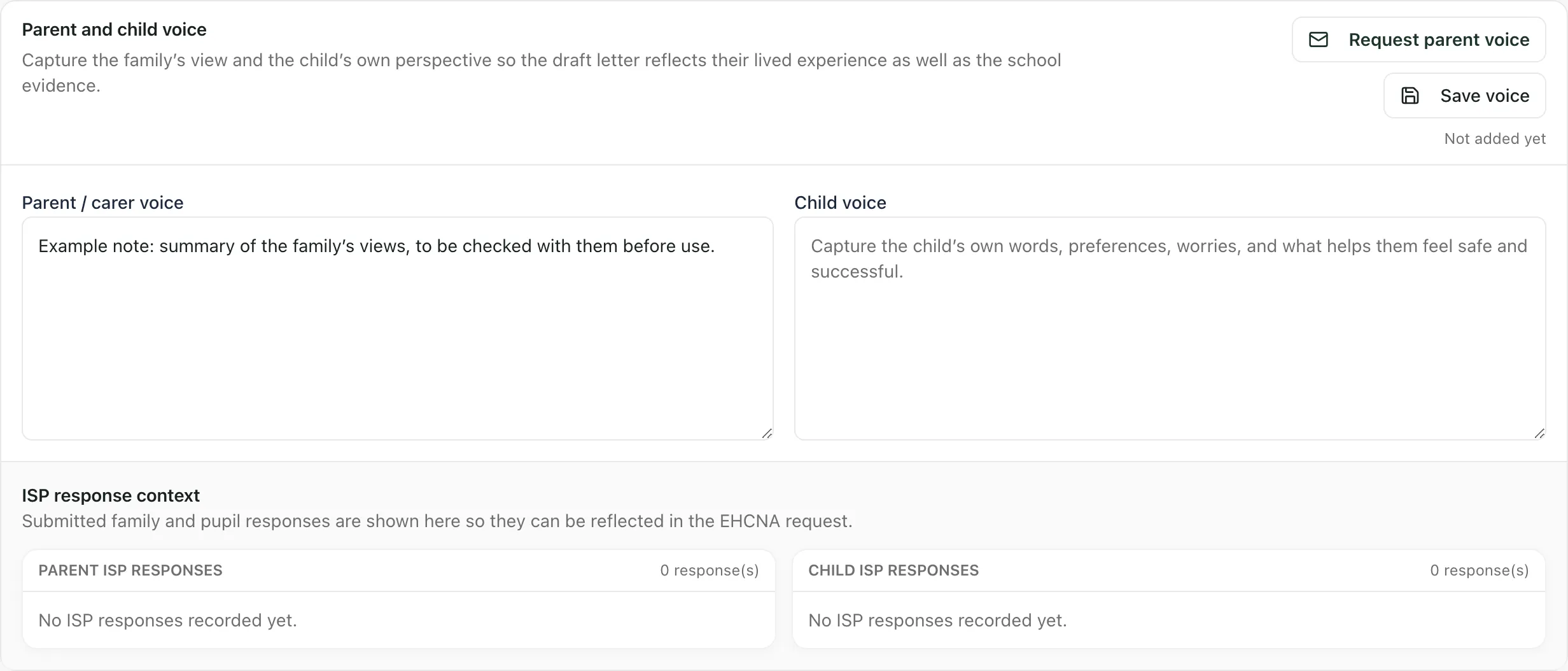
- Under Parent and child voice, write a summary of the family’s views in Parent / carer voice, and the child’s own words in Child voice.
- Click Save voice.
To ask parents for their views directly, click Request parent voice. In Request parent/carer voice, choose from the Stored emails or type addresses under Manual email addresses, then click Send request. You can send to up to six people at once. Under Open requests, click Check delivery to see whether an email arrived, or Cancel request to withdraw it.
ISP response context shows any responses the family and pupil have already given to the pupil’s ISP, so you can reflect them in the request.
Draft the request letter
Section titled “Draft the request letter”- Save any changes to the views first.
- Click Generate letter at the top of the request. Student Radar drafts a letter from the available evidence and the saved family views.
- Read the draft under Generated letter. Click Edit to change it, and use Heading, Bold, Italic, Bullets and Numbered to format it.
- Click Save letter.
The letter is drafted with AI. Check every statement against its source, correct anything that’s wrong and fill any gaps before you use it. Once the letter is saved, the request’s status changes to Letter ready.
- Download PDF saves the letter as a PDF.
- Download bundle saves a ZIP file with an editable Word copy of the letter and the evidence behind it.
Downloading doesn’t submit anything to the LA.
Record what happens next
Section titled “Record what happens next”Record each milestone in Request lifecycle after it has happened.
- Submitted: when you’ve sent the request, enter the Date submitted to the LA and click Mark submitted. You can’t change the letter after this.
- LA receipt: when the LA confirms it received the request, enter the Date the LA received the assessment request and click Record LA receipt. Student Radar uses this date to work out the LA deadline dates. Check any exceptions with your LA.
- LA response: enter the LA response date and the LA decision or outcome, then click Record LA response.
- Closed: enter the Date closed and click Close request.
To remove a request you no longer need from the workspace, click its archive button in Tracked requests, then Archive request. Its evidence and history are kept.
When a parent has made the request
Section titled “When a parent has made the request”If a parent or young person has asked the LA for an assessment and the LA asks your school for information, open Parent-led request evidence. Choose the child and click Create one-click PDF bundle to download the school’s evidence as one PDF. It’s a working response for you to review: it doesn’t submit anything or make the LA’s decision.
- England only: the EHCNA workspace is only available to schools in England.
- Take the built-in tour: click Take a tour at the top of the page.
- Permissions: many staff can open the EHCNA workspace, but what you can change depends on the permissions your school has given you.
If something doesn’t work
Section titled “If something doesn’t work”| What you see | What to do |
|---|---|
| “Select the child before creating an EHCNA request.” | Choose the pupil under Child, then click Create new request again. |
| Generate letter is greyed out | One or more evidence files haven’t been read. Click Read unread evidence (up to 5 files) until they’re all read. |
| “Save parent/child voice and letter edits before generating a new draft.” | Click Save voice or Save letter, then generate again. |
| “You have unsaved edits. Save them before generating or closing.” | Save your changes, or click Discard unsaved edits. |
| “Use PDF, DOCX, text, CSV, Markdown, PNG, JPEG or WebP.” | Save the file in one of these formats and upload it again. |
| “Evidence files must be 25MB or smaller.” | Reduce the file size, for example by splitting a large scan, and upload it again. |
| “Stored parent/carer contacts could not be loaded. Retry contact loading before choosing recipients.” | In Request parent/carer voice, click Retry stored contacts. |
| “Address lookup is unavailable. Confirm the authority with the family or LA.” | Enter the responsible authority yourself under Confirmed authority for this request. |
| “Unable to load EHCNA requests” | Click Try again. |
| “This request could not be loaded” | Click Retry loading request. Nothing has been changed. |