Schedule and run a TAC or TAF meeting
Written for: Staff who organise Team Around the Child or Team Around the Family meetings.
A Team Around the Child (TAC) or Team Around the Family (TAF) meeting brings school, the family and other agencies together to agree how to support a child. TAC/TAF Scheduling lets you plan the meeting, run it live against the agenda, capture actions with owners, and keep the record afterwards.
Student Radar holds the plan and the record. The decisions are made by the people in the meeting. Follow your school’s early help and safeguarding procedures, and your local arrangements for TAC and TAF meetings. If anything said in a meeting worries you about a child’s safety, follow your school’s safeguarding procedure and click Raise concern.
Open TAC/TAF Scheduling
Section titled “Open TAC/TAF Scheduling”In the sidebar, open Safeguard, then Multi-Agency Working, and choose TAC/TAF Scheduling.
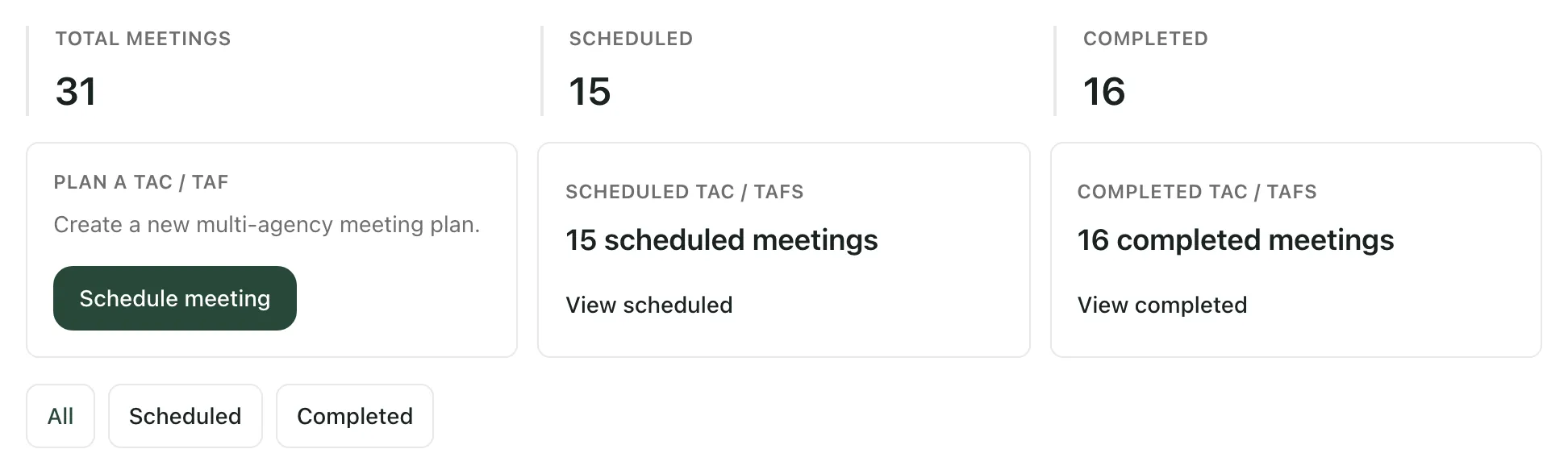
Across the top you see how many meetings there are in total, how many are scheduled and how many are completed. Click View scheduled or View completed, or use the All, Scheduled and Completed buttons, to filter the list of meetings below.
Each meeting in the list shows the child, the meeting and its type, the Date & time, the Venue, the planned Length and the Status. The DSL, deputies, the headteacher and administrators also see a Multi-agency plans card on this page, listing the school’s open plans.
Plan the meeting
Section titled “Plan the meeting”-
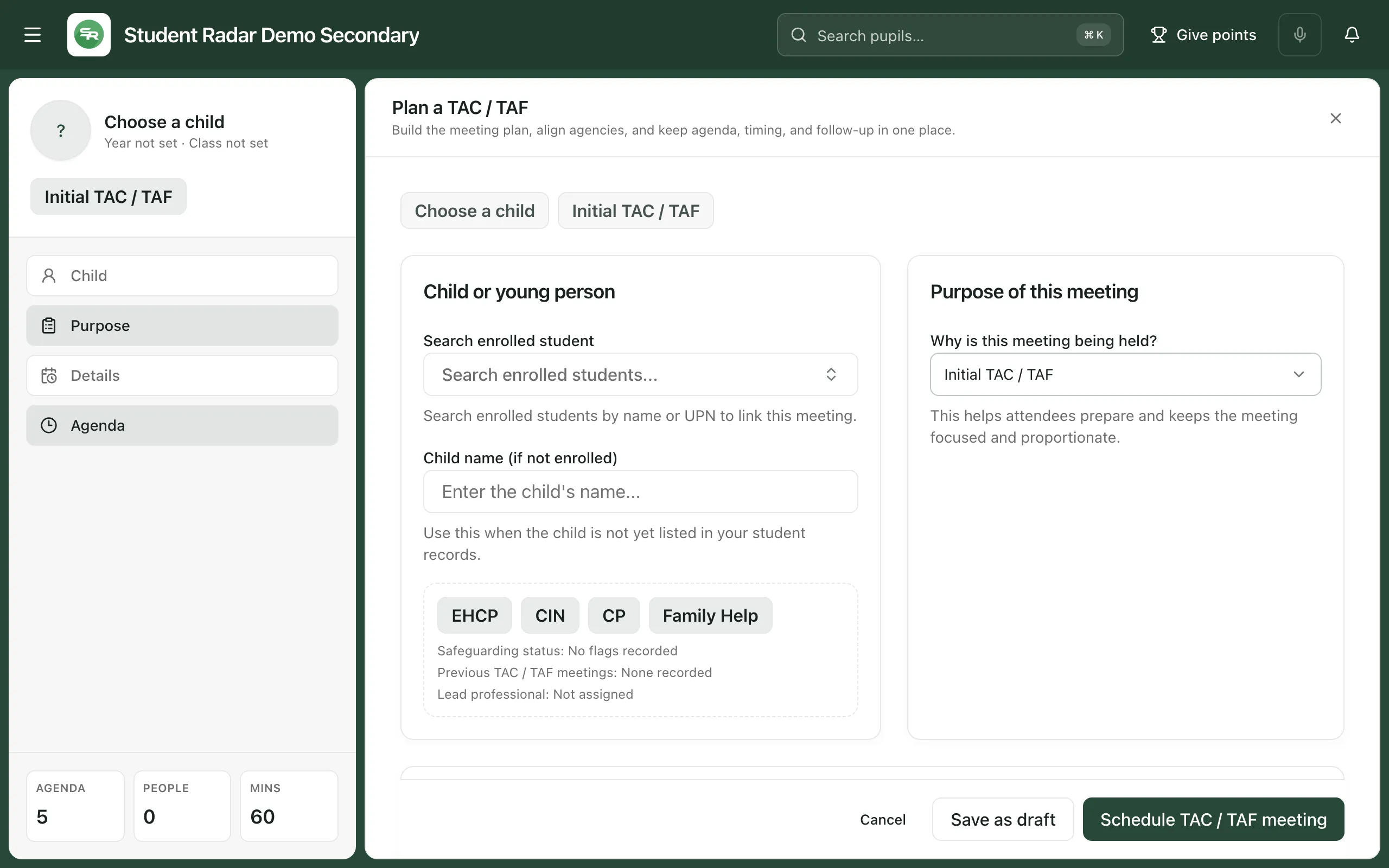
Click Schedule meeting. Plan a TAC / TAF opens.
-
Under Child or young person, use Search enrolled student to find the child by name or UPN. If the child isn’t on your roll yet, type their name in Child name (if not enrolled) instead.
-
Under Why is this meeting being held?, choose the purpose: Initial TAC / TAF, Review of existing plan, Escalation of concerns, De-escalation or step-down or Other.
-
Under Choose a meeting structure, pick the template that fits. Each one fills in a suggested agenda and length, which you can change.
-
Under Meeting details, enter the Meeting title, the Date and time, the Planned duration (minutes), How will this meeting take place? and the Venue or meeting link. Tick Create calendar event to add the meeting to the shared calendar when it’s scheduled.
-
Under Agencies and professionals, add the people who should attend:
- Internal staff: search for colleagues by name or role.
- External professionals: enter their name, email and organisation, then click Add external professional.
-
Under Meeting agenda and focus, adjust the agenda. Change each item’s title, Suggested duration (minutes) and Lead or focus prompts, reorder items, or click Add agenda item. Click Preview to see the agenda as attendees will.
-
Click Schedule TAC / TAF meeting. If you don’t have a date yet, click Save as draft and schedule it later.
When the meeting is saved, you see “Meeting scheduled” or “Draft saved”, and it appears in the list.
Run the meeting
Section titled “Run the meeting”Click the meeting in the list, or click Open runner. The runner shows the scheduled time, an Overall timer, the current agenda item and how many participants are present.
- Click Start timer when the meeting begins.
- On the Participants tab, under Attendance and roles, switch on each person who is attending. Add anyone who wasn’t invited under Add participant, and tick whether they’re the Chair, Note taker or Timekeeper.
- On the Live cockpit tab, work through the agenda:
- Click Start section to time the current item.
- Type notes, decisions, and the child’s and family’s views into the box under the item.
- Click Next section to move on, or Previous section to go back.
- Record actions as they’re agreed. Use Quick action on the Live cockpit tab, or the Actions and parking lot tab, to add the Action, its Owner and the expected Outcome, then click Add action.
- Park topics for later under Add parking lot item, then click Add parking item.
- Use Live notes for anything that doesn’t belong to one agenda item. They save as you type.
- When you finish the last item, click Mark section complete. Student Radar marks the meeting as completed. You can also change the status with the status menu at the top of the runner.
Recording the meeting
Section titled “Recording the meeting”Only record a meeting if your school’s policy allows it and everyone present has agreed. Under Attendance and consent, record each person’s consent. Start live recording works only when everyone marked present has consent recorded, or when you’ve written an exception note explaining who is excluded and why.
Review the meeting and write the minutes
Section titled “Review the meeting and write the minutes”Completed meetings open on the Meeting summary. You can also click Summary on any meeting.
- Overview: the meeting details and an agenda recap.
- Minutes: write the minutes and click Save minutes. Click Download PDF to save a copy to share through your school’s usual secure route.
- Actions and parking: the Action plan and Parking lot from the meeting.
- Risk and next meeting: write the Risk summary and Contingency plan, then click Save risk plan. Under Next meeting, enter the date and Follow-up notes, then click Save follow-up.
If the child has a multi-agency plan, their meetings also appear on the plan’s Meetings tab, where a safeguarding lead can click Log meeting outcome to add the outcome to the plan.
Take the built-in tour
Section titled “Take the built-in tour”Click Take a tour at the top of the page. It walks you through the counts, the planner, the filters and the list of meetings.
If something doesn’t work
Section titled “If something doesn’t work”| What you see | What to do |
|---|---|
| “Could not load TAC meetings. Check your connection or try again later.” | Refresh the page. If it keeps happening, wait a minute and try again. |
| “Select a student or provide the child’s name” | Choose the child under Search enrolled student, or type their name in Child name (if not enrolled). |
| “Give this meeting a title” | Enter a Meeting title. |
| “Unable to save meeting” | Check the meeting list before trying again, in case it was saved. |
| “Agenda exceeds planned meeting length.” | Shorten some agenda items, or increase the Planned duration (minutes). |
| “Calendar event skipped” | The meeting has no date and time, so it wasn’t added to the calendar. Add a date and time when you schedule it. |
| “Consent required” | Record consent for everyone present under Attendance and consent, or add an exception note, before you start recording. |
| “Automated minutes are temporarily unavailable. You can write and save minutes manually.” | Type the minutes yourself and click Save minutes. |