Resolve unexplained absences
Written for: Teachers, year leads and attendance staff.
When a pupil is absent and nobody yet knows why, the register records an N mark: no reason yet provided. Unresolved Absences lists every N mark for the pupils you can access, so you can follow them up and replace each one with the right attendance code once the reason is confirmed.
Open the list
Section titled “Open the list”- In the sidebar, click Attendance, then Unresolved Absences.
- Choose the period:
- Today: N marks from today’s registers.
- Historical: N marks from earlier days.
Along the top, Outstanding marks shows how many N marks there are in that period, Pupils how many pupils they belong to, and Oldest mark the date of the oldest one.
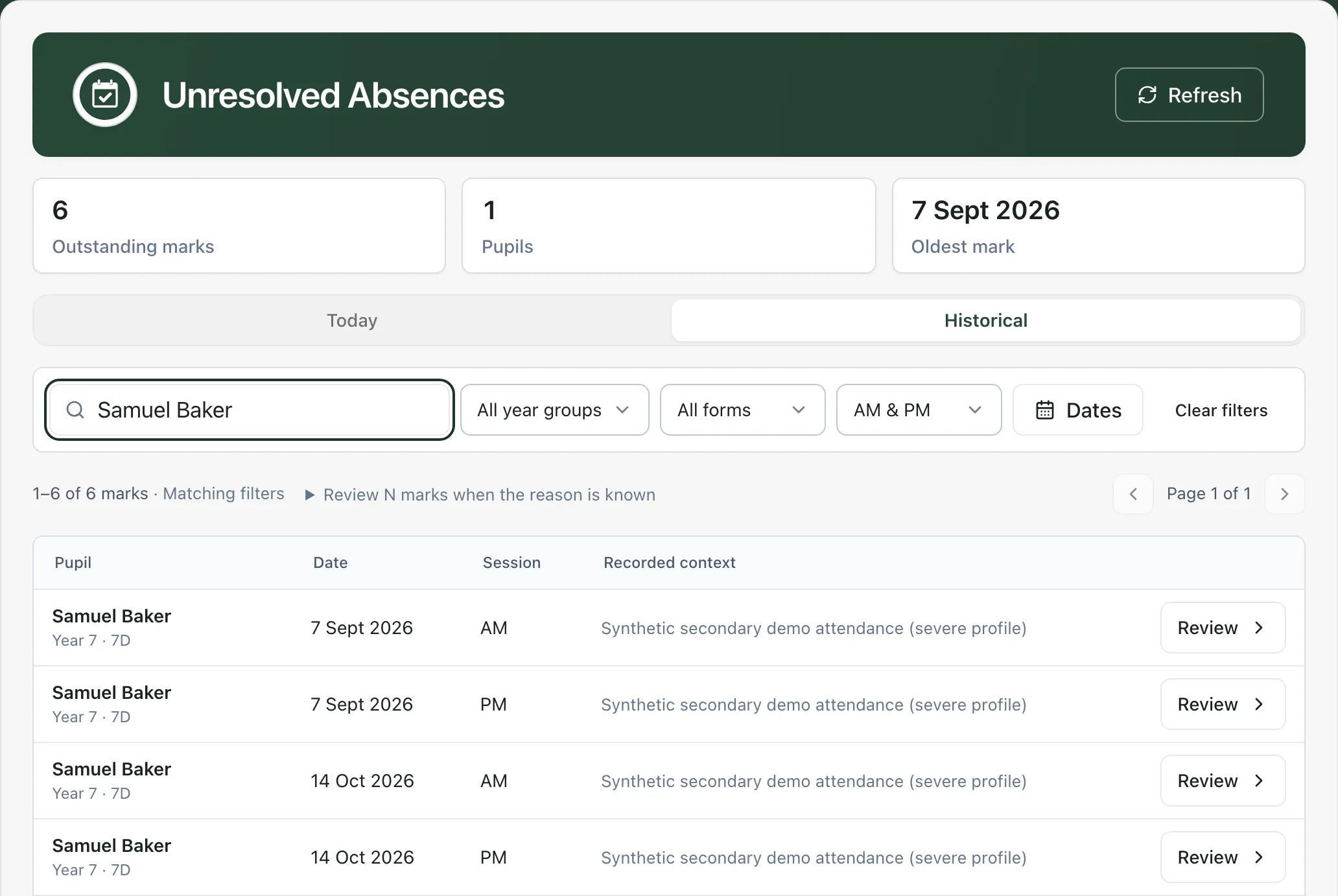
Each row is one session. It shows the pupil and their form, the date, the session (AM or PM) and Recorded context: the comment saved with the mark, or “No comment recorded”. The list shows 25 marks a page, oldest first.
To narrow the list:
- Type in Search pupil… to find one pupil.
- Choose a year group, a form, or AM & PM to pick one session.
- On Historical, click Dates, choose a From and To date, then click Apply dates.
Click Clear filters to see everything again. Click Refresh to load marks added since you opened the page.
Replace an N mark
Section titled “Replace an N mark”Only replace an N mark when you know the reason. Use what the family or pupil has told you, the recorded comment and your school’s attendance policy.
-
Click Review on the row.
-
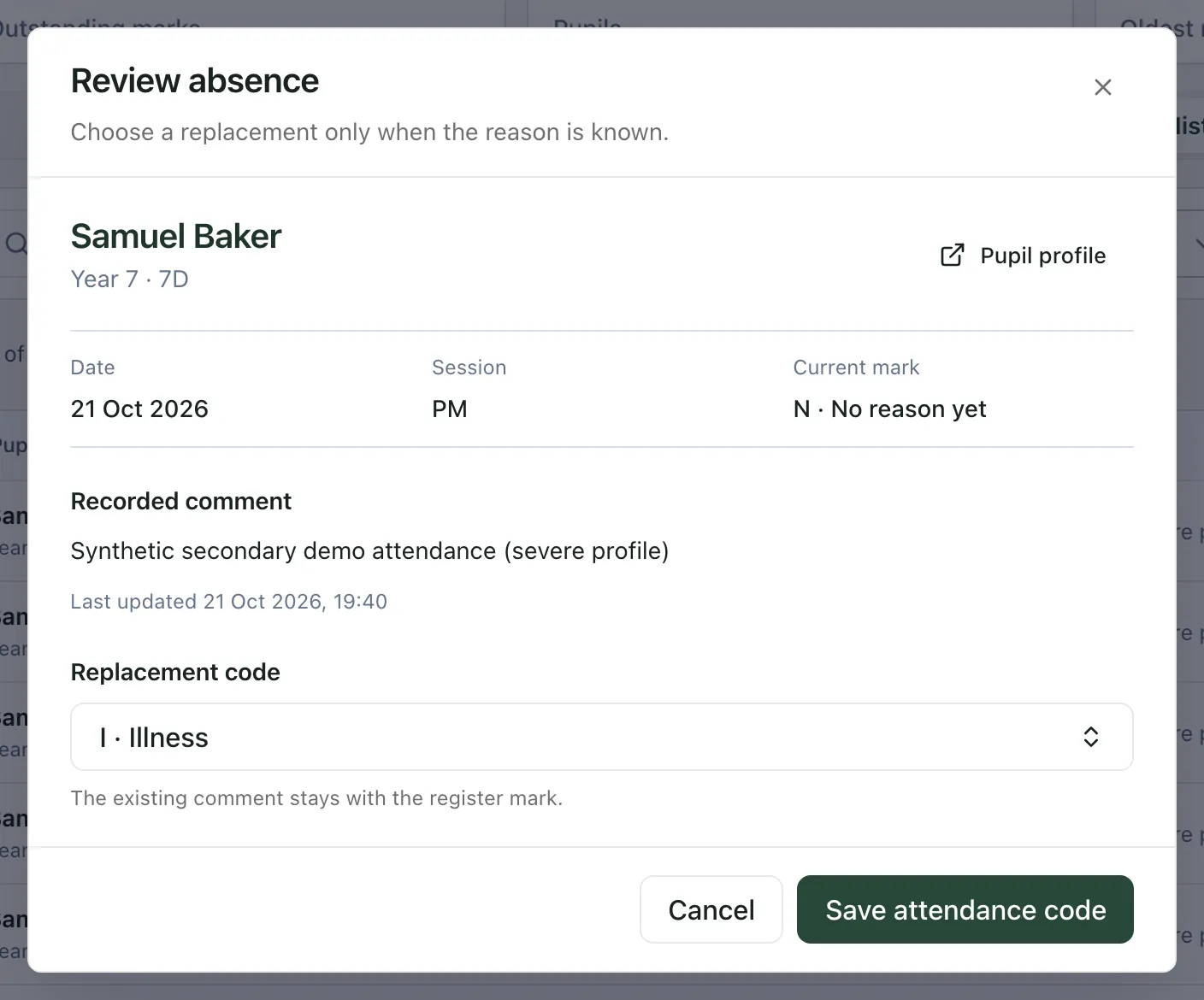
Check the date, session and Recorded comment. To see the pupil’s attendance history, click Pupil profile.
-
Under Replacement code, click Choose a code. Type a code or reason to search the list, for example illness, then choose the code.
-
Click Save attendance code.
Student Radar replaces the N mark in the register with the code you chose, and a message confirms the pupil, session and new code. The comment saved with the mark stays as it was. The mark leaves the list, and the pupil’s attendance figures update.
The codes are grouped into Authorised absence, Unauthorised absence, Approved activity, Present and Not required. You can’t choose N again, and the present codes offered match the session you’re reviewing.
Tip: Click Review N marks when the reason is known above the list for a short reminder of when to replace a mark.
- Who can use the page: teachers, year leads, SENCos, the safeguarding team, senior leaders and office staff can open it by default. Teaching assistants can’t. You only see marks for pupils you can access.
- View-only marks: some rows show View only or Locked register under the comment. You can open them, but not change them. Registers more than 7 days old are locked. Only colleagues allowed to edit locked registers can change them, so pass these to your attendance office.
- Your school’s codes: the replacement list shows your school’s own active attendance codes, so it may look different from the example. Schools in England use the DfE codes.
- Changing other marks: to change a mark that isn’t N, use the register. See Record a late arrival or change an attendance code.
If something doesn’t work
Section titled “If something doesn’t work”| What you see | What to do |
|---|---|
| “No unresolved absences today” | There are no N marks from today for pupils you can access. Click Historical to check earlier days. |
| “No matching unresolved absences” | Nothing matches your search or filters. Click Clear filters. |
| “You can review this mark, but your account does not have permission to change it.” | Ask your attendance office or school’s Student Radar administrator to replace the mark. |
| “This older register is locked. A colleague with permission to edit locked registers must reconcile it.” | The register is more than 7 days old. Pass the mark and the reason to a colleague who can edit locked registers, such as your attendance office. |
| “This mark changed after you opened it. Refresh the queue and review the current record before saving.” | Someone else changed the mark. Click Refresh queue and check the mark again before you save. |
| “Already reconciled” | A colleague had already replaced this N mark. Nothing more to do. |
| “Attendance codes could not be loaded. The queue is still available.” | Click Retry codes. |
| “Unable to load unresolved absences” | Click Retry queue. If it keeps happening, wait a minute and try again. |
| “Too many requests. Wait a minute, then try again.” | Wait a minute before you refresh or save again. |
| “Your access to this attendance record could not be verified. Ask your school administrator to check your permissions.” | Ask your school’s Student Radar administrator to check your attendance permissions. |